This guide explains how to import EML files to an IMAP account on Mac using a manual approach and the EML to IMAP migration solution for Mac.
EML files are commonly used to store individual email messages along with their important details, such as sender information, recipients, subject, message content, attachments, and other email properties. When these files are saved locally on a Mac, users may need to move them into an IMAP account for centralized email access.
IMAP accounts allow emails to remain synchronized with the mail server, making messages accessible across multiple devices and email applications. However, transferring a large collection of EML files to an IMAP account manually can require considerable effort.
EML and IMAP – A Quick Overview
EML is a file format used to save individual email messages. It can contain the complete message body, attachments, headers, formatting, and other email information.
IMAP (Internet Message Access Protocol) is an email protocol that keeps messages on the mail server and synchronizes them with supported email clients. Unlike locally stored email files, IMAP mailboxes can generally be accessed from different devices after account synchronization.
Why Import EML Files to an IMAP Account?
There can be several reasons for transferring EML emails to an IMAP account –
- To move locally saved emails into an online mailbox.
- To access older EML messages through an IMAP-enabled account.
- To keep email data synchronized across supported devices.
- To consolidate individual EML files into an existing mailbox.
- To preserve important emails and attachments in an online account.
Manual Method to Import EML to IMAP
A basic manual approach is to configure the IMAP account in a compatible email client and then add the EML files to the mailbox.
General Steps
- Open a compatible email application on Mac.
- Configure and sign in to the required IMAP account.
- Locate the saved EML files on the Mac.
- Add or open the EML messages in the email client.
- Move or copy the messages into the required IMAP folder.
- Allow the application to synchronize the messages with the server.
The exact process can vary depending on the email client and IMAP provider.
Limitations of the Manual Method
- Handling hundreds or thousands of EML files can be time-consuming.
- Individual files may need to be processed repeatedly.
- Maintaining folder organization can become difficult.
- Large email collections may require considerable manual effort.
- The process may not be convenient for bulk migration.
Smart EML to IMAP Migration on Mac
For a larger collection of EML files, the Mac EML Converter of MacMister can simplify the migration process. The software is designed to transfer locally stored EML messages into IMAP account without requiring users to manually process every email.
The tool can be useful when users have need to migrate emails in bulk mode and with all data details – mail attributes, attachments, formatting, unread & read status. It also maintain folder structure during the migration of EML files to IMAP account.
How the EML to IMAP tool Works
The software provides a straightforward process for transferring EML data to an IMAP mailbox –
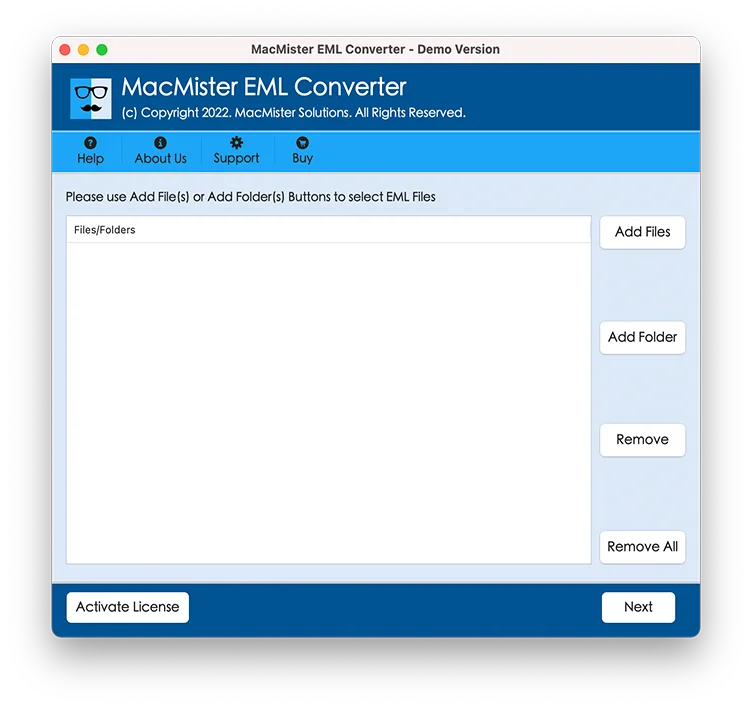
Step 1: Add EML Files or Folders
Launch the EML to IMAP tool on your Mac and add the EML files or complete folders containing the email data.
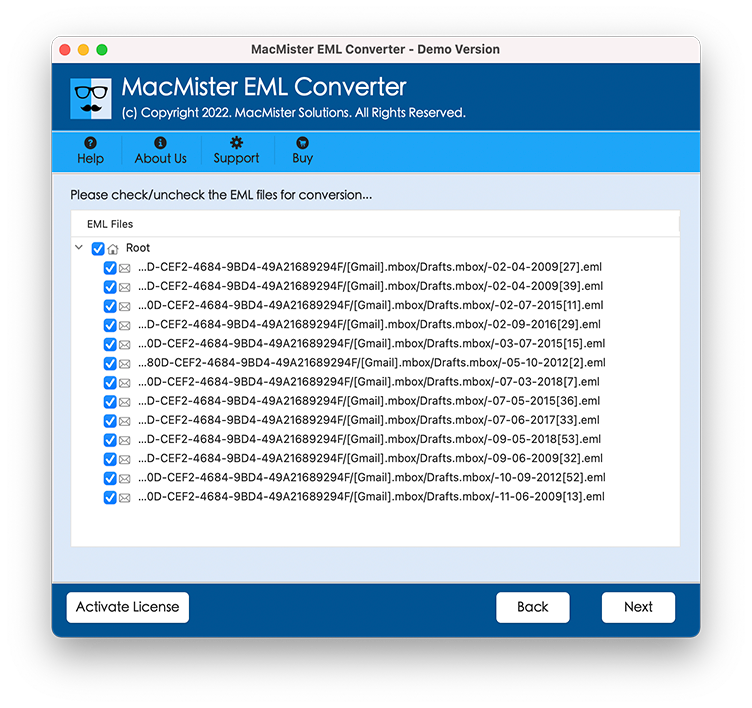
Step 2: Select the Email Data
Review the loaded messages before starting the migration and select the required EML files for migration.
Step 3: Select IMAP as the Destination
Choose the IMAP migration option and enter the required account information, including the destination IMAP email address and authentication details.
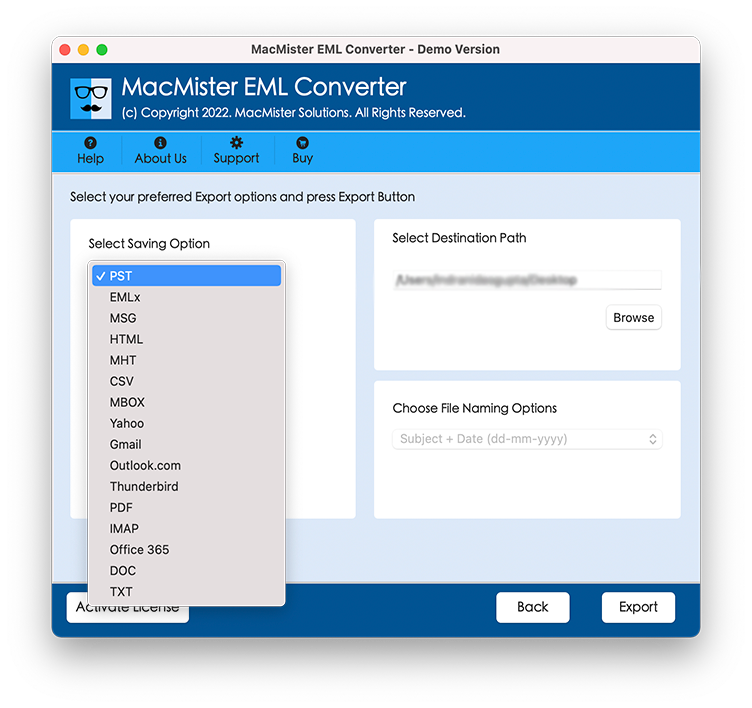
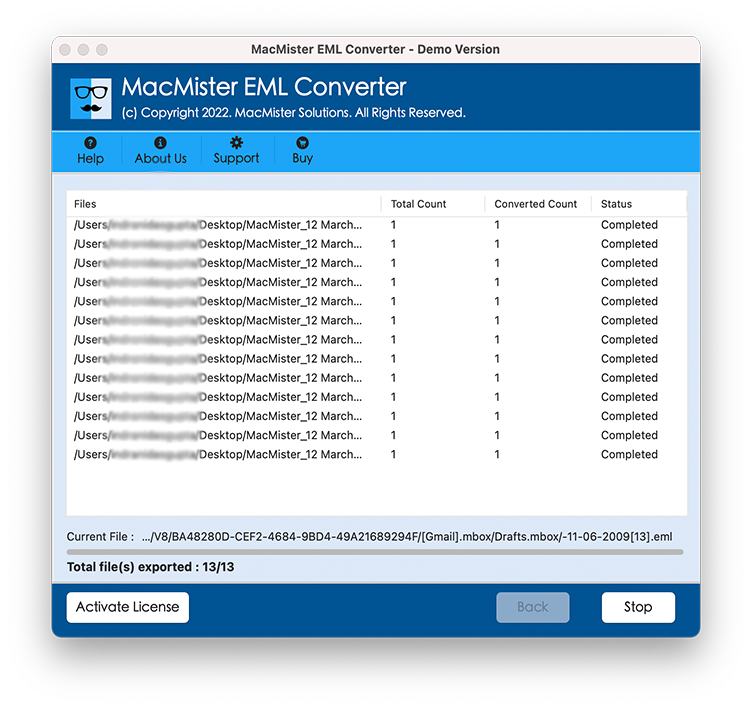
Step 4: Start the Migration
Start the conversion process. The software transfers the selected EML emails to the specified IMAP account.
Why Choose the EML to IMAP Migraion for Mac Tool
- Bulk EML Migration – Add multiple EML files for processing instead of transferring messages individually.
- Folder Selection – Add complete folders containing EML files when email data is organized across directories.
- Direct IMAP Transfer – Move EML emails directly into the selected IMAP account.
- Email Content Preservation – Maintains important email elements such as message body, headers, and other available properties during migration.
- Attachment Support – Transfers emails along with their associated attachments.
- Selective Migration – Allows users to select the required EML data rather than processing every available file.
- Mac Compatibility – Provides an email migration option for users working with EML files on all Mac systems.
FAQs
Q. Can I import EML files into an IMAP account on Mac?
Ans. Yes. EML files can be transferred to an IMAP account for a compatible email client by the EML to IMAP migration tool.
Q. Is there a manual way to transfer EML to IMAP?
Ans. Yes. You can configure the IMAP account in a supported email client and move the EML messages into the required mailbox. The exact steps depend on the application being used.
Q. Can I transfer multiple EML files to IMAP at once?
Ans. Yes. An EML to IMAP tool can process multiple EML files together, which can be more practical for larger email collections.
Q. Does the EML to IMAP tool support attachments?
Ans. Yes. The migration process can transfer EML messages along with their associated attachments.
Q. Can I select specific EML files for migration?
Ans. Yes. You can select the required EML files or folders instead of transferring the complete collection.
Q. Why use an EML to IMAP tool instead of the manual method?
Ans. The main advantage is reduced manual work. Instead of processing individual EML messages repeatedly, users can add multiple files or folders and transfer them to the IMAP account through a single migration workflow.
Conclusion
Importing EML files into an IMAP account on Mac can be performed manually through a compatible email client, but the approach may become inconvenient when dealing with a large number of messages. For bulk email collections, EML to IMAP for Mac tool provides a more organized way to handle the migration.
The EML to IMAP on Mac Tool allows users to add EML files or folders, select an IMAP destination, and transfer the email data through a simplified workflow. It can be useful for users who need to move locally stored EML messages into an online IMAP mailbox while reducing repetitive manual steps.