
When it comes to handling your digital data, flexibility and accessibility come first. Microsoft Outlook for Mac has been a leading email client nowadays and is widely used by business and creative people working under macOS for quite some time now. But once you find yourself needing to back up emails, switching to another email client or sharing individual emails between multi-platform systems, you will face the problem – the proprietary OLM (Outlook for Mac) file format.
While EML is a format supported universally, the OLM format can be used only by Mac Outlook. In case you want your emails to be accessible on different platforms such as Mozilla Thunderbird, Apple Mail, Windows Live Mail and other, you will need to convert Mac Outlook archive to EML format.
In this guide, we will look at why you may need this, what limitations there are in manual solutions and how you can easily solve this problem with MacMister OLM Converter.
Why Convert Mac Outlook Archive to EML?
EML File Format stands for Electronic Mail. It is the file type in which a single email is stored including all the metadata information such as the subject of the email, sender, recipient, attachments, etc. Since this format is open source, it is supported by most email clients.
Conversion of Mac Outlook archive into EML format has its own merits in the following ways:
- Platform compatibility: EML files create the middle path between different platforms such as macOS, Windows, and Linux, and thus, you can access your archive without being concerned about your operating system.
- Specific Archiving: With EML, it is possible for you to arrange your individual emails instead of having one large file that is very hard to manage.
- Flexible Sharing: It enables you to add your individual emails to other emails as attachments for sharing purposes with others using different mail software.
- Disaster Recovery: In case of crash of your email program or damage of your database file, your individual EML files will be safe.
The Challenge of Manual Methods
If only two or three emails need to be converted, macOS Outlook offers a quick fix – it is possible to open an old version of Mac Outlook and simply drag-and-drop one email on the desktop, and the email will be saved as an EML file. Individual emails can also be exported or saved using web-based processes.
However, this approach becomes absolutely futile when you have to convert a complete corporate archive consisting of many years’ worth of emails.
- The Mac Outlook application does not offer any inbuilt Export to EML functionality.
- Drag-and-drop will make the procedure tiring and even cause data loss.
- The manual process will hardly allow you to save your carefully constructed folder structure.
- To save yourself from all this trouble, you need a specialized tool.
How to Convert Mac Outlook Archive to EML using Professional Approach?
To process Mac Outlook archives, make use of MacMister Mac OLM Converter Tool which is highly effective and reliable tool in its sphere. The fact is that the application was developed specifically for macOS and has the capacity to convert Mac Outlook archives (.olm) into 15+ different formats such as EML, PST, PDF, MBOX, HTML, etc.
MacMister OLM Converter Tool has an independent database environment which means that it doesn’t require any live connection to a mail server to work with Mac Outlook archives. Besides, it does not completely depend on whether Outlook is running on your computer.
Step-by-Step Guide to Convert OLM to EML Using the Solution
Conversion of the Mac Outlook Archive to EML format can be processed in just a few minutes using the app. Here are some easy steps to do that:
Step 1: First, download and install the MacMister OLM Converter on your macOS system.
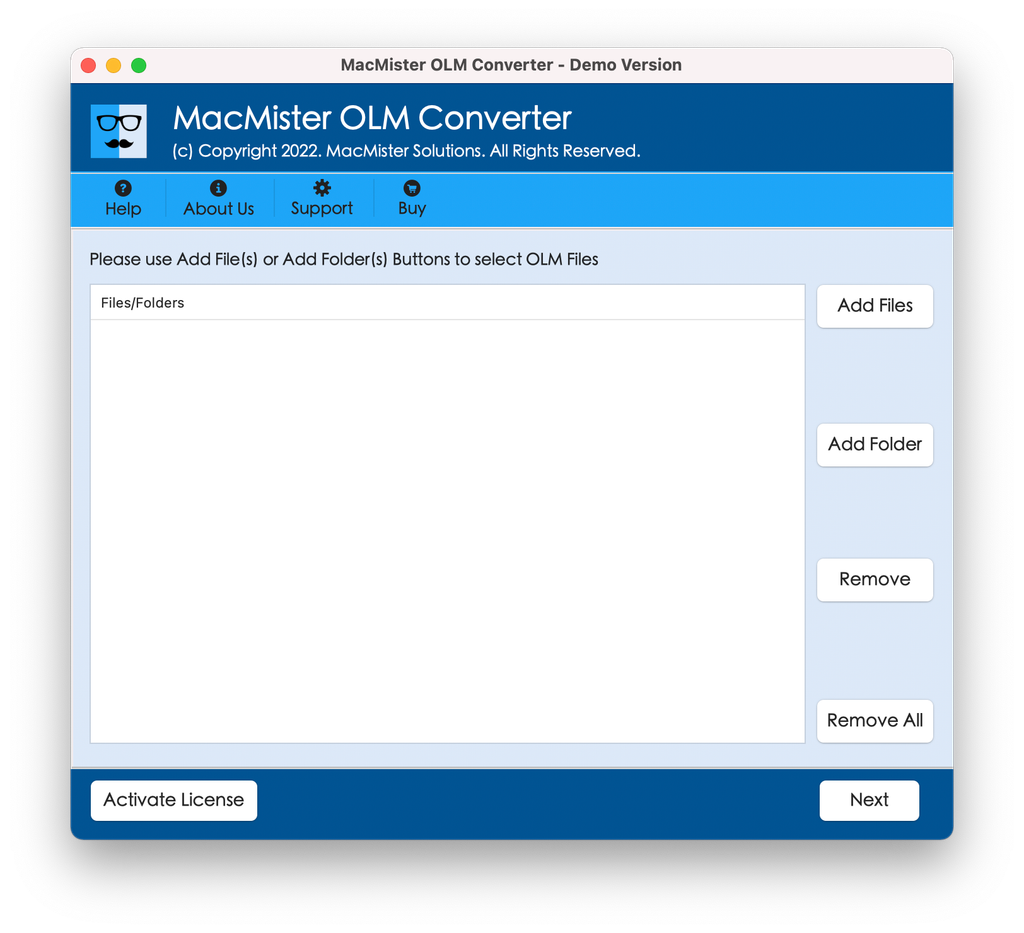
Step 2: Load Outlook for Mac archived (.olm) Files
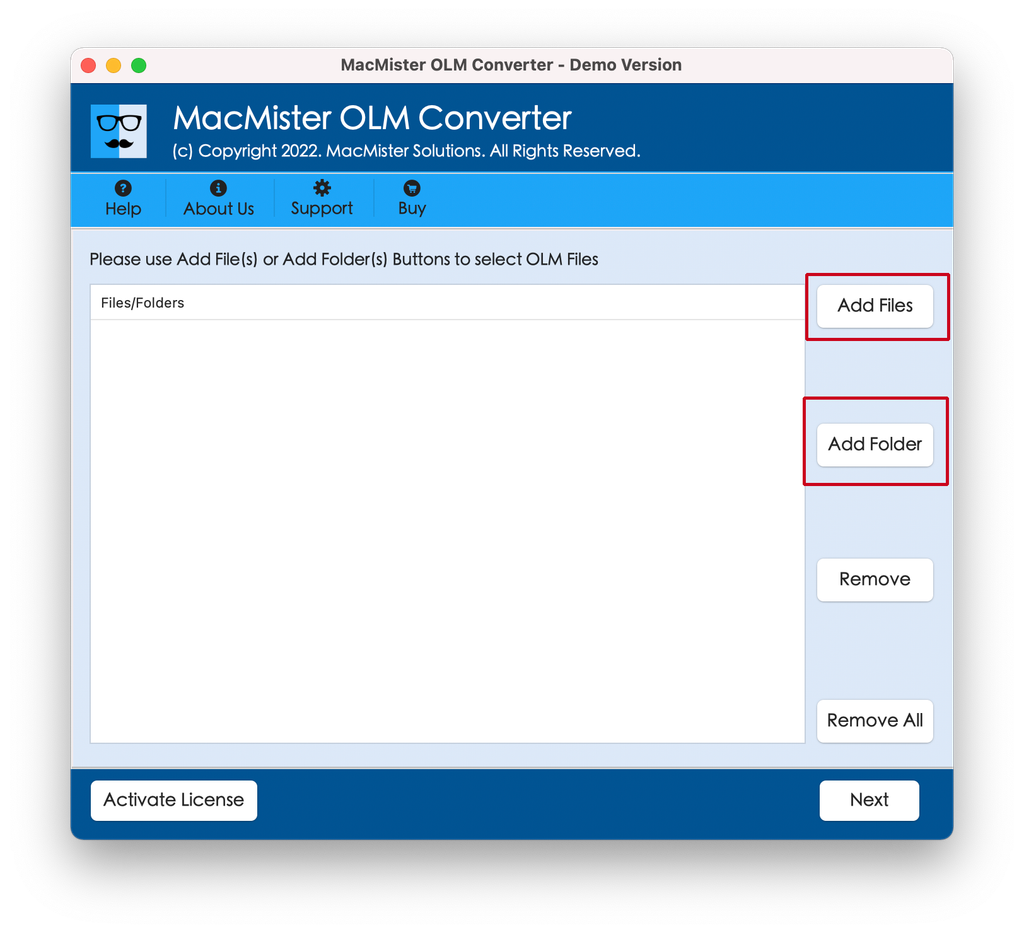
- Tap Add File(s) or Add Folder buttons.
- Locate exported Mac Outlook OLM archive files. You may choose to upload a single file or multiple OLM files simultaneously for batch processing.
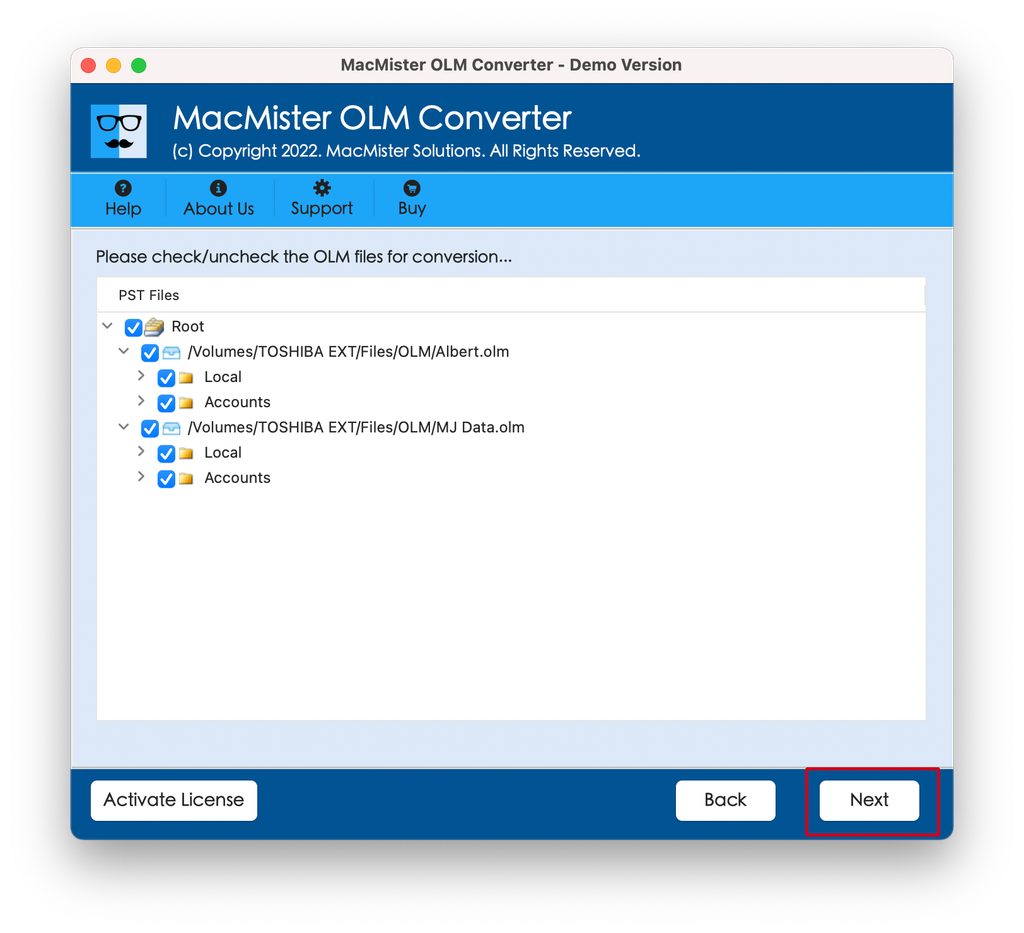
Step 3: After the files are loaded, the software shows the preview of your mailbox folders in a hierarchical preview pane.
- Check or uncheck specific folders to implement selective file conversion if you do not require the entire archive.
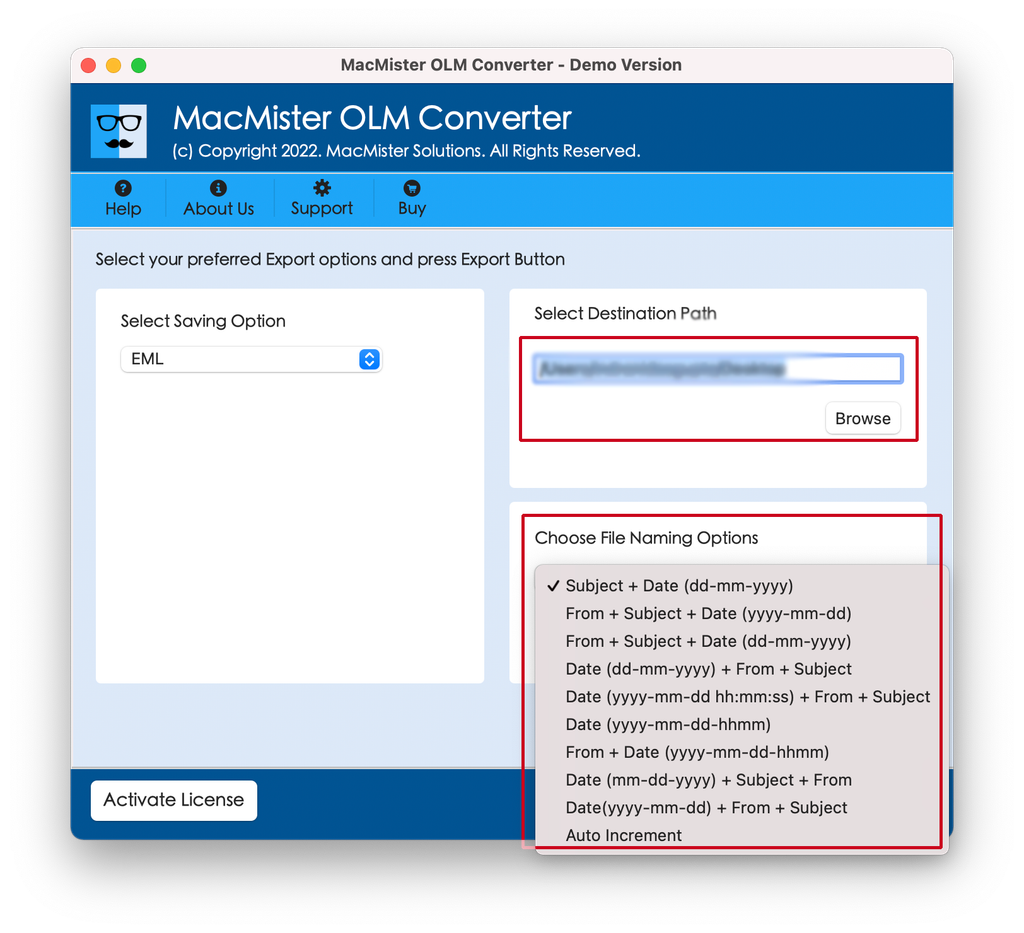
- Go to the Select Saving Options drop-down menu and select EML as your target format.
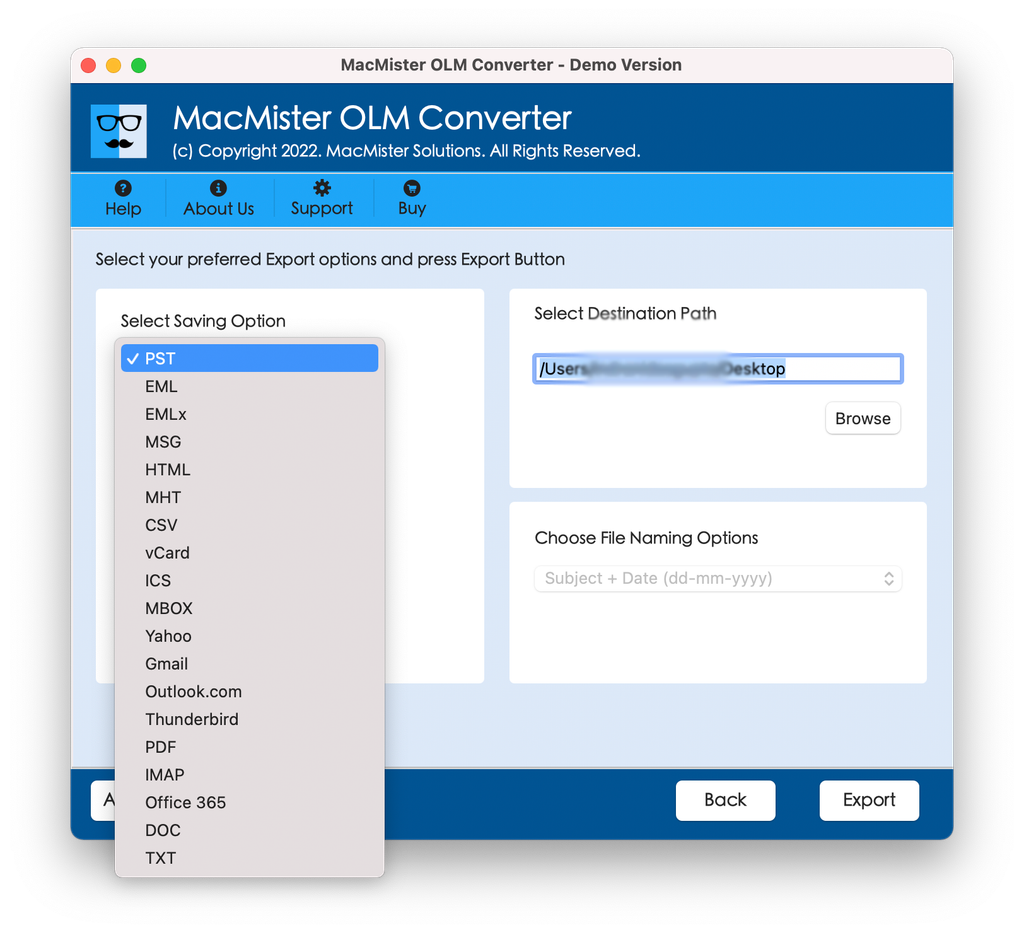
Step 4: Set a destination path where you want to save resultant EML files.
- Make use of any advanced features, such as file-naming options (e.g., Date + Subject + Sender) to preserve archived files with appropriate organization.
- Simultaneously, apply other options as per requirements.
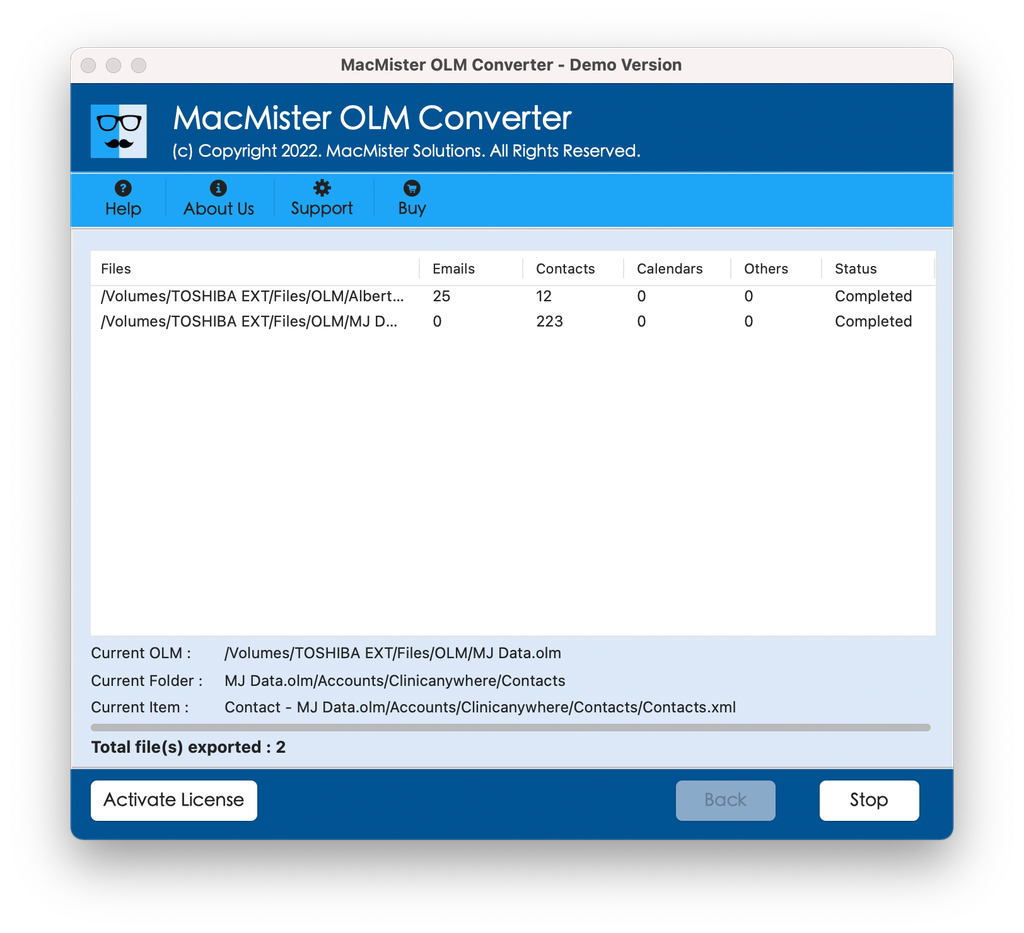
Step 5: Click the Export button. A live conversion window appears that will help you to track the conversion progress in real-time. Once completed, a confirmation message will appear, and you can instantly access all EML files at your chosen destination path.
Important Features of the Tool
Making use of a specialized utility such as MacMister OLM Converter brings numerous core benefits to your migration procedure:
| Feature | Description |
| Batch Migration | Export unlimited or multiple OLM files at once without any issues. |
| Maintains Folder Hierarchy | Ensures that your original directory and sub-folder structures remain completely intact after conversion completes. |
| Data Integrity & Attachments | Preserves all email metadata (To, From, CC, BCC, etc.,) along with embedded attachments. |
| Zero Outlook Dependency | Works independently; you do not required Microsoft Outlook installed or configured to perform the conversion. |
Conclusion
Converting Mac Outlook archive (OLM) to EML does not need to be a difficult and annoying process. As far as manual processes are concerned, not only are they quite time-consuming, but they are restricted to only a few emails. On the other hand, by using automated tools, the whole process becomes easier. With the help of MacMister OLM Converter, you will make sure that your emails stay safe, well-structured, and easily accessible regardless of the operating system or email client you use in the future.

