Switching from Microsoft Outlook to Mozilla Thunderbird for Mac is bound to be a challenging experience because the two programs store mail, contacts, and calendar information differently. Whereas Microsoft Outlook uses Personal Storage Table (.pst) files to store this information, Thunderbird has its own architecture based on native formats such as MBOX files. Since the Mac operating systems of Microsoft Outlook do not natively support PST files, importing a backup file in Thunderbird for Mac becomes a tricky experience.
This guide will take you through the steps of importing PST files into Thunderbird for Mac without much stress.
The Compatibility Issue on macOS
When trying to find an option to import PST archives into Thunderbird on Mac, you will be faced with an immediate obstacle. Thunderbird doesn’t have the native capability to read or unzip any Outlook PST file archive on Mac OS. Moreover, the classic tricks involving creation of additional cloud account and usage of two email clients don’t work on Mac computers due to the fact that Outlook for Mac utilizes totally different containers such as .olm instead of PST file structure.
Such manual tricks may result in the damage of folder structures, loss of attachments and metadata, so automated utility software seems to be the best solution.
Introducing Advanced Professional Automated Solution
MacMister PST Converter for Mac is a specialized tool designed to address the problem of incompatible emails across platforms. It works like an intermediary, making it possible for Macintosh computer users to load standalone PST files and convert them into universal formats like MBOX that can be used by Thunderbird.
Main benefits of choosing the App
- You do not need to install Microsoft Outlook or mail settings to your Mac to carry out the conversion process.
- The utility preserves all exact folder structure, inline images, links, formatting, and metadata information while converting.
- It allows you to add one or several PST files at once, thus saving a lot of time in case of large corporate archives.
- Not only emails but also other related information like contacts, calendar, notes and tasks, among others are converted by the utility.
Step-by-Step Guide: PST to Thunderbird Migration Using MacMister Application
If you want to access the messages that are stored in an old Outlook mailbox in Thunderbird application, follow the below instructions:
Step 1: Download the application from MacMister’s official website, move it to your Applications directory, and start using it.
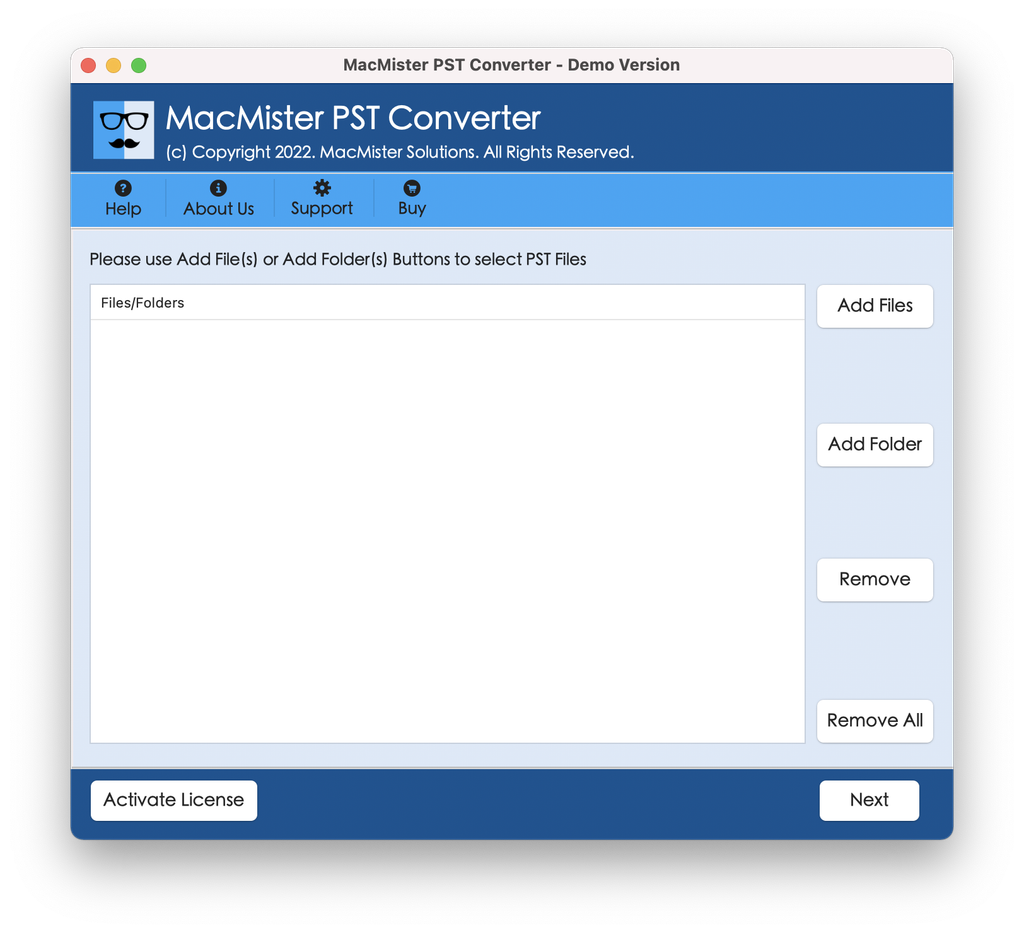
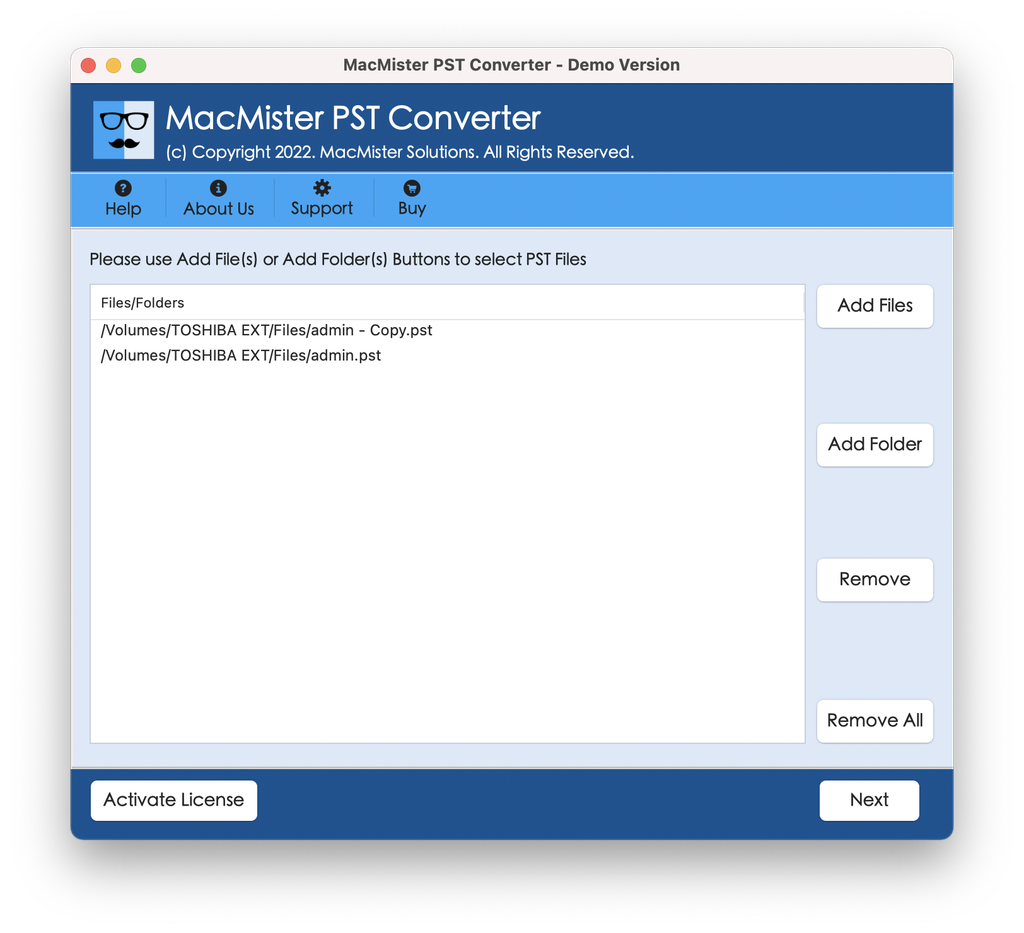
Step 2: Click Add File or Add Folder button to locate the necessary PST file in Mac directories through the software interface.
Step 3: Review your emails if needed, then tap Next and click on saving option where you should choose MBOX or Thundebird as per your needs.
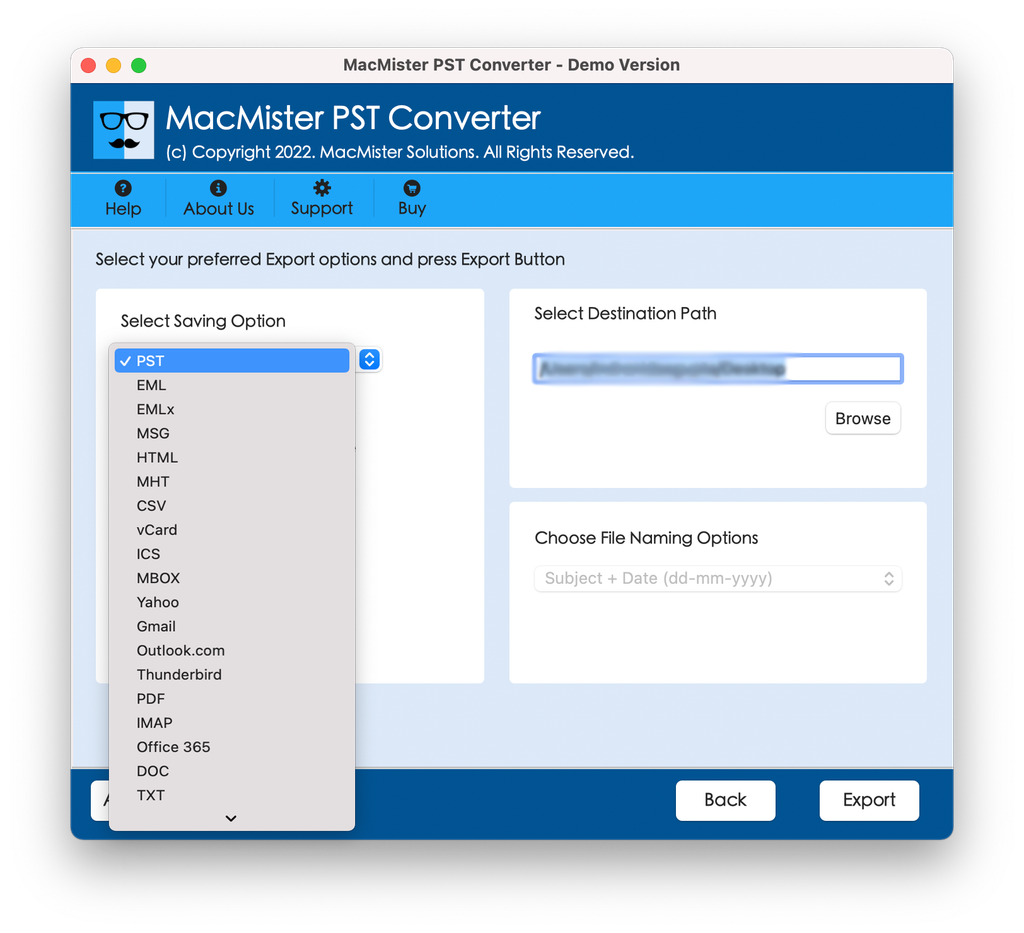
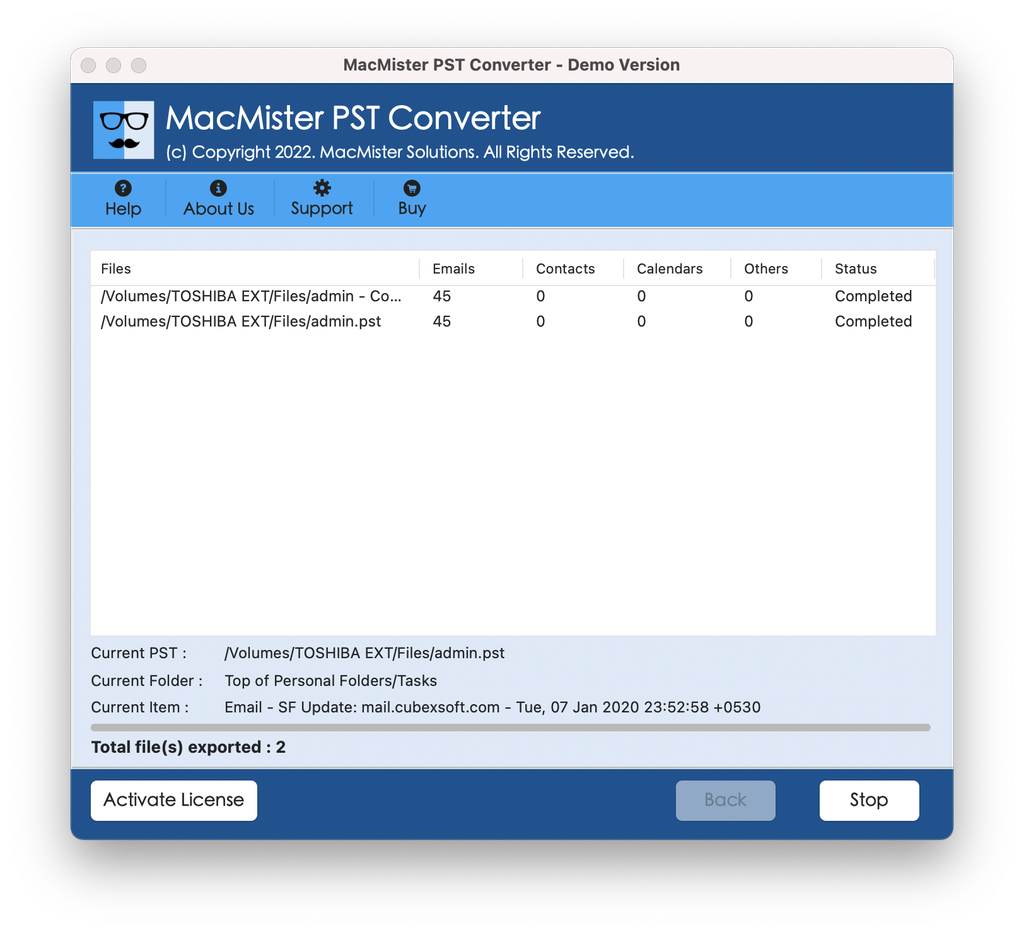
Step 4: Specify the destination for output files and click Export. Check and track the live process using Live Progress Window.
Step 5: Launch Mozilla Thunderbird application and ensure that you have an ImportExportTools NG extension installed. You can install it through Add-ons Manager in Thunderbird. Right-click on the Local Folders directory and click on ImportExportTools NG > Import MBOX file.
Conclusion
Moving your data from one email ecosystem to another can be quite daunting at times, particularly when there is no native support for certain file formats. This is where an exclusive utility such as the MacMister PST Converter Tool comes in handy since you totally circumvent any limitations of the macOS environment. Your previous correspondences are converted into native Thunderbird readable formats.

