Microsoft Outlook uses a profile to store and manage all the essential information required for running an email account smoothly. It contains account settings, mailbox configuration, data file details, and other preferences that control how Outlook connects and works with email services.
In some situations, an existing Outlook profile may stop working correctly due to incorrect settings, damaged configuration files, account changes, or software conflicts. Creating a new profile gives Outlook a fresh start and can help resolve many common issues without removing your existing email data.
A new Outlook profile can also be useful when users want to maintain separate environments for different email accounts, business requirements, or testing purposes.
Why Do Users Need a New Outlook Profile?
There are several reasons why creating a new Outlook profile can be beneficial. Some common situations are discussed below.
Resolve Outlook Errors and Performance Issues
Sometimes, an Outlook profile may become unstable and affect the overall performance of the application. A damaged profile can lead to problems such as slow loading, email synchronization failures, unexpected crashes, or issues while opening Outlook.
Creating a new profile helps rebuild Outlook settings from scratch and removes unwanted configuration problems that may be affecting normal operations.
Common problems fixed by creating a new profile include:
- Outlook taking excessive time to start.
- Emails not updating properly.
- Frequent application freezing.
- Errors during account synchronization.
- Problems caused by incorrect profile settings.
Manage Different Email Accounts Efficiently
Many users handle multiple email accounts for personal and professional purposes. Although Outlook allows several accounts in one profile, separate profiles can make account management easier.
Using different profiles allows users to:
- Keep separate mailbox environments.
- Maintain different signatures and rules.
- Avoid confusion between multiple accounts.
- Apply account-specific settings.
For example, a user can maintain one Outlook profile for office communication and another for personal emails.
Create Separate Profiles for Different Tasks
Businesses and professionals often need different Outlook configurations for specific projects or departments. Instead of changing the main profile repeatedly, users can create dedicated profiles based on their requirements.
Separate profiles can include different:
- Email folders and rules.
- Calendar settings.
- Add-ins and extensions.
- Account preferences.
This helps maintain an organized workflow and prevents unnecessary changes to the primary Outlook setup.
Useful for Testing and Technical Troubleshooting
IT professionals often create additional Outlook profiles while troubleshooting or testing new environments. A separate profile allows them to check settings without affecting the existing user configuration.
It can be used for:
- Testing new email accounts.
- Checking Exchange or Microsoft 365 connections.
- Troubleshooting Outlook add-ins.
- Evaluating migration or backup solutions.
Things to Do Before Creating a New Outlook Profile
Before setting up a new profile, it is recommended to keep a backup of important Outlook data files. Outlook stores mailbox information in PST and OST files, and having a backup ensures that your emails and other data remain protected.
Different Ways to Create a New Outlook Profile
Users can create a new Outlook profile in different ways depending on whether Outlook is opening properly or not.
Method 1: Create a New Profile from Outlook Application
If Outlook is working correctly, you can create a new profile through the account management options.
Follow these steps:
- Open Microsoft Outlook.
- Select the File option from the menu.
- Open Account Settings and select profile management.
- Choose Show Profiles from the Mail Setup window.
- Click the Add button.
- Enter a suitable name for the new profile.
- Click OK.
- Add your email account details.
- Complete the account verification process.
- Save the changes after Outlook finishes configuration.
Your new profile will now appear in the Outlook profile list.
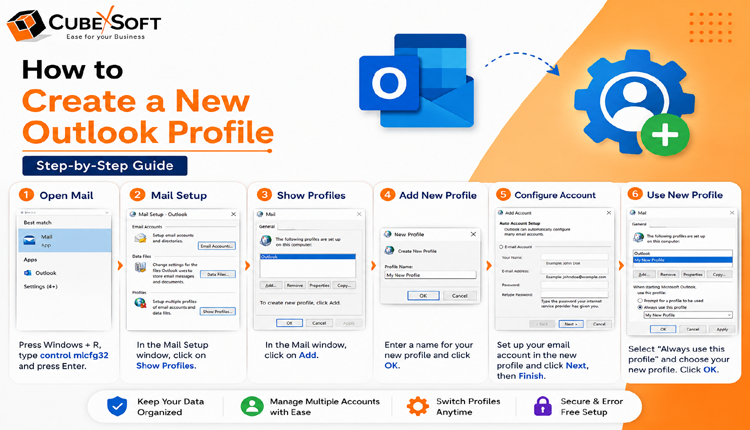
Create Outlook Profile Using Control Panel
If Outlook cannot be accessed properly, the Windows Control Panel method can be used.
Steps:
- Press Windows + R and type control.
- Open Control Panel.
- Select Mail (Microsoft Outlook).
- Click Show Profiles.
- Select Add.
- Provide a profile name.
- Configure the required email account.
- Complete the setup process.
This method is helpful when Outlook settings are unavailable inside the application.
Method 2: Create a New Outlook Profile during Startup
Another way to create a profile is by using Outlook startup options.
Follow these steps:
- Close Outlook completely.
- Press and hold the Shift key.
- Open Outlook by double-clicking its shortcut.
- When the profile selection window appears, choose the option to create a new profile.
- Enter the profile name.
- Add your email account information.
- Complete the setup using your account password.
After completing the setup, Outlook will launch with the newly created profile.
Final Conclusion
Creating a new Outlook profile is a simple and effective solution for fixing many account-related problems and improving Outlook performance. Whether you are dealing with profile corruption, managing multiple accounts, or setting up a separate testing environment, a fresh profile can provide a cleaner Outlook experience.
However, if Outlook issues are caused by damaged or inaccessible PST files, creating a new profile alone may not solve the problem. In such cases, a reliable Outlook Converter solution can help restore mailbox data and safely migrate emails to other platforms.
Read More Articles:

