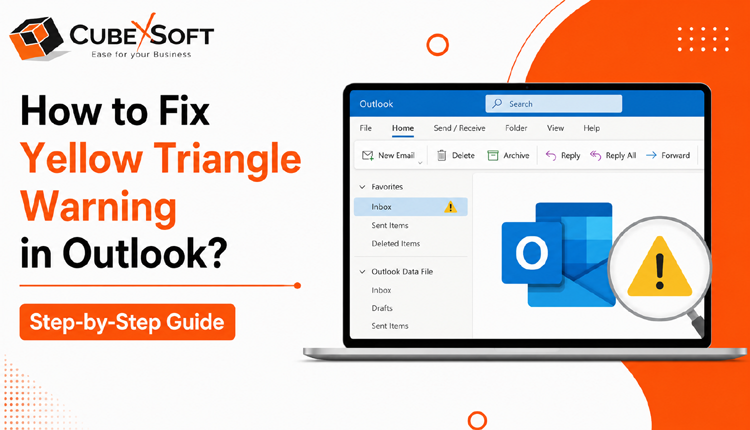
Introduction: If you notice a yellow triangle with an exclamation mark appearing on your Outlook icon, it usually indicates that Outlook is facing a problem connecting, syncing, or working correctly. This warning sign may appear due to various reasons, such as incorrect account settings, connection problems, damaged Outlook data files, or issues with the Outlook profile.
This issue can prevent users from sending or receiving emails smoothly, which can affect daily communication. In this guide, we will explain the common causes behind this Outlook warning and provide practical solutions to fix Yellow Triangle Warning in Outlook.
What Does the Yellow Triangle Symbol Mean in Outlook?
The yellow triangle with an exclamation mark is a warning indicator that Outlook needs attention. It does not represent a single error; instead, it alerts users that something is preventing Outlook from functioning normally.
In most cases, this warning appears when Outlook cannot establish a proper connection with the email server, synchronize mailbox data, or access required account information. Identifying the exact cause helps in applying the right troubleshooting method

Common Causes Behind the Outlook Yellow Triangle Warning
There can be several reasons why this warning symbol appears in Outlook. Some of the most common causes include:
- Internet Connectivity Problems: A weak or unstable internet connection can stop Outlook from communicating with the email server. If Outlook cannot connect properly, it may display the yellow warning icon.
- Incorrect Email Account Configuration: Incorrect incoming or outgoing server settings, outdated passwords, or authentication issues can prevent Outlook from syncing with your mailbox.
- Corrupted Outlook Data Files: Outlook stores mailbox information in PST and OST files. If these files become damaged or corrupted, Outlook may experience errors, including synchronization and connection problems.
- Outlook Profile Issues: A damaged or improperly configured Outlook profile can also cause warning signs. Creating a new profile may help resolve profile-related problems.
- Problematic Add-ins or Security Software: Sometimes third-party add-ins, antivirus programs, or firewall settings interfere with Outlook operations and create connection issues.
- Expired Subscription or Account Issues: An expired Microsoft 365 subscription or account-related problem can also affect Outlook functionality.
Effective Solutions to Remove the Yellow Triangle in Outlook
1. Check Your Internet Connection
Start by verifying that your internet connection is working properly. Try opening a website or reconnecting your Wi-Fi network. Once the connection is stable, restart Outlook and check whether the warning disappears.
2. Restart Microsoft Outlook
Close Outlook completely and reopen it after a few seconds. A simple restart can refresh the connection between Outlook and the mail server.
3. Verify Email Account Settings
Check your Outlook account configuration and make sure that your email address, password, incoming server, outgoing server, and authentication details are correct.
4. Disable Unnecessary Outlook Add-ins
Faulty add-ins can interfere with Outlook performance. Disable recently installed or suspicious add-ins and restart Outlook to check if the issue is resolved.
5. Repair Outlook Data Files
If the Outlook PST or OST file is corrupted, repairing the data file can help restore normal functionality. You can use Outlook’s built-in repair utility or a professional Outlook repair solution for severely damaged files.
6. Create a New Outlook Profile
If your existing Outlook profile is damaged, creating a new profile and configuring your email account again can fix synchronization-related issues.
7. Reinstall Outlook Application
If none of the above methods work, uninstalling and reinstalling Microsoft Outlook can help remove configuration errors and create a fresh setup.
How to Prevent Outlook Warning Issues in the Future
To avoid seeing the yellow triangle warning again, follow these preventive measures:
- Keep Outlook updated with the latest version.
- Maintain a stable internet connection.
- Avoid installing unnecessary third-party add-ins.
- Regularly back up Outlook PST files or OST files.
- Keep your mailbox size under control.
- Use updated antivirus and security software.
Conclusion
The yellow triangle with an exclamation mark in Outlook is a warning sign that indicates a connection, synchronization, or configuration problem. Although it may look concerning, the issue can usually be fixed by checking internet connectivity, verifying account settings, repairing Outlook files, or recreating the Outlook profile. By following the troubleshooting methods mentioned above, users can restore Outlook functionality and continue managing emails without interruptions.

