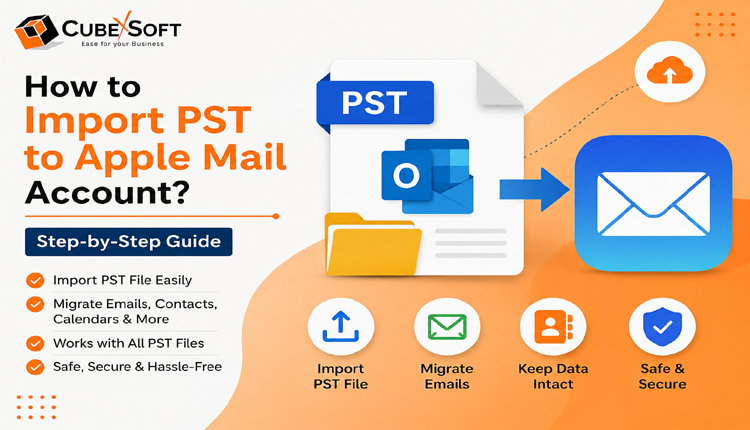
Moving from Microsoft Outlook on Windows to Apple Mail on Mac often creates a challenge when you need to access existing PST files. Since Outlook PST files are designed for Windows-based environments, Apple Mail cannot open them directly. To make your emails, attachments, and folder hierarchy available in Mac Mail, the PST data needs to be converted or imported using a suitable method.
In this guide, we will explore different ways to import PST files into an Apple Mail account and explain the most effective approaches for a smooth migration. Whether you are switching completely to a Mac system or simply need to view old Outlook emails, this article will help you understand the available options, required steps, and best practices for transferring mailbox data securely without losing important information.

Reasons to Import Outlook PST Files into Apple Mail
Before moving PST data to Apple Mail, it is important to understand why users choose to make this transition. Different users have different requirements, but the following are some common situations where importing PST files becomes necessary:
- Moving from Windows to macOS: When users migrate from a Windows computer to a Mac system, they often need a way to access their existing Outlook emails. Since Outlook stores mailbox data in PST format, transferring these files to Apple Mail allows users to continue using their important emails, attachments, and folders on the new platform.
- Opening Outlook Email Data on a Mac: Many users work with Outlook data but later need to access those emails through a Mac environment. Importing PST files into Apple Mail provides a convenient way to view and manage previous Outlook messages without depending on the Windows Outlook application.
- Choosing Apple Mail as the Main Email Application: Some users prefer Apple Mail because of its simple interface, smooth macOS integration, and easy email management features. By transferring PST data, they can bring their existing Outlook emails into Apple Mail and manage all mailbox information from a single application.
- Taking Advantage of Apple Mail Features: Apple Mail offers various macOS-based features and integrations that may better suit user requirements. Importing Outlook PST files enables users to access their existing email history while benefiting from the tools and functionality available within Apple Mail.
Manual Approach to Move Outlook PST Data into Apple Mail
Users can import Outlook PST files into Apple Mail manually by first transferring the mailbox data through an IMAP-enabled email account. This method involves configuring Outlook with an email service, moving PST emails to the account, and then syncing the same data with Apple Mail.
Follow these steps to complete the manual migration process:
- Log in to your Gmail account and open Settings by clicking the gear icon.
- Select See All Settings and go to the Forwarding and POP/IMAP section.
- Enable IMAP access and save the changes.
- Launch Microsoft Outlook and open File > Add Account.
- In the account setup window, select the option for Manual Setup or Additional Server Types.
- Choose POP or IMAP and proceed to the next step.
- Enter your account details, including name, email address, and password.
- Select IMAP as the account type and configure the server details:
- Incoming Server: imap.gmail.com
- Outgoing Server: smtp.gmail.com
- Open More Settings and configure outgoing server authentication.
- Enable the option to use the same login settings for the incoming and outgoing servers.
- Save the configuration and complete the Outlook account setup.
- Move or drag the required emails from the Outlook PST mailbox into the connected Gmail account folders.
- Open Apple Mail on your Mac system.
- Navigate to Mail > Preferences and select the Accounts section.
- Click the Add Account option and enter your email credentials.
- Complete the account configuration process and allow Apple Mail to sync the mailbox data.
- Finally, move the required emails from the Gmail account into Apple Mail folders.
Drawbacks of the Manual Method
Although the manual process can help transfer PST emails to Apple Mail, it requires multiple configuration steps and technical knowledge. Users must carefully follow each step because incorrect settings may interrupt the migration process. Additionally, transferring a large number of emails with attachments can be time-consuming and complicated.
Professional Solution to Import PST into Apple Mail
For users looking for a faster and more reliable migration approach, a reliable PST Converter for Mac & Windows solution can simplify the entire process. The tool allows users to export Outlook PST files into Apple Mail-compatible formats or directly migrate mailbox data using supported options.
With this solution, users can:
- Convert PST files into MBOX format for Apple Mail import.
- Transfer Outlook emails directly using IMAP migration.
- Preserve email properties, folder structure, and attachments during conversion.
- Work with different macOS versions for smooth migration.
Free Trial Availability
The application is available in both demo and licensed editions. The trial version allows users to evaluate the software features and migrate a limited number of emails before purchasing the full version. Users can test the migration process first and upgrade to the professional edition when they need to transfer complete mailbox data.
Read More: Save Outlook Emails as PDF with Attachments
Frequently Asked Questions About Importing PST Files into Apple Mail
Q1. What is the easiest way to import multiple PST files into Apple Mail?
A: The most convenient method is to use a professional PST conversion solution that can transfer Outlook PST data to Apple Mail with minimal effort. Unlike manual methods, it does not require complex configurations and allows users to migrate mailbox data quickly while maintaining email integrity.
Q2. Is there any limit on the number of PST files that can be imported using the CubexSoft tool?
A: No, users can add multiple PST files or select an entire folder containing PST files for migration. The tool supports batch processing, making it easier to transfer large amounts of Outlook mailbox data to Apple Mail.
Q3. Can Outlook 2019 PST files be imported into Apple Mail?
A: Yes, Outlook 2019 PST files can be migrated to Apple Mail using the appropriate PST conversion software. The tool helps convert PST data into a compatible format and transfers emails for easy access on Mac Mail.
Q4. Why is it not possible to export Outlook PST files directly into Apple Mail?
A: Outlook and Apple Mail use different mailbox storage formats, which prevents direct PST import. To access Outlook emails in Apple Mail, PST files need to be converted into a supported format such as MBOX before importing them into the Mac email client.
Import Outlook PST to Apple Mail: 5-Step Working Process
Conclusion
Importing PST files into Apple Mail is an essential step for users who are moving from Outlook to a Mac environment or want to access their old mailbox data on Apple Mail. While manual methods are available, they may require technical knowledge and involve several configuration steps. Choosing the right migration approach helps users transfer emails, attachments, and folders safely while ensuring a smooth transition to Apple Mail.