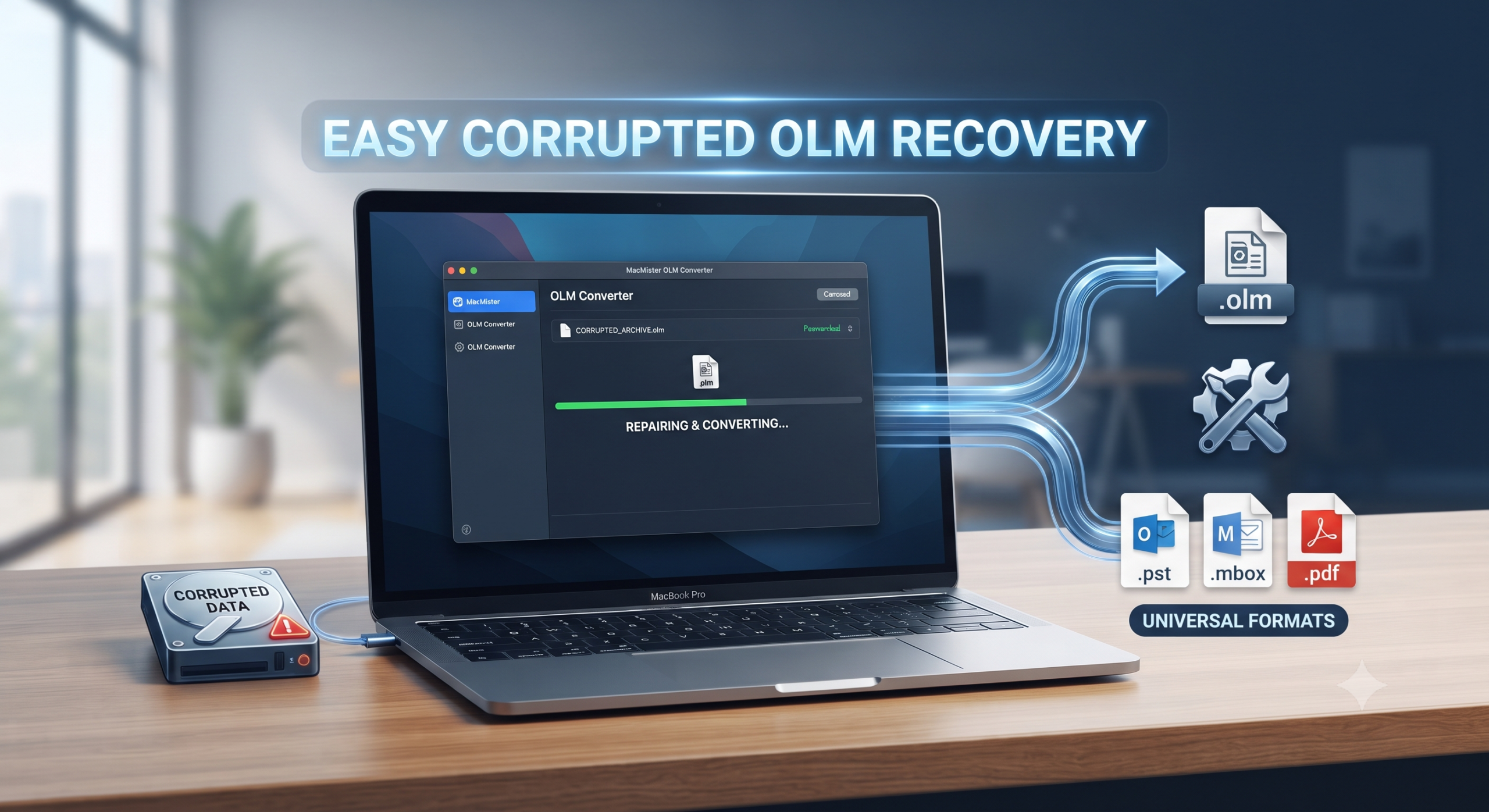
Moving from one email client to another on Mac OS can sometimes prove tricky due to proprietary archive formats. In Microsoft Outlook for Mac, .OLM file format is the default file format used for backing up and archiving emails, contacts, calendar events, tasks, and notes. But what if your OLM file gets corrupted?
A corrupt OLM file might render you unable to access all your important communications as it causes loss of attachments, unavailability of folders and errors during opening or restoring your data. Since native email clients cannot fix these issues themselves, there is a need for dedicated utility software.
In this article, you will learn about the causes of corruption in OLM files, problems with manually repairing them, and how you can easily repair and convert OLM files into usable formats with the help of MacMister OLM Converter.
Overview – OLM Files and the Threat of Corruption
Let us first understand what an OLM file is and the reason behind corruption.
OLM File Definition:
An OLM file format is used by Microsoft Outlook for Mac. Instead of storing emails in the PST format like Microsoft Outlook for Windows, the application stores emails in an OLM archive format, which is a collection of all your mailbox items.
Reasons Behind OLM Corruption:
- Force Quits: Suddenly force-quitting of Outlook when it is backing up or syncing data.
- Drive Problems: Presence of bad sectors on Mac internal solid-state drive (SSD) or the backup drive.
- Large OLM Files: Not archiving large OLM files or reducing their size may lead to OLM corruption.
- File Transfer Issues: Interruption in file transfer from one drive to another.
In case of corruption, Outlook is unable to create or restore the PST file, resulting in crashes or errors during importing. The conventional repair tools included in Mac OS or freeware programs rarely manage to fix the corrupted headers or indexes.
Step 1: Preliminary Diagnostic Checks
Do some initial checks to see whether your file is just blocked or misplaced before turning to more sophisticated recovery tools:
- Check File Permissions: Click on your file with OLM extension and choose Get Info. Check Sharing & Permissions for your user account and make sure it has Read & Write permissions.
- Local Folder Check: Copy your OLM file from an external drive, network location, or cloud-based synchronization folder to your Mac computer desktop.
If the file does not respond and generates syntax or reading errors, then you have file corruption, which needs more sophisticated software for opening the file.
Step 2: Convert Corrupted OLM Files to Readable Formats using Powerful Tool
In cases where manual workarounds have failed, the MacMister OLM Converter for Mac can offer an excellent, professional solution. This application was designed especially for dealing with Outlook for Mac archives that are both healthy and those that have become corrupted or inaccessible.
Key Features of MacMister OLM Converter:
- State-of-the-art internal scanning technology ignores minor index damage and fetches readable emails, attachments, and contacts.
- Recover your OLM files and save them as PST, MBOX, EML, PDF, MSG, HTML, CSV, and O365, and make your data compatible with Apple Mail, Thunderbird, Outlook, and webmail.
- Guarantees that your folder hierarchy is saved intact during conversion.
- All important header information such as To, From, CC, BCC, dates, and HTML formatting will be saved.
- Provides advanced filtering features by date range so that you can recover emails of a particular period.
Step 3: Step-by-Step Guide to Recover and Convert Corrupted OLM Files
To run MacMister OLM Converter does not need any expertise or knowledge in the field of computer science. Just follow these basic instructions for the restoration of your email archives:
Step 1. Install the software on your computer from the MacMister OLM Converter website.
Step 2. Launch MacMister OLM Converter. The neat dashboard will appear where you will be provided with an option to add the files that are to be restored.
Step 3. Click on the Add File(s) or Add Folder button and choose the target OLM file from your Mac.
Step 4. Immediately the software will run a deep scan of the file and then display a preview panel with your mail data.
Step 5. Select the desired format from the saving options list.
Step 6. For just certain data, utilize the internal date filter or select folder check box function.
Step 7. Tap the Export button. A real-time progress bar will indicate how the conversion is proceeding. Upon completion, a message window will pop up, confirming that the new readable files have been saved to the selected destination folder.
Step 4: Accessing Your Converted Files
Depending on the selected format during the conversion process, you will be able to smoothly open your emails:
If MBOX was selected: You can just import your emails into Apple Mail using the File -> Import Mailboxes function.
If PDF was selected: Read your emails straight away from any PDF viewer without having to use any email software.
Conclusion
Repairing the corrupted OLM file may turn out to be quite an unpleasant activity if it contains years of valuable business communication or personal information. In order to avoid losing any crucial data due to corrupted OLM file, one should take care of using utility software for repair of damaged Outlook archives. With the help of MacMister OLM Converter, one will manage to get rid of all the issues related to file corruption. The program will allow for safe extraction, repair and conversion of the damaged OLM archive into such widely available formats as MBOX, PDF or PST.

