When it comes to users making a shift from using Windows to using macOS, working with legacy data can become rather difficult for them. The Microsoft Outlook for Windows stores all data, messages, calendars, and contacts in PST files. Even opening regular PST files on a Mac would require certain software tools, because macOS versions of Outlook use .olm files while Mac versions of email clients use .mbox files. When it comes to password-protected PST files, the situation becomes truly desperate.
If you found yourself dealing with such password-encrypted PST files on your Mac, you may find out that none of the standard Mac software or email clients can help you with opening them.
In this guide, we are going to tell you about the difficulties related to the opening of locked archives on macOS, and we will share the most effective solution for you—MacMister PST Converter Tool.
Why Can’t You Open Password-Protected PST Files on a Mac?
Let’s begin with identifying the origin of the incompatibility issue:
- Microsoft Proprietary Architecture: The .pst file is a Microsoft proprietary extension designed specifically for the Windows platform and is thus highly optimized to it. The operating system of Macintosh does not have the necessary file system driver or utility to decrypt and open .pst encrypted files.
- Encryption Protocol: The password protected files use certain encryption protocol such as compressible encryption or high security encryption in Outlook for Windows. Unless the decryption key is applied with the assistance of the Windows Outlook interface, the Macintosh utilities will not be able to decode the data.
- Absence of Windows Outlook: Naturally, if you work on a Macintosh computer exclusively, then you would not have Windows Outlook installed to enter the password and decrypt the file.
Opening the files through any incompatible tool, such as basic text editor, will only give you corrupted data or unrecognizable binary codes. What you need is a dedicated software for this purpose.
How to View Password-Protected PST Files on Mac using Automated Solution?
In regards to unlocking, decrypting, and converting the secured Outlook data files into other compatible formats under the macOS environment, MacMister Mac PST Converter is considered one of the top-notch utilities in the market.
With its intuitive and sleek interface, MacMister acts as the link between the Windows archive and macOS. This tool will enable you to easily remove the obstacles of compatibility, decryption, and conversion into different formats such as MBOX, PDF, EML, CSV, and more.
Key Features of MacMister PST Converter for Mac:
- Reads and decrypts password-protected or encrypted PST files without requiring Windows operating system.
- Includes an option for “Select Files” or “Select Folders” for batch processing several PST files at once.
- Maintains the folder structure, email metadata such as “To,” “From,” “Cc,” “Bcc,” time stamps, and attached files while converting.
- Converts PST files to MBOX, PDF, EML, MSG, HTML, RTF, and CSV formats.
- Doesn’t require any installation of other applications like Microsoft Outlook on your computer for its operation.
Step-by-Step Guide: How to View and Convert Password-Protected PST on Mac
Unblocking and opening your PST file using MacMister is not a time-consuming task. The process entails a couple of steps:
Step 1: The first step involves downloading the MacMister PST Converter Tool and installing the tool into your mac OS system. After installation, launch the program from your Application folder.
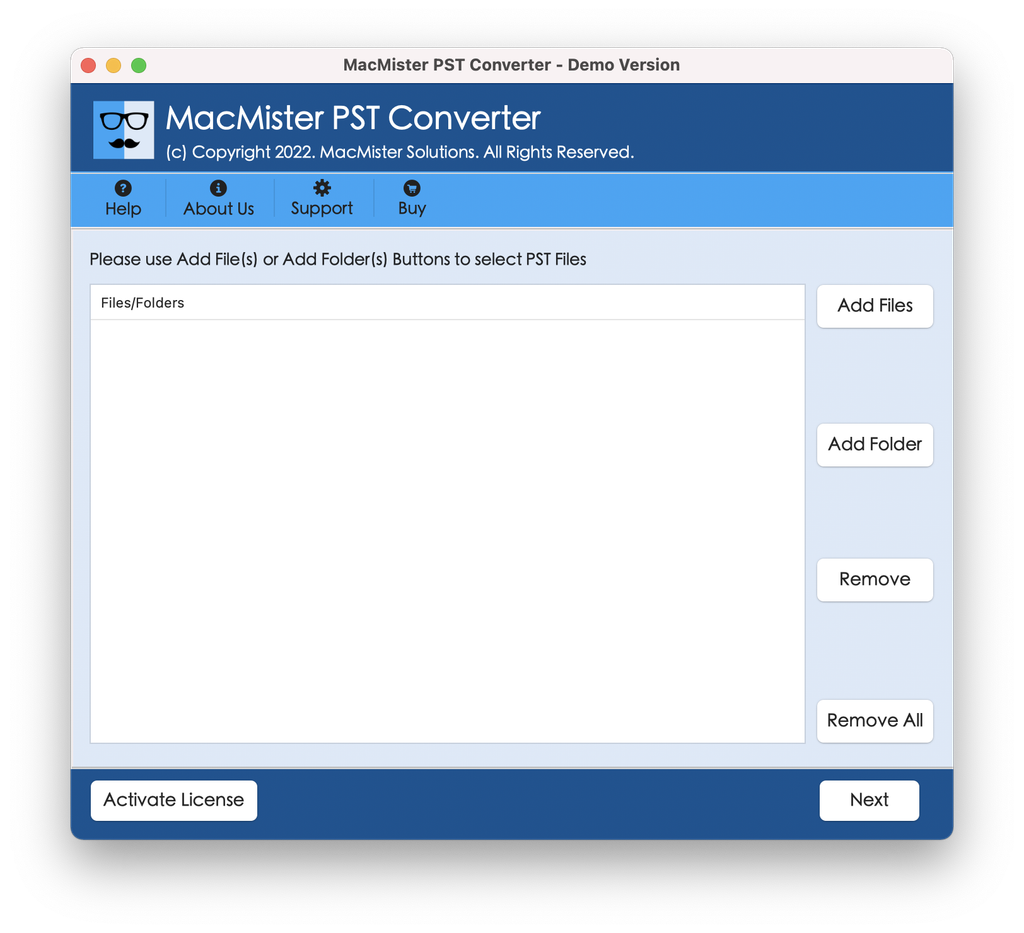
Step 2. Click on the ‘Add File’ or ‘Add Folder’ button from the application interface. Navigate through your Mac folders and choose the locked .pst file that you wish to unlock. The application will automatically import the file into the preview window. In case the file is password protected, the application is built in a way that it can easily process the validation procedure.
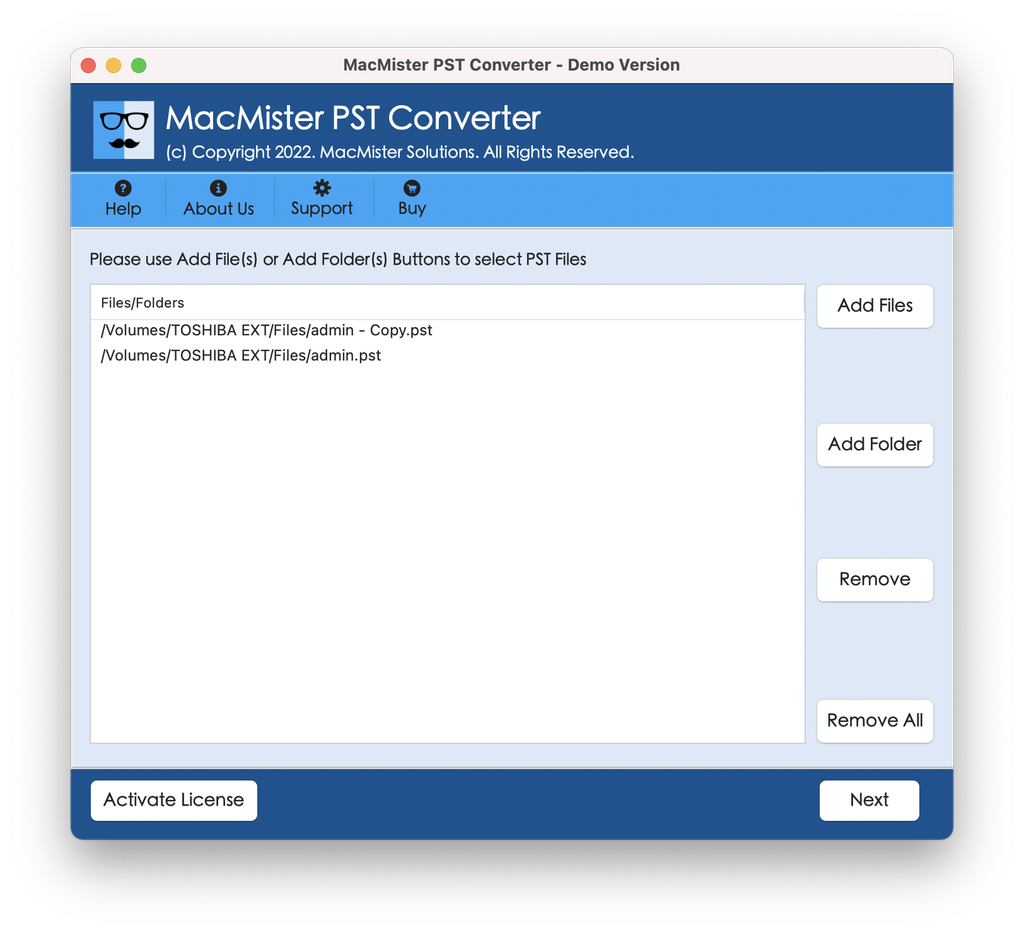
Step 3. Once the file has been properly uploaded and processed, MacMister creates an overview of all the mailbox contents. You will be able to go into different folders like Inbox, Sent Items, Drafts, and Custom Folders to access your email messages, contacts, and attachments right from your Mac.
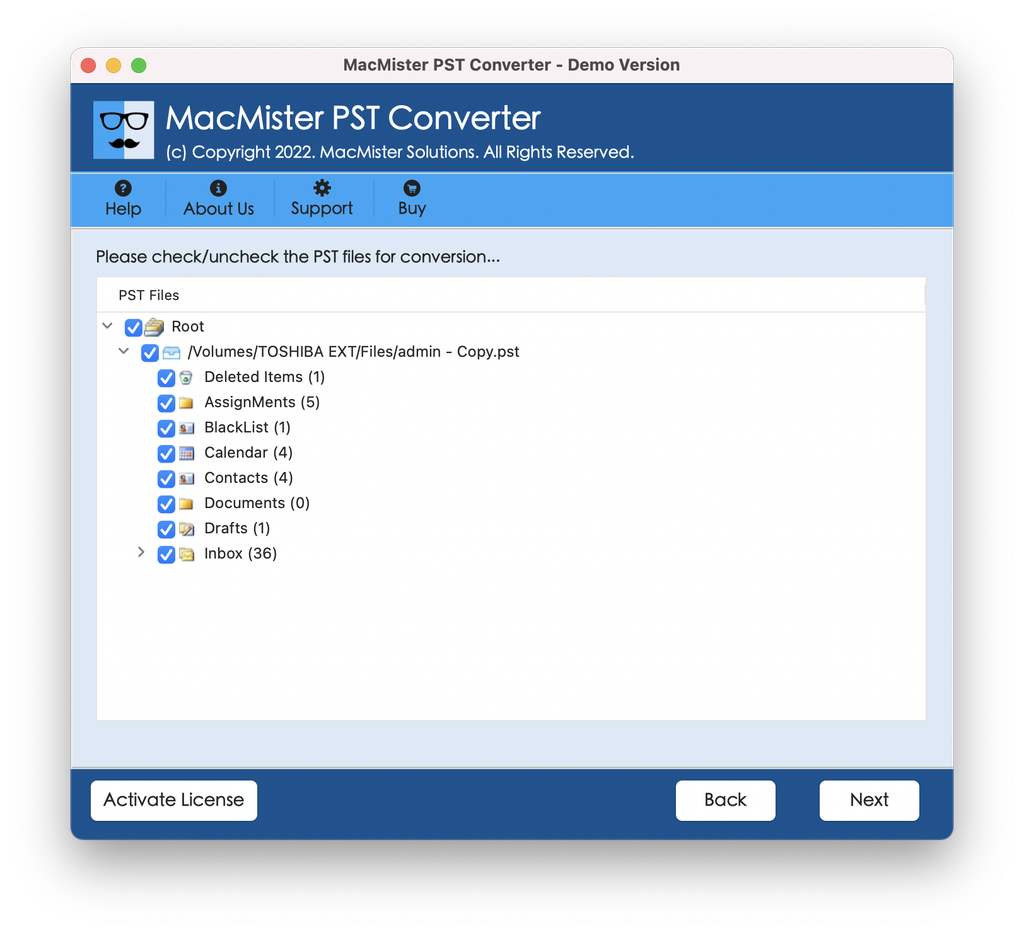
Step 4. In case you want to save and see these emails in Mac-compatible format:
- Go to the export settings section located at the bottom of the tool.
- Select your preferred file type such as MBOX (for Apple Mail/Thunderbird) or PDF.
- Choose a location on your Mac computer where you will save these files.
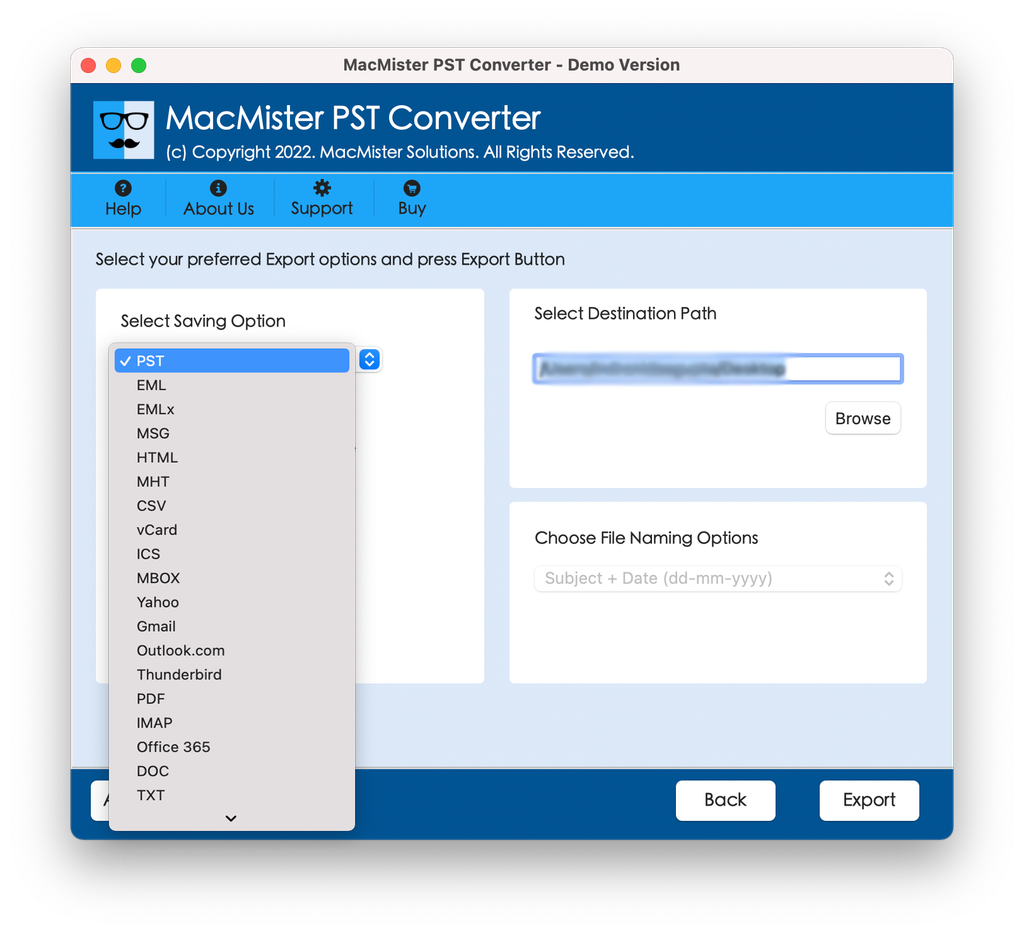
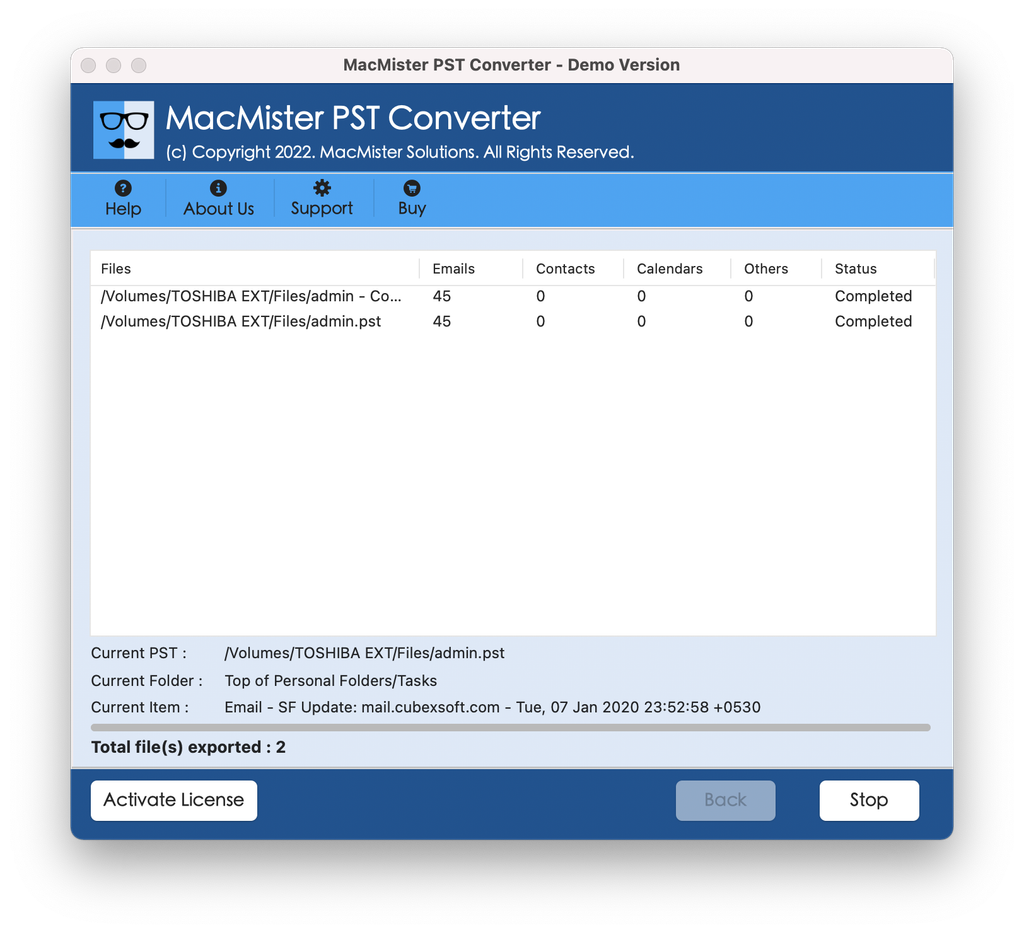
Step 5. Click on the Export button. The software will execute the conversion process, getting rid of all the Windows-specific restrictions and converting your locked PST file to an easily accessible format.
Alternative Manual Procedures (And Why They Often Fail)
But if you wish to explore other solutions prior to settling on a dedicated tool, here are some ways that could work for you, although take note of their drawbacks:
1. The Windows Workaround:
- Working – Find a PC running Windows that has Microsoft Outlook, copy the password-protected PST file there, unlock the file using the password, then strip off the password protection from the file’s settings in Outlook, and copy the unencrypted PST file back to your Mac.
- The Drawback: This solution isn’t practical if you don’t own a Windows computer, not to mention that moving large PST files belonging to a corporation is prone to corruption.
2. Free Open-Source Viewers
- The Method: Scouring the internet for free or open source “PST viewer for Mac” utilities.
- The Trap: Almost all free software available on the market crashes on password protected or encrypted PST files. They have been designed mainly for plain non-encrypted PST files and rarely provide any kind of technical or data security support.
Best Practices When Handling Sensitive PST Files
In case you encounter password-protected archives that may have sensitive business correspondence, confidential legal documentation, or personal archives of your own, follow these security guidelines:
- Make a Backup Copy: Maintain a pure and untouched backup of your PST archive on an external hard drive or a cloud storage prior to starting the conversion or decryption process.
- Check for Software Validity: Download utilities like the MacMister PST Converter Tool from trusted software vendors only since there are numerous copies of fake software packages available through malicious mirror sites.
- Protect Your Converted Files: After converting your files to PDF or MBOX format on your Mac, be sure that your user account on macOS system is secure with a good login password and FileVault disk encryption feature.
Conclusion
The problem of encountering an encrypted PST file on a Mac is now a thing of the past. Although there is no way for macOS or Apple applications to decrypt files encrypted by Windows, there are ways to solve this problem thanks to third-party tools.
With the help of MacMister PST Converter Tool, you will easily manage to overcome any encryption obstacles, view the content of encrypted files, and even convert your files to other formats such as MBOX or PDF in just a couple of mouse clicks.

