Summary: Start by downloading your emails to your computer if you want to keep important messages and attachments available even when you’re offline. Saving emails locally can also be useful for creating backups, moving to another email service, or keeping a long-term copy of your mailbox.
In this article, we’ll look at different ways to download emails from services such as Gmail, Outlook, Yahoo Mail, and Microsoft 365. You can save individual messages, selected folders, or an entire mailbox depending on your requirements. We’ll also cover how to download emails along with their attachments and keep your important email information intact.
What Does It Mean to Download Emails to a Computer?
Downloading emails to a computer means creating a local copy of your messages instead of keeping them available only through your online mailbox. Depending on the method you use, the saved copy may contain the email body, attachments, sender and recipient details, subject, date, and other message information.
Once emails are stored locally, you can access them without an internet connection, keep them as a backup, or use them when moving to another email service or application.
Why Save Emails on Your Computer?
There are several practical reasons for keeping a local copy of your emails. Important business conversations, personal messages, invoices, contracts, and other records may need to be available even when you cannot access your online account.
Here are some common reasons users save emails locally:
- Offline Access: Read important messages without an internet connection, which can be useful while traveling or working in areas with limited connectivity.
- Email Backup: Keep another copy of important messages in case emails are accidentally deleted or your account becomes temporarily inaccessible.
- Long-Term Archiving: Move older messages to local storage to keep your online mailbox organized.
- Record Keeping: Store invoices, agreements, receipts, financial records, and other important correspondence for future reference.
- Email Migration: Keep a local copy before moving your mailbox to another email provider or desktop application.
- Greater Control: Access your saved messages directly from your computer rather than depending entirely on an online mailbox.
How to Download Emails to a Computer Manually?
The best method depends on how many emails you want to save and which email service you use. Below are some commonly used approaches.
Method 1: Save an Email as a PDF
If you only need to save a few messages for reading or record keeping, printing an email to PDF is one of the simplest options. This approach works with many webmail services, including Gmail, Outlook.com, Yahoo Mail, and others.
- Sign in to your email account.
- Open the message you want to save.
- Click the Print icon or select Print from the message options.
- In the printer window, choose Save as PDF or Microsoft Print to PDF.
- Click Save.
- Select a folder on your computer.
- Enter a suitable file name.
- Click Save again.
Keep in mind: PDF is convenient for reading and sharing, but it is not a complete mailbox backup format. Depending on the service and print settings, some message details or attachments may not be preserved in the same way as the original email.
Method 2: Download Gmail Emails with Google Takeout
Google Takeout is useful when you want to export a larger amount of Gmail data instead of saving messages individually.
- Sign in to your Google Account.
- Open Google Takeout.
- Deselect the data types you do not need.
- Find Mail and select its checkbox.
- Scroll down and click Next step.
- Select your preferred delivery method.
- Choose the archive format and maximum archive size.
- Click Create export.
- Wait for Google to prepare the archive.
- Download the archive when the export is ready.
- Extract the downloaded file to a suitable location on your computer.
This method is better suited to mailbox-level exports than saving individual messages, although the resulting data may require additional steps if you want to open or migrate the emails in a particular desktop email client.
Method 3: Export Outlook Emails as a PST File
Outlook users can export their mailbox to a PST file and keep that file on their computer as a local copy.
- Open Microsoft Outlook.
- Click File.
- Select Open & Export.
- Click Import/Export.
- Choose Export to a file and click Next.
- Select Outlook Data File (.pst).
- Click Next.
- Select the mailbox or folder you want to export.
- Enable Include subfolders if required.
- Click Next.
- Choose where you want to save the PST file.
- Enter a file name.
- Click Finish.
- Add a password if you want to protect the exported PST.
A PST file can contain multiple folders and mailbox items, making this option more suitable for creating a broader Outlook mailbox backup.
Method 4: Save Individual Outlook Emails
If you only need a few Outlook messages, exporting the entire mailbox may be unnecessary. You can save individual messages directly from the Outlook desktop application.
- Open Outlook.
- Select the email you want to save.
- Click File.
- Choose Save As.
- Select an available file format, such as MSG.
- Choose the destination folder.
- Enter a file name.
- Click Save.
This method is convenient for storing specific messages, but it is not practical when you need to download hundreds or thousands of emails.
Method 5: Save Emails Through Thunderbird
Mozilla Thunderbird can connect to Gmail, Yahoo Mail, Outlook.com, Microsoft 365, and other accounts that support compatible mail protocols.
- Install and open Thunderbird.
- Add your email account.
- Allow the mailbox to synchronize.
- Select the message or folder you want to save.
- Use Thunderbird’s available Save As option.
- Select the destination folder on your computer.
- Choose a supported format, such as EML, HTML, or TXT, where available.
- Save the message.
Thunderbird can be useful when you want to work with emails locally, but saving a complete mailbox may require additional configuration or export tools.
Method 6: Export an IMAP Mailbox Through Outlook
If your email account is configured in Outlook using IMAP, you can export the synchronized mailbox to a PST file.
- Open Outlook and make sure the account is synchronized.
- Go to File > Open & Export > Import/Export.
- Select Export to a file.
- Choose Outlook Data File (.pst).
- Select the required mailbox or folders.
- Enable Include subfolders if necessary.
- Choose a destination on your computer.
- Enter a file name.
- Click Finish.
Before relying on this method as a complete backup, verify that Outlook has synchronized all required messages and folders.
What Are the Limitations of Manual Email Download Methods?
Manual techniques are useful when you only need to save a handful of messages. However, they can become inconvenient when you are dealing with a large mailbox or several email accounts.
Some common limitations include:
- No convenient bulk export: Saving messages individually can take a significant amount of time.
- Different procedures for different providers: Gmail, Outlook, Yahoo Mail, and other services may offer different export options.
- Format restrictions: The available output format depends on the application or service being used.
- Desktop application dependency: Some approaches require Outlook or Thunderbird.
- Incomplete information: Certain formats may not retain every piece of original email information, such as headers or mailbox-specific metadata.
- No recurring backup: Most manual approaches require you to repeat the process whenever you want an updated local backup.
- More effort for multiple accounts: Managing separate exports for several mailboxes can quickly become tedious.
For occasional downloads, these limitations may not matter much. However, users who need to back up an entire mailbox regularly may benefit from a dedicated solution.
How to Download Emails to a Computer Using a Dedicated Tool?
Manual approaches are fine for a few messages, but downloading a complete mailbox with thousands of emails and attachments can be a different task. Instead of saving messages one by one, a dedicated email backup application can automate much of the process.
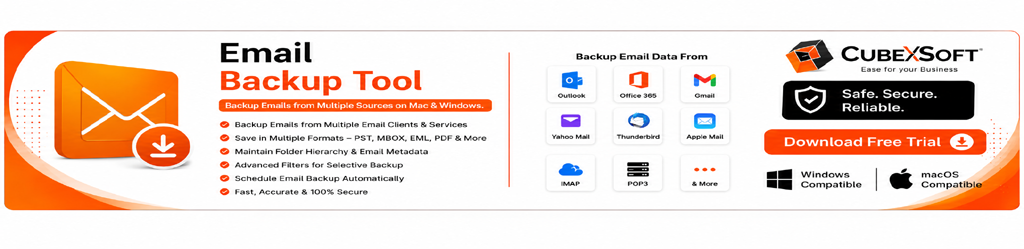
The CubexSoft Email Backup Tool is designed to download and back up email data from multiple supported services to a computer. It can be useful when you need to process large mailboxes, save messages in different formats, or apply filters before starting the backup.
Depending on the selected account and output options, the software can help preserve emails and their associated data while reducing repetitive manual work.
Basic Steps to Download Emails with CubexSoft
- Install and launch the CubexSoft Email Backup Tool.
- Select your email service or account type.
- Enter the required account credentials and complete the authentication process.
- Select the mailbox folders you want to download.
- Choose the desired output format and destination path.
- Apply available filters if you only need specific emails.
- Start the backup process.
- Open the destination folder and verify the downloaded data.
This approach can be particularly useful for users who need to back up multiple accounts or large volumes of email without repeatedly exporting individual messages.
Step-by-Step Guide to Download Emails to Your Computer
If you want to save a large number of emails locally, using an email backup tool can make the process much easier. The general steps are as follows:
- Download and install the email backup tool on your computer, then select your email service from the available source options.
- Enter the required account credentials and complete the login or authentication process to connect your mailbox.
- Once your account loads, choose the folders and subfolders you want to download.
- Select your preferred format from the available saving options.
- Browse to the folder where you want to store the downloaded emails.
- Click the Backup or equivalent button to begin saving the selected mailbox data to your computer.
The exact options may vary depending on the email service and output format you select.
Key Features of the Email Backup Solution
A dedicated backup application can offer several features that are difficult to achieve through manual methods:
- Supports Multiple Email Services: The tool supports more than 250 cloud, webmail, and IMAP-based email services, including Gmail, Office 365, Outlook.com, Yahoo Mail, AOL Mail, Google Workspace, and Exchange Server.
- Preserves Email Information: During the backup, it can retain attachments, formatting, metadata, internet headers, timestamps, inline images, and folder organization.
- Flexible Email Filters: Date, sender, recipient, subject, and folder-based filters allow you to select only the messages you need instead of downloading an entire mailbox.
- Incremental Backup: After the first backup, incremental functionality can help download only newly received emails rather than duplicating previously saved data.
- Folder Selection and Preview: You can review the available mailbox folders and select specific folders or subfolders before starting the backup.
- Bulk Email Backup: Instead of saving messages individually, you can process multiple folders or larger volumes of email in a single backup session.
Conclusion
Saving emails to your computer is a useful way to keep important messages available for offline access, backup, migration, and long-term storage. For a few messages, built-in options such as Save as PDF, Outlook export, or individual message saving may be enough.
However, manually downloading a large mailbox can quickly become repetitive and time-consuming. If you need to back up emails in bulk while retaining attachments, message details, and folder organization, a dedicated email backup solution can simplify the process.
Choose the approach based on the size of your mailbox, the amount of data you need to save, and whether you need a one-time export or a regular backup.

