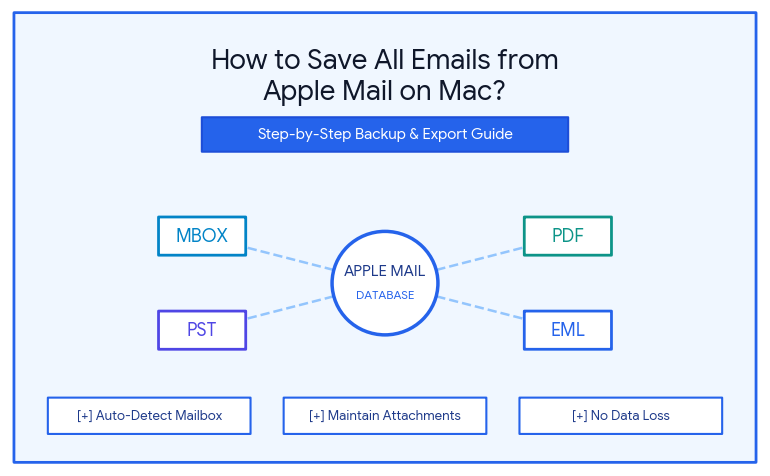
Apple Mail serves as the default mail app used by millions of users on their macOS devices around the world, providing seamless integration between Mac, iPhone, and iPad. In the course of usage, though, the inbox will collect thousands of important emails, billing statements, business communications, and even legal documents. Keeping only those emails saved in Apple Mail on Mac can be risky as the app might be accidentally deleted or corrupted.
If you are going to replace your Mac with another one, want to clear the local storage, switch to another email app, or just create an extra backup copy, then you need to know how to download all emails from Apple Mail on Mac.
Why One Should Save and Back Up Apple Mail Data?
The advantages of storing your emails on your computer in the long run include:
- Protection against server failure: In case there is a problem with the IMAP/Exchange server such as failure, synchronization problems, or account deletion, you will have all your emails backed up safely.
- Optimized Storage: You can archive old emails locally and thus delete them from your server to save more space on your cloud service, like iCloud or Gmail.
- Transfer Ease: If you have your Apple mail stored in flexible and open formats, it becomes easy to transfer to another mail client such as Microsoft Outlook and Mozilla Thunderbird.
- Compliance: There are times businesses need their emails stored offline and in a tamper-proof form.
Method 1: Export Apple Mailboxes Using Built-In Export Feature
Apple Mail contains a built-in functionality allowing you to export separate mailboxes or whole folders into the common MBOX format.
Steps:
- Open Apple Mail on your Mac computer.
- On the left pane, choose the mailbox or the folder you need to save (Inbox, Sent, and any other custom folder). For choosing several mailboxes, press the Command (⌘) button and click them all.
- Click with the right mouse button (or Ctrl-click) on the chosen mailbox and select Export Mailbox… from the menu.
- As an alternative option, open the top menu bar and click Mailbox > Export Mailbox…
- Specify where to save the mailbox on your Mac hard drive or another storage media.
- Press Choose to start the mailbox exporting.
Drawbacks of Inbuilt Export Functionality: Although user-friendly, Apple Mail’s inbuilt export function only allows export of data in MBOX file format. In addition, while attempting to export large mailboxes that have several emails, there could be issues of hanging progress bar, missing attachments or incomplete export in case of corruption in database entry.
Method 2: Save Individual Emails as PDF or Text Files
Where you just require archiving certain vital emails or a legal discussion, converting these emails to PDF documents would give you the opportunity to read them regardless of the device, since you do not have an email application.
- Launch Apple Mail and choose the email messages that you wish to archive.
- Choose File > Export as PDF… from the top menu.
- Choose where you wish to save your file and then click on Save.
The selected email would be converted to a PDF document.
Professional Solution: Save All Emails Using MacMister Apple Mail Converter
Users who wish to back up the whole Apple Mail database at once, ensure that all the folders are intact during the process, and also transfer the messages to different formats other than MBOX (PST, PDF, EML, MSG, HTML, CSV, or TXT), using manual backups can prove to be difficult and prone to errors.
The use of a specialized application such as MacMister Apple Mail Converter for Mac solves the purpose.
Why Choose MacMister Apple Mail Converter?
- Software has a capability to find local Apple Mail database files automatically without any manual effort for searching ~/Library directory on Mac.
- Convert Apple Mail files to PST (compatible with Microsoft Outlook), PDF (for archival purposes), EML, MSG, MBOX, HTML, and CSV.
- All emails’ metadata including To, From, CC, BCC, Date, and Subject fields and attachments are preserved as they were in original files.
- Preserves directory structure in your Apple Mail just as it is on your computer.
- Works out-of-the-box on all latest versions of macOS and supports both Apple Silicon and Intel hardware.
Step-by-Step Guide to Save All Apple Mail Emails with MacMister:
Step 1. Launch and run MacMister Apple Mail Converter on your Mac.
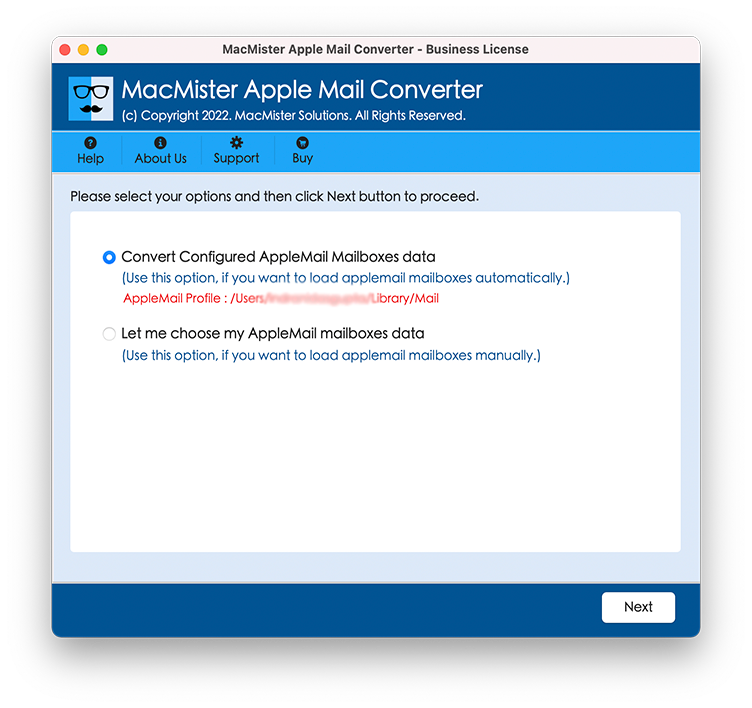
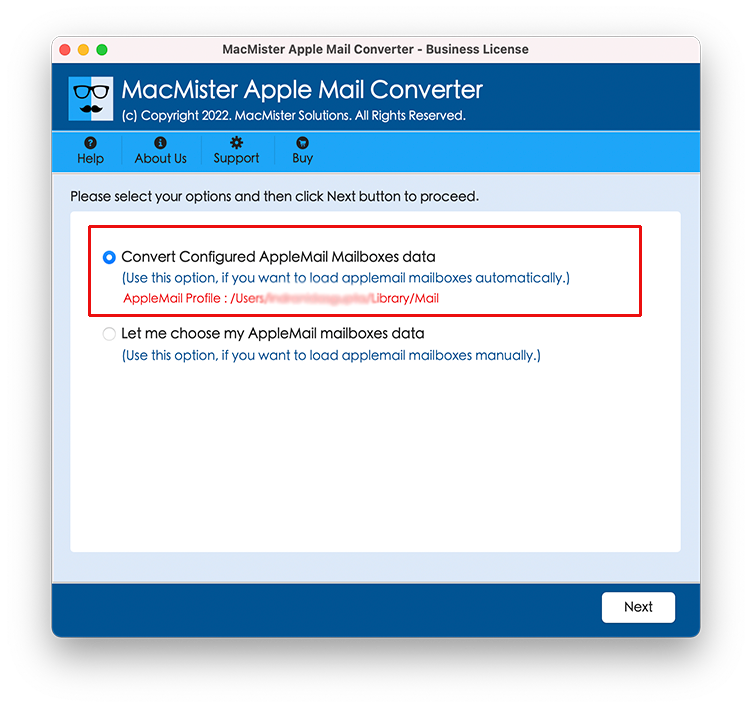
Step 2. Choose either the Auto-Load Apple Mail Database option for automatic loading of your mailboxes or Add Files / Add Folder to add .mbox files from the folder you want.
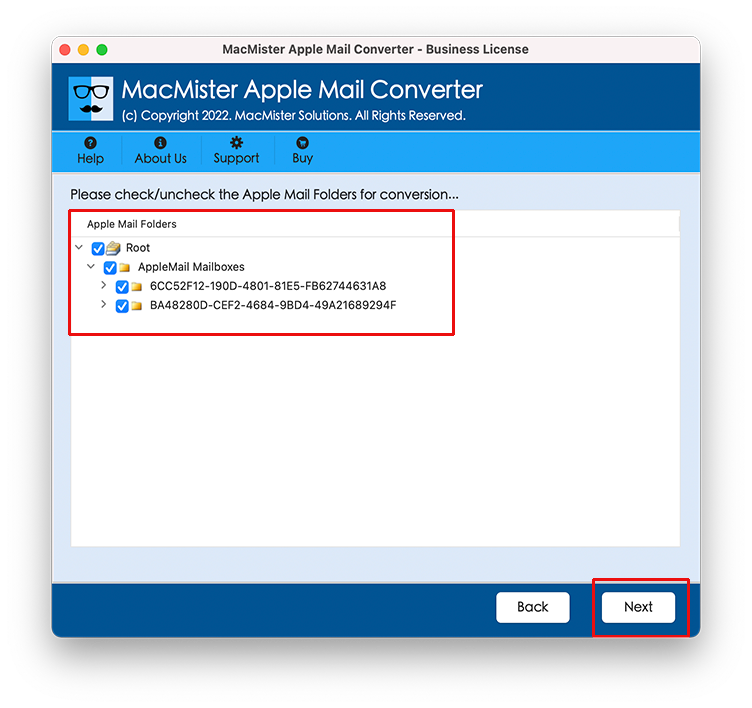
Step 3. Examine the folder tree that will be generated in the left panel and select the mailboxes or folders you want to save.
Step 4. In the Select Saving Option dropdown list, choose the output file format you want (for example, choose PDF to archive documents or PST if you use Outlook).
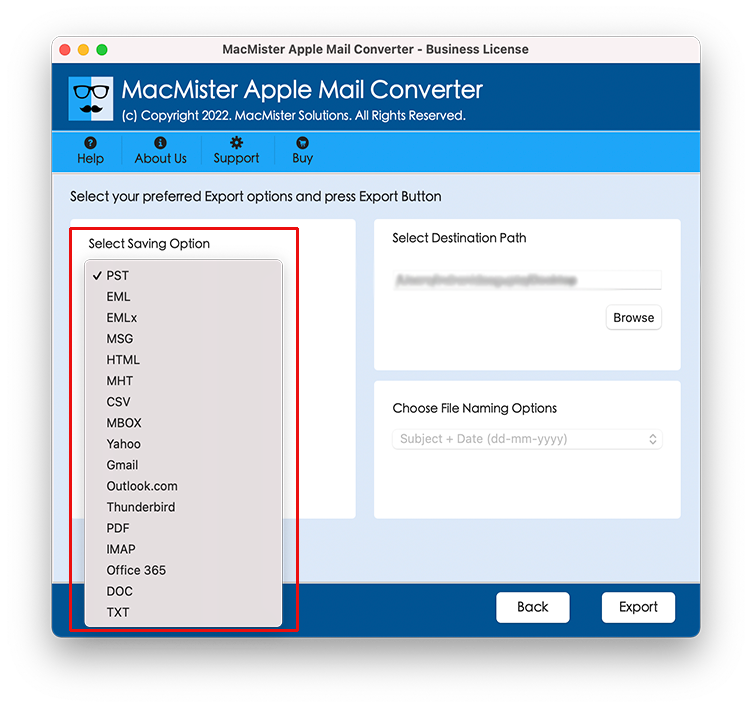
Step 5. Hit the Browse button to specify the folder for the output files on your Mac or any external device and set other options as per your needs.
Step 6. Apply optional filters if necessary.
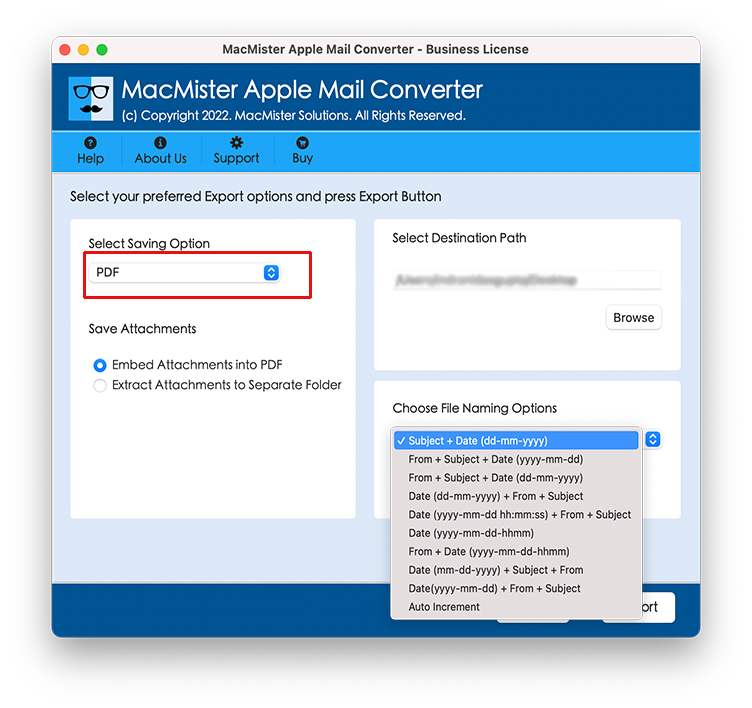
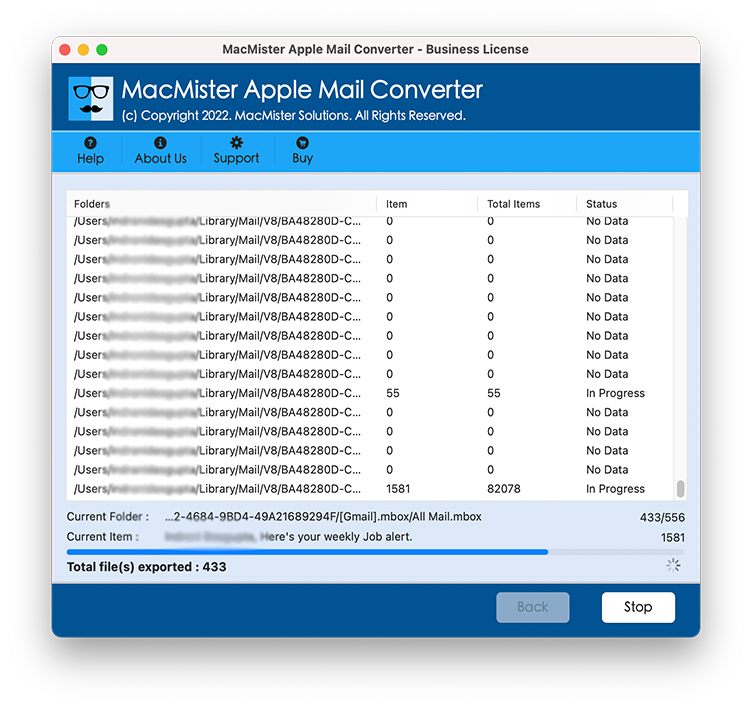
Step 7. Press the Export button and check the live export status of Apple Mail mailboxes on the screen.
Conclusion
Saving all your emails from Apple Mail on macOS is an essential step to safeguard your digital footprint. While Apple Mail provides basic built-in MBOX export tools for simple tasks, managing large, multi-gigabyte mailbox collections requires a more robust approach. Using MacMister Apple Mail Converter for Mac guarantees that your entire email history—including attachments, metadata, and folder structures—is saved securely in accessible, flexible formats for long-term peace of mind.

