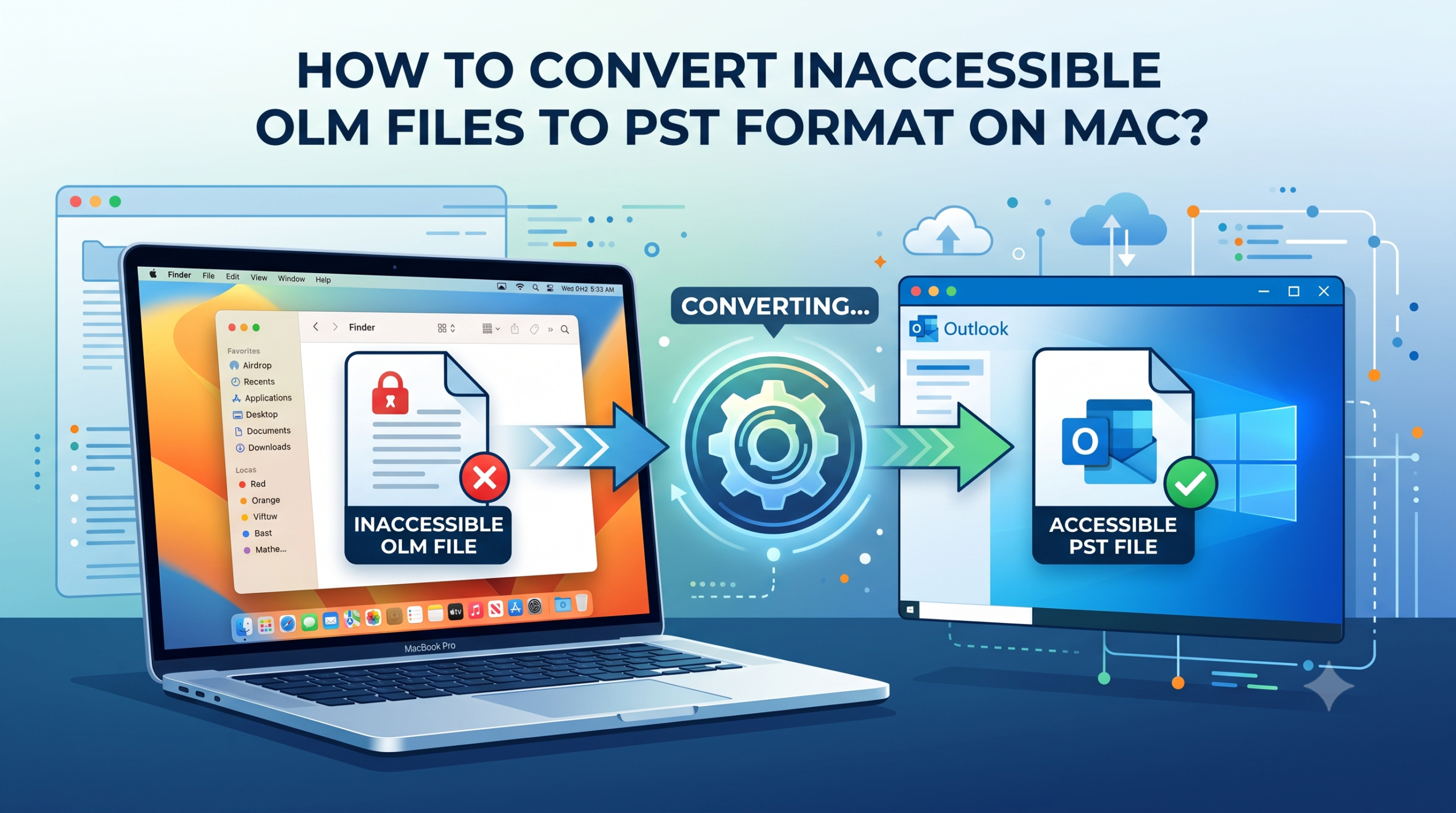
Moving from Mac to Windows and system crashes often pose a big challenge to Mac Outlook users – inaccessible OLM (Outlook for Mac) files. The OLM file is a database file that contains all your email, contacts, calendars, tasks, and notes in Outlook for Mac.
Nevertheless, if an OLM file becomes inaccessible due to database corruption, incorrect export process, or you have shifted to a Windows platform, it becomes very hard to open such files. Microsoft Windows Outlook is not compatible with OLM files and works with PST (Personal Storage Table) databases.
If you have unreadable or orphaned OLM files, conversion of such files into PST files in your Mac is the best way to go. Here is a detailed analysis of why OLM files are often inaccessible and how to convert them.
Why OLM Files Become Inaccessible?
The more knowledge on the factors that make an OLM file crash or become unreadable, the less likely it will happen again in the future:
- Database Corruption: A sudden halt in operations, malware infections, and software crash when Outlook for Mac is saving data on the disk lead to corruption of the OLM file’s database headers.
- Cross-Platform Problem: Windows-based Outlook does not have the necessary database handlers for unpacking Mac OLM archives.
- Large File Size Limitation: Overstressing storage limits in old versions of Mac Outlook leads to the inability to work with .olm files as they become frozen, produce timeouts and cannot be manually imported.
- Profile Disconnection: If the OLM file loses connection with the original user profile or active Exchange account, it becomes impossible to access its content via Outlook for Mac.
Why PST Is the Ideal Target Format for Migration?
Conversion of inaccessible or orphaned OLM files to PST format ensures several key benefits of operation:
- Compatibility with Microsoft Outlook for Windows (including Outlook 2021, 2019, 2016, 2013, and Microsoft 365)
- Allows for direct importing: Once converted to PST, the file can be imported in Microsoft Outlook using File > Open & Export > Open Outlook Data File
- Provides isolation of database errors: Conversion from raw mailbox data from an affected OLM database allows for rebuilding of the index, thus recovering corrupted folders and emails into the new PST database.
The Manual Process & Its Major Limitations
Any attempt at manual migration of an inaccessible OLM file usually includes setting up a fake IMAP account (for example, Gmail or Outlook.com), importing messages into cloud folders from Outlook for Mac and syncing the messages on Windows Outlook.
Why Manual Migrating Cannot Work with Inaccessible File:
- It Needs Functional Mac Outlook: In case the OLM file is damaged or orphaned, Outlook for Mac will not be able to load or open it, making the process of IMAP dragging and dropping impossible.
- Extremely High Risk of Losing Information: Manual syncing usually loses attached images, removes attachments and changes original header dates (From, To, Date).
- Large Bandwidth Usage: Transfer of gigabyte-size mailboxes across the cloud server takes place very slowly and often leads to sync freezing.
The Solution: Convert Inaccessible OLM Files Using MacMister OLM to PST Converter
If a workaround does not work in the manual way or when dealing with damaged OLM archives, using a utility for the purpose of recovery and conversion is recommended.
MacMister Mac OLM to PST Converter is a unique utility aimed at scanning, repairing, and converting inaccessible or orphaned OLM files into PST files right on macOS.
Key Features of MacMister OLM Converter:
- The inbuilt advanced scan algorithm extracts data from emails, attachments, and folders within corrupted, orphaned, or inaccessible OLM files.
- Creates 100% valid Windows Unicode PST files compatible with any Windows Outlook version.
- Preserves all header information, formatting, images, and attachments as they are without making any changes.
- Replicates your complete Mac Outlook folder hierarchy into the resulting PST file.
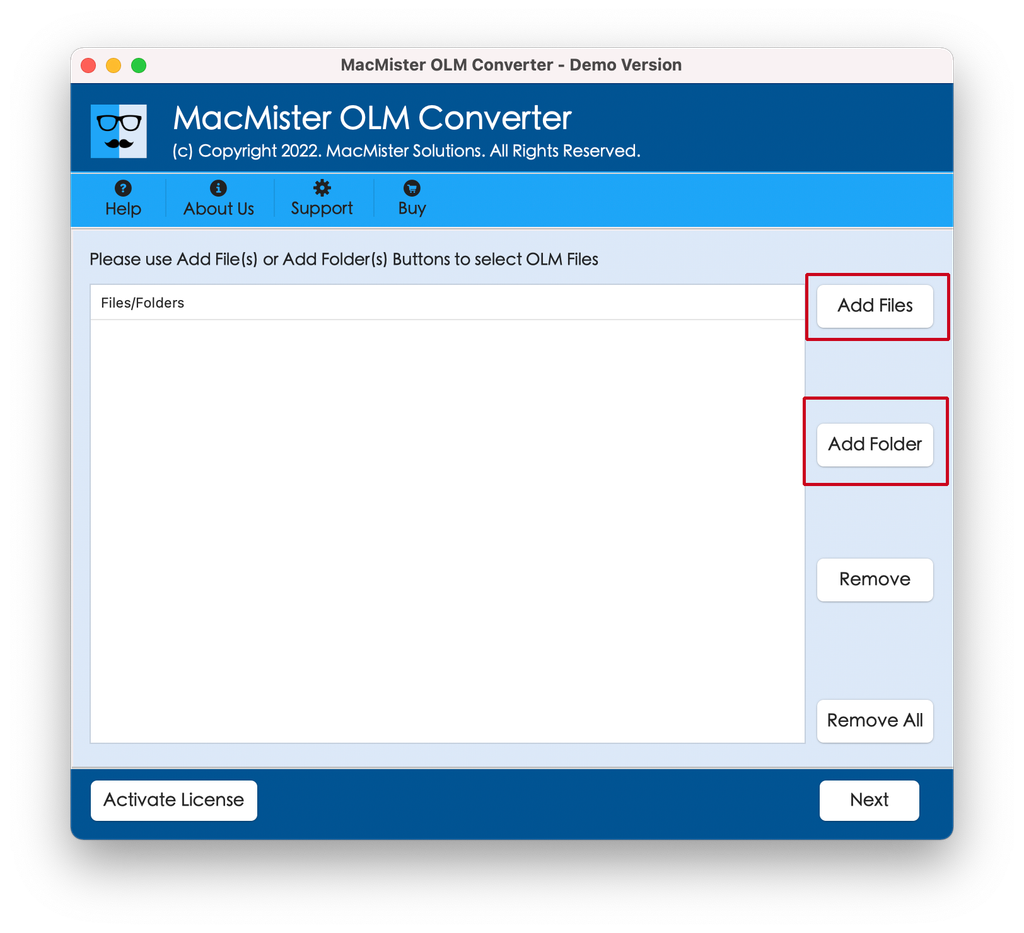
- Enables you to select multiple OLM files simultaneously through Add Files and Add Folder options.
- Operates on all Apple silicon (M1, M2, M3, M4) and Intel based Mac systems under latest macOS versions like Sequoia, Sonoma, and Ventura.
Step-by-Step Guide: Convert Inaccessible OLM to PST on Mac
Follow these steps to restore and convert your OLM file using the MacMister utility:
Step 1. Download and launch the MacMister OLM Converter for Mac on your Mac.
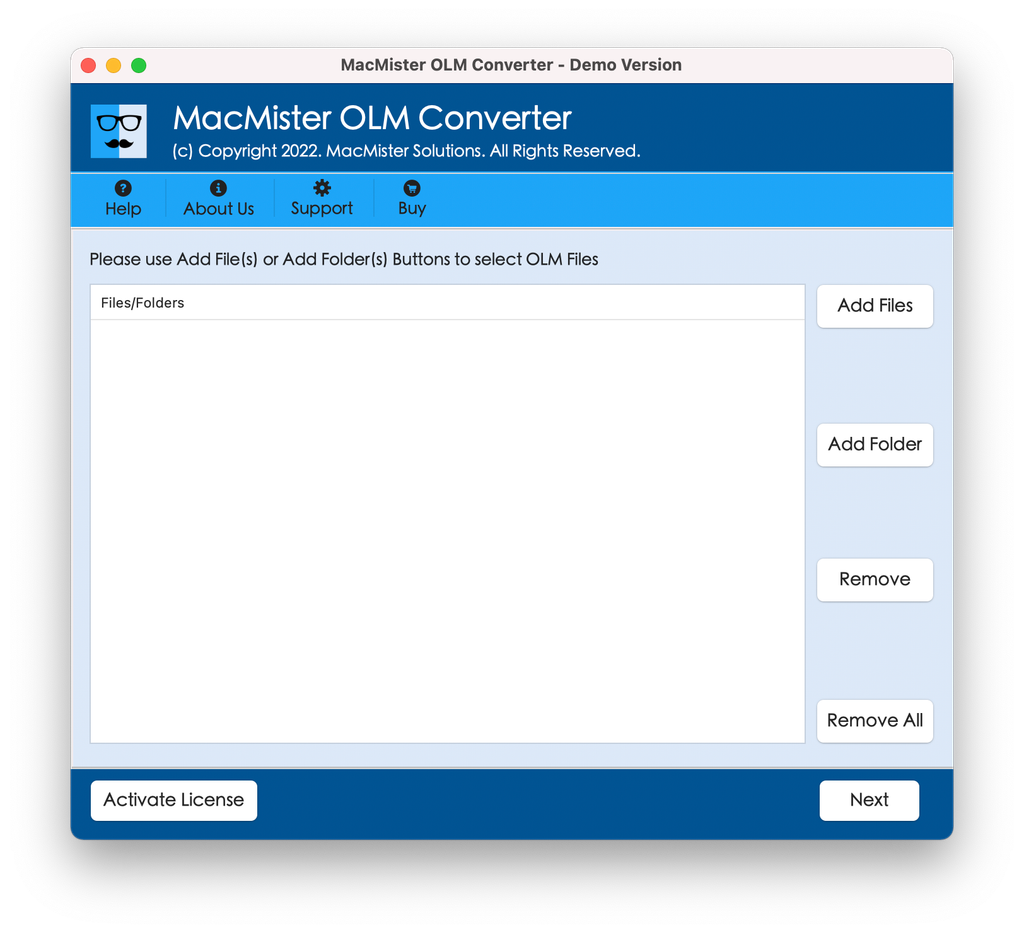
Step 2. In case of importing individual .olm files you should select Add Files button but to load multiple OLM files at once, please press Add Folder.
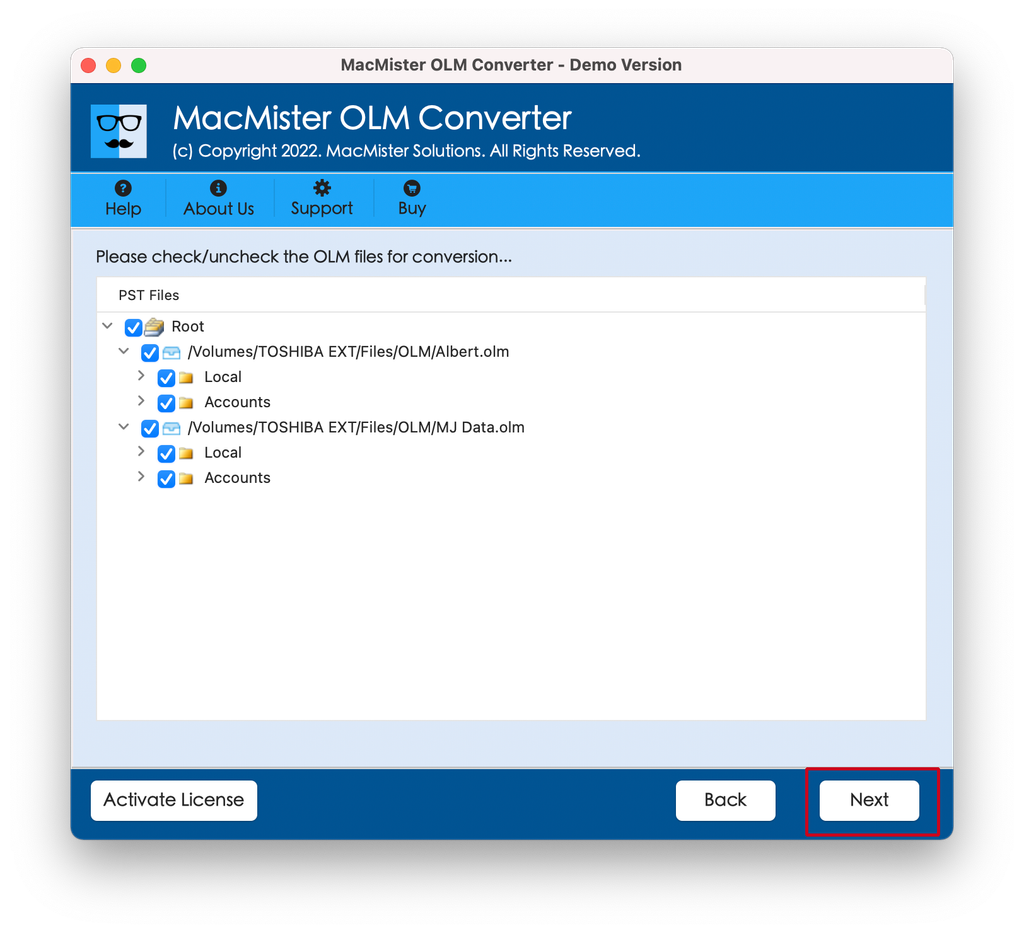
Step 3. At this stage the program analyzes your OLM file and displays interactive tree view of your folders. Then select those folders that you would like to convert.
Step 4. Save as PST file: Go to Select Saving Option window and select PST format for saving.
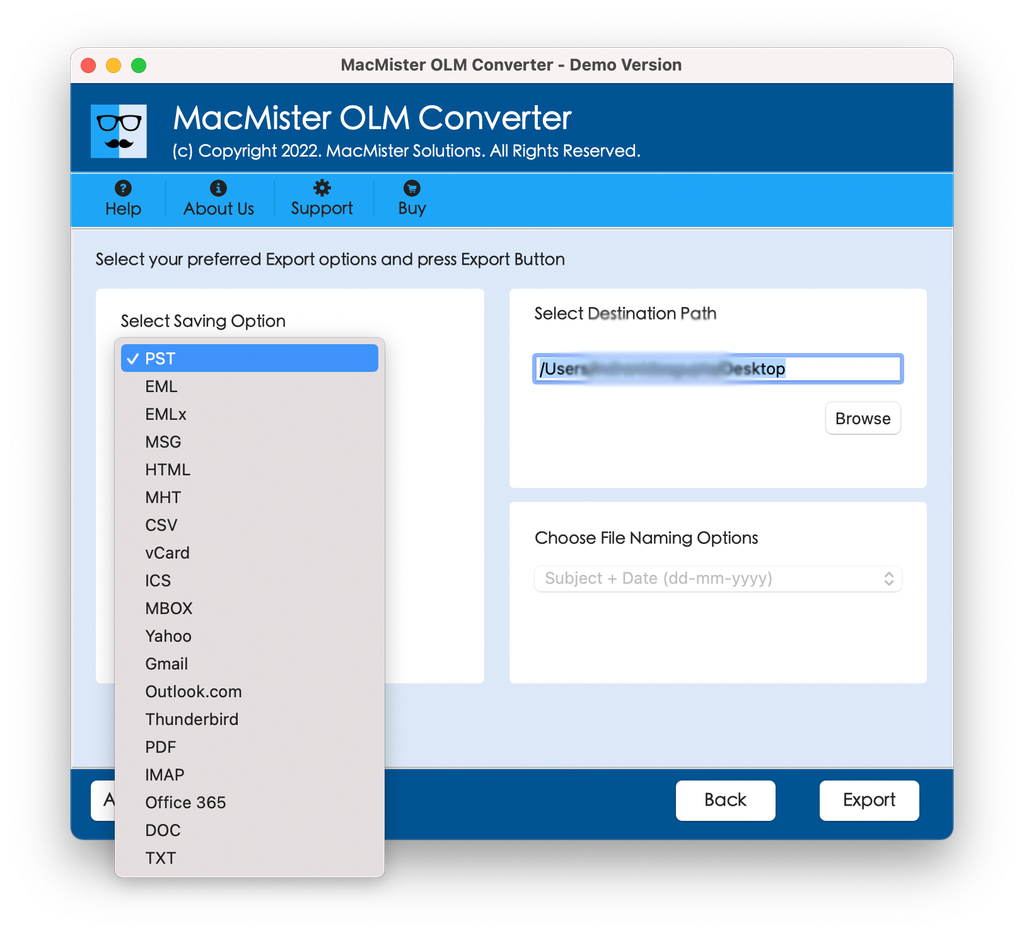
Step 5. Set PST sub-options as per requirements and tap Export.
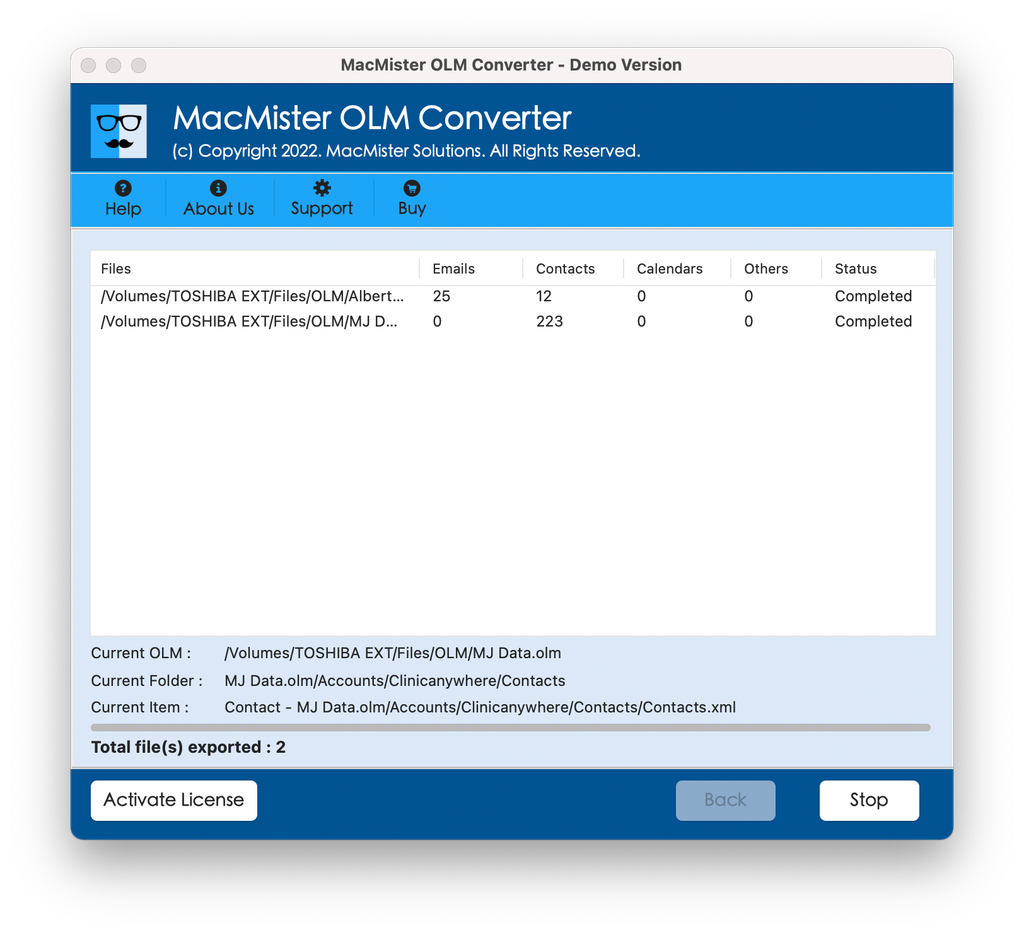
Step 6. Check live process using Live Conversion Report that appears after tapping Export.
How to Open Your Converted PST File in Windows Outlook?
After completing the conversion process, move the created PST file to your Windows computer via USB drive or cloud storage or network connection and then just open it in just a few steps:
- Launch Microsoft Outlook on your Windows computer.
- Go to File -> Open & Export -> Open Outlook Data File.
- Find your converted PST file and open it by clicking on OK.
- You will find all your Mac Outlook emails, attachments, and folder structure under the Outlook Data File tab in the left sidebar of Microsoft Outlook.
Conclusion
Access problems or unreadability of an OLM file do not necessarily mean the loss of your old emails and customer data forever. The fundamental problem here is about proprietary database locks and the incompatibility of storage engines of Outlook on Windows and Mac platforms. You will manage to bypass all corruption issues by converting inaccessible OLM files to standard PST format via MacMister Mac OLM Converter software.

