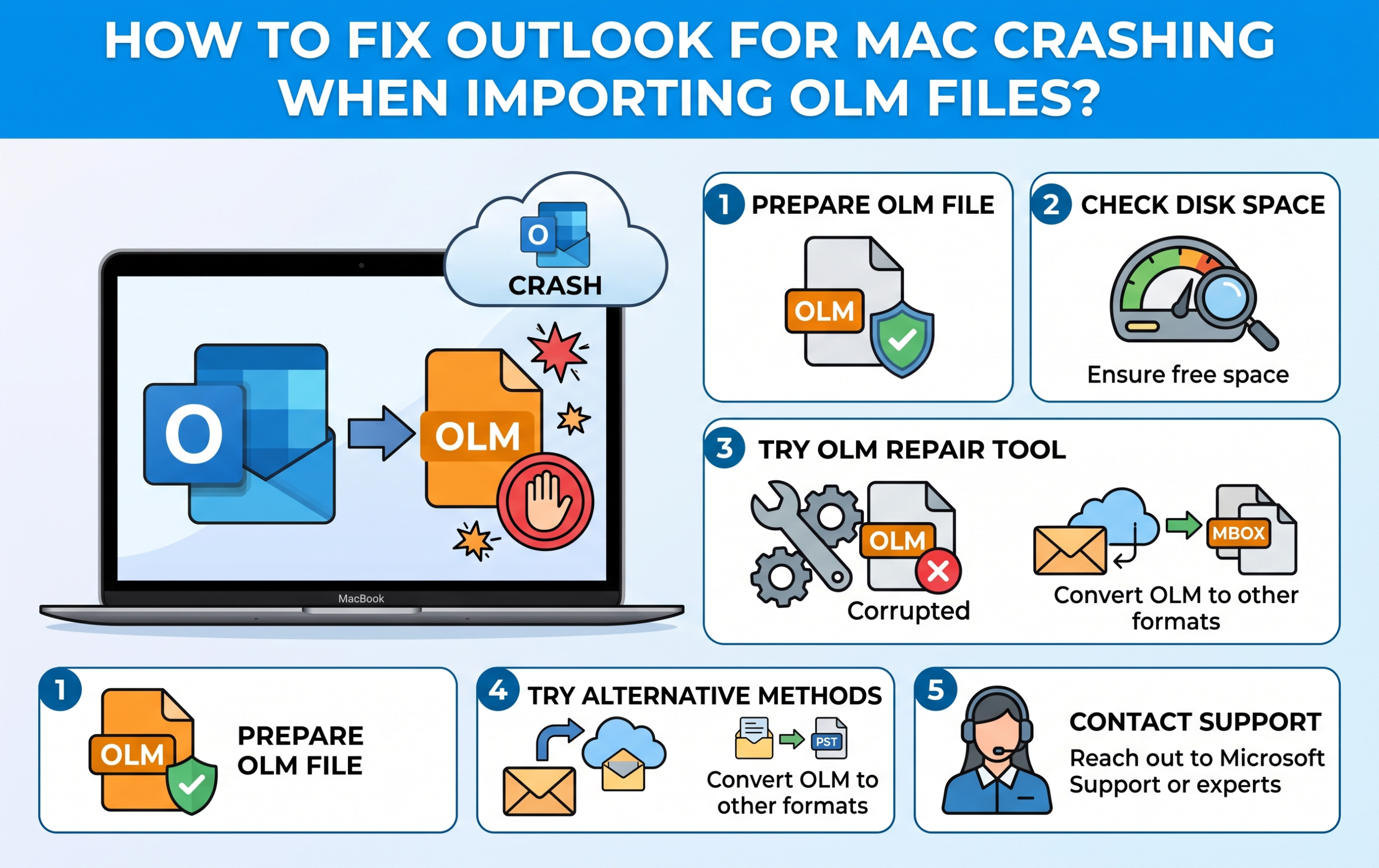
Data migration or restoration in Microsoft Outlook for Mac is supposed to be a smooth process. Unfortunately, for many people, there is always that obstacle where Outlook for Mac freezes or hangs up entirely while importing an OLM (Outlook for Mac Archive) file.
This is very troublesome since OLM files usually contain important emails, contacts, calendar entries, and tasks. It is necessary to know the reason behind it and use a specialized tool such as MacMister OLM Converter.
Why Does Outlook for Mac Crash During OLM Imports?
It is necessary to know the causes of the software crash before finding the right solution to the problem. When Outlook tries to parse an OLM file, it tries to analyze a complicated database structure that exists inside of this file. If there is some kind of irregularity in this process, the program will stop working. These causes may include:
- File Corruption: In case of an incorrect export of the OLM file, its interruption at some point, or being saved in a defective sector, the file will get corrupted and cause Outlook to crash when trying to read this particular sector.
- Oversized Mailboxes: A huge volume of an OLM file will cause Outlook to crash because of memory overload during processing of this large amount of information.
- Incompatibility with macOS and App: Trying to use the outdated version of the application with the current version of macOS may cause parsing and synchronization errors.
- Damaged Database Indexes: Your local Outlook identity profile is damaged or fragmented and cannot process any new database data.
Standard Troubleshooting Steps to Try First
If you have issues with your import failing or crashing, there are several steps you can take before resorting to a professional, third-party tool:
- Update Microsoft Outlook: Make sure your program is using the very latest patch available. Microsoft frequently comes out with patches which solve any import issues.
- Repair Your Outlook Profile: Use the Outlook Profile Manager in your program’s contents to create a new profile.
- Partition Large Archives: If your archive is huge, attempt to divide it into pieces if you can, even though there are very limited options for doing this on Macs.
If none of these measures help or if Outlook still keeps forcing quits each time you attempt to import your archive using it, you will need a professional tool which does not depend on native Outlook import system.
The Ultimate Solution: MacMister OLM Converter Tool
In case of structural corruption or excessive data in OLM files, the best choice would be to use professional utilities such as the MacMister OLM Converter for Mac Tool.
This tool is specifically designed for macOS and works effectively with both healthy and structurally corrupted OLM files, without needing Microsoft Outlook to be installed and operational.
Key Advantages of Using MacMister OLM Converter:
- As this program functions independently from Outlook for Mac, there is no possibility of crashes or “unknown error” warnings appearing while working.
- You can upload both single files or even entire directories containing OLM archives at once, thus saving a lot of time when dealing with multiple accounts.
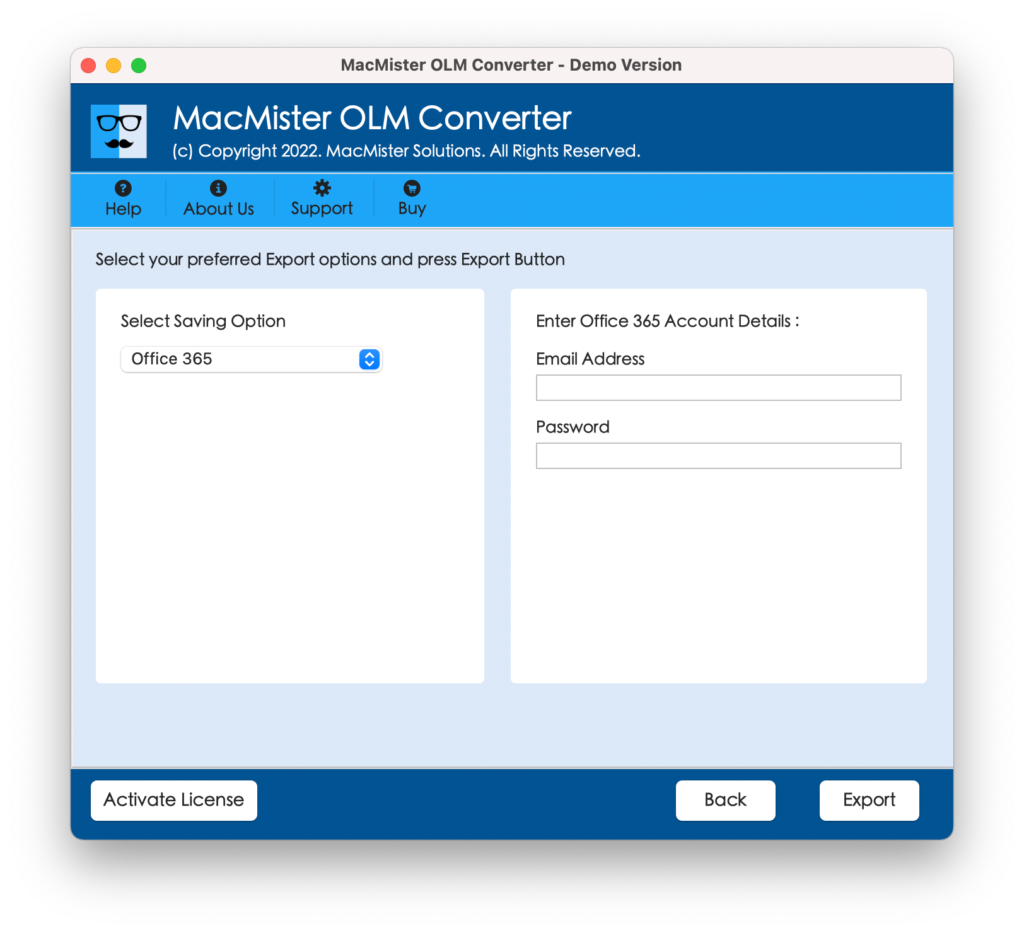
- In case Outlook for Mac is unwilling to work, you can export your OLM information in different formats including PST, MBOX, EML, PDF, HTML, or CSV, which means it will be really easy to transfer it into Apple Mail, Thunderbird, Office 365, or Windows Outlook.
- This tool guarantees that all of your nested folder structure, read/unread status and rich-text emails will stay untouched throughout the entire process.
- Before carrying out a conversion, the program will scan all of your emails, attachments, calendars, and contacts and provide a complete preview of the selected data.
Step-by-Step Guide: How to Convert OLM Files without Outlook Crashes
Converting your data using the MacMister tool helps to eliminate the randomness associated with the native imports of applications. The process is made up of the following five easy steps:
Step 1. Download and open the MacMister OLM Converter Tool on your macOS computer.
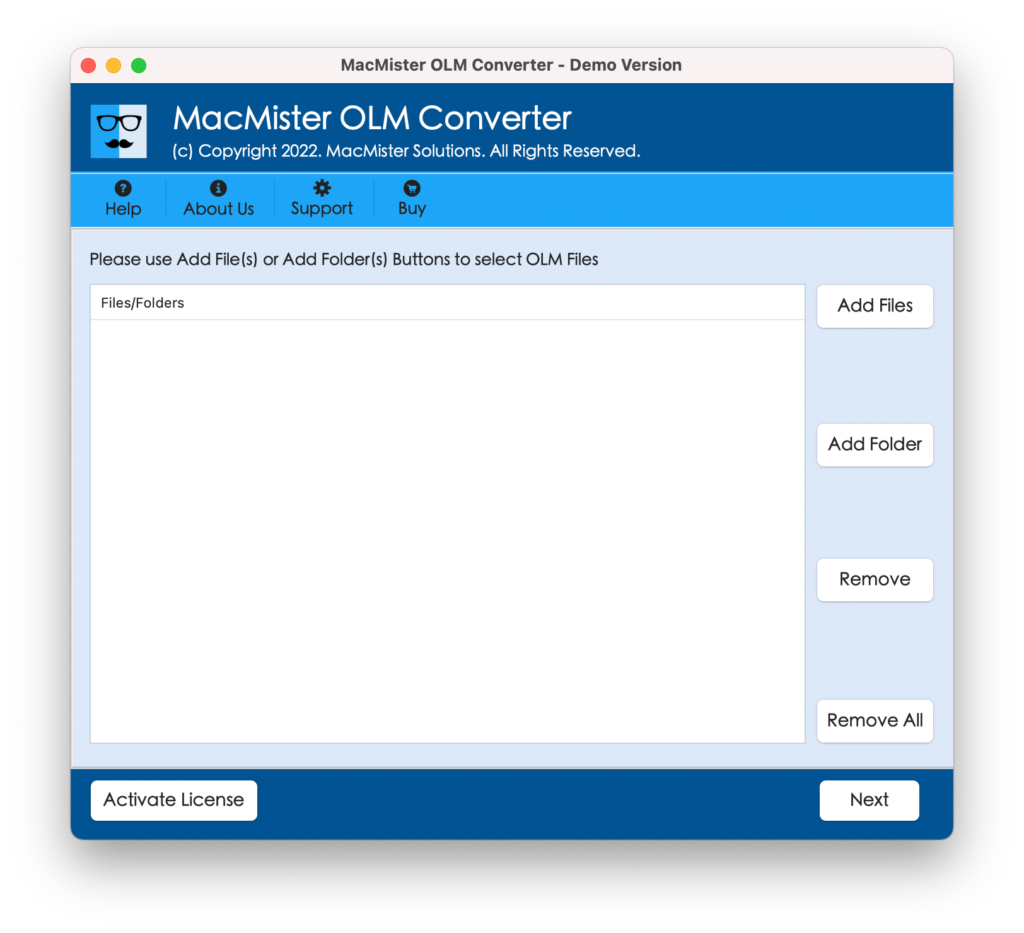
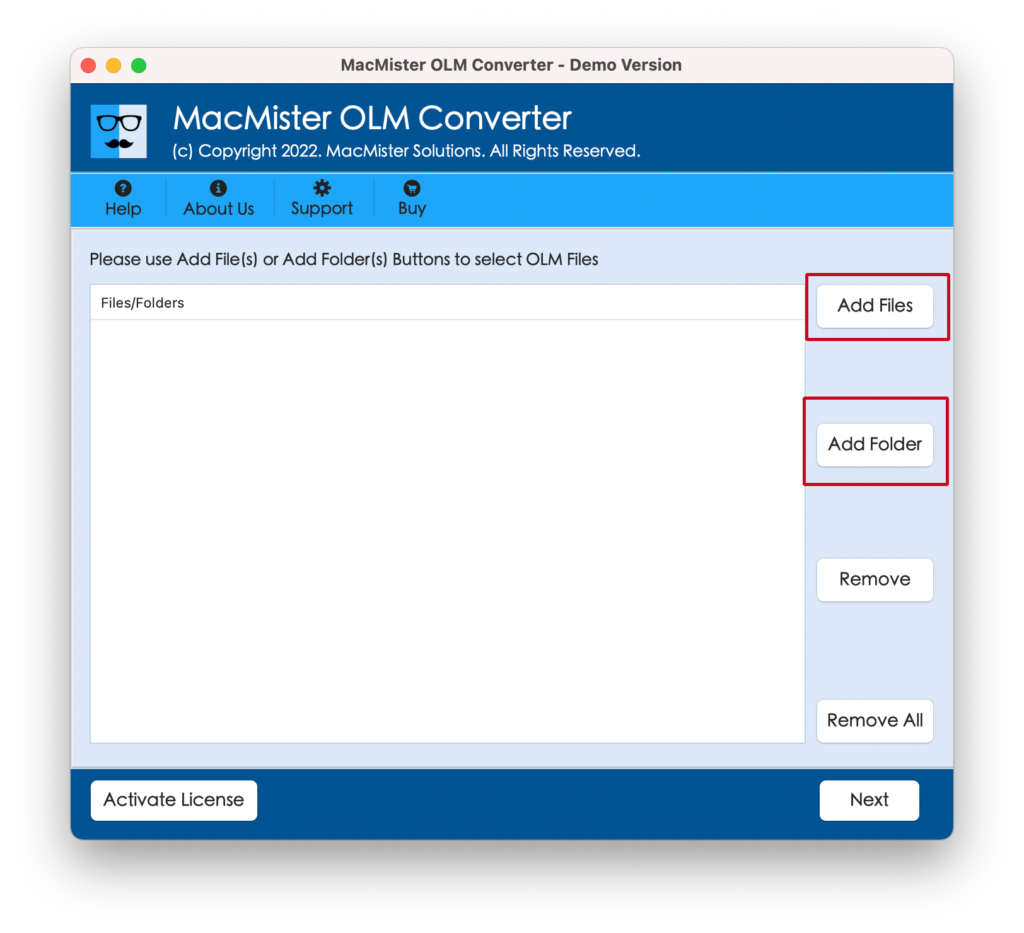
Step 2. Using the Add File(s) or Add Folder option, import the problematic OLM file(s).
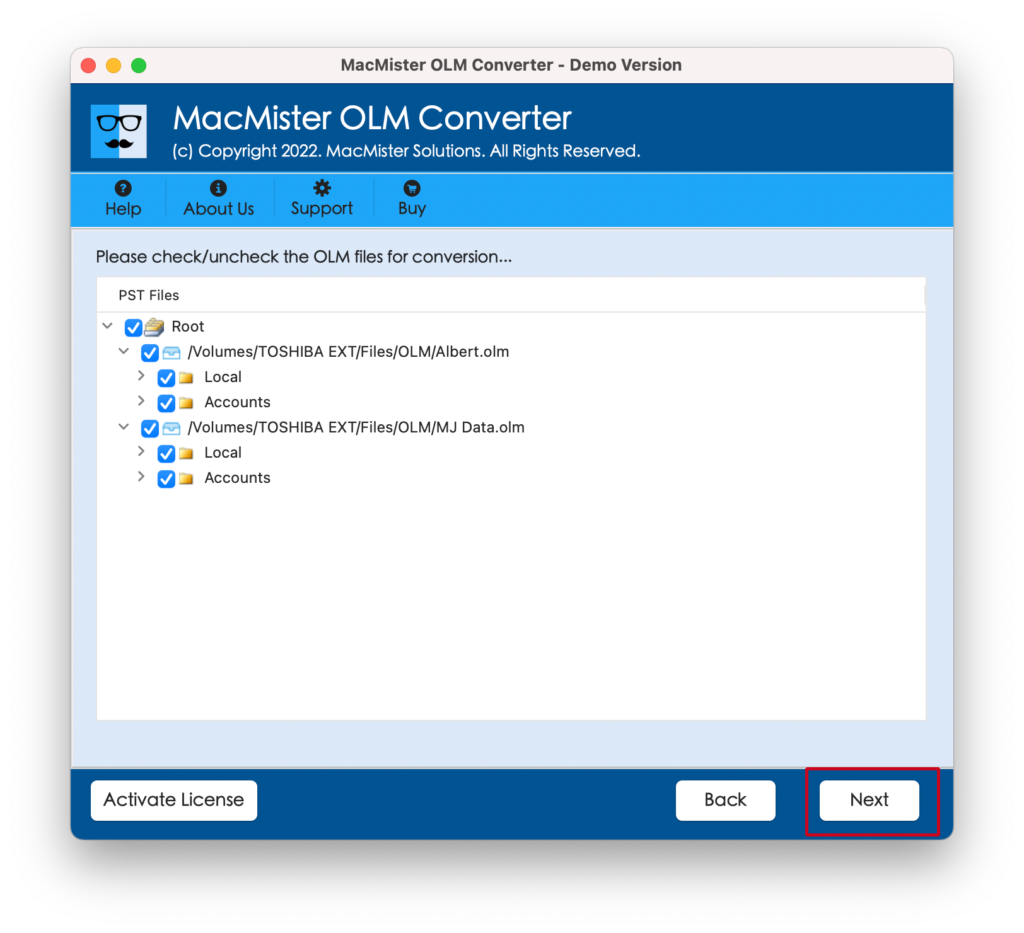
Step 3. Examine the preview pane containing your email items, folders, and attachments to check whether everything is intact.
Step 4. Go to the Select Saving Options option and select your saving format (for example, PST, MBOX, and PDF).
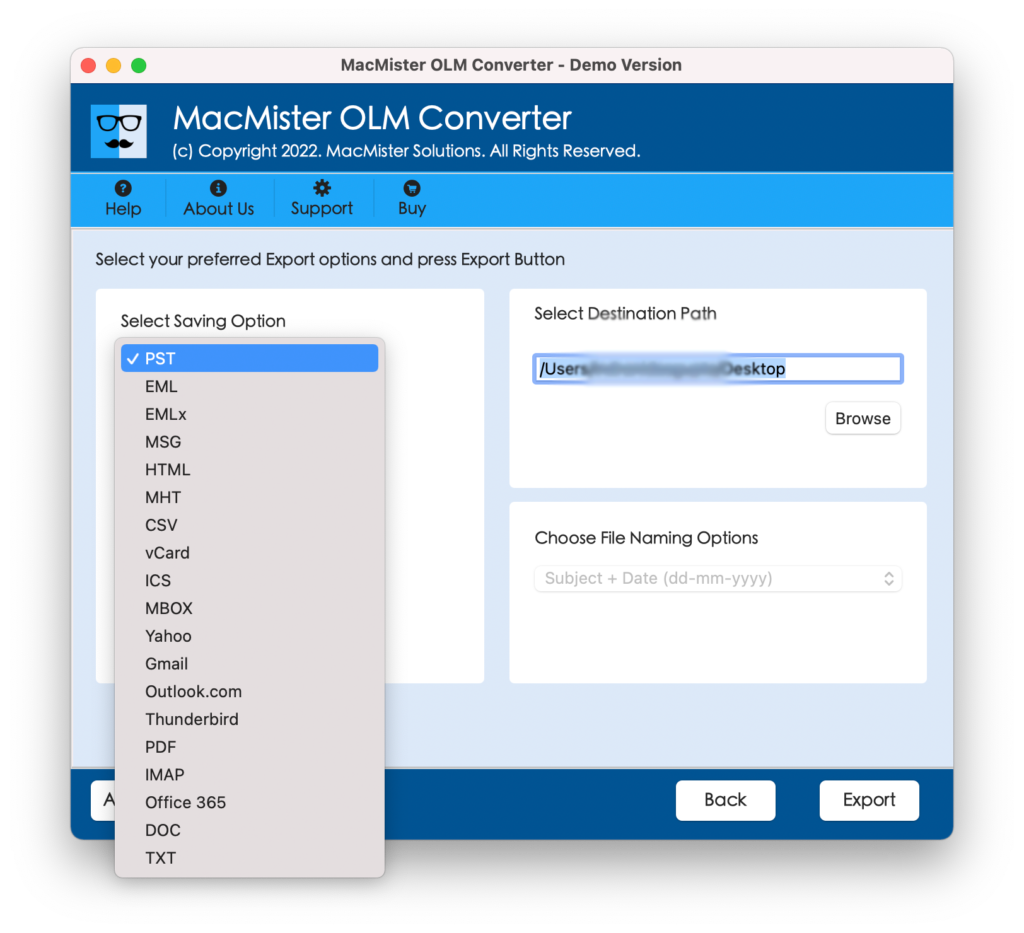
Step 5. Set sub-options and press the Export option.
Step 6. Check the Live Export Progress and track the live export status of OLM files.
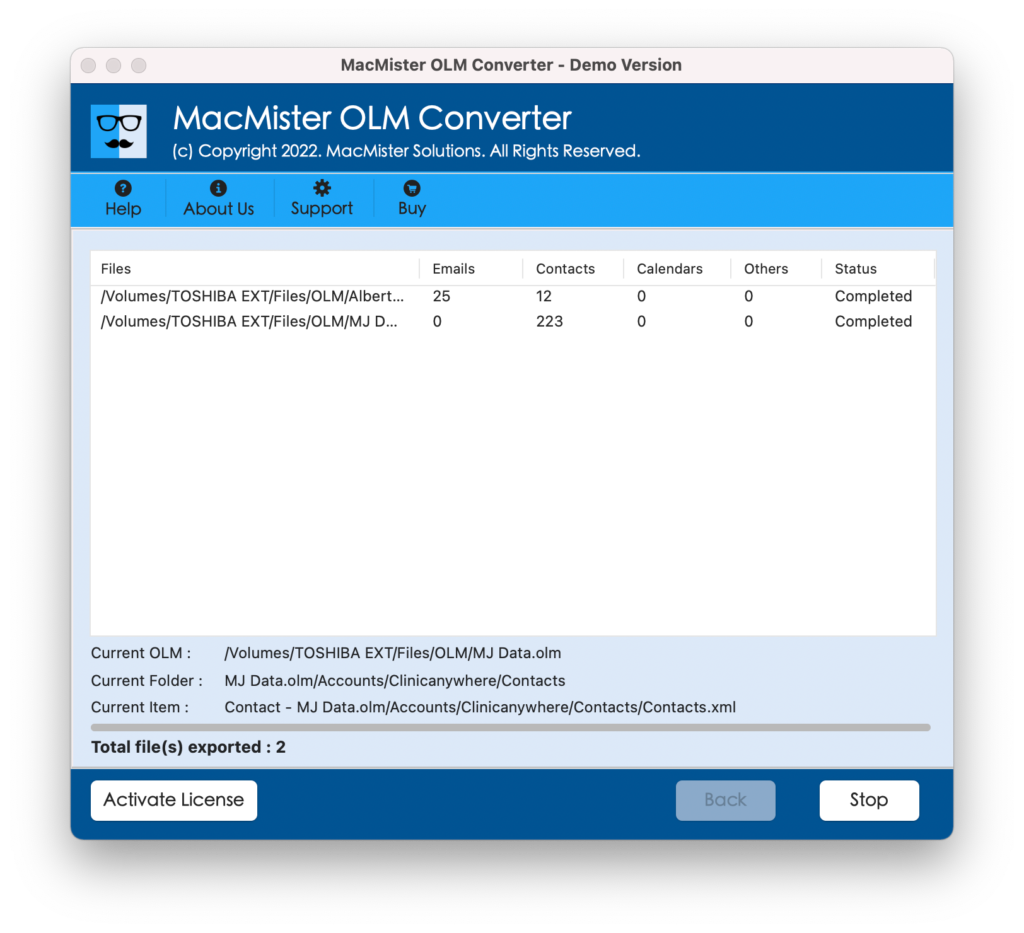
A progress bar will give you feedback of the process, and in no time at all, your files will be safely converted into a more stable form without any danger of crashing Outlook.
Conclusion
An unexpected crash when trying to import OLM files can interrupt your process and create a lot of stress. Although simple updates of the app and rebuilding your profile sometimes do help solve small issues, larger issues such as file size restrictions and corruption call for a more powerful solution. Through using MacMister OLM Converter Tool, you can circumvent the structural issues of the Outlook app, and protect your valuable emails from being lost forever.

