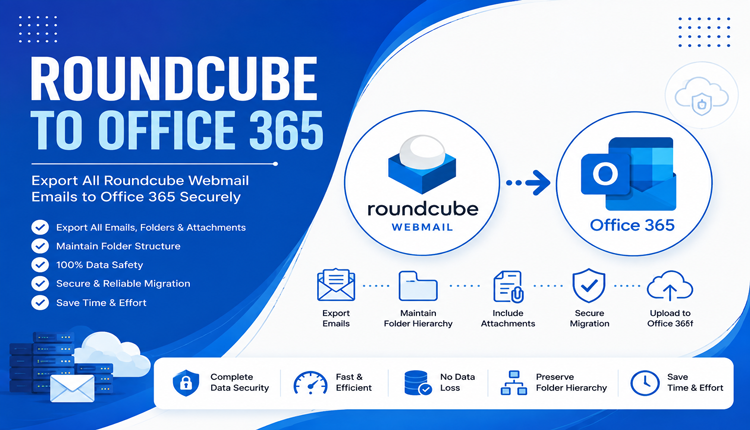
This guide explains the technical workflow and how the Roundcube to Office 365 can help prepare Roundcube mailbox data for Office 365.
Roundcube is a popular browser-based email client used by hosting providers, organizations, and individual users to access emails through a web interface. However, when an organization moves to Microsoft 365, there is often a requirement to transfer existing Roundcube mailbox data into Office 365. The process becomes more technical when the mailbox contains thousands of emails, multiple folders, attachments, and historical correspondence.
The requirement to export all Roundcube Webmail emails to Office 365 can be handled by first extracting the mailbox data from the Roundcube environment and then importing or transferring it into the required Microsoft 365 mailbox. For larger or recurring migrations, using a dedicated email backup and conversion utility can simplify the process and reduce the chances of missing important data.
Why Export Roundcube Emails to Office 365?
Microsoft 365 provides cloud-based email hosting along with Outlook, OneDrive, Teams, SharePoint, and other collaboration services. Organizations using Roundcube through traditional web hosting may choose Office 365 for centralized mailbox management, better integration with Microsoft applications, and easier administration. Some common reasons for moving Roundcube emails include –
- Moving from shared hosting email to Microsoft 365
- Centralizing business mailboxes in Office 365
- Accessing historical emails through Outlook
- Maintaining email records after changing hosting providers
- Creating a backup before terminating an old email service
- Managing multiple employee mailboxes from Microsoft 365 Admin Center
- Preserving attachments and historical correspondence
Before starting the transfer, administrators should identify the source mailbox, destination Microsoft 365 account, required folders, and approximate mailbox size.
Technical Structure of Roundcube Email Data
An important point to understand is that Roundcube itself is primarily webmail interface. It does not normally function as an independent mailbox database containing all messages. It connects to an underlying mail server through protocols such as IMAP.
Therefore, exporting emails from Roundcube depends on how the associated hosting environment stores and provides access to mailbox data. In a typical setup, the architecture looks like –
Roundcube Webmail → Mail Server/IMAP → User Mailbox → Export/Backup → Office 365
This means that simply downloading a web page or copying messages from the Roundcube interface is not an efficient approach for a large mailbox. The underlying email data should be preserved in a structured format before it is moved to Microsoft 365.
What Should Be Checked Before the Export?
Before exporting Roundcube emails, verify the following technical details –
- Confirm that the Roundcube mailbox is accessible.
- Identify the associated IMAP mail server.
- Check the mailbox size and folder structure.
- Confirm whether attachments need to be preserved.
- Create a backup of critical messages before migration.
- Verify the destination Microsoft 365 mailbox.
- Make sure sufficient Microsoft 365 storage is available.
- Test the process with a small mailbox before processing multiple accounts.
It is also recommended to record the existing folder structure. This makes it easier to verify whether Inbox, Sent, Drafts, Archive, and custom folders have been transferred correctly.
Method 1 – Export Roundcube Emails Manually
For a small number of emails, users may be able to save individual messages from Roundcube. Depending on the hosting configuration and available options, messages can potentially be downloaded in email formats such as EML.
However, this approach becomes inefficient when the mailbox contains thousands of messages. A manual workflow generally involves –
Roundcube → Select Email → Download/Save Message → Store Locally → Prepare for Office 365 Import
The major limitation is scalability. Repeating the process for every message can consume significant time and may increase the possibility of accidentally skipping emails or attachments. Manual exporting is therefore more suitable for a small number of selected messages rather than a complete mailbox containing years of correspondence.
Method 2 – Use IMAP-Based Migration
Another technical approach is to connect the Roundcube-associated mailbox to Microsoft 365 using IMAP-based migration or another supported mailbox transfer mechanism.
The important point is that the source is generally the mail server behind Roundcube, rather than Roundcube’s web interface itself. The administrator may need source details such as –
- IMAP server hostname
- IMAP port
- Encryption method
- Source email address
- Source mailbox password or authentication credentials
The Microsoft 365 environment must also be configured appropriately before starting the transfer. This approach can be useful when the source mail server remains online and supports the required authentication and IMAP access. However, configuration requirements can vary between hosting providers, and modern authentication or security restrictions can make the process more complicated.
Method 3 – Use Roundcube to Office 365 Tool
For users who want a more controlled way to extract and preserve mailbox data before moving it to Office 365, the MacMister Roundcube Backup Tool for Mac can be used as an intermediate email backup solution.
Instead of depending entirely on the Roundcube web interface, the tool can help users access and save mailbox data into supported export formats. The resulting files can then be maintained as a local backup or prepared for use with other email platforms and migration workflows. This approach is particularly useful when the objective is not only to move emails but also to maintain a separate copy of the original mailbox.
Key Benefits of Roundcube to Office 365 Tool
The tool can be helpful for technical users and administrators who need to handle large volumes of email data. Important benefits include –
- Mailbox Backup – Create a local copy of important email data before making changes to the source account.
- Structured Export – Save email information in commonly used formats supported by the software.
- Attachment Preservation – Maintain email attachments along with their corresponding messages when supported by the selected output.
- Folder-Based Processing – Process mailbox data while maintaining a manageable organization of email records.
- Bulk Processing – Reduce the effort involved in handling large quantities of messages individually.
- Mac Compatibility – Provides a dedicated workflow for users working on macOS.
Using a backup tool also gives administrators an additional recovery point. If an issue occurs during the Office 365 transfer, the original exported data can remain available for verification or another migration attempt.
How to Export Roundcube Emails Using Roundcube to Office 365 Tool
The general process can be completed in a few technical stages.
Step 1 – Install and Launch the Tool
Install the Roundcube to Office 365 Tool on the Mac system and launch the application. Make sure sufficient local storage is available for the mailbox backup.

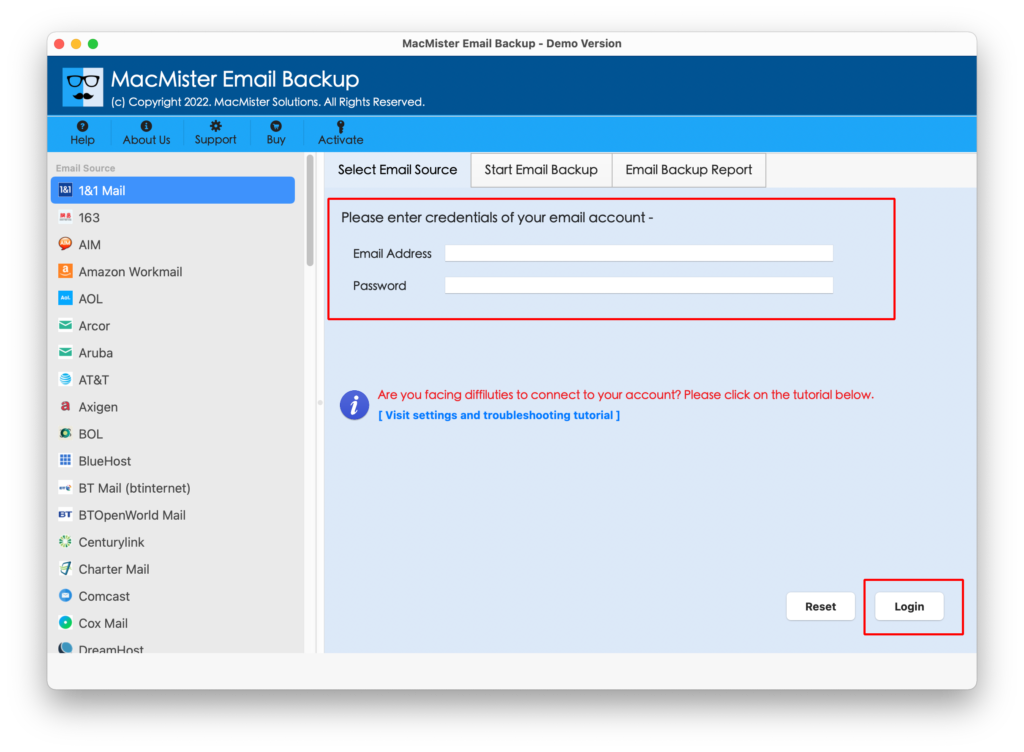
Step 2 – Provide Roundcube Mailbox Details
Select Roundcube from Webmail source list. Provide the required credentials and establish a connection with the mailbox.
Step 3 – Select Mailbox Data
After the account is connected, select the folders or mailbox data that need to be exported. For a complete backup, include the relevant folders rather than selecting only the Inbox. Depending on the mailbox structure, this may include –
Inbox, Sent Items, Drafts, Trash, Spam, Archive, Custom folders

Step 4 – Select the Output Format
Choose the Office 365 as your saving option
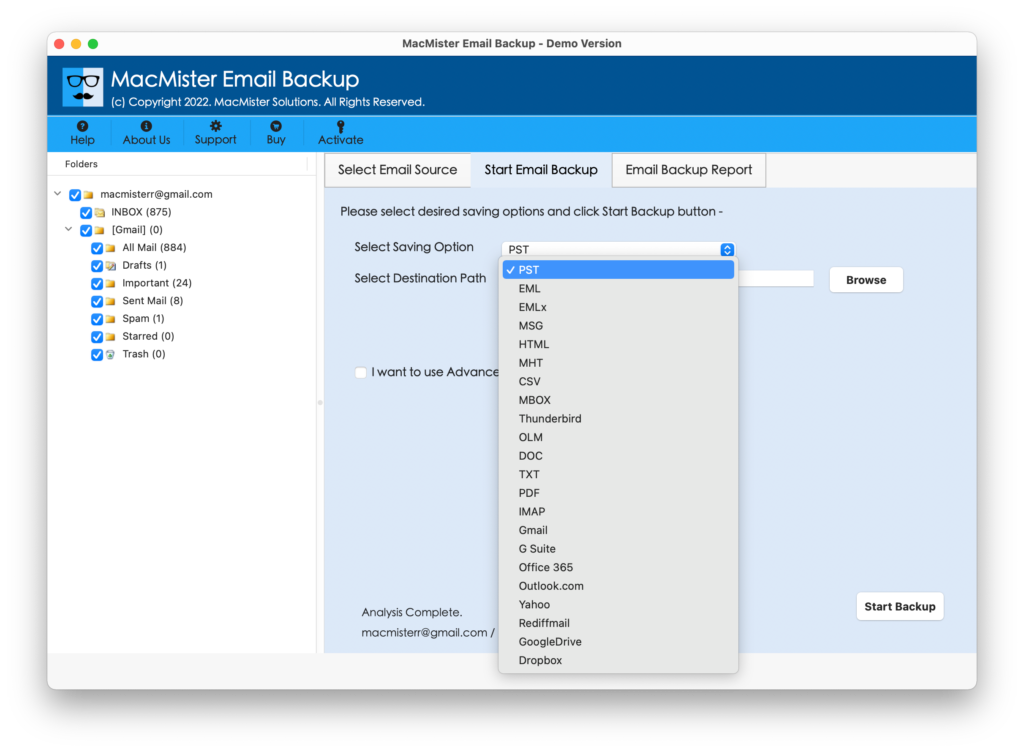
The output location should also have enough free storage to accommodate the complete mailbox.
Step 5 – Fill Office 365 Login details
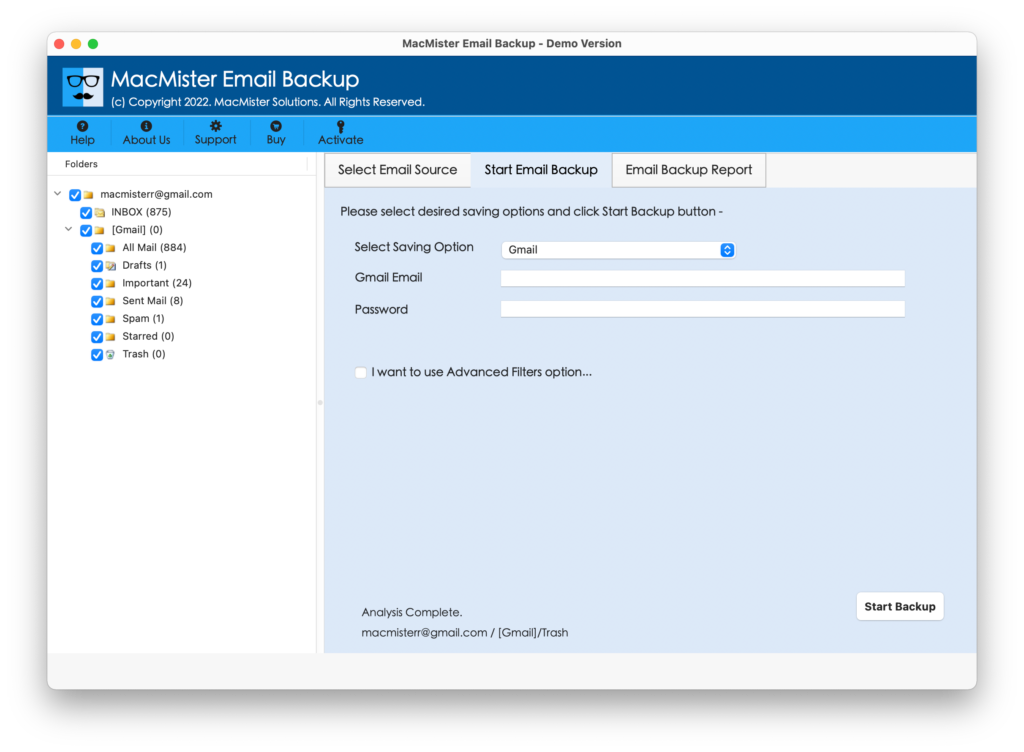
Now fill the login details of Office 365 and click on the backup button to start button.
Step 6 – Start the Export
Start the backup or export operation. The software processes the selected mailbox data and saves the resulting email files to the specified destination.
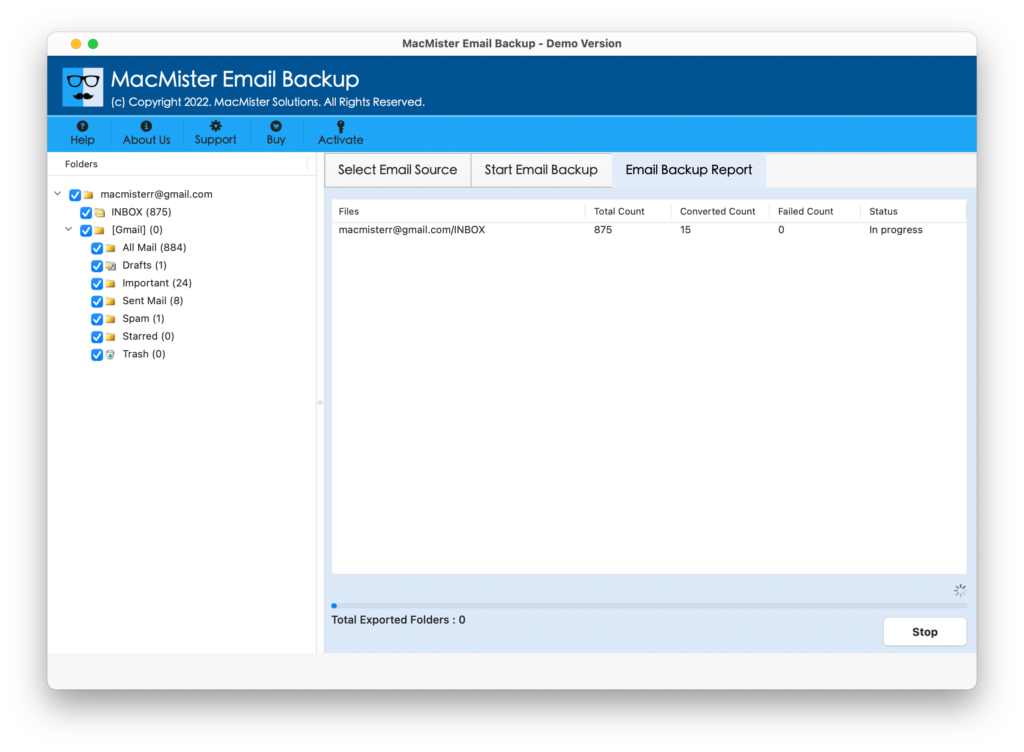
For large mailboxes, avoid interrupting the process. After completion, verify the generated data before removing or disabling the original Roundcube account.
Conclusion
The process to export all Roundcube Webmail emails to Office 365 requires more than simply downloading messages from the browser interface. Since Roundcube acts as a webmail client connected to an underlying mail server, administrators should first identify the mailbox access method and then choose an appropriate export or migration workflow.
For small mailboxes, manual saving may be sufficient, while IMAP-based migration can be considered when direct mailbox access is available. For users who want an additional local backup and a structured way to process email data, the Email Backup Tool for Mac provides a practical intermediate workflow.
By exporting the mailbox first, verifying the resulting data, and then transferring it into the appropriate Microsoft 365 mailbox, users can reduce migration risks and retain access to important historical email communication.

