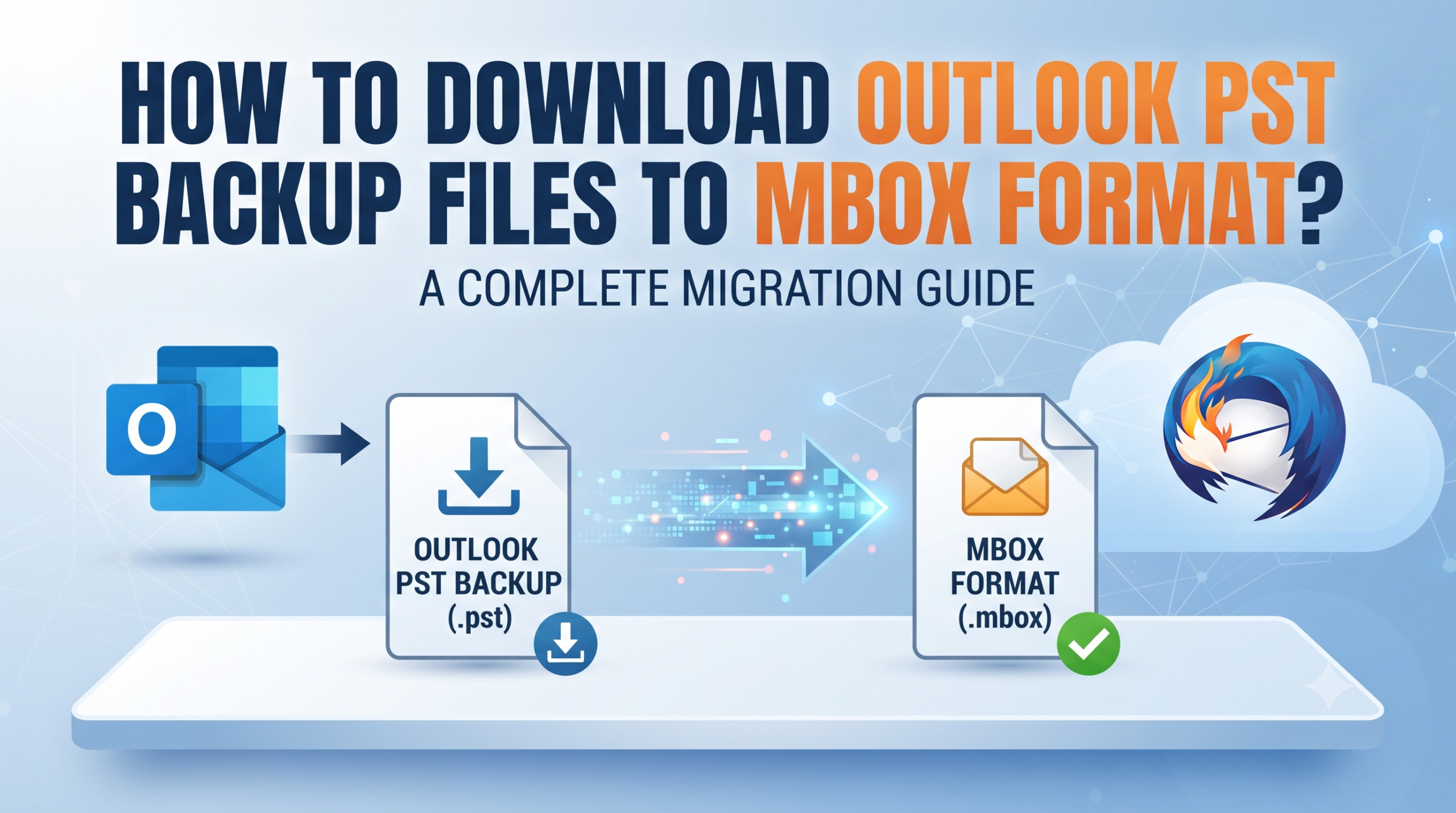
Outlook still remains a gold standard in handling emails, calendars, and contact information within the Windows operating system. Nevertheless, many users face the necessity to switch from using PST files. When changing from Microsoft Outlook to either open-source mail clients such as Thunderbird, Apple Mail, SeaMonkey, or any Unix/Linux-based system, the MBOX format becomes the industry standard in handling collections of emails.
As Outlook does not support exporting to MBOX, it is important to know how to convert your PST file into this flexible format. This step-by-step instruction will help you learn how to download your PST file and convert it using MacMister PST Converter tool.
Overview of File Formats: PST vs. MBOX
Prior to migrating to another architecture, it might be beneficial to know how these two different types of storage architectures work with your information:
- PST (Personal Storage Table): Microsoft’s proprietary database file used for storing emails, attachments, folders, and metadata in Microsoft Outlook for Windows in a hierarchical manner.
- MBOX (Mailbox): This universal file format is used by many email clients (Mozilla Thunderbird, Apple Mail, PocoMail among others). The MBOX format stores emails in one plaintext file consecutively.
Since these formats are mutually incompatible, it is not possible to open PST files in other clients directly; you will need to convert the file structure first.
How to Download Outlook PST Backup Files in MBOX Format using Automated Approach?
Manually exporting or scripting a PST-to-MBOX conversion is fraught with risks, often resulting in corrupted folder structures, missing attachments, or stripped metadata. The MacMister Mac PST Converter provides a secure, efficient, and user-friendly utility designed to handle this exact format translation effortlessly.
Main Features of the Application:
- Instantly transforms Outlook archive files into standard MBOX format, making them immediately compatible with Thunderbird, Apple Mail, and other MBOX-supported clients.
- Preserves the exact nested structure of your Outlook folders and sub-folders, ensuring zero data disorganization.
- Retains critical email properties such as Sender and Recipient details (To, From, Cc, Bcc), timestamps, and read/unread status.
- Keeps all document attachments, images, and embedded files securely intact within their respective emails.
- Features intuitive date-range and folder-selection filters so you can extract specific subsets of data rather than converting an entire bloated archive.
Step-by-Step Guide: Exporting Outlook PST and Converting to MBOX
Migration includes two major stages, namely getting your PST backup file out of Outlook and converting the former into the MBOX format with MacMister.
Step 1. If you’ve got a PST backup file ready, then there is no need to perform this step. If not, launch Microsoft Outlook on Windows, then go to File > Open & Export > Import/Export > Export to a file > Outlook Data File (.pst), and then choose the folders that you want to back up and get the .pst file. Move the file to your conversion computer.
Step 2. Get MacMister PST Converter utility and install it on your computer. Launch the intuitive interface of the software to start the work.
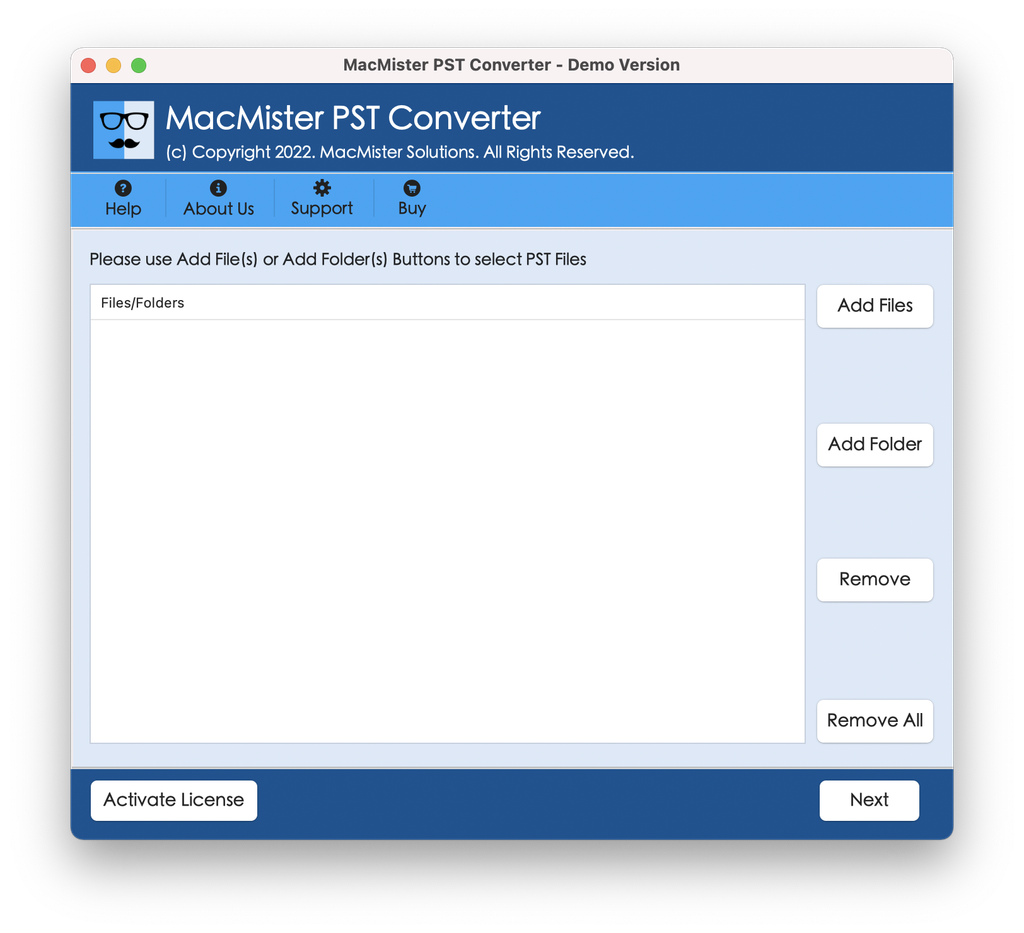
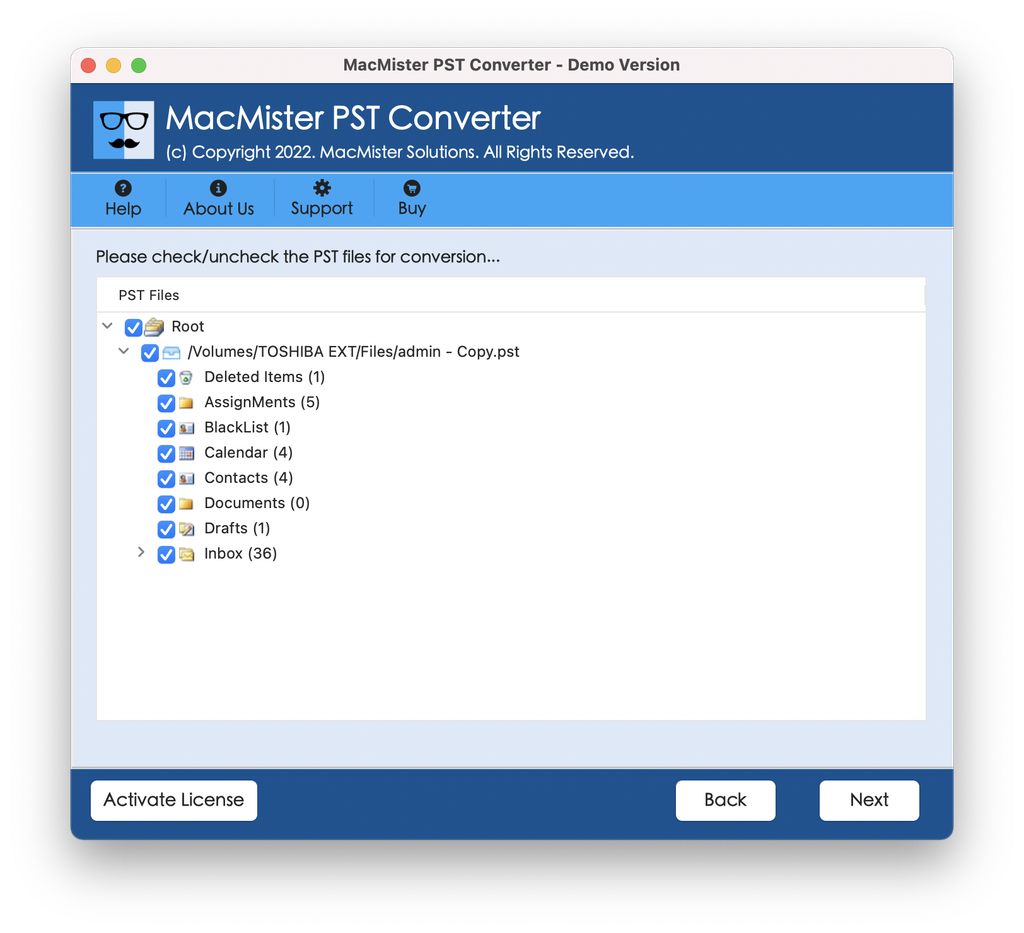
Step 3. Press the Add File(s) /Add Folder button to select your Outlook PST backup file. The application will scan the archive thoroughly and show you the full tree structure of your mailbox items, including e-mails and attachments.
Step 4. Choose MBOX from the list of saving formats in the drop-down menu.
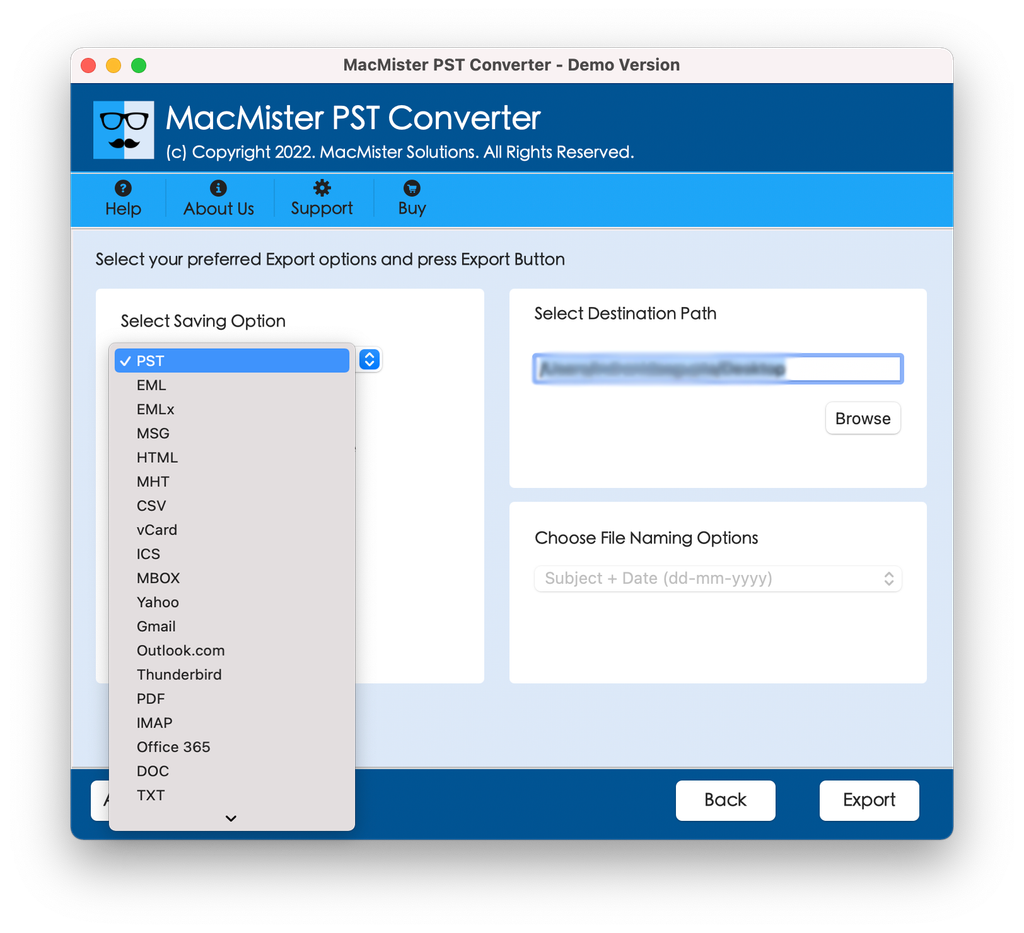
Step 5. If you only need some certain correspondence, use the sub-options as per requirements and tap Export.
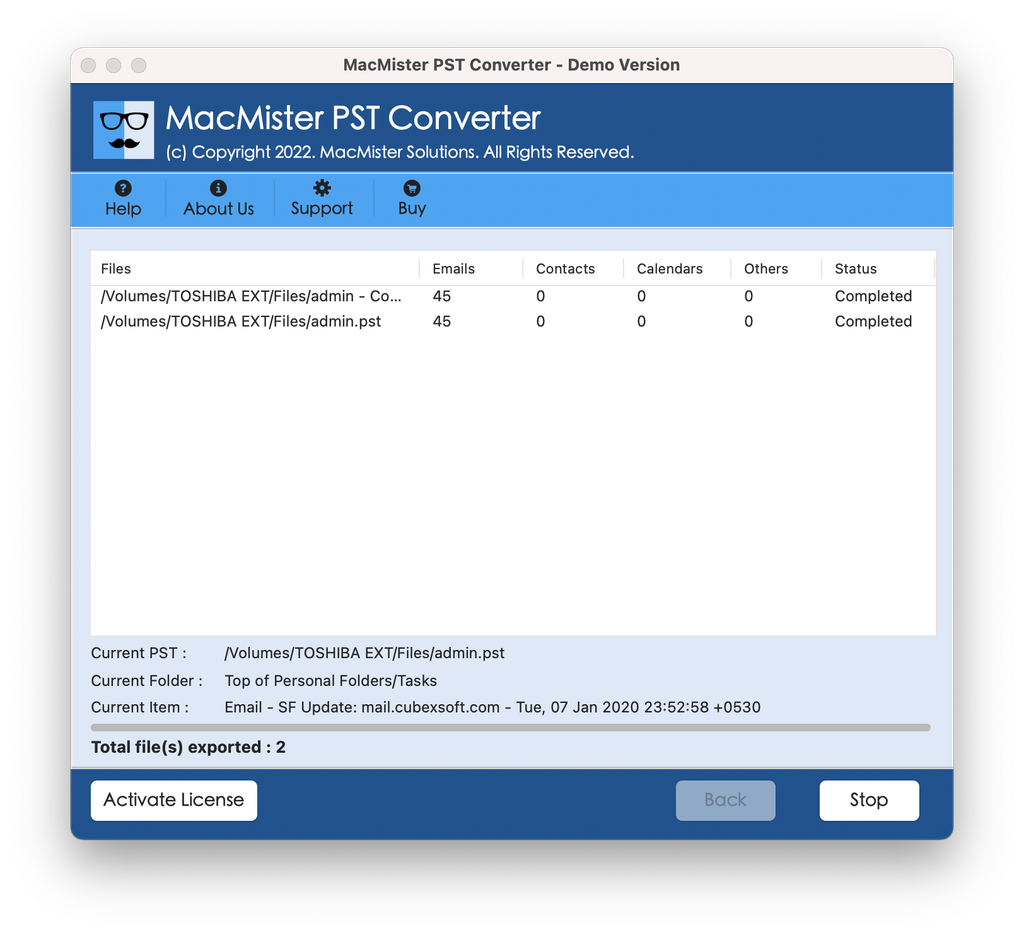
Step 6. Your archive will be processed and converted into neat MBOX files that can be utilized by any email application.
Importing Resultant MBOX Files into Thunderbird
When you’re done with your conversion process, all that remains is to import the newly generated MBOX file in Mozilla Thunderbird, which is quite easy:
- Open Mozilla Thunderbird in your computer.
- Download and install the ImportExportTools NG add-on via the Thunderbird Add-ons Manager.
- Click right on “Local Folders” at the left side menu bar, click on ImportExportTools NG, then click “Import mbox file.”
- Select your MBOX file and see your mail imported.
Conclusion
Moving beyond the restrictive Microsoft Outlook system does not necessarily have to be a difficult process. As free hacks and manual solutions may often lead to disorganization or loss of essential metadata, software-based solutions guarantee safe and swift migration process. Employing the MacMister PST Converter tool guarantees not only safety and speed but also flexibility, allowing the user to control the archive in any MBOX email client.