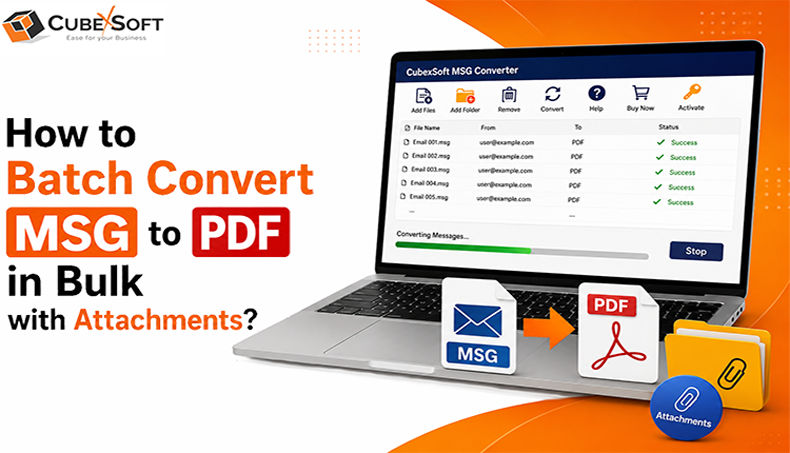
Are you looking for a reliable way to how to batch convert MSG to PDF in bulk with attachments? If you have multiple Outlook MSG files and need to save them as PDF documents, converting them individually can be a time-consuming task. Fortunately, there are both manual and automated ways to convert MSG files to PDF.
In this write-up, we will discuss the manual method as well as an expert solution, MSG to PDF Converter software, for converting multiple MSG files into PDF format along with their attachments.
Why Do Users Want to Convert MSG Files to PDF?
There are several reasons why users prefer to save Outlook MSG emails in PDF format. Some common reasons include:
- PDF files are convenient for printing and sharing.
- PDF documents are easy to access across different devices and platforms.
- Users can protect PDF files with password security.
- Multiple email details can be preserved in a widely supported document format.
- PDF files can be useful for maintaining email records and documentation.
- Emails stored as PDF document format can be convenient for presentations as well as official purposes.
- PDF is a commonly used format for archiving important email communications.
How to Convert MSG Files to PDF Manually?
Users who only need to convert a small number of MSG files can try the manual method. However, this approach requires processing emails individually.
Follow these steps:
- Open the MSG file in Microsoft Outlook.
- Go to File and select Save As.
- Pick the desired path where you need to save the email.
- Select HTML as the file type and click Save.
- Locate the saved HTML file and open it with Microsoft Word.
- In Microsoft Word, go to File > Save As.
- Select PDF as the output file format.
- Choose the destination location and save the PDF file.
Using this approach, users can manually save individual emails in PDF format.
Limitations of the Manual Method
The manual method can be useful when you only have a few emails to convert. However, it becomes difficult when working with a large number of MSG files.
Some major limitations include:
- Emails have to be processed individually.
- Converting a large number of MSG files can take considerable time.
- The process requires multiple steps for each email.
- Managing attachments separately can be inconvenient.
- It is not suitable for batch conversion of large MSG collections.
- Users may find it difficult to maintain an organized output when dealing with hundreds or thousands of emails.
How to Batch Convert MSG to PDF in Bulk with Attachments?
For users who need to convert multiple Outlook MSG files at once, an automated CubexSoft MSG to PDF Converter can be a more convenient option. The software is designed to convert multiple MSG files into PDF format in a batch. Depending on the available options, users can also save email attachments separately or include them with the resulting PDF files.
The procedure is normally simple and can be finished in a few steps:
Install and launch the MSG File to PDF Converter on your Windows system.
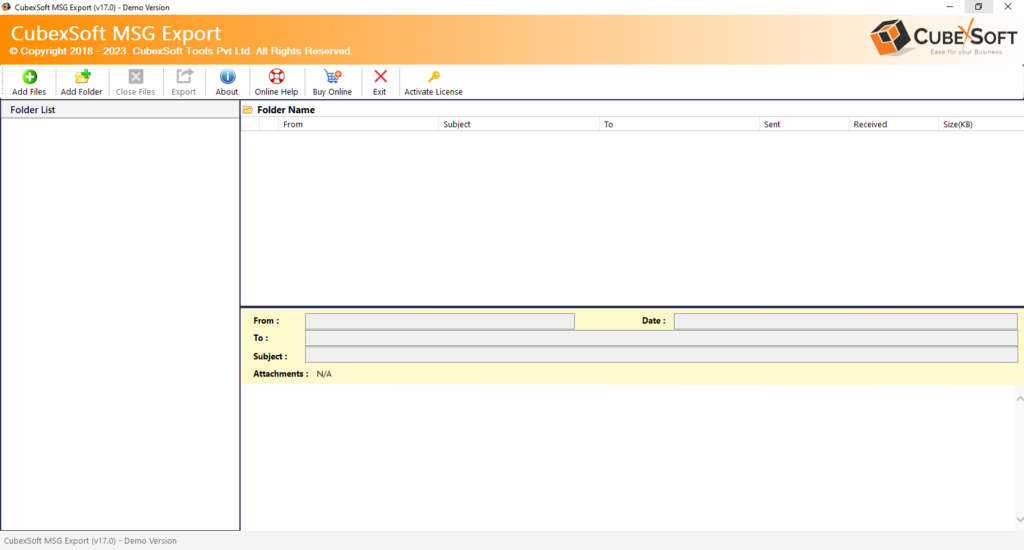
Add the required MSG files or select the folder containing the MSG files.
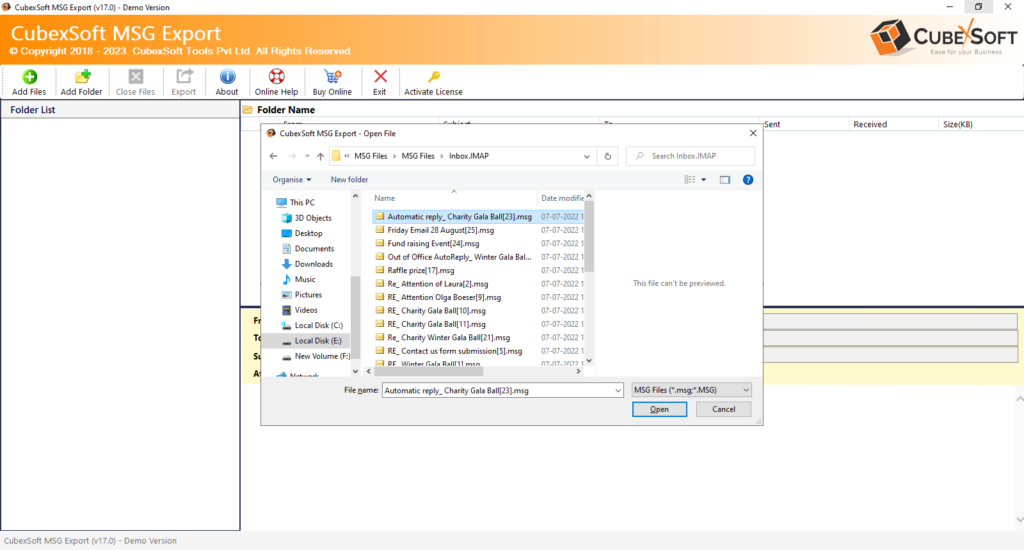
Preview the loaded emails and verify their details.
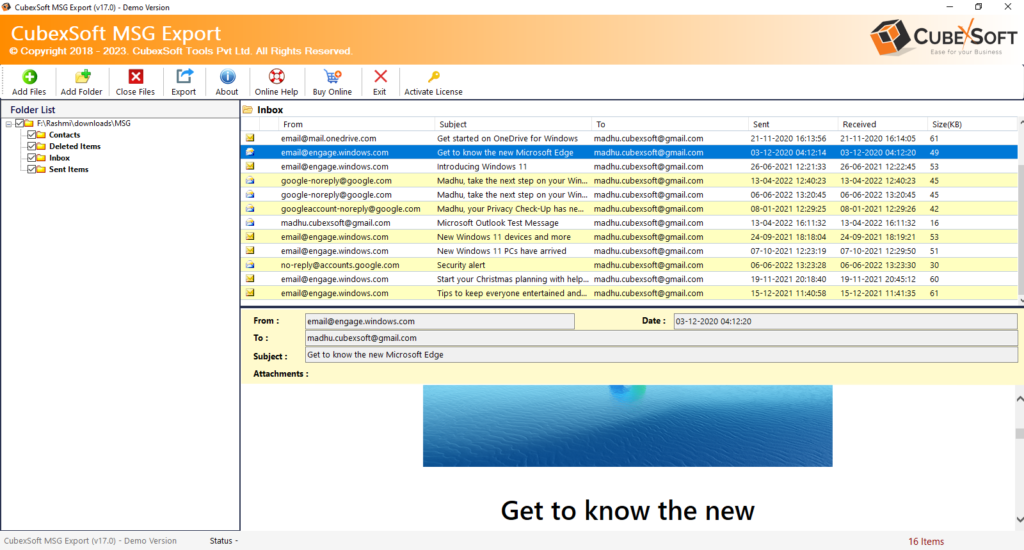
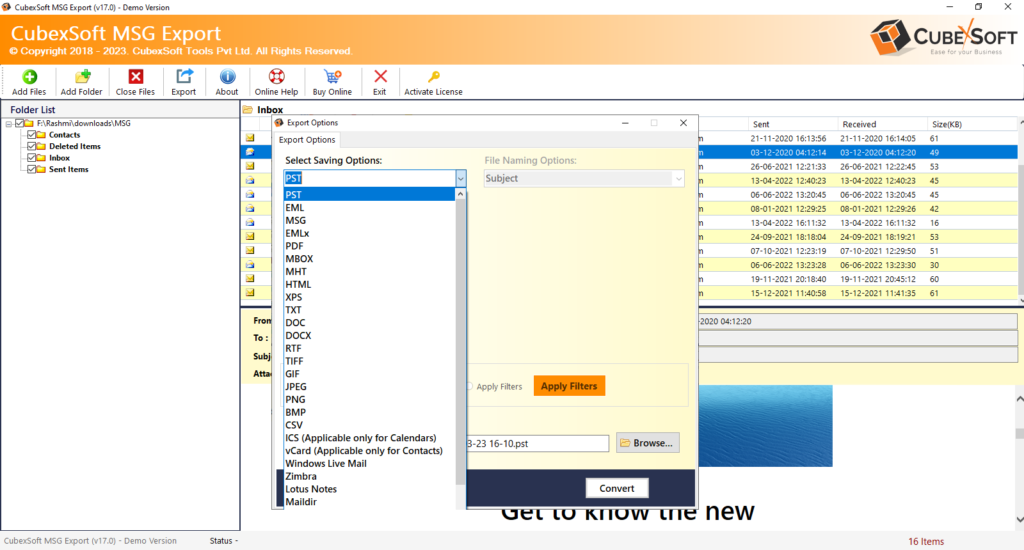
Select PDF as the desired output format.
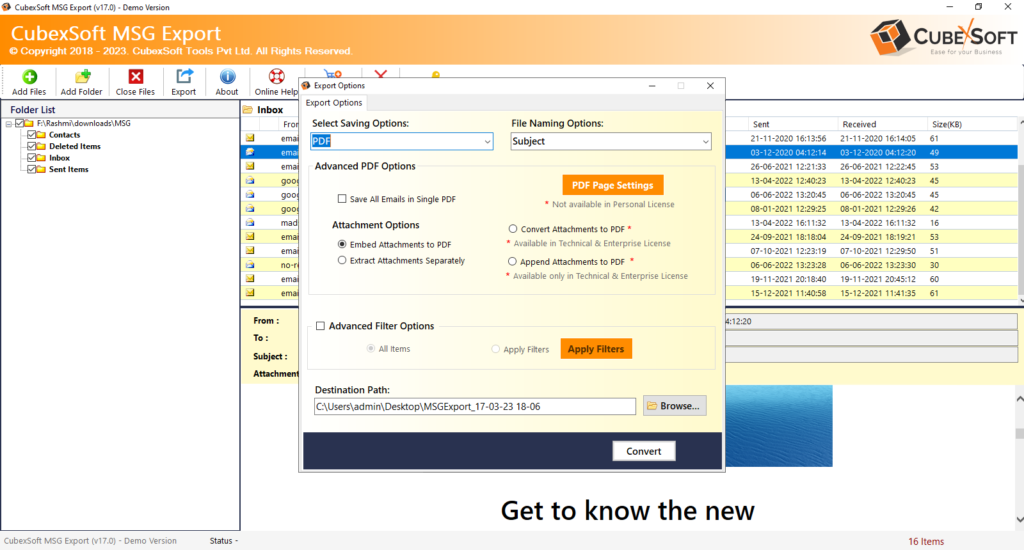
Choose the required attachment-saving option. Select the destination location for the converted files.
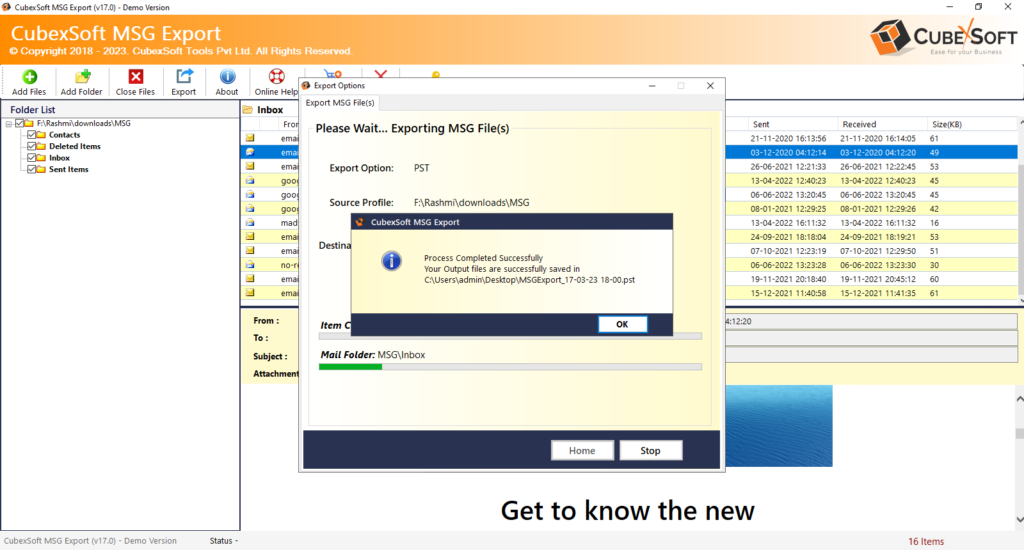
Start the conversion process.
Features and Benefits of MSG to PDF Converter
The software provides several features that can make bulk MSG to PDF conversion easier.
Batch Conversion: The application supports batch conversion, allowing users to process multiple Outlook MSG files at the same time instead of converting each email individually.
Preview Loaded Files: A preview panel allows users to check the loaded MSG files and review their email details before starting the conversion process.
Save Email Attachments: The tool provides options for handling email attachments. Users can save attachments separately in a folder or use the available option to include attachments with the PDF output.
Save Emails as Individual or Single PDF: Depending on the available software options, users can save each MSG file as an individual PDF or combine multiple emails into a single PDF document.
Multiple File Naming Options: The utility provides different file-naming options, allowing users to organize the converted PDF files according to their requirements.
Select Destination Path: Users can choose their preferred destination folder to save the resulting PDF files on their local system.
Support for Outlook and Windows Editions: The software supports MSG files created by different Microsoft Outlook editions and is compatible with commonly used Windows operating systems.
Easy-to-Use Interface: The application is designed with a straightforward interface, making it easier for both technical and non-technical users to perform MSG to PDF migration.
Why Use an Automated Solution?
When only a few MSG files are involved, the manual method may be sufficient. However, converting a large collection of emails manually can become repetitive and time-consuming.
An automated MSG to PDF Conversion solution can make the process more convenient by allowing users to add multiple MSG files, select PDF as the output format, configure attachment preferences, and start the conversion in bulk.
This makes the approach useful for users searching for how to batch convert MSG to PDF in bulk with attachments, especially when they need to process a large number of Outlook email files.
The Last Words
In this article, we discussed different ways to convert Outlook MSG files into PDF documents. The manual method can work for users who only need to convert a small number of emails, but it requires processing each email separately.
For users dealing with multiple MSG files, an MSG Converter can simplify the process by supporting batch conversion and providing options for handling email attachments.
Therefore, if you need to how to batch convert MSG to PDF in bulk with attachments, an automated conversion solution can save time and make it easier to manage a large collection of Outlook email files.