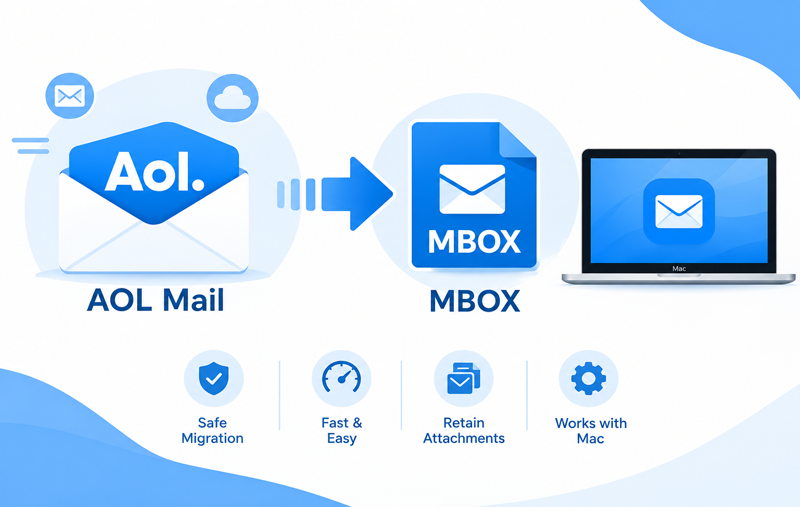
This Guide helps you to know about how to add AOL emails to MBOX by manual way & AOL to MBOX Tool for Mac that can add AOL Mail to MBOX file format for supported mail apps.
AOL Mail remains a useful email service for users who have maintained their accounts for many years. Over time, an AOL mailbox can accumulate important personal messages, business correspondence, attachments, and other email records. Keeping this information in a portable format can make it easier to archive or use the messages with compatible email applications.
MBOX is one of the commonly used mailbox file formats for storing email messages. Mac users may therefore want to add AOL emails to MBOX for local storage, backup, migration, or use with an email client that supports the format. The process can be performed manually in certain situations, but handling a large mailbox may require a more structured approach.
Overview of AOL Email Account and MBOX
AOL Mail is a web-based email service that allows users to send, receive, organize, and store emails online. An AOL mailbox can contain messages from different periods, along with attachments and other email information.
Users can access AOL Mail through a web browser, while compatible desktop email applications can also connect to the account using supported mail protocols. However, accessing emails online is different from maintaining an independent local mailbox file.
MBOX is a mailbox storage format used by several email applications. It can contain multiple email messages within a single mailbox file and is supported by various email clients and migration tools.
Because MBOX provides a portable way of storing mailbox data, users may want to save AOL emails in MBOX format for backup, archiving, or migration purposes. Once the data is available in MBOX, it can be used with applications that support this mailbox format.
Why Add AOL Emails to MBOX on Mac?
- Local email backup – Maintain an additional copy of important AOL correspondence.
- Email archiving – Store older messages outside the online mailbox.
- Migration – Prepare AOL emails for use with an MBOX-compatible email application.
- Offline access – Keep mailbox data available locally for future use.
- Mailbox management – Reduce dependence on a web-based mailbox for older messages.
- Data preservation – Retain important emails and attachments for long-term reference.
For a small number of messages, a manual approach may be sufficient. However, users dealing with a large AOL mailbox may find the process more difficult to manage manually.
Manual Method to Add AOL Emails to MBOX on Mac
There is no simple built-in “Export AOL to MBOX” button in AOL Mail. One possible approach is to connect the AOL account with an MBOX-compatible email client and then use the client’s mailbox storage or export capabilities.
Basic Steps
- Open an MBOX-compatible email client on your Mac.
- Add your AOL Mail account using the supported IMAP settings.
- Sign in and allow the application to synchronize the AOL mailbox.
- Wait for the required emails and folders to download.
- Locate the application’s local mailbox storage.
- Use the available export or mailbox management option to create an MBOX file.
- Verify the exported MBOX data and required attachments.
The exact procedure can vary depending on the email client being used. Large AOL accounts may also require considerable time for synchronization and local mailbox creation.
Limitations of the Manual Method
- AOL emails must first be synchronized with an email client.
- Large mailboxes can take a long time to download.
- A stable internet connection is required during synchronization.
- The process may involve multiple configuration steps.
- Creating a usable MBOX file can depend on the selected email client.
- Attachments and message properties need to be checked after export.
- Selective migration may not be convenient with the standard approach.
- Multiple AOL accounts can require repetitive configuration.
How to Add AOL Emails to MBOX on Mac Directly
For users who need a more direct way to save AOL mailbox data, MacMister AOL Mail Backup for Mac provides lots of smart options to add or save AOL emails to MBOX directly.
The tool is designed to handle AOL mailbox data to MBOX without requiring users to depend entirely on an intermediate email client. Users can connect AOL account, select the required mailbox data, choose MBOX as the destination, and start the process.
- Direct AOL to MBOX Option – One of the main features is the direct AOL to MBOX option. Users can select MBOX as the output format and save AOL emails into the required mailbox file. This can be useful when the primary requirement is to obtain AOL mailbox data in MBOX format for backup, archiving, or further migration.
- Batch Mode – The tool also supports batch processing. Users who need to work with multiple AOL accounts can process them without handling every account through a separate manual workflow. Batch mode can be helpful for administrators, organizations, or users maintaining multiple AOL mailboxes.
- Preserve Attachments – Emails often contain documents, images, and other attachments that are important to the original correspondence. During the AOL-to-MBOX process, the software retains email attachments along with the messages. This helps maintain the usefulness of the exported mailbox rather than creating a copy that contains only message text.
- Apply Filters – Not every user needs to export an entire AOL mailbox. The AOL Mail to MBOX for Mac provides filtering options to help users control which emails are processed. Depending on the available filtering criteria, users can narrow the migration according to their requirements instead of transferring every message stored in the account. This can be useful when only selected email records need to be archived.
- Maintain Email Data – When moving email data between different storage environments, retaining the original message information is important. The tool is designed to process AOL emails while maintaining relevant email content and associated data during the MBOX conversion.
- Free Trial – The tool provides a free trial that allows users to evaluate the application before purchasing the complete version. Users can test the available migration options and determine whether the tool meets their AOL-to-MBOX requirements.
Manual Method vs. The AOL to MBOX for Mac
The manual approach mainly involves connecting AOL Mail to an email client, synchronizing the mailbox, and then creating or exporting an MBOX file. It can be adequate for a small mailbox and basic requirements.
The AOL Mail to MBOX Converter for Mac provides a more dedicated workflow for users who want to save AOL emails directly to MBOX. Features such as direct AOL-to-MBOX conversion, batch mode, attachment handling, filters, and a free trial can be useful when dealing with larger or more selective migration requirements.
Conclusion
Adding AOL emails to MBOX on Mac can be useful for email backup, archiving, and migration. While an email client-based method can provide a way to synchronize AOL messages and create an MBOX mailbox, it may involve several steps and can become time-consuming for large accounts.
For users looking for a more direct approach, the AOL to MBOX for Mac provides an option to save AOL emails directly to MBOX. Its batch mode, attachment handling, filtering options, and free trial make it suitable for different AOL mailbox backup and migration requirements.