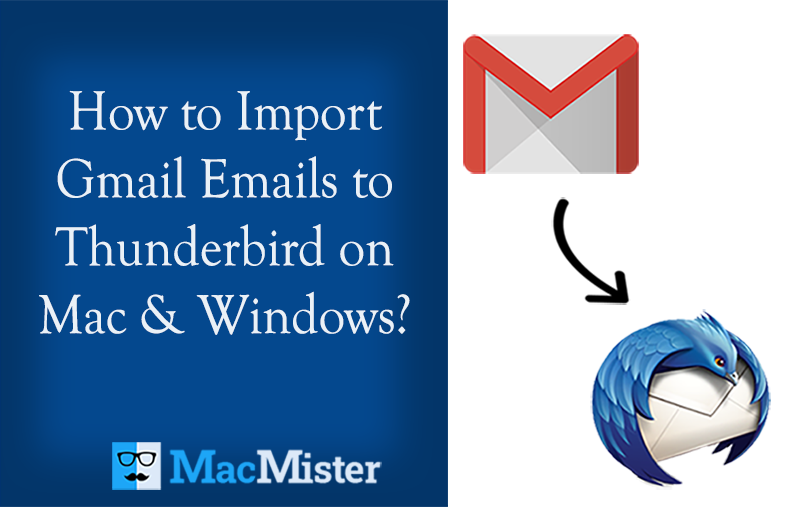
Gmail is widely used for managing personal and professional emails through a web browser or mobile application. However, some Mac users prefer to access their Gmail messages through a desktop email client such as Thunderbird. Thunderbird provides a centralized interface where users can manage emails from different accounts, organize folders, and access messages from a computer.
Transferring Gmail emails to Thunderbird on Mac can be useful when users want to keep a local copy of mailbox data or manage Gmail messages through a desktop application. Depending on the mailbox size and the amount of data involved, the process can be performed manually or with a dedicated migration utility.
Overview of Gmail and Thunderbird
Gmail is Google’s cloud-based email service used for sending, receiving, and storing messages online. Emails, attachments, labels, and other mailbox information remain available through the Gmail account. Since Gmail stores mailbox data on Google’s servers, users generally access it through a web browser or supported email applications.
For users who want to work with their Gmail mailbox through another email client, Gmail supports standard email protocols such as IMAP. This allows compatible desktop applications to connect with the mailbox and synchronize messages.
Mozilla Thunderbird is a desktop email client that allows users to manage email accounts from one application. It supports common email protocols and provides features for organizing messages, creating folders, searching emails, and managing attachments.
On Mac, Thunderbird can be used to access Gmail messages without relying entirely on a web browser. After configuring the Gmail account, Thunderbird can synchronize the available mailbox folders and messages.
Why Transfer Gmail Emails to Thunderbird on Mac?
- Desktop email management – Manage Gmail messages from a dedicated Mac application.
- Centralized access – Add multiple email accounts and manage them from Thunderbird.
- Local availability – Keep synchronized mailbox data available through the Thunderbird profile.
- Better organization – Use Thunderbird folders, filters, and search options to manage messages.
- Email archiving – Maintain an additional copy of important correspondence for future reference.
- Work requirements – Some users prefer desktop-based email management for professional communication.
When the Gmail mailbox contains only a limited number of messages, configuring the account manually can be sufficient. Larger mailboxes, however, may require additional preparation and monitoring.
Manual Method to Transfer Gmail to Thunderbird on Mac
- Open Thunderbird on your Mac.
- Select the option to add a new Email Account.
- Enter your Gmail email address and account details.
- Allow Thunderbird to detect Gmail’s server settings automatically.
- Sign in to your Google account when prompted.
- Grant the required permissions for Thunderbird.
- Make sure IMAP is enabled for the Gmail account.
- After authentication, Thunderbird starts synchronizing Gmail folders and messages.
- Wait until the required mailbox data has been downloaded and synchronized.
Limitations of the Manual Method
- Large mailboxes can take considerable time to synchronize.
- Internet connectivity is needed during the synchronization process.
- Account authentication may require additional steps, especially when security settings are enabled.
- Synchronization depends on the Gmail and Thunderbird configurations.
- Large attachments can increase the transfer time.
- Selected folders or messages may require additional handling.
- There is less control over migration-specific filtering requirements.
- Interrupted synchronization may require the process to be checked or repeated.
For a small Gmail mailbox, these limitations may not create significant problems. When users need to save multiple accounts data, the perfect tool offers more control over the process.
How to Save Transfer Gmail to Thunderbird on Mac Directly
For users who need a more controlled way to transfer Gmail data to Thunderbird, MacMister Gmail Backup for Mac tool provides advanced options to transfer Gmail emails to Thunderbird directly.
Instead of depending entirely on the standard account synchronization process, the software provides dedicated migration options for handling Gmail mailbox data to Thunderbird on Mac. It can be useful when users need to process a large number of emails or want additional options during the transfer.
Why Use the Gmail to Thunderbird on Mac Tool
- Direct Gmail to Thunderbird Transfer – The Gmail to Thunderbird Converter for Mac tool includes a dedicated option to transfer Gmail emails directly to Thunderbird. Users can select the Gmail account, choose Thunderbird as the destination, and proceed with the migration. This direct approach can be useful when the objective is specifically to move Gmail mailbox data into Thunderbird rather than manually configuring and synchronizing the account.
- Batch Mode – When multiple Gmail accounts need to be processed, the software supports batch migration. This allows users to handle multiple accounts during the migration process instead of processing every mailbox separately. Batch processing can be particularly useful for organizations, administrators, or users managing more than one Gmail account.
- Attachments and Email Properties – Email messages may contain important attachments, headers, formatting, and other message information. During migration, the software is designed to preserve relevant email data so that transferred messages remain useful in Thunderbird.
- Filters for Selective Migration – The software also provides filtering options that can help users select specific Gmail messages for migration. Instead of transferring the complete mailbox, users can apply available filters according to their requirements. For example, users may want to transfer only emails within a particular date range or specific mailbox data instead of processing everything.
- Free Trial – The tool offers a free trial so users can evaluate the migration process before purchasing the full version. This allows users to check the available options and determine whether the software meets their Gmail-to-Thunderbird migration requirements.
Gmail to Thunderbird – Manual Method vs. Dedicated Utility
The manual method is suitable when a user has a smaller mailbox and only needs basic Gmail synchronization with Thunderbird. It requires account configuration and relies on the normal IMAP synchronization process.
A dedicated utility becomes more useful when the migration involves multiple Gmail accounts, a large volume of emails, selective transfer requirements, or additional control over the migration process. Features such as direct transfer, batch mode, attachment handling, and filters can simplify the overall workflow.
Conclusion
Transferring Gmail emails to Thunderbird on Mac can be accomplished by connecting the Gmail account through Thunderbird’s IMAP configuration. This approach is suitable for users who need basic access and synchronization of their Gmail messages.
However, large mailboxes, multiple accounts, attachments, and selective migration requirements can make the standard method less convenient. In such situations, the Gmail to Thunderbird for Mac provides a dedicated approach with options for direct Gmail-to-Thunderbird transfer, batch processing, attachment preservation, filters, and a free trial.
Users can choose the method according to the size of their mailbox and the level of control required during the migration.