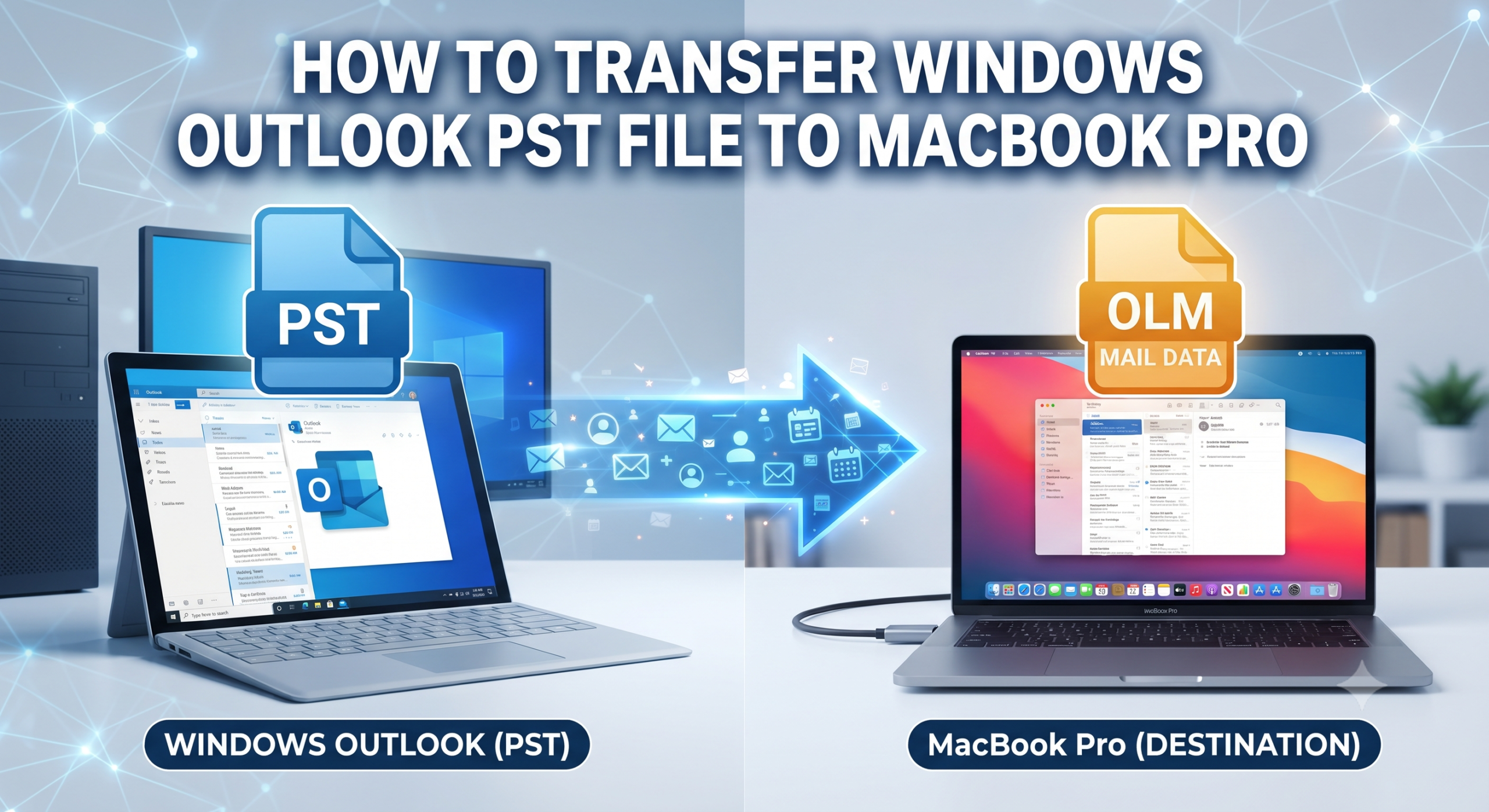
The migration to MacBook Pro from Windows computer can be regarded as really great, since now you will be able to use the products of Apple with stylish design and perfectly integrated operating system. However, there is one problem that may arise immediately in case you mostly work using Microsoft Outlook – data transferring.
In case you operate Outlook on a PC with Windows, all your e-mails, appointments, contacts and any other data are saved in .pst files. As for the versions of Outlook for Mac and Apple native e-mail program, they do not allow opening .pst files. Because of differences in database formats on Apple devices, your data will not be transferred easily.
In case this switch occurs due to personal or professional needs, it is necessary to take certain measures in order to overcome this problem. This paper will speak about platform format barriers, manual methods of overcoming them and introduce MacMister PST Converter Tool.
Overview: PST vs. Mac Formats
Understanding why a direct transfer will not work can be explained through the storage method of various email clients:
- Windows Outlook (.pst): This is a closed single-file database system, containing all mail folders and subfolders, calendar entries, contacts and attachments, in a large bundle created solely for the Windows environment.
- Mac Outlook (.olm): This is the native archive format of Microsoft Outlook for Mac.
- Apple Mail: It uses a complex file structure within the User Library folder (~/Library/Mail/), containing email messages as individual .emlx files along with local databases.
Since the operating system of the Mac is unable to interpret the inner schema of the Windows PST file, the user will have to convert this file or resort to other methods.
Method 1: The Manual IMAP Sync Workaround
If you prefer not to use third-party software and have a relatively compact mailbox, you can use an active cloud-based IMAP account (such as Gmail, Office 365, or a private server) as a bridge.
Step 1: Import PST into Windows Outlook
Steps to import your email into Outlook on a Windows machine:
- Launch Outlook.
- Go to File> Open & Export> Import/Export.
- Select “Import from another program or file” and hit “Next.”
- Choose “Outlook Data File (.pst)” and locate your .pst file.
Step 2: Upload via an IMAP Account
Configure a secondary IMAP email account within your Windows Outlook client.
- Create matching folders under this IMAP account directory.
- Drag and drop your emails and folders from the imported PST structure into the corresponding folders of your IMAP account.
- Allow Outlook to fully synchronize and upload all items to the cloud server.
Step 3: Download on Your MacBook Pro
- Set up that exact same IMAP account in Outlook for Mac or Apple Mail on your new MacBook Pro.
- Let the client download your emails from the server.
Limitations of the Manual Approach
While this method doesn’t require specialized conversion tools, it comes with severe disadvantages:
- Extremely Slow: Uploading and downloading gigabytes of email data over an internet connection can take hours or even days.
- Risk of Data Interruption: Network drops can result in missing attachments, incomplete message bodies, or sync errors.
- Loss of Metadata: It frequently fails to preserve strict folder hierarchies, read/unread states, and precise timestamps.
Method 2: Transfer Windows Outlook PST File to MacBook Pro using MacMister Powerful Solution
When your PST file contains years of critical business records, legal documents, or dense sub-folder trees, manual syncing is far too risky and slow. The fastest, safest, and most accurate way to move your data to your new MacBook Pro is by utilizing MacMister Mac PST Converter Tool.
Why Choose MacMister PST Converter?
Engineered specifically to dismantle cross-platform data barriers, this robust utility allows Windows users to seamlessly transition their archives into formats compatible with macOS email clients.
- Instantly transforms Windows PST files into MBOX, OLM, EML, PDF, HTML, and other Mac-friendly formats.
- Keeps your meticulously organized nested folders, labels, and sub-directories completely intact.
- Protects all email components, including To, Cc, Bcc, subject lines, inline hyperlinks, and heavy attachments.
- Provides advanced filters to convert specific folders or date ranges rather than forcing an entire bulk conversion.
- Operates completely independently, requiring no active Windows environment or Outlook installation on your Mac during the conversion process.
Step-by-Step Guide: Transferring PST to Mac Using MacMister
Migrating your Outlook archive to your new MacBook Pro using MacMister is quite easy. Here are the necessary steps:
Step 1. Identify where you have stored your .pst file on your old Windows computer (this is usually located in Documents\Outlook Files).
Next, copy the file to an external USB flash drive which you will connect to your new MacBook Pro.
Step 2. Download and install the MacMister PST Converter Tool on your MacBook Pro. Launch the application to begin.
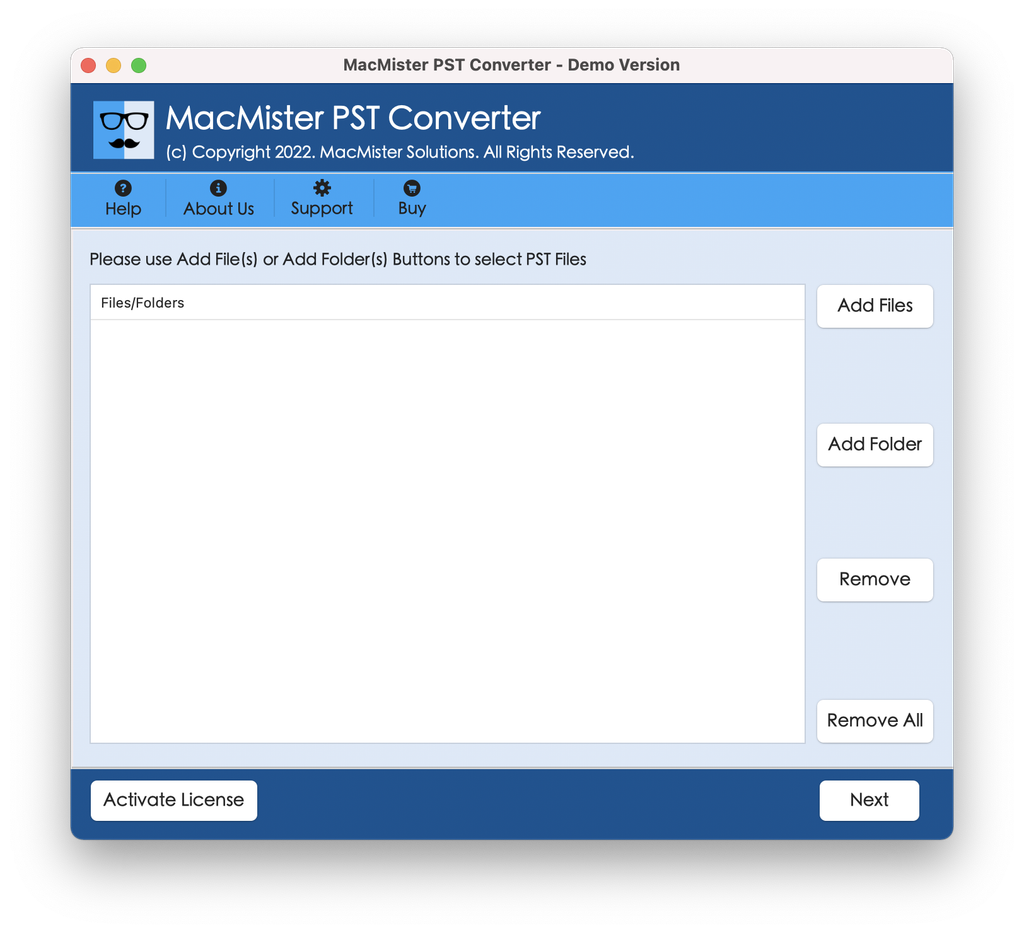
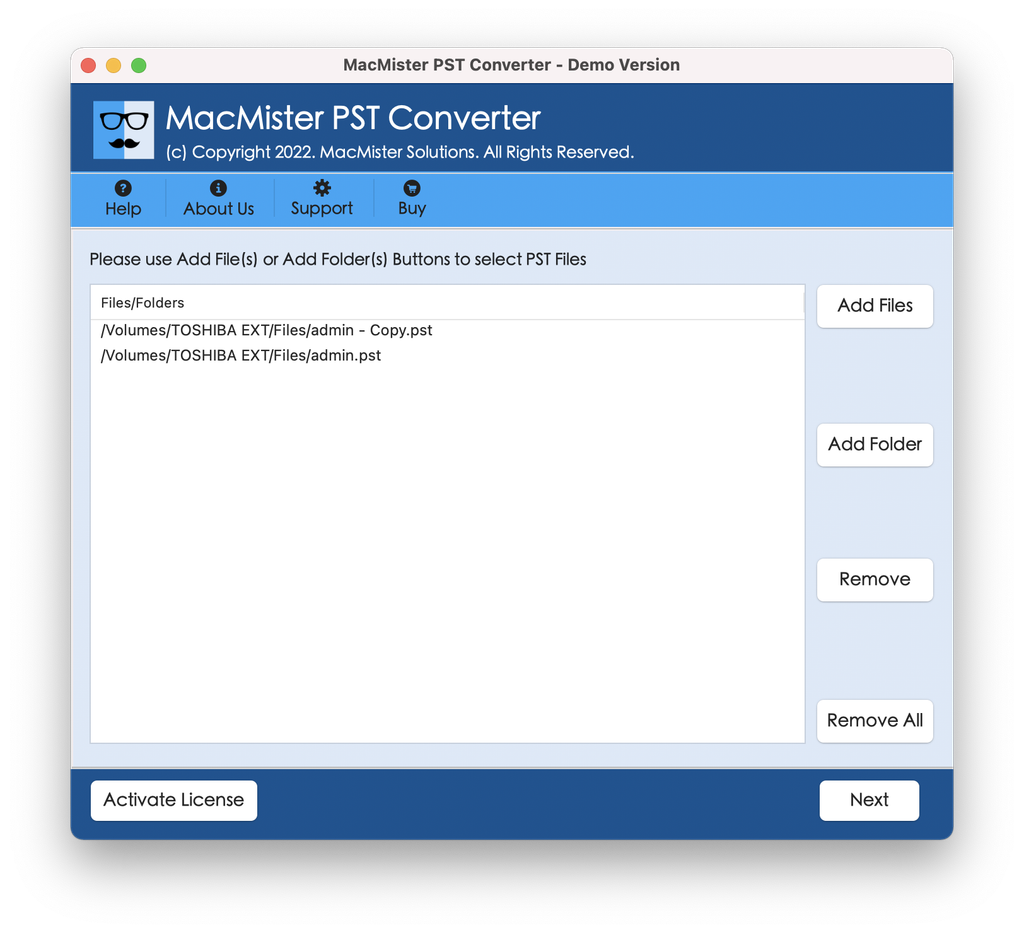
Step 3. Click on the Add File(s) or Add Folder(s) button within the user interface to browse your USB drive and select your .pst file. The software will scan the file and generate an instant preview of your mailbox data.
Step 4. Select your preferred saving format from the export menu. If you are importing into Apple Mail, choose MBOX or EML. If you are transitioning to Mac Outlook, select OLM.
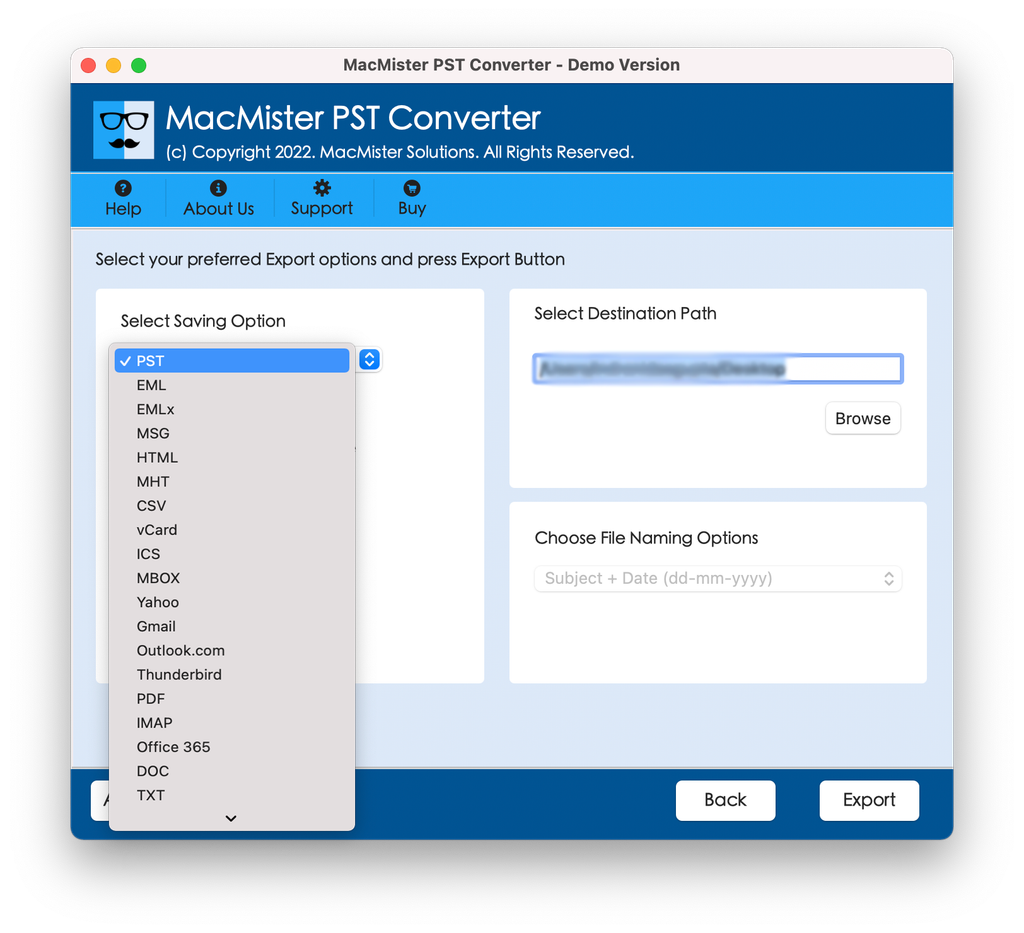
Step 5. Select a destination folder path on your MacBook Pro’s local drive. You can also utilize file-naming options (sorting by date, subject, or sender) to keep your imported archive clean and organized.
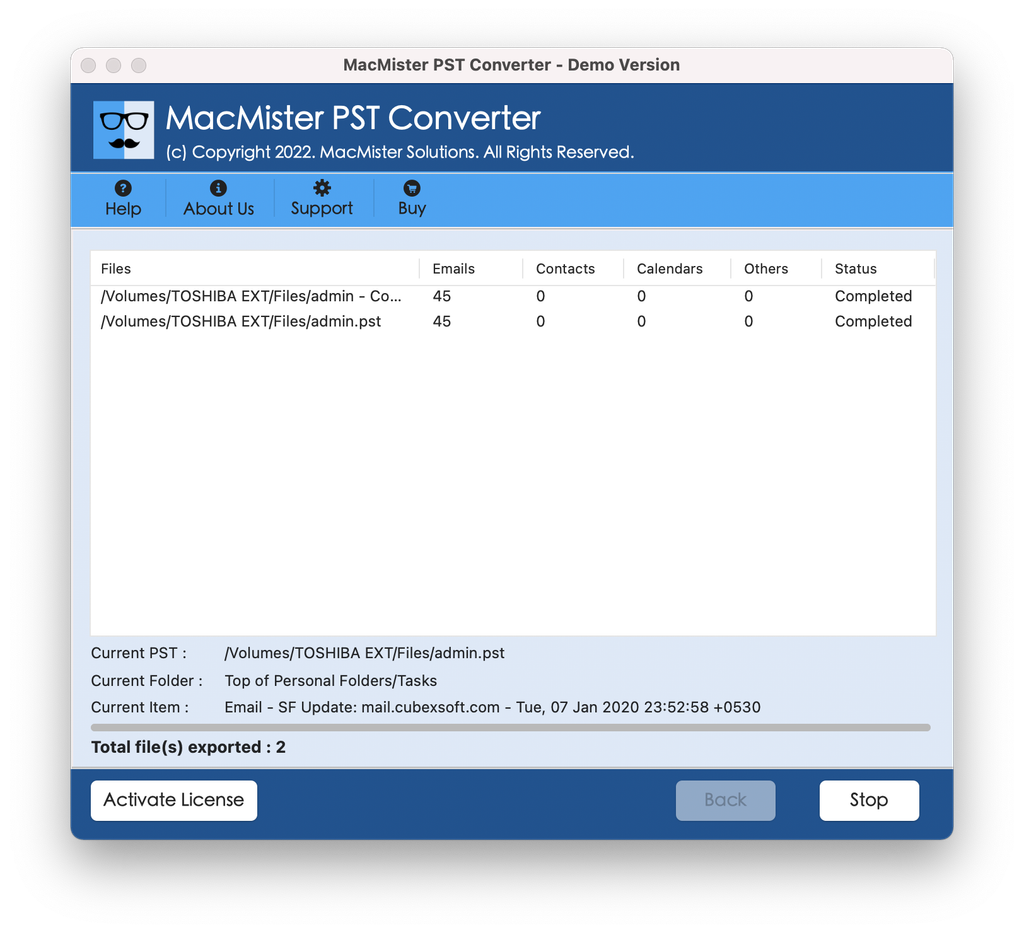
Step 6. Click the Export button. A live progress window will display the status of the translation. Once completed, your files are fully ready to be imported into your Mac email application.
Finalizing the Import on Your MacBook Pro
Once your PST data has been converted into a Mac-supported format (such as MBOX), importing it into your email client takes just a few moments:
- For Apple Mail: Open Apple Mail, navigate to File > Import Mailboxes, select Files in MBOX format, and point the application to your converted files.
- For Mac Outlook: Open Mac Outlook, go to File > Import, select Outlook for Mac Archive File (.olm) or file archive, and complete the prompt.
Conclusion
There is no need for you to be overwhelmed by the process of migrating your Windows Outlook PST file to your brand new MacBook Pro. Though there are manual IMAP solutions, they are not only ineffective and slow but also can lead to corruption of data. It makes complete sense for you to use a professional solution such as MacMister PST Converter Tool.