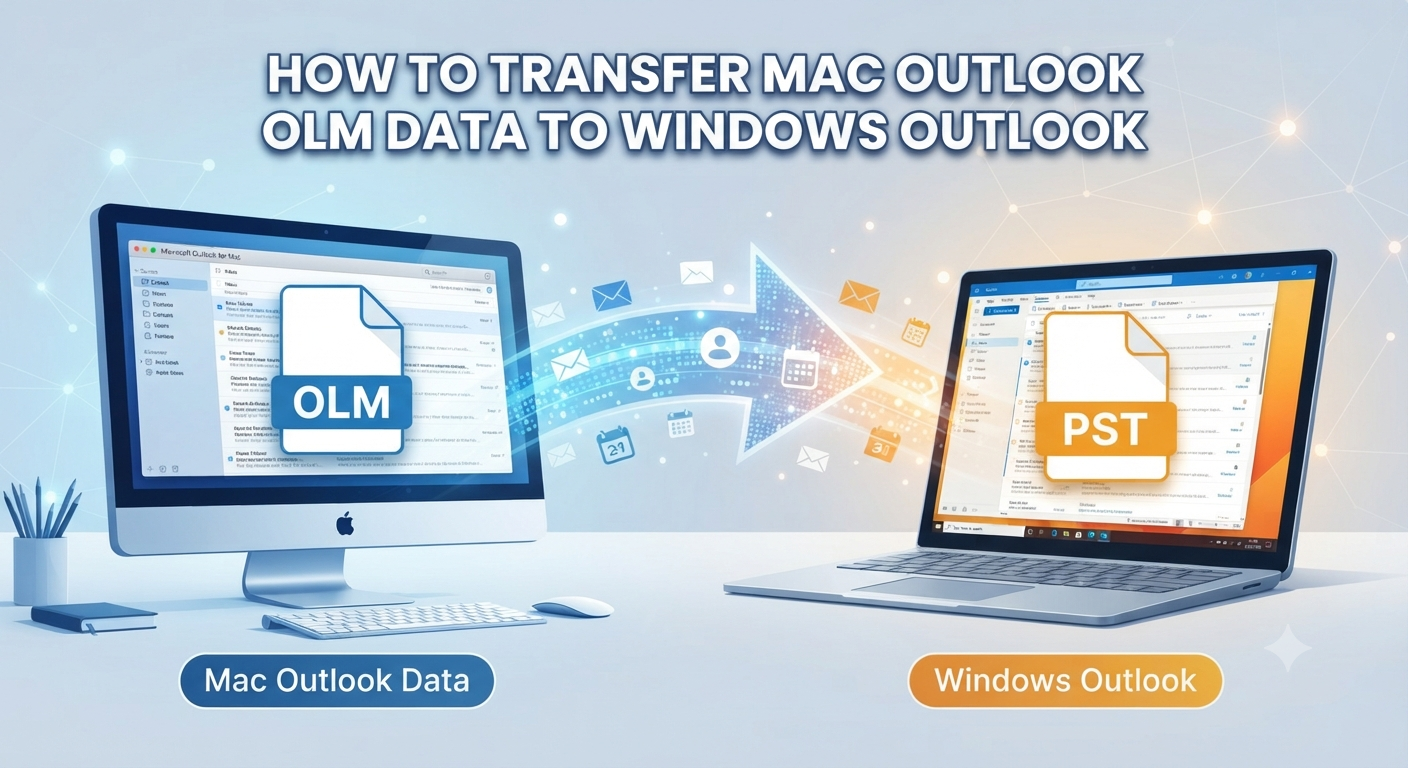
Changing from one operating system to another is very common in modern corporate settings. You may need to change your primary desktop machine from the macOS ecosystem to the Windows PC due to hardware-related reasons, organizational shifts, software compatibility issues, or any other factors. In all cases, data migration is the number one concern.
If you use Microsoft Outlook actively, you surely have loads of essential emails, conversations with clients, calendar events, tasks, and contacts saved locally. However, there is an important technical obstacle to consider when you want to move to another platform. On the Mac platform, all your Outlook data is stored in an .olm file, while on Windows, you have only .pst files. Since Microsoft doesn’t offer any official utility that can migrate the archive at once, you have to do some research to find an effective way out.
This tutorial explains the structure of both file formats, describes the manual IMAP migration option, and presents the best professional solution—MacMister OLM Converter.
Overview – OLM vs. PST
In order to explain why it is not possible to perform a simple drag-and-drop action, it would be useful to analyze the way in which data is stored in both programs:
- Mac Outlook (.olm): In Mac Outlook, all messages, contacts, calendars, notes, and tasks are stored in one compressed file named .olm file. This file format is unique to Mac OS and designed exclusively for Apple’s file system.
- Windows Outlook (.pst): In Windows Outlook, the .pst file format is used. It serves as a personal folder file that contains all mailbox items; however, the internal file structure differs from Mac version.
As Windows Outlook does not support opening or importing .olm files, there is no other way but to use an intermediary cloud server or file converter program.
Method 1: The Manual IMAP (Cloud Server) Workaround
In case you would rather not employ any third-party program and also if you don’t have a large number of emails stored in your inbox, you can use some intermediate IMAP email account such as Gmail or Yahoo.
Step 1: Setting up an IMAP Account on Mac Outlook
- Start Mac Outlook on your old Mac.
- Go to Tools > Accounts and create an active IMAP email account like some additional Gmail or Outlook.com account.
- Let the account synchronize and show up in your left-side folders panel.
Step 2: Upload Data to the IMAP Server
Create new folders inside your IMAP account folder structure that will match your local folders in Mac Outlook.
Step 1: Pick your emails, contacts, or appointments from your Mac Outlook folders.
Step 2: Drag and drop (or copy and paste) the selected items into the related folders within your IMAP account.
Step 3: Wait for Mac Outlook to upload everything to the cloud server (this may take several hours depending on your internet upload speed and mailbox size).
Step 3: Access and Download on Windows Outlook
Step 1: On your Windows machine, launch Windows Outlook.
Step 2: Set up the same IMAP account in Windows Outlook.
Step 3: After synchronization is complete, the server downloads your emails to the Windows program.
Step 4: You can save them locally on your machine by exporting the emails to a .pst file using File -> Open & Export -> Import/Export -> Export to a file.
Limitations of the Manual Method
However, despite being free, IMAP has serious limitations:
- Slower: The uploading and downloading process may take several days for large mailboxes with gigabytes of information.
- Data Loss Problems: Internet connectivity problems may result in synchronization failures, lost attachments, or damaged message bodies.
- Metadata Problems: IMAP is not good at preserving the accurate status of reading messages, creation dates, or sub-folders.
Method 2: Transfer Mac Outlook OLM Data to Windows Outlook using MacMister‘s Mac OLM to PST Converter Tool
If you need to transfer large amounts of business information or value your time and accuracy more than anything else, then manually syncing is not for you. The best and safest way to transfer your database would be using a professional tool like MacMister Mac OLM to PST Converter.
Why Choose MacMister OLM to PST Converter?
Engineered particularly to overcome compatibility issues between multiple platforms, this software ensures the direct conversion of .olm to .pst (and any other required format) without necessitating the synchronization of the cloud storage.
- Converts Mac Outlook database files into PST files within just minutes.
- Preserves your exact hierarchy of folders and sub-folders; you do not need to organize your mailbox all over again on the new PC.
- Ensures transfer of emails with all related meta-data including To, Cc, Bcc, hyperlinks, time stamps, and attachments.
- You can select which folders to convert instead of converting all mail data unnecessarily.
- Engineered using powerful parsing algorithms that protect your file from file corruption during the conversion process.
Step-by-Step Guide: Converting OLM to PST Using MacMister
Moving your archive through MacMister can be quite easy. Just follow the following instructions:
Step 1: Export your OLM file from Mac Outlook (In case it hasn’t been backed up already)
- Launch your Mac Outlook application.
- Navigate to Tools > Export.
- Choose the items to be exported (Mail, Calendar, Contacts, etc.), and click on Continue.
- Save the exported .olm file to some safe location such as an external USB Flash Drive.
Step 2: Transfer your saved .olm file to a system where MacMister OLM to PST Converter is installed, launch the application, and get ready to initiate the process.
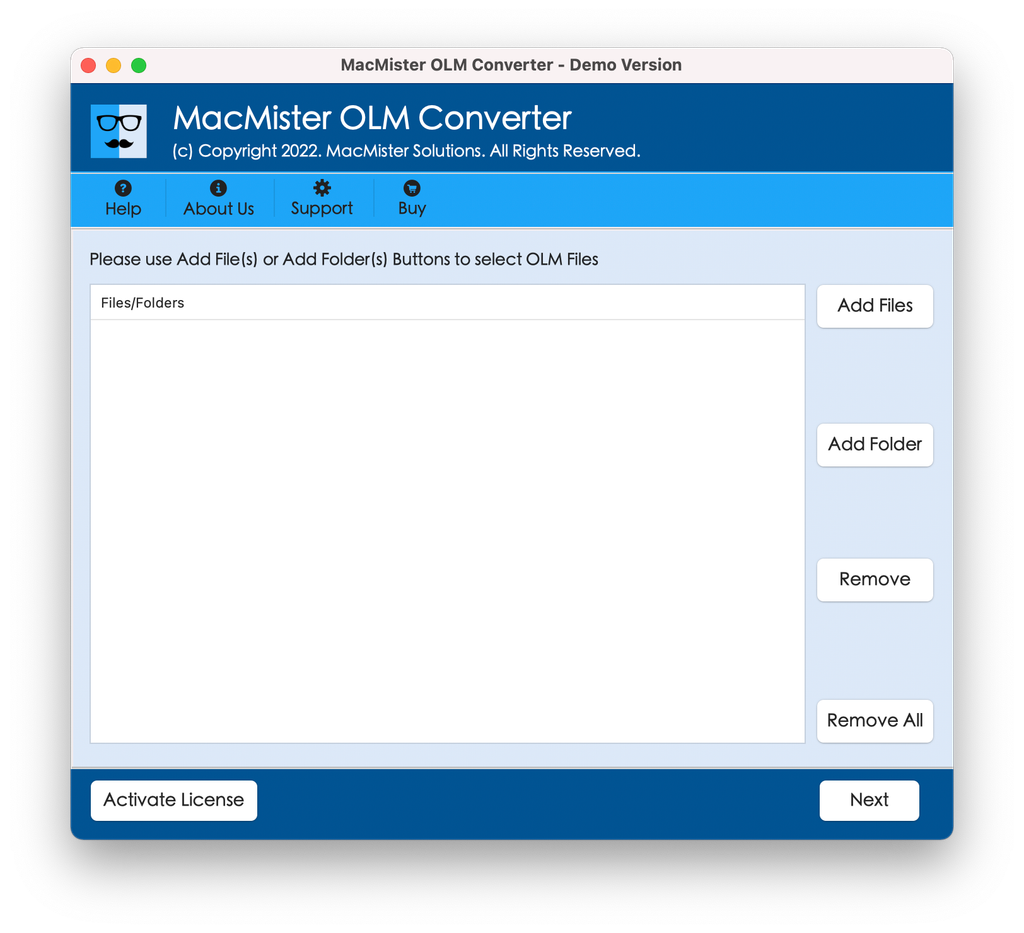
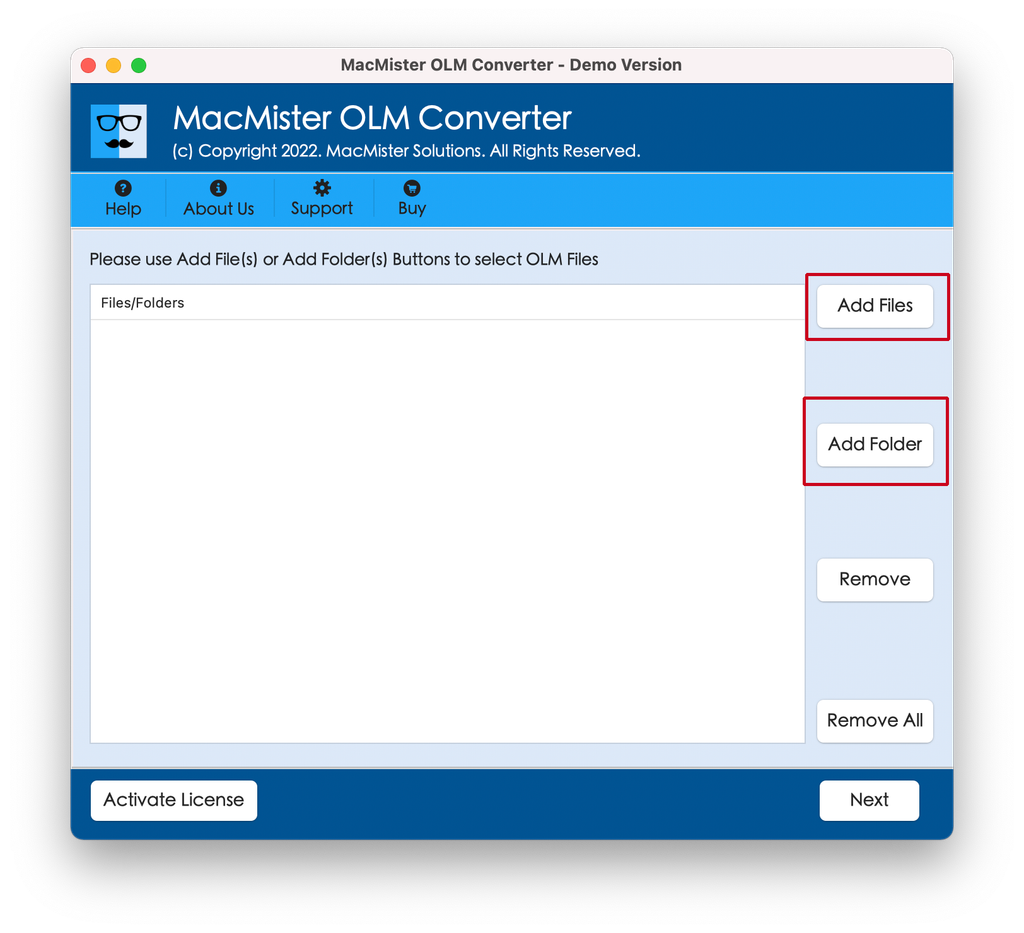
Step 3: Click on the Add File(s) or Add Folder(s) button within the software dashboard to browse and select your exported .olm file. The software will scan and display a complete preview of your mailbox contents.
Step 4: From the list of available export options, select PST (Personal Storage Table) as your target format.
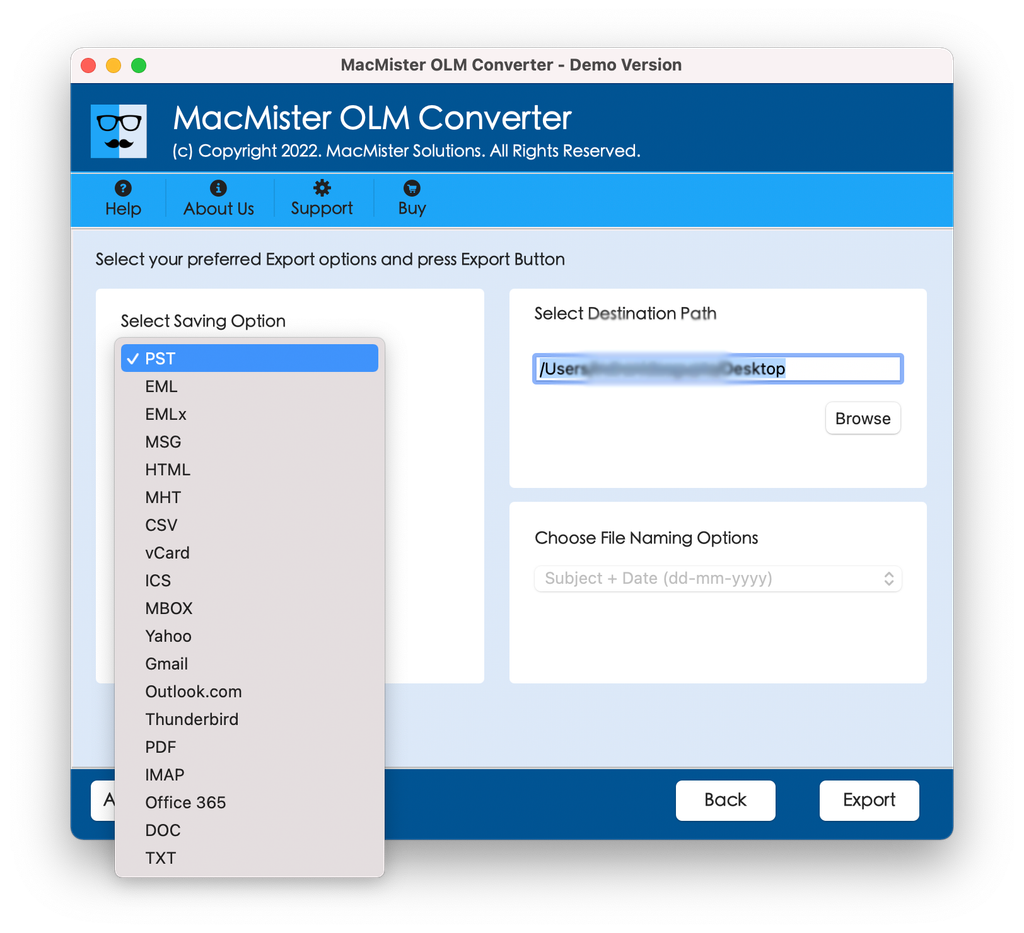
Step 5: Select your destination folder path on your storage drive. Apply other options as per your requirements and tap Export.
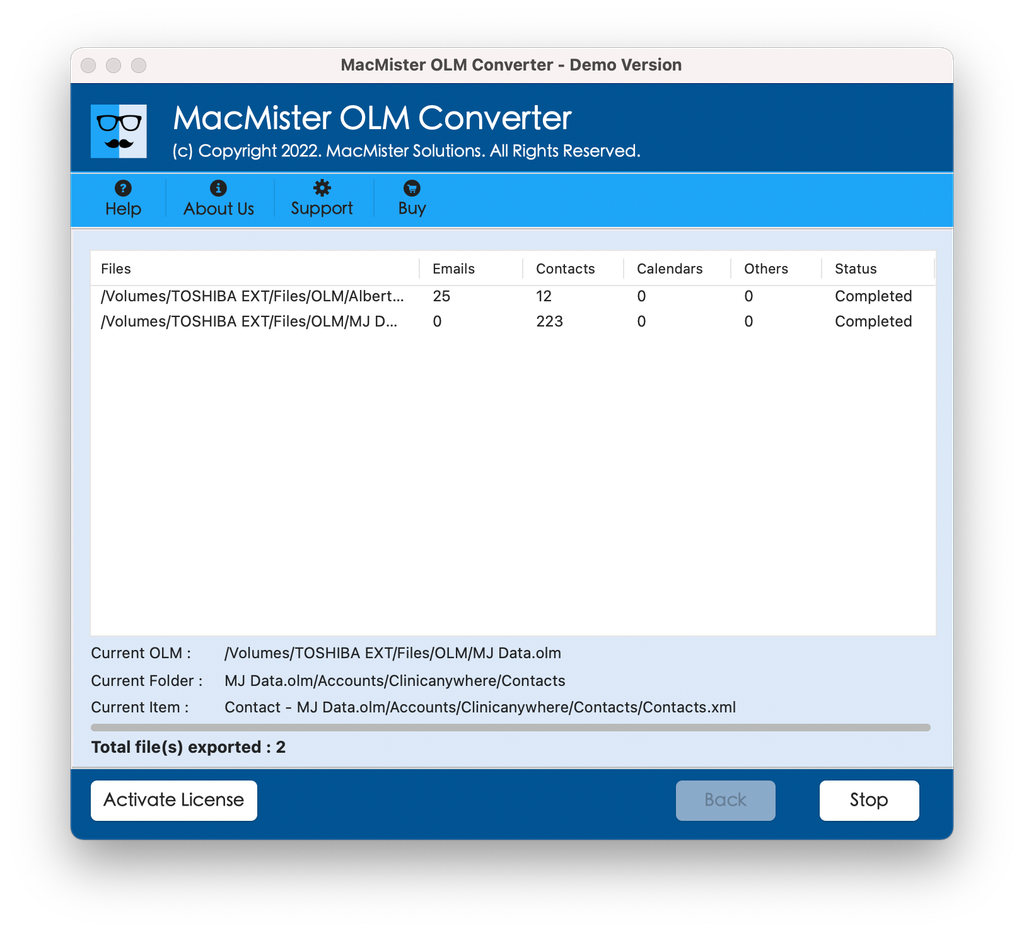
Step 6: The live progress window will display the status of the migration. Once completed, take your newly generated .pst file over to your Windows PC via a USB drive.
Importing the PST File into Windows Outlook
Once you have the cleaned up .pst file on your Windows PC, then you can simply import it into Outlook in a matter of minutes:
- Start Microsoft Outlook on your Windows computer.
- Go to File > Open & Export > Import/Export.
- Select Import from another program or file and click Next.
- Choose Outlook Data File (.pst) and click Next.
- Browse to find your .pst file, define what should happen with duplicates and where to import the file (either “Import items into the current folder” or choose a particular destination folder).
- Click Finish. Windows Outlook will import all emails, folders and attachments for you to your desktop environment.
Conclusion
Going from the Mac platform to Windows-based computer doesn’t necessarily mean that you can’t continue using your past correspondence. Although there are native solutions such as IMAP, they’re slow, error-prone, and potentially dangerous when it comes to big archives. With the help of a dedicated software solution like MacMister OLM Converter, you will make sure that everything from the folder structure to the attachments and metadata stays the same.Changing from one operating system to another is very common in modern corporate settings. You may need to change your primary desktop machine from the macOS ecosystem to the Windows PC due to hardware-related reasons, organizational shifts, software compatibility issues, or any other factors. In all cases, data migration is the number one concern.
If you use Microsoft Outlook actively, you surely have loads of essential emails, conversations with clients, calendar events, tasks, and contacts saved locally. However, there is an important technical obstacle to consider when you want to move to another platform. On the Mac platform, all your Outlook data is stored in an .olm file, while on Windows, you have only .pst files. Since Microsoft doesn’t offer any official utility that can migrate the archive at once, you have to do some research to find an effective way out.
This tutorial explains the structure of both file formats, describes the manual IMAP migration option, and presents the best professional solution—MacMister OLM Converter.
Understanding the Format Barrier: OLM vs. PST
In order to explain why it is not possible to perform a simple drag-and-drop action, it would be useful to analyze the way in which data is stored in both programs:
- Mac Outlook (.olm): In Mac Outlook, all messages, contacts, calendars, notes, and tasks are stored in one compressed file named .olm file. This file format is unique to Mac OS and designed exclusively for Apple’s file system.
- Windows Outlook (.pst): In Windows Outlook, the .pst file format is used. It serves as a personal folder file that contains all mailbox items; however, the internal file structure differs from Mac version.
As Windows Outlook does not support opening or importing .olm files, there is no other way but to use an intermediary cloud server or file converter program.
Method 1: The Manual IMAP (Cloud Server) Workaround
In case you would rather not employ any third-party program and also if you don’t have a large number of emails stored in your inbox, you can use some intermediate IMAP email account such as Gmail or Yahoo.
Step 1: Setting up an IMAP Account on Mac Outlook
- Start Mac Outlook on your old Mac.
- Go to Tools > Accounts and create an active IMAP email account like some additional Gmail or Outlook.com account.
- Let the account synchronize and show up in your left-side folders panel.
Step 2: Upload Data to the IMAP Server
Create new folders inside your IMAP account folder structure that will match your local folders in Mac Outlook.
Step 1: Pick your emails, contacts, or appointments from your Mac Outlook folders.
Step 2: Drag and drop (or copy and paste) the selected items into the related folders within your IMAP account.
Step 3: Wait for Mac Outlook to upload everything to the cloud server (this may take several hours depending on your internet upload speed and mailbox size).
Step 3: Access and Download on Windows Outlook
Step 1: On your Windows machine, launch Windows Outlook.
Step 2: Set up the same IMAP account in Windows Outlook.
Step 3: After synchronization is complete, the server downloads your emails to the Windows program.
Step 4: You can save them locally on your machine by exporting the emails to a .pst file using File -> Open & Export -> Import/Export -> Export to a file.
Limitations of the Manual Method
However, despite being free, IMAP has serious limitations:
- Slower: The uploading and downloading process may take several days for large mailboxes with gigabytes of information.
- Data Loss Problems: Internet connectivity problems may result in synchronization failures, lost attachments, or damaged message bodies.
- Metadata Problems: IMAP is not good at preserving the accurate status of reading messages, creation dates, or sub-folders.
Method 2: The Professional Standard – MacMister OLM Converter
If you need to transfer large amounts of business information or value your time and accuracy more than anything else, then manually syncing is not for you. The best and safest way to transfer your database would be using a professional tool like MacMister OLM Converter.
Why Choose MacMister OLM Converter?
Engineered particularly to overcome compatibility issues between multiple platforms, this software ensures the direct conversion of .olm to .pst (and any other required format) without necessitating the synchronization of the cloud storage.
- Converts Mac Outlook database files into PST files within just minutes.
- Preserves your exact hierarchy of folders and sub-folders; you do not need to organize your mailbox all over again on the new PC.
- Ensures transfer of emails with all related meta-data including To, Cc, Bcc, hyperlinks, time stamps, and attachments.
- You can select which folders to convert instead of converting all mail data unnecessarily.
- Engineered using powerful parsing algorithms that protect your file from file corruption during the conversion process.
Step-by-Step Guide: Converting OLM to PST Using MacMister
Moving your archive through MacMister can be quite easy. Just follow the following instructions:
Step 1: Export your OLM file from Mac Outlook (In case it hasn’t been backed up already)
- Launch your Mac Outlook application.
- Navigate to Tools > Export.
- Choose the items to be exported (Mail, Calendar, Contacts, etc.), and click on Continue.
- Save the exported .olm file to some safe location such as an external USB Flash Drive.
Step 2: Transfer your saved .olm file to a system where MacMister OLM Converter is installed, launch the application, and get ready to initiate the process.
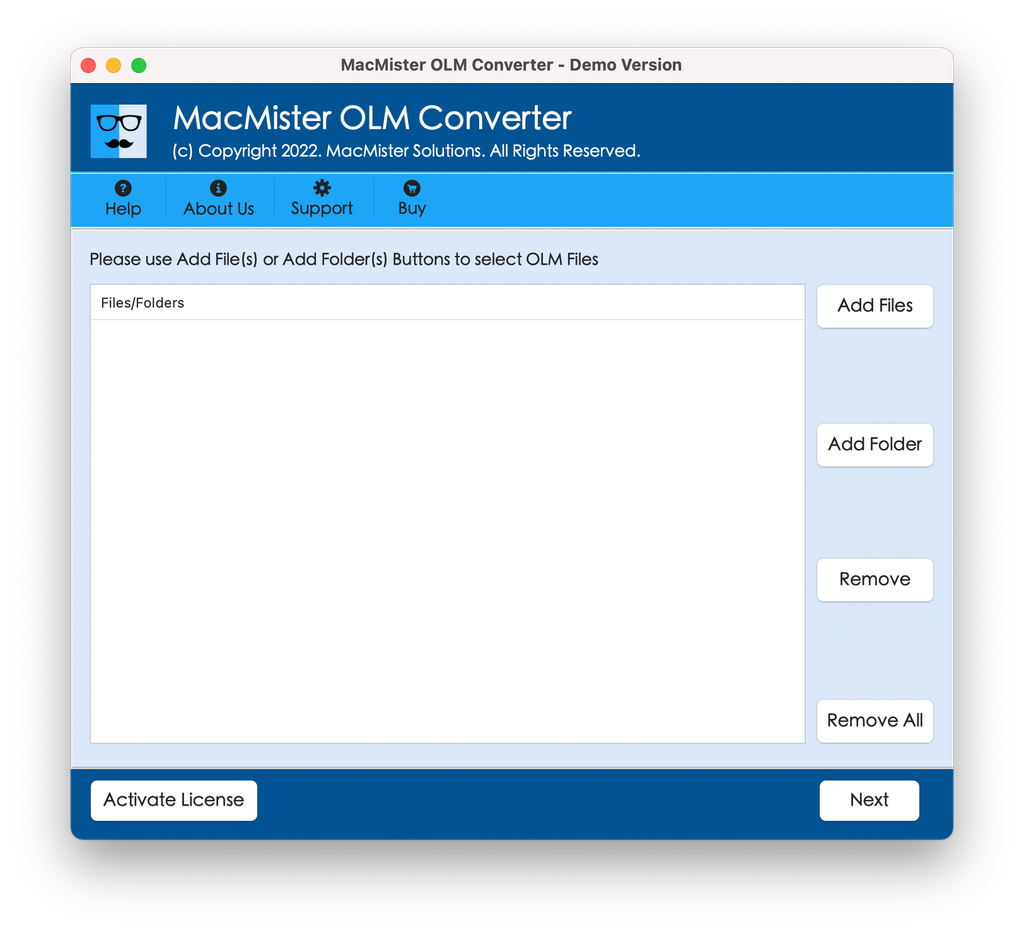
Step 3: Click on the Add File(s) or Add Folder(s) button within the software dashboard to browse and select your exported .olm file. The software will scan and display a complete preview of your mailbox contents.
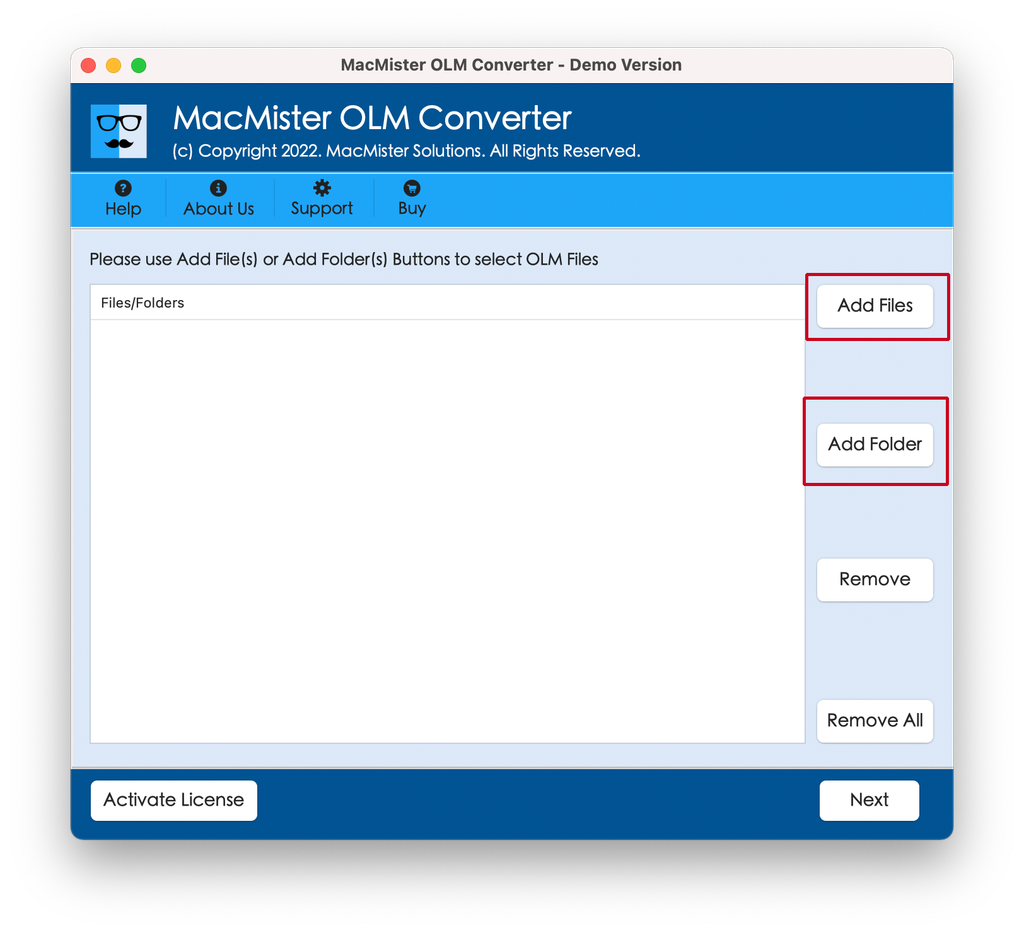
Step 4: From the list of available export options, select PST (Personal Storage Table) as your target format.
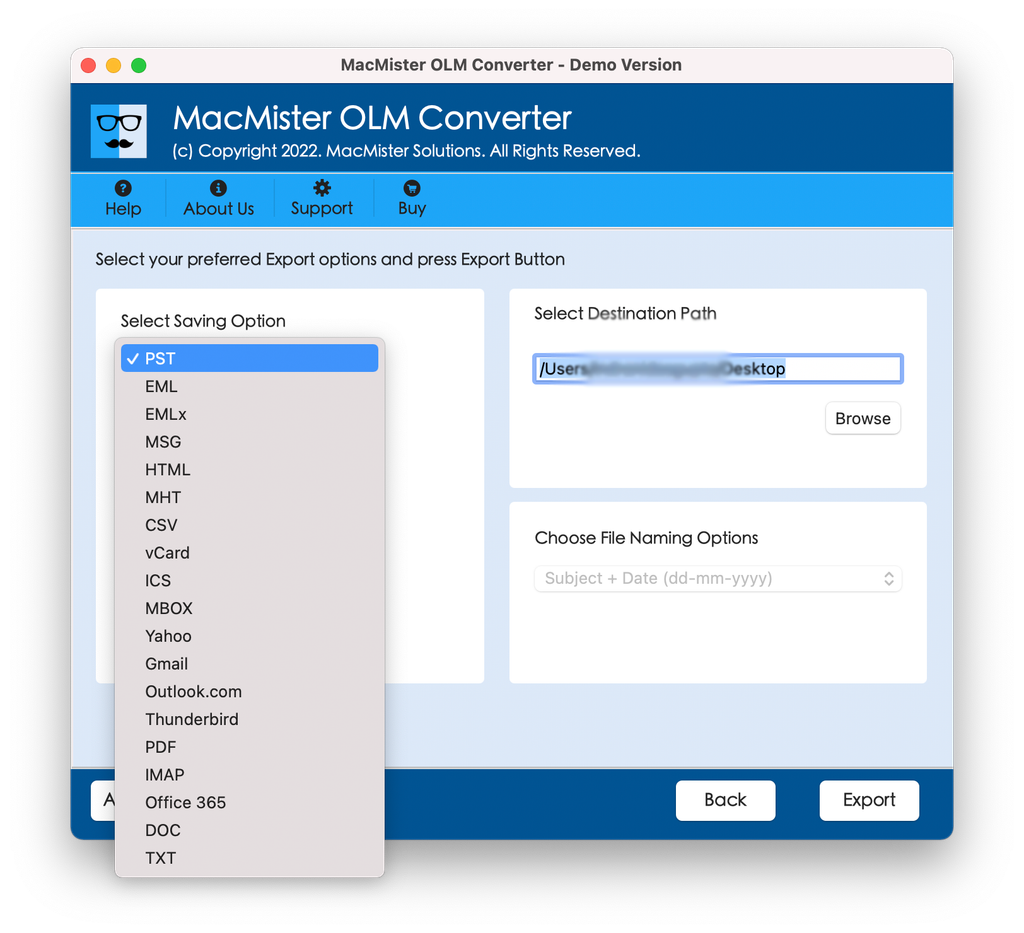
Step 5: Select your destination folder path on your storage drive. Apply other options according to the requirements and tap Export.
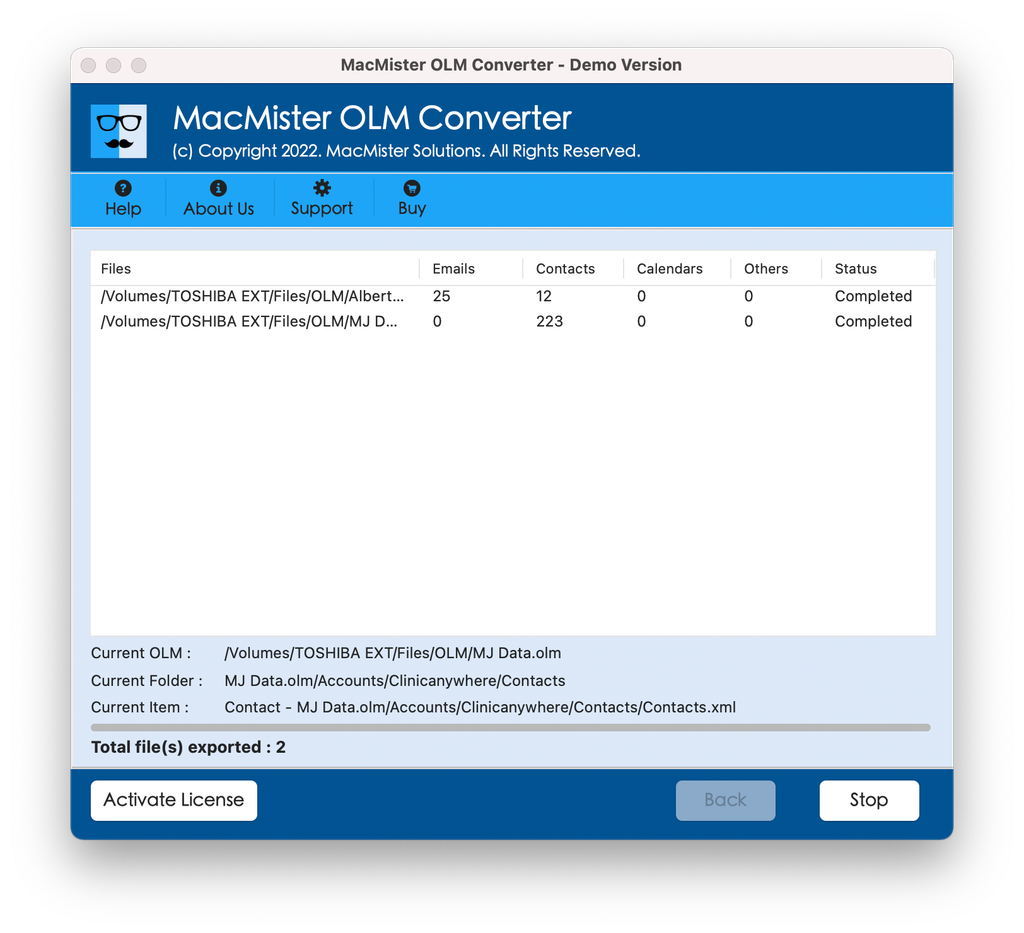
Step 6: The live progress window will display the status of the migration. Once completed, take your newly generated .pst file over to your Windows PC via a USB drive.
Importing the PST File into Windows Outlook
Once you have the cleaned up .pst file on your Windows PC, then you can simply import it into Outlook in a matter of minutes:
- Start Microsoft Outlook on your Windows computer.
- Go to File > Open & Export > Import/Export.
- Select Import from another program or file and click Next.
- Choose Outlook Data File (.pst) and click Next.
- Browse to find your .pst file, define what should happen with duplicates and where to import the file (either “Import items into the current folder” or choose a particular destination folder).
- Click Finish. Windows Outlook will import all emails, folders and attachments for you to your desktop environment.
Conclusion
Going from the Mac platform to Windows-based computer doesn’t necessarily mean that you can’t continue using your past correspondence. Although there are native solutions such as IMAP, they’re slow, error-prone, and potentially dangerous when it comes to big archives. With the help of a dedicated software solution like MacMister Mac OLM Converter, you will make sure that everything from the folder structure to the attachments and metadata stays the same.

