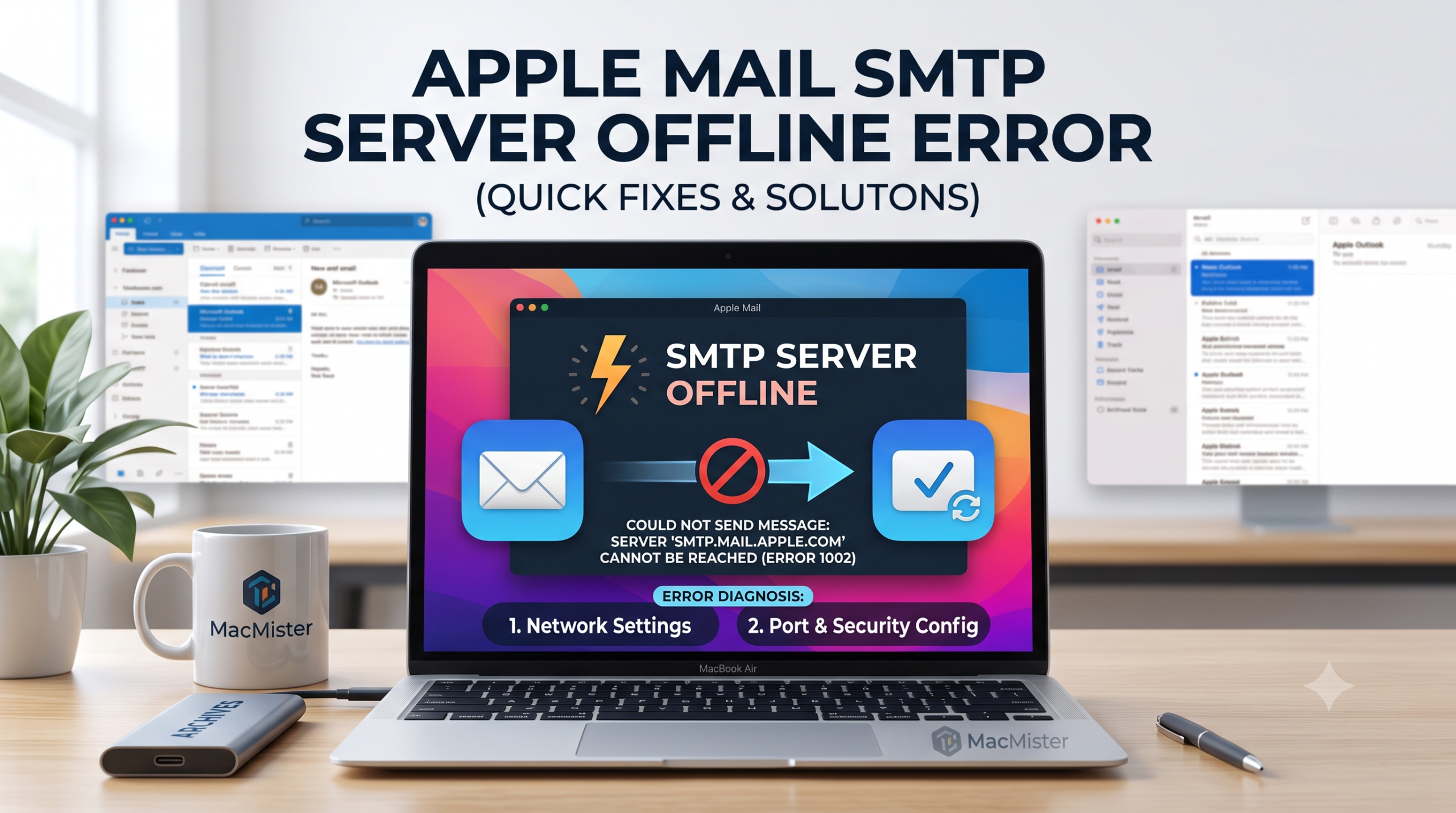
An “SMTP Server Offline” message in Apple Mail will cause your out-bound messages to cease functioning altogether. Though your inbound mail (IMAP/POP) can continue arriving without any problems at all, the out-bound mail will be trapped in your Outbox indefinitely.
This happens because there is a problem with connecting your SMTP server, which is the specialized route used for sending out emails, to your provider’s mail server through authentic connection.
Main Causes of the SMTP Offline Error
- Bad Port or SSL Configuration: Old port configuration or improper SSL/TLS encryption protocol prevents server handshake.
- Authentication Problem: Expiring password, out-of-sync token, or absence of app-specific passwords (typical for iCloud, Gmail, Yahoo).
- Broken Account Tokens: Conflicts in keychain access or old local credential causing trust issue with the server.
- Blockages in Network and Security: Using of a virtual private network (VPN), third-party antivirus program, and firewall preventing port 587 and 465.
Step-by-Step Fixes for Apple Mail SMTP Offline
Check for Account Status through Connection Doctor in Mail
Apple mail has a built-in feature that can help you identify the exact location of the problem.
- Open Apple Mail.
- Select Window and then Connection Doctor from the menu bar.
- Review the status icons of outgoing server (SMTP):
- Green Dot: Connected server.
- Red Dot: Connection problem. Double-click on the problem.
Re-enter Authentication Credentials
In case your password is changed recently or if the authentication token becomes invalid, Apple Mail might fail to send emails silently.
- Navigate to Mail>Settings (or Preferences)>Accounts.
- From the list on the left panel, select the particular email account.
- Tap the Server Settings button.
- In the Outgoing Mail Server (SMTP), find the option.
- Tap Account drop-down menu and select Edit SMTP Server List.
- Select the particular server and under Server Settings, re-enter your complete User Name (email address) and Password.
- Cick Save.
Adjust SMTP Ports and SSL/TLS Settings
Automated connection settings frequently misconfigure SMTP ports after macOS updates.
Step 1. Navigate to Mail > Settings > Accounts > Server Settings.
Step 2. Under Outgoing Mail Server (SMTP), uncheck Automatically manage connection settings.
Step 3. Verify and update the following standard parameters:
| Email Provider | Outgoing Server (SMTP) | Port | Encryption / Authentication |
| iCloud | smtp.mail.me.com | 587 | STARTTLS / Password |
| Gmail | smtp.gmail.com | 465 or 587 | SSL/TLS or OAuth2 |
| Outlook / M365 | smtp.office365.com | 587 | STARTTLS / Password |
| Yahoo Mail | smtp.mail.yahoo.com | 465 or 587 | SSL/TLS / App Password |
Step 4. Ensure Authentication is set to Password (or OAuth2 for Gmail/Microsoft).
Step 5. Click Save and re-test with Connection Doctor.
Generate an App-Specific Password (iCloud, Yahoo, AOL)
Account passwords will not work in third-party apps with the Two-Factor Authentication feature turned on.
- First, sign into the website portal provided by your email service provider (like appleid.apple.com or security.yahoo.com).
- Go to the Security tab, and find the App-Specific Passwords tab.
- Create a 16-character password for “Apple Mail.”
- Enter this generated password into the password field in the SMTP settings of Apple Mail.
Clear Stale Mail Credentials in Keychain Access
MacOS Keychain with invalid data may cause the SMTP server to go down several times.
- Close the Apple Mail application.
- Press Command + Space to open Spotlight and type Keychain Access.
- Type in your email service name (smtp.gmail.com, smtp.mail.me.com etc.)
- Choose right-click on the entries and click Delete.
- Open Apple Mail again and type in your credentials.
Disable VPNs, Custom Firewalls, and Antivirus
VPNs and third party security apps commonly block port 587 to stop spam relaying.
Disable your active VPN or security software such as Little Snitch, Norton, or Avast.
Then, restart Apple Mail and try to send the message you just drafted.
If successful, create an exception in the firewall for Apple Mail.
When to Re-add the Email Account
In case the error is not fixed by manually resetting SMTP settings, there might be an issue with the account entry in the database of macOS. To fix this, go to System Preferences > Internet Accounts, delete the account, restart the computer, and add the email account once again.
Quick Tip – Utilize MacMister Apple Mail Converter Tool to save Apple Mail mailboxes into 15+ saving options. With the help of the software, export Apple Mail data to PST, PDF, MSG, EML, HTML, DOC, IMAP, Gmail, Yahoo, Office 365, and more.