Are you checking Outlook again and again because new emails are not appearing? If Outlook for Mac not syncing automatically is preventing your inbox from updating, the issue can be frustrating.
This problem usually happens due to sync settings, outdated software, account connection issues, or temporary data conflicts. In this guide, we will discuss simple solutions to fix Outlook for Mac doesn’t sync automatically issues.
Why Is Outlook for Mac Not Syncing Automatically?
If Outlook for Mac not syncing automatically is happening on your Mac, Outlook may be unable to refresh your mailbox with the email server. Common reasons include:
- Internet connection problems
- Outdated Outlook version
- Incorrect account settings
- Microsoft 365, Exchange, or IMAP sync errors
- Corrupted Outlook cache or profile
Methods to Fix Outlook for Mac Not Syncing Automatically
Below are the most effective methods you can try to restore automatic email synchronization in Outlook for Mac.
Method 1: Check Your Internet Connection
A stable internet connection is required for Outlook to sync emails automatically. If your network is unstable, Outlook may fail to connect with the mail server and new emails may not appear in your inbox.
- Check that your Mac is connected to the internet.
- Open a browser and visit any website to confirm your connection.
- Restart Wi-Fi if the connection is unstable.
- Reopen Outlook and check if emails start syncing.
Method 2: Update Outlook for Mac to the Latest Version
Using an outdated version of Outlook can sometimes create Outlook Mac sync issues. Microsoft releases updates to fix bugs and improve compatibility.
If Microsoft Outlook for Mac not syncing properly, update Outlook.
- Open Outlook.
- Go to Help > Check for Updates.
- Install available updates.
- Restart Outlook.
Method 3: Check Your Email Account Connection
Sometimes Outlook loses connection with the email server, causing Outlook for Mac stopped syncing problems.
- Open Outlook.
- Go to Tools > Accounts.
- Select your account.
- Check the connection status.
- Sign in again if required.
This can fix sync issues with Microsoft 365, Exchange, Gmail, and IMAP accounts.
Method 4: Remove and Re-Add Your Email Account
If you are facing mac outlook not syncing or Outlook Mac not syncing issues, removing and adding the account again can refresh the connection settings.
Before removing the account, make sure your important emails and data are safely available.
- Open Outlook on your Mac.
- Go to Tools > Accounts.
- Select the problematic email account.
- Click the Remove (-) button.
- Restart Outlook.
- Add the email account again.
After adding the account again, Outlook will rebuild the connection with the mail server and may fix Outlook Mac sync error problems.
Method 5: Check Outlook Sync Settings on Mac
Sometimes Outlook is connected, but incorrect sync settings can prevent emails from updating automatically. Checking these settings may fix Outlook Mac not syncing automatically problems.
- Open Outlook for Mac.
- Click on Tools from the top menu.
- Select Accounts.
- Choose your email account.
- Check that the account is enabled and connected.
- Restart Outlook and wait for a few minutes to allow synchronization.
If you are using a Microsoft 365 or Exchange account, make sure the account is not disconnected from the server. A connection issue can lead to macOS Outlook sync issues where emails stop updating automatically.
Method 6: Rebuild Outlook Database on Mac
A corrupted Outlook database can cause Outlook Mac sync issues, delayed emails, and missing updates. Rebuilding the database can refresh Outlook data.
- Close Outlook.
- Hold the Option key and open Outlook.
- Select the database/profile.
- Click Rebuild.
- Restart Outlook.
Note: Keep a backup before rebuilding the database.
Method 7: Clear Outlook Cache Files
Outdated or corrupted cache data can affect email synchronization and cause Outlook Mac sync issues. Clearing temporary data and restarting Outlook may help fix Outlook for Mac doesn’t sync automatically problems.
- Close Outlook completely on your Mac.
- Restart your Mac system.
- Open Outlook again.
- Wait for a few minutes and check if new emails are syncing automatically.
Method 8: Check Microsoft 365 or Email Server Status
Sometimes the issue is caused by email server downtime rather than Outlook. Server problems can lead to Outlook for Mac not syncing automatically issues.
- Microsoft 365 service status.
- Your email provider status.
- Try Outlook again after the service is restored.
Method 9: Disable Problematic Add-ins in Outlook
Outdated or incompatible add-ins can affect synchronization and cause Outlook Mac sync issues.
- Open Outlook.
- Check installed add-ins.
- Disable unnecessary add-ins.
- Restart Outlook.
Method 10: Create a New Outlook Profile
A damaged Outlook profile can cause Outlook for Mac stopped syncing problems. Creating a new profile can restore fresh settings.
- Close Outlook.
- Create a new Outlook profile.
- Add your email account.
- Set it as default.
- Check syncing.
Method 11: Use CubexSoft OLM File Converter (Optional)
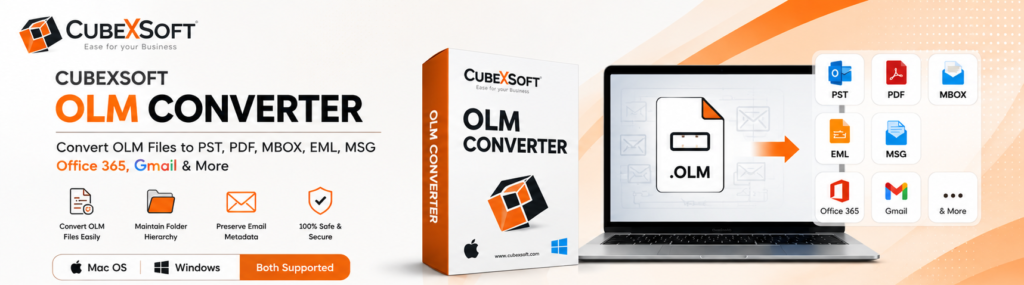
If you need to migrate Outlook for Mac data or convert OLM files, CubexSoft OLM Converter for Mac and Windows can help export emails, contacts, calendars, tasks, journals, and other mailbox data into different formats including OLM to PST, PDF, EML, MSG, MBOX, Gmail, Office 365, IMAP, Exchange, Zimbra, etc.
Method 12: Update macOS on Your Mac
An outdated macOS version can sometimes create compatibility problems between Outlook and your system. If you are facing macOS Outlook sync issues, updating your Mac may help improve Outlook performance.
- Click the Apple menu on your Mac.
- Select System Settings.
- Go to General > Software Update.
- Check for available updates.
- Install the latest macOS update and restart your Mac.
After updating macOS, open Outlook again and check whether emails are syncing automatically.
Method 13: Reinstall Outlook for Mac
If none of the above solutions work, reinstalling Outlook can help fix damaged application files that may be causing Outlook Mac sync issues.
Before reinstalling, make sure your important Outlook data is backed up.
- Close Outlook completely.
- Remove Outlook from your Mac.
- Download and install the latest version of Outlook.
- Sign in with your email account again.
- Check if automatic synchronization is working.
A fresh installation can resolve problems caused by corrupted Outlook files or installation errors.
Common Questions About Outlook for Mac Sync Issues
Why is Outlook for Mac not syncing automatically?
Outlook for Mac not syncing automatically can happen due to internet issues, outdated Outlook versions, incorrect account settings, server problems, or corrupted local data.
How do I force Outlook to sync on Mac?
You can manually refresh Outlook by opening the application and selecting the sync or refresh option. Restarting Outlook can also help when Outlook Mac not syncing.
Why is my Outlook inbox not updating automatically?
If your inbox is not updating, check your account connection, internet status, Outlook version, and sync settings.
How do I fix Outlook Mac sync error?
To fix an Outlook Mac sync error, try updating Outlook, reconnecting your account, rebuilding the Outlook database, or creating a new profile.
Does rebuilding Outlook database fix sync issues?
Yes, rebuilding the database can help resolve some Outlook Mac sync issues caused by corrupted local Outlook data.
Why is Outlook connected but not syncing on Mac?
Outlook may be connected but still fail to sync due to account settings, server issues, outdated software, or corrupted local data.
Why is my Mac Outlook not syncing?
If you are searching why is my Mac Outlook not syncing, it may happen due to internet issues, outdated Outlook, account settings, or sync errors. Try the fixes above to resolve the problem.
Final Thoughts
If Outlook for Mac not syncing automatically is causing problems, try the above fixes one by one. Start with basic solutions like checking your internet connection, updating Outlook, and verifying account settings.
Keeping Outlook updated and maintaining proper account settings can help prevent future Outlook Mac sync issues.

