Are you belongs to the crowd of users who keenly searching for a reliable tool to know how to transfer IMAP account data to Office 365 accurately? If your answer is in yes then don’t worry you are on right place. Here you get detail solution with associated pros and cons. keep reading this blog to accumulate all the information to perform the conversion efficiently.
Transfer IMAP Emails to Office 365 Manually
Manual method to transfer IMAP Servers database to Office 365 involves using the Exchange Admin Center (EAC) to create an IMAP migration endpoint and migration batch. Follow the below steps to transfer IMAP emails to Office 365 manually.
Step 1: Go to the Microsoft 365 Exchange Admin Center (EAC) and login with Admin credentials.
Step 2: Next navigate to the Migration section in the Exchange Admin Center and select Migration Endpoints.
Step 3: Click on Add Migration Endpoint and select IMAP as the migration endpoint type.
Step 4: Now enter the required IMAP server details, such as the IMAP server/FQDN and port number, and save the migration endpoint.
Step 5: After creating the migration endpoint, go back to the Migration section and click on Add migration batch.
Step 6: Select Migrate to Exchange Online and choose IMAP migration as the migration type.
Step 7: Next prepare a CSV file containing the required source IMAP mailbox details, such as EmailAddress, UserName and Password, and upload the CSV file in the migration wizard.
Step 8: Now select the IMAP migration endpoint created earlier and provide the required migration settings for the target Office 365 mailboxes.
Step 9: After reviewing all the required information, create and start the migration batch to begin transferring IMAP emails to Office 365.
Step 10: Once the migration starts, monitor the migration status from the Migration section of the Exchange Admin Center. After the required emails are successfully transferred, verify the migrated data and complete the migration batch.
Limitation of Using Manual Method
- A maximum of 5000 items can be transferred from each user’s mailbox.
- An email of up to 35 MB of size can be transferred to Office 365.
- The method is able to migrate only emails folders and not the other items such as contacts, calendar and tasks.
- Proper expertise in technical field is mandatory as the method is tricky and involves lots of technical terms.
- The process consumes lots of crucial time which can be spend on some productive activity.
Professional Solution to Transfer IMAP Account Data to Office 365
CubexSoft IMAP to Office 365 Migration Tool is a professional third party solution which gives you complete solution of how to transfer IMAP account Data to Office 365 in less time. The software is the most efficient tool that gives you quick solution in just few minutes. This application supports complete editions of macOS and Windows OS. IMAP to Office 365 Tool is an independent utility which perform the conversion by just knowing login details of Office 365 account. Let’s move forward and grab some info about the software working.
Follow These Steps to Transfer IMAP Server Database to O365 Account: –
Step 1: Install IMAP Backup Tool and run it in your system.
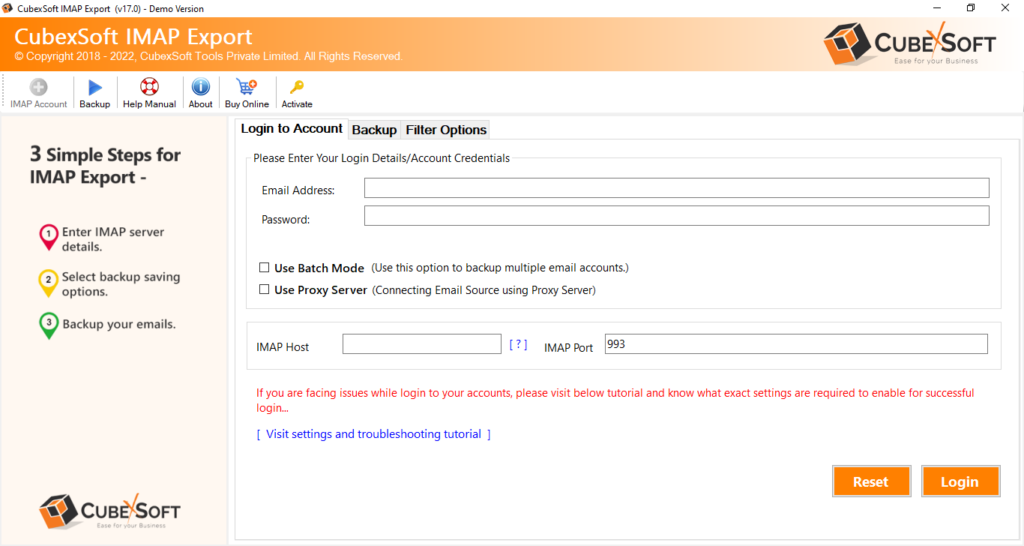
Step 2: Choose the IMAP supported server from which you want to transfer database to Office 365 and then fill login details of selected account i.e. Email Address and Password and IMAP Server details such as IMAP Host and Port no.
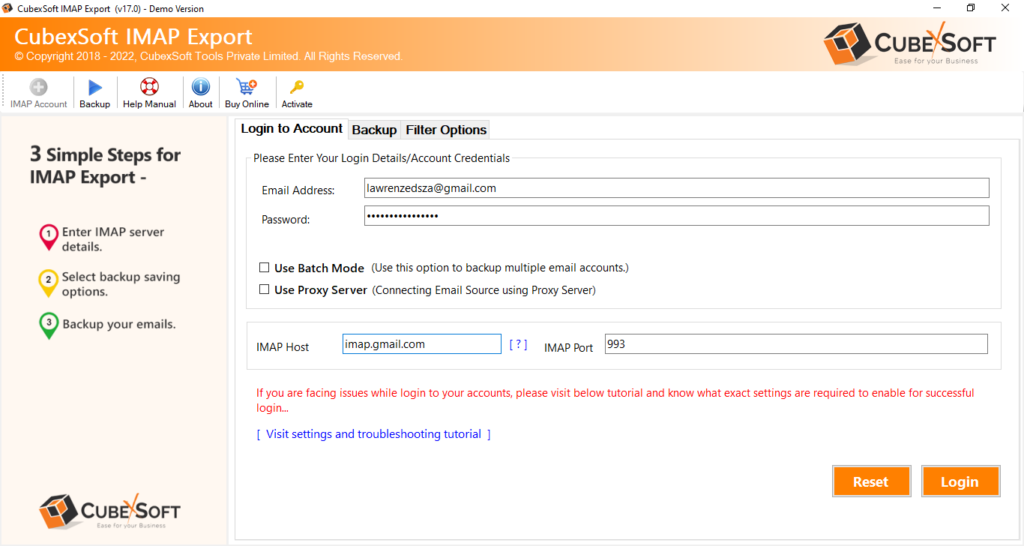
Step 3: After filling all the details click on Login button to load your IMAP Server mailboxes in the software. When you click on login button the software frequently start loading the mailboxes present in the IMAP Server and start showing them in the left panel in accurate hierarchy.
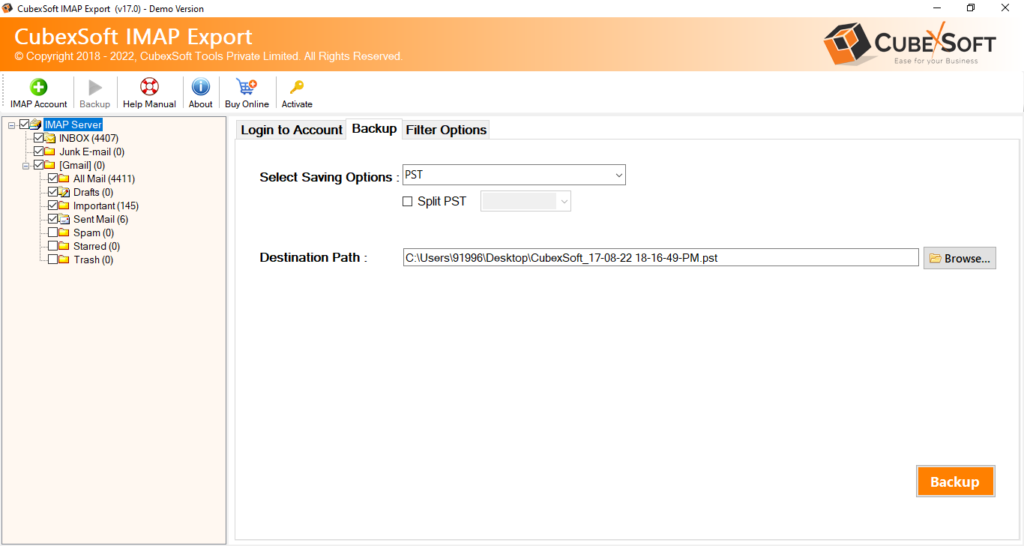
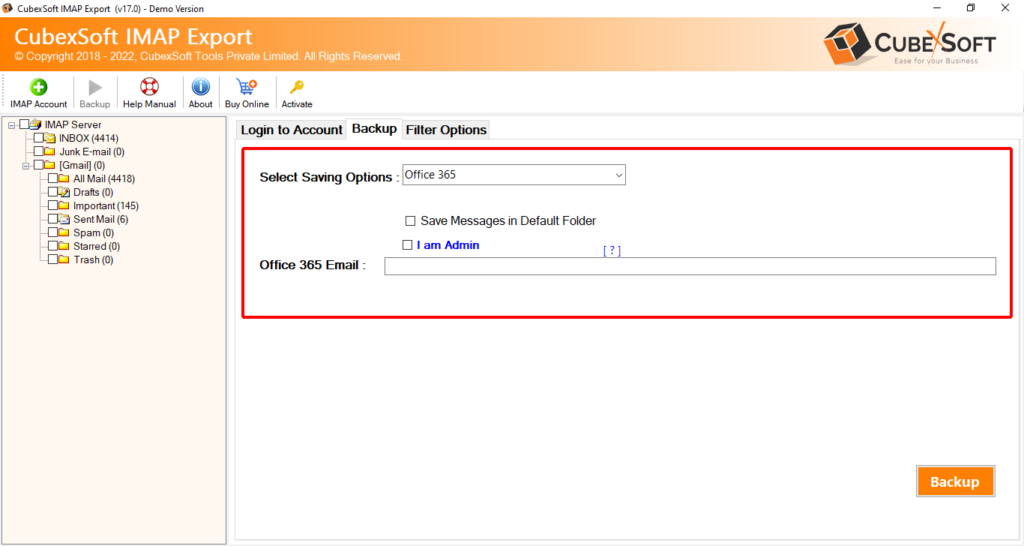
Step 4: Now choose Office 365 as Output option to transfer IMAP Server database to Office 365 then enter login details of Office 365 account i.e. Email Address and Password.
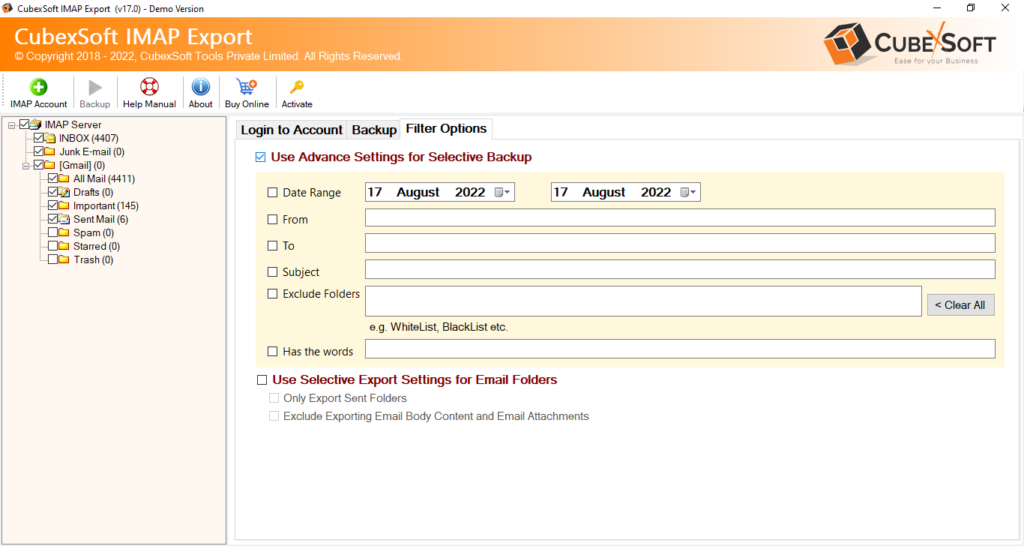
Step 5: Next choose the appropriate advance filter according to your requirement.
- Date Filter: Apply date filter to transfer email of certain date range to O365 Account.
- To & From Filter: Apply To and From filter to transfer IMAP server emails of specific addresses.
- Subject Filters: You can apply this filter to transfer emails of specific words and phrases to Office 365.
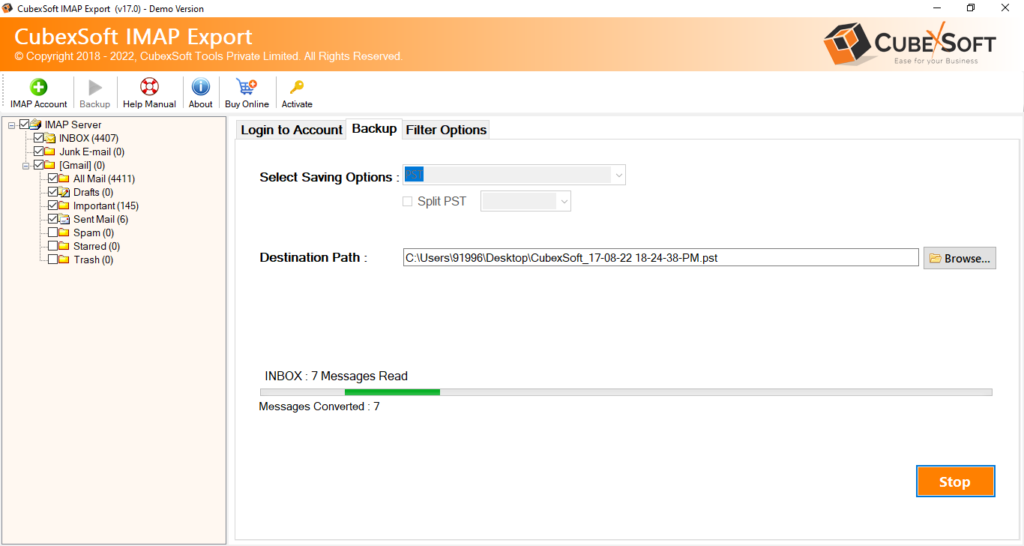
Step 6: Just after clicking on Backup button the software start transferring all the mailbox you have ticked earlier and shows live conversion status.
Step 7: Once the conversion is completed, a notepad Windows opens with complete detail of transfer summary i.e. Saving Option, Selected Source, Status, Start time/date etc. For saving the backup summary in TXT format go to File>> Save as option.
Key Attributes of IMAP to Office 365 Tool
- Supports migration in all Windows machine of 32 bit and 64 bit.
- Facility of saving Backup summary in TXT Format.
- Maintains all the email attributes such as Header, font size, email formatting etc.
- Transfer IMAP Server emails in original folder structure and layout.
- Compatible to almost all IMAP supported Servers.
- Support transfer of emails with respective attachments in accurate properties.
- Provide facility of Selective migration and saves lots of time.
- User friendly GUI and non-complex working steps.
Conclusion
In this blog we provide you detail information of both manual method and professional solution i.e. IMAP Email Backup Tool. Both the solution can be used to know exactly how to transfer IMAP account data to Office 365. If you want a trustworthy solution which gives you efficient result without any risk of data loss then go for the professional solution otherwise manual method is also good. Choose the method which best suits your need.