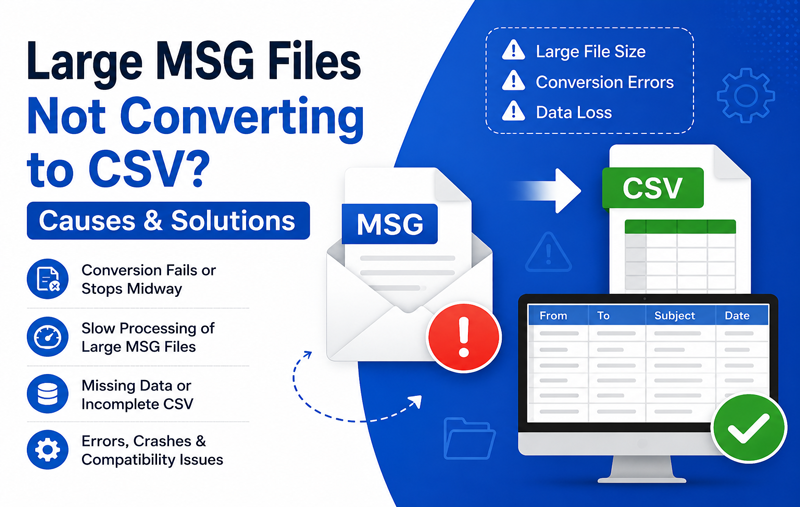
MSG files are commonly used to store individual email messages along with important details such as sender, recipient, subject, date, message body, and other email properties. Although the MSG format is useful for preserving Outlook email messages, it is not ideal when email information needs to be organized in a spreadsheet or analyzed in a structured format.
CSV files provide a simple way to arrange data into rows and columns. Because CSV is supported by applications such as Microsoft Excel, Apple Numbers, databases, and various business applications, users may need to export MSG files into CSV format for reporting, data management, or analysis.
When dealing with a large collection of MSG files, converting them individually can become time-consuming. A bulk MSG to CSV conversion approach makes it easier to process multiple messages and organize their information in a structured output.
Overview of MSG to CSV Conversion
MSG is an email message format associated primarily with Microsoft Outlook, whereas CSV is a text-based tabular format. During conversion, information stored inside MSG files is extracted and arranged into suitable CSV fields.
Depending on the source MSG files and the conversion software, the output may include details such as –
- Sender and recipient information
- Email subject
- Date and time
- CC and BCC details
- Message body
- Email headers or message properties
- Attachment-related information
Once converted, the CSV file can be opened in a spreadsheet application for sorting, filtering, searching, and further processing.
Why Export MSG Files to CSV?
There are several situations where converting MSG files into CSV can be useful.
- Structured email information – CSV organizes email properties into rows and columns, making large collections easier to manage.
- Data analysis – Users can sort and filter email records based on subjects, senders, recipients, or dates.
- Reporting – Businesses can use structured email information for communication records, internal reporting, and documentation.
- Database compatibility – CSV is widely supported by database and business applications, making it convenient for transferring structured information.
- Bulk processing – If hundreds or thousands of MSG files are involved, processing them together is significantly more convenient than manually opening each message.
- Easy spreadsheet access – CSV files can be opened using Excel, Numbers, and other spreadsheet applications without requiring Outlook for viewing the structured data.
Manual Method to Save MSG Files as CSV
There is no straightforward option to simply change the .msg extension to .csv. The information inside each MSG file needs to be extracted and organized into appropriate columns. A basic manual approach can be performed as follows.
Step 1: Open the MSG File – Open the MSG message using Microsoft Outlook or another application capable of reading MSG files.
Step 2: Review the Email Details – Identify the information you want to transfer, such as the sender, recipient, subject, date, and message content.
Step 3: Create a Spreadsheet – Open Microsoft Excel, Apple Numbers, or another spreadsheet application and create a new document.
Step 4: Add Relevant Columns – Create columns according to the email information you want to record. For example:
| From | To | Subject | Date | CC | Body |
Step 5: Copy the Information – Open each MSG file and manually copy the required information into the corresponding spreadsheet columns.
Step 6: Export the Spreadsheet – After entering the email data, use the Save As or Export option and select CSV as the output format.
This method may be manageable for a few MSG files, but it becomes difficult when working with a large email archive.
Limitations of Manual MSG to CSV Conversion
Although manual conversion does not require specialized software, it has several limitations.
- Each MSG file must generally be processed separately.
- Copying email information manually takes significant time.
- Large collections can require extensive repetitive work.
- There is a greater possibility of missing or incorrectly entering information.
- Maintaining consistent formatting across hundreds of records can be difficult.
- Email properties may not always be captured completely.
- Attachments and related metadata can be difficult to document manually.
- The process becomes increasingly inefficient as the number of MSG files grows.
For this reason, manual extraction is better suited to a small number of messages. Users handling a large MSG archive may benefit from a dedicated bulk conversion solution.
Bulk MSG to CSV Migration Solution for Mac
The MacMister MSG Converter for Mac provides a dedicated approach for converting MSG files into CSV format on macOS. Instead of manually opening individual messages and transferring their information into a spreadsheet, users can process multiple MSG files as part of a single conversion workflow.
The software is particularly useful when an MSG collection contains a large number of messages that need to be converted into structured CSV data. Users can select multiple MSG files or choose a folder containing MSG messages and then export the required email information to CSV.
The conversion workflow is designed to reduce repetitive manual data entry while making the resulting email information easier to work with in spreadsheet applications.
How to Convert MSG Files to CSV in Bulk on Mac?
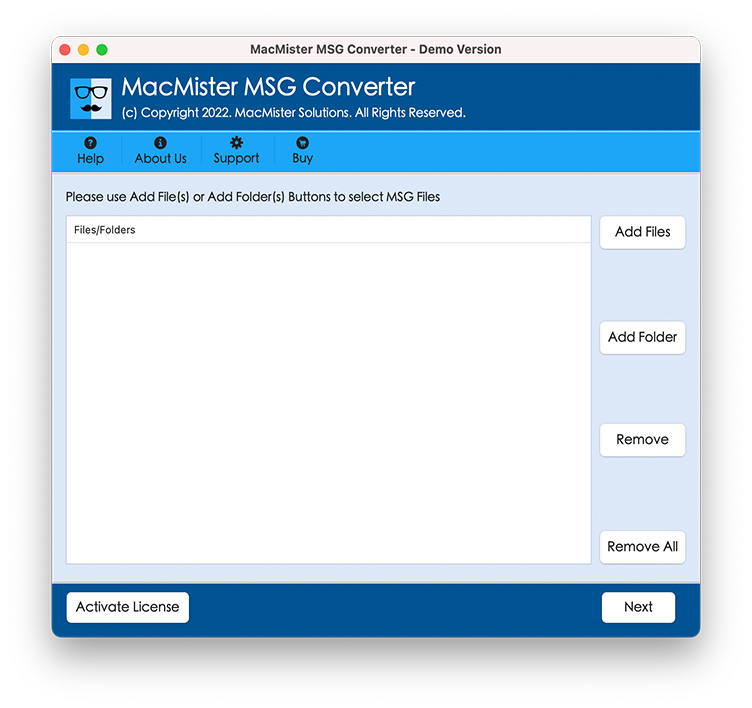
Step 1: After installing and launching the software, add MSG files by given options to load MSG files in bulk or a folder having all emails.
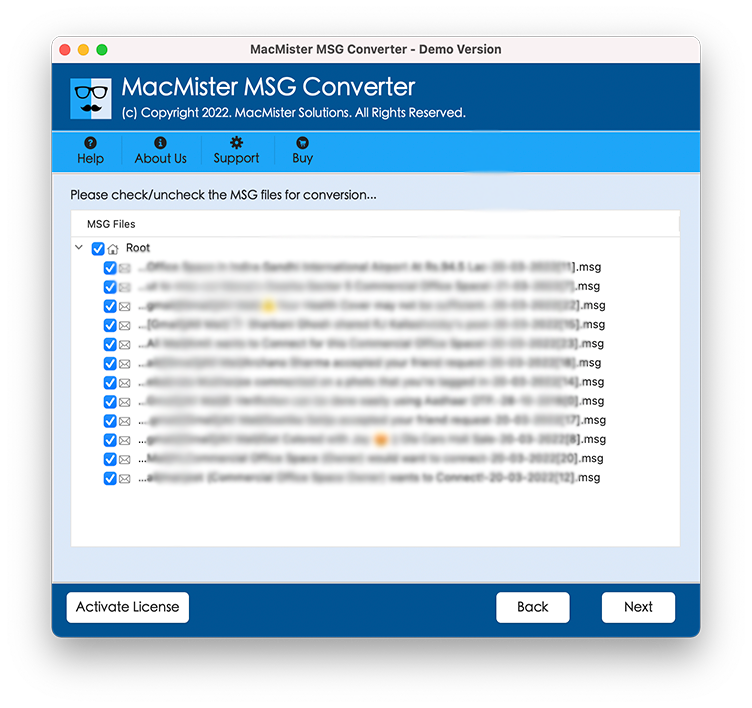
Step 2: Check the imported MSG files and select that the required messages have been added.
Step 3: Set CSV as the Target Format
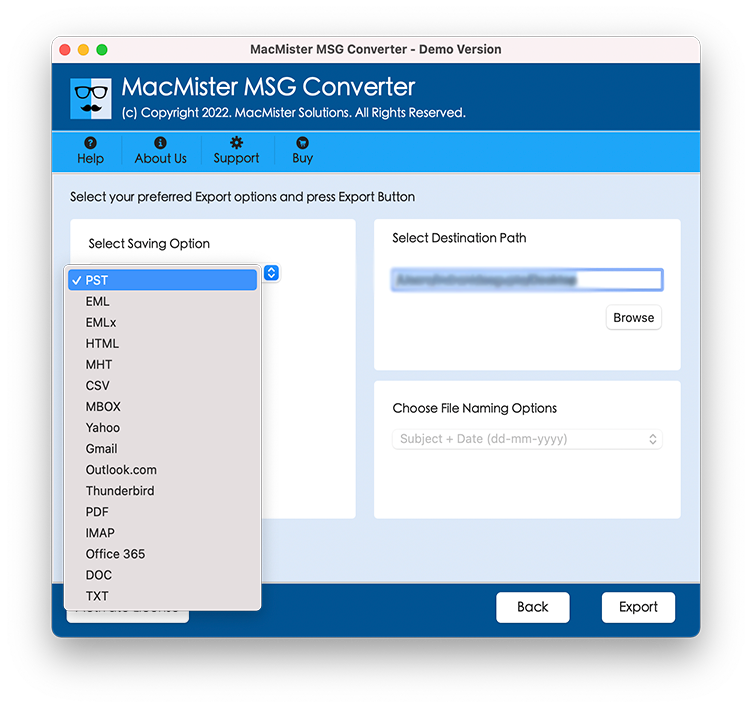
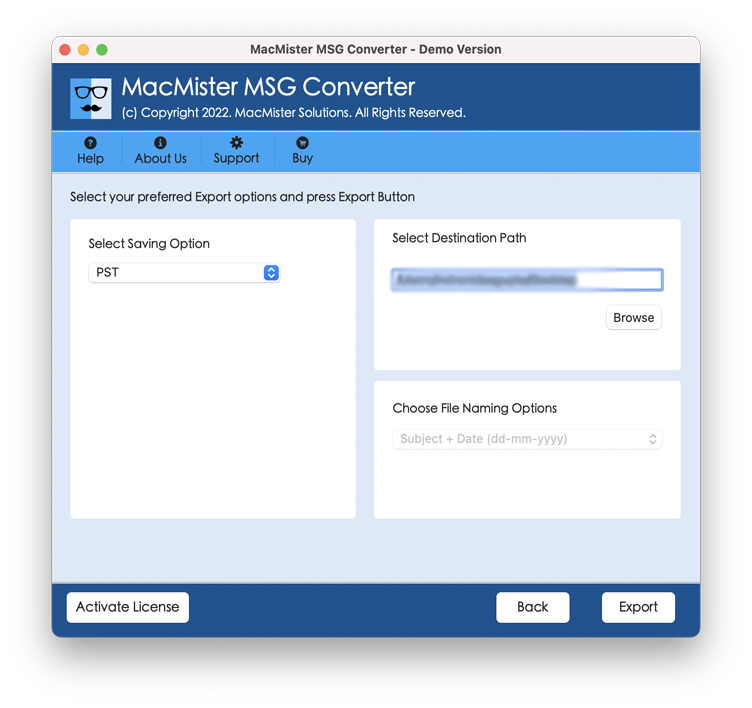
Step 4: Specify the location where you want the converted CSV data to be saved. Click on the Start button.
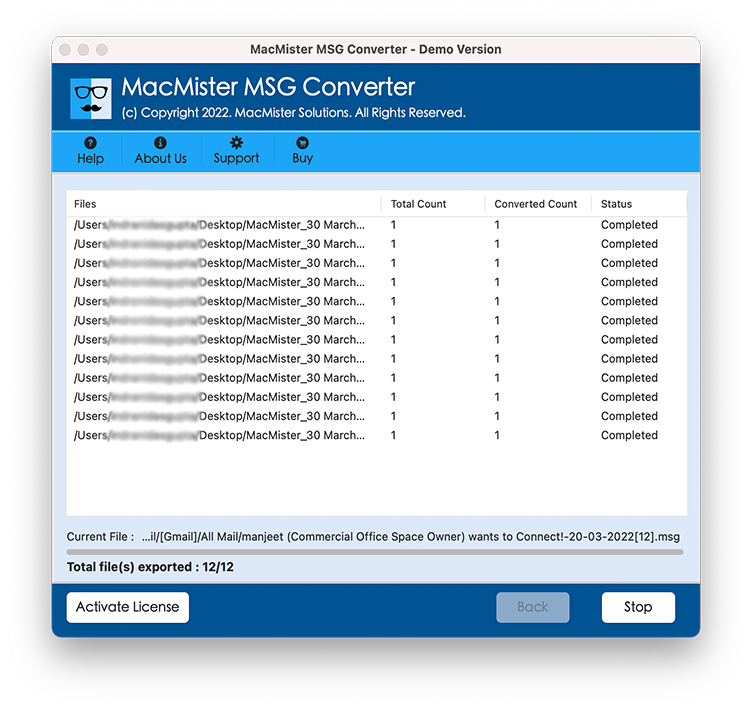
Step 5: Begin the conversion process. And also display on the status graph of the software screen.
Advantages of Using an MSG to CSV Conversion Tool
A specialized converter can make bulk email data extraction more convenient than manual processing.
- Bulk conversion – Multiple MSG files can be processed together instead of handling each message individually.
- Organized output – Email information is placed into a structured CSV format that is easier to sort and filter.
- Reduced manual work – Users do not have to repeatedly open messages and copy information into spreadsheet cells.
- Mac compatibility – A Mac-focused solution provides a convenient workflow for users working with MSG files on macOS.
- Suitable for large collections – Bulk processing is useful when an email archive contains a substantial number of MSG files.
Frequently Asked Questions
Q. Can I convert multiple MSG files to CSV at once?
Ans. Yes. A dedicated MSG to CSV converter can process multiple MSG files in bulk, making it more practical for large email collections.
Q. Can I open MSG files directly in Excel?
Ans. Excel is designed primarily for spreadsheet and tabular data. MSG files use an email-message structure, so they generally need to be processed or converted before their information can be organized properly in Excel.
Q. Which MSG Data Can Be Transferred to CSV?
The tool maintains all MSG data to CSV during the migration such as sender, recipient, subject, date, CC/BCC, message body, and other available email properties.
Q Can You Manually Convert Thousands of MSG Files?
Ans. Manual conversion is generally inefficient for thousands of MSG files because each message may need to be opened and its information copied separately. A bulk conversion method is more practical for large collections.
Q. How Can I Open the Resulting CSV on a Mac?
Ans. Yes. CSV is supported by applications such as Microsoft Excel and Apple Numbers, allowing users to view, sort, filter, and manage the converted email information.
Conclusion
Saving MSG files as CSV can make email information easier to organize, analyze, and use with spreadsheet or database applications. While a manual approach can work for a small number of messages, it becomes increasingly time-consuming when hundreds or thousands of MSG files are involved.
The MSG to CSV Converter for Mac offers a convenient bulk conversion workflow for users who need to extract information from multiple MSG files and save it in a structured CSV format. By reducing repetitive data entry and simplifying the conversion process, it provides a practical option for managing large MSG collections on Mac.