Yahoo Mail has been used for years to manage personal and professional email communication. However, organizations and professionals often move their email operations to Microsoft 365 because it provides Exchange Online, Outlook integration, centralized administration, and a broader set of collaboration features. As a result, users may need to save emails from Yahoo Mail to Office 365 while retaining important messages, attachments, folders, and email properties.
Yahoo Mail does not provide a simple one-click option to export an entire mailbox directly into Office 365. Yahoo recommends using a third-party mail application through IMAP for downloading mailbox content. This makes the process more complicated when a mailbox contains a large number of emails.
This guide explains the available approach, its limitations, and how Mac users can simplify the process with Yahoo Mail to Office 365 Tool for Mac.
Yahoo Mail is a cloud-based email service that allows users to send, receive, organize, and store messages online. It supports folders, attachments, contacts, filters, and IMAP access. Yahoo’s current IMAP documentation lists imap.mail.yahoo.com as the incoming mail server and requires SSL on port 993. Yahoo also recommends an app password for account authentication in relevant third-party applications.
Office 365, now generally referred to as Microsoft 365, provides cloud-based productivity and communication services. Its email component, Exchange Online, works with Outlook and provides organizations with centralized mailbox management.
Therefore, saving Yahoo Mail emails to an Office 365 mailbox can help users bring older correspondence into their Microsoft 365 environment.
Benefits of Saving Yahoo Mail Emails to Office 365
There are several reasons why users may want to move or save Yahoo emails in Office 365 –
1. Centralized Email Management – Keeping older Yahoo messages in the Office 365 environment allows users to manage current and historical correspondence from a single platform.
2. Outlook Integration – Office 365 works closely with Outlook, allowing users to access their mailbox through a familiar desktop application along with Microsoft 365 services.
3. Better Business Collaboration – Organizations using Microsoft 365 can manage email alongside other Microsoft services, making it easier to maintain a unified business workflow.
4. Preserve Important Emails – Saving older Yahoo emails in another mailbox can provide an additional copy of important business correspondence and attachments.
5. Easier Searching – After the required messages are available in Office 365, users can use Outlook and Microsoft 365 search capabilities to locate older conversations.
6. Reduce Dependency on Yahoo – Moving historical emails to Office 365 can be useful when a business is retiring Yahoo accounts or standardizing its email infrastructure.
Manual Method to Save Yahoo Emails to Office 365 Account
Yahoo does not currently provide a direct full-mailbox export option. Its official guidance suggests using a third-party email application to download Yahoo messages through IMAP. A basic manual workflow is –
Step 1: Open Outlook and add the Yahoo Mail account.
Step 2: Enter the Yahoo account credentials. Depending on the account configuration, an app password may be required. Yahoo supports IMAP access using SSL on port 993.
Step 3: Allow Outlook to synchronize the Yahoo mailbox. For large accounts, the synchronization may take considerable time. Yahoo specifically notes that accounts containing a lot of content can take several days or longer to download completely.
Step 4: Add the Office 365 account to Outlook.
Step 5: After the Yahoo messages have synchronized, select the required emails or folders and copy or move them into the corresponding Office 365 mailbox folders.
Step 6: Allow Outlook to synchronize the copied messages with the Office 365 server and verify the results.
This method may work for a small mailbox, but it becomes difficult to manage when thousands of messages and multiple folders are involved.
Limitations of the Manual Method
Although the manual approach does not require dedicated migration software, it has several practical limitations.
- Time-Consuming Synchronization – Large Yahoo mailboxes may take a significant amount of time to download. Yahoo itself warns that accounts containing large amounts of content may require several days or longer.
- Large Folder Problems – Yahoo notes that folders containing around 100,000 or more emails can experience downloading issues.
- Requires Outlook Configuration – Users need to correctly configure Yahoo and Office 365 accounts in Outlook before transferring messages.
- Risk of Incomplete Transfer – If synchronization is interrupted or some folders are not fully downloaded, users may unknowingly transfer incomplete mailbox data.
- Manual Folder Handling – Moving numerous folders and subfolders individually can be repetitive and increases the possibility of overlooking important data.
- Additional Storage Requirement – The Yahoo mailbox may first need to be downloaded and synchronized locally before its contents can be copied to Office 365, which can require considerable local storage.
For these reasons, users with large mailboxes often look for a more direct approach.
Yahoo Mail to Office 365 Migration by Yahoo Mail to O365 Tool for Mac
Mac users can simplify the process with MacMister Yahoo Mail Backup Tool for Mac. The software is designed to connect with Yahoo Mail, display mailbox folders, and transfer Yahoo email data directly to Office 365. MacMister’s documented Yahoo-to-Outlook 365 workflow supports selecting Yahoo Mail as the source and Office 365 as the destination. The process can be performed as follows –
Step 1: Install Yahoo Mail to O365 migration Tool
Download and install the Yahoo Mail to Office 365 Tool on your Mac and launch the application.
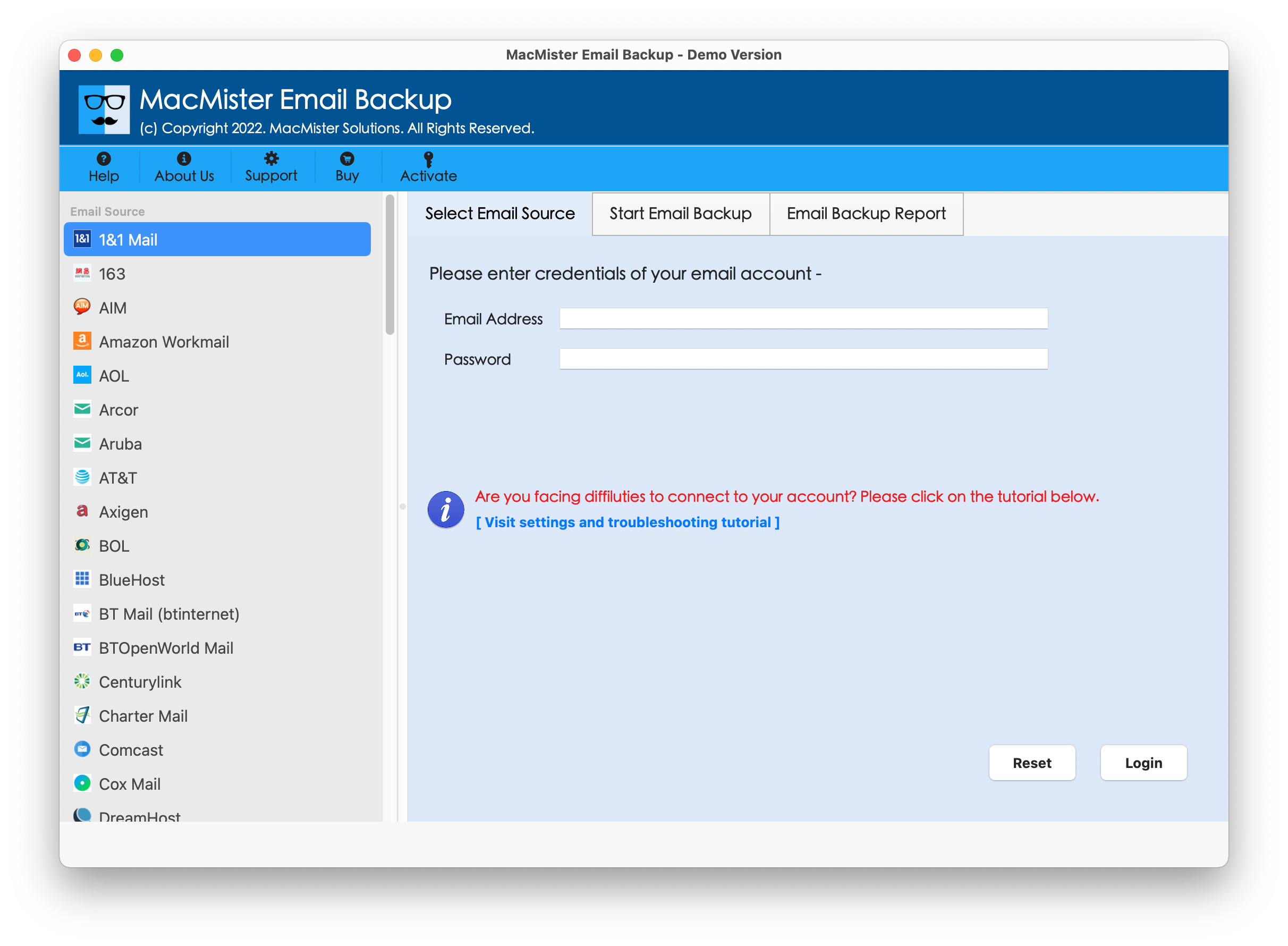
Step 2: Select Yahoo Mail
Choose Yahoo Mail from the list of supported source email services. Enter the Yahoo email address and required app password, then establish the connection.
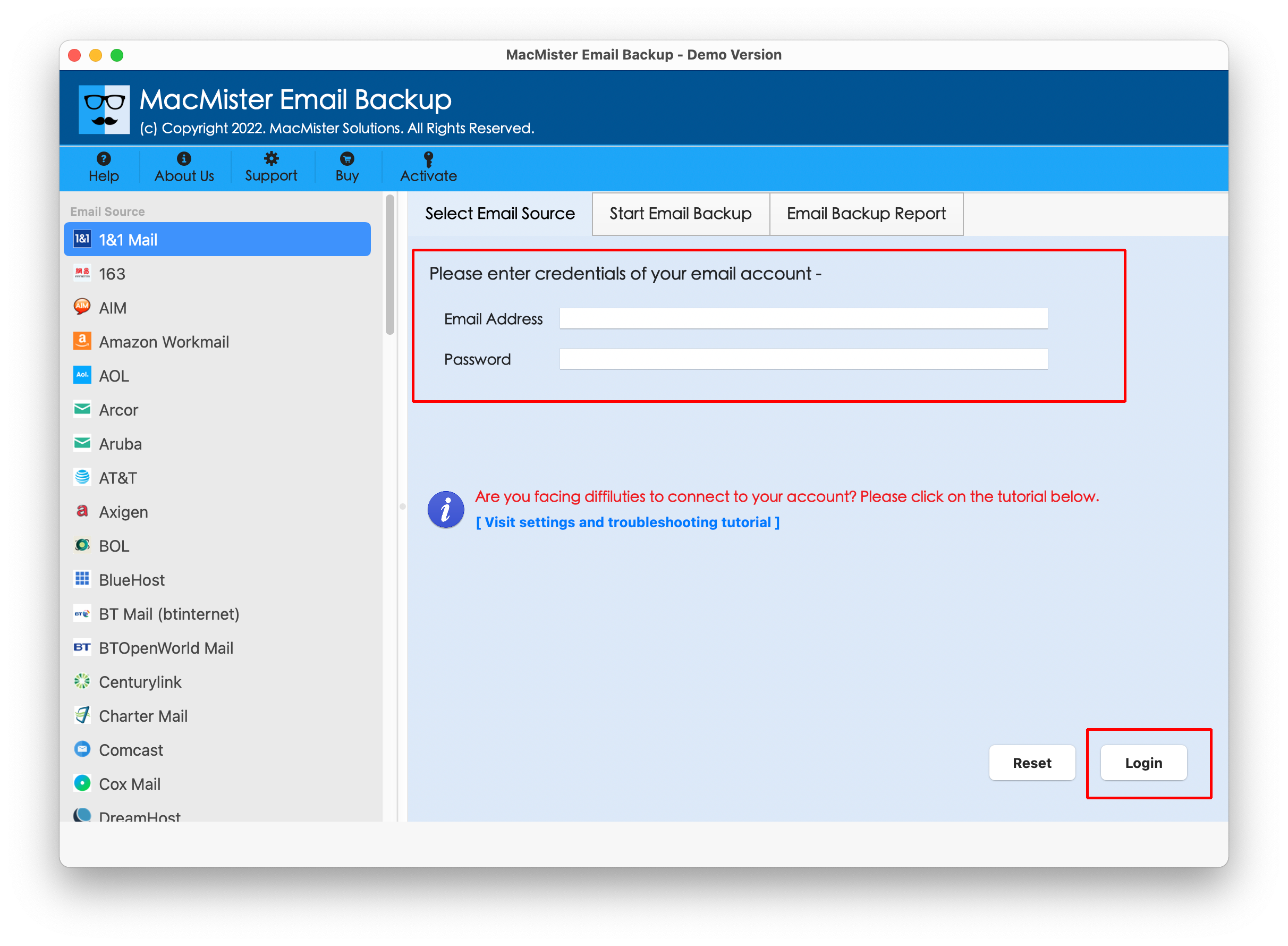
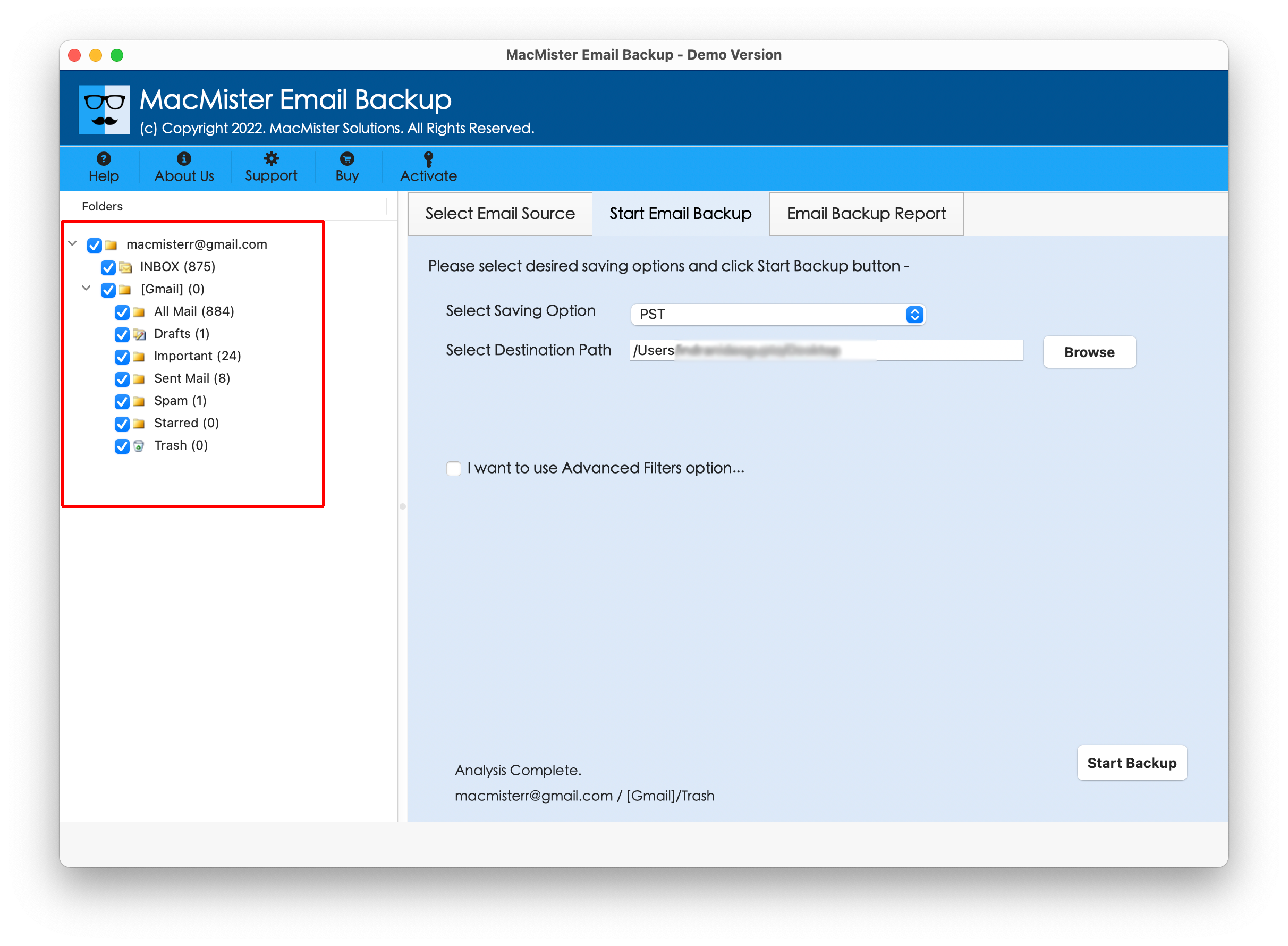
Step 3: Load Yahoo Mail Folders
Once connected, the software displays the available Yahoo Mail folders. Select the complete mailbox or only the folders you need to transfer.
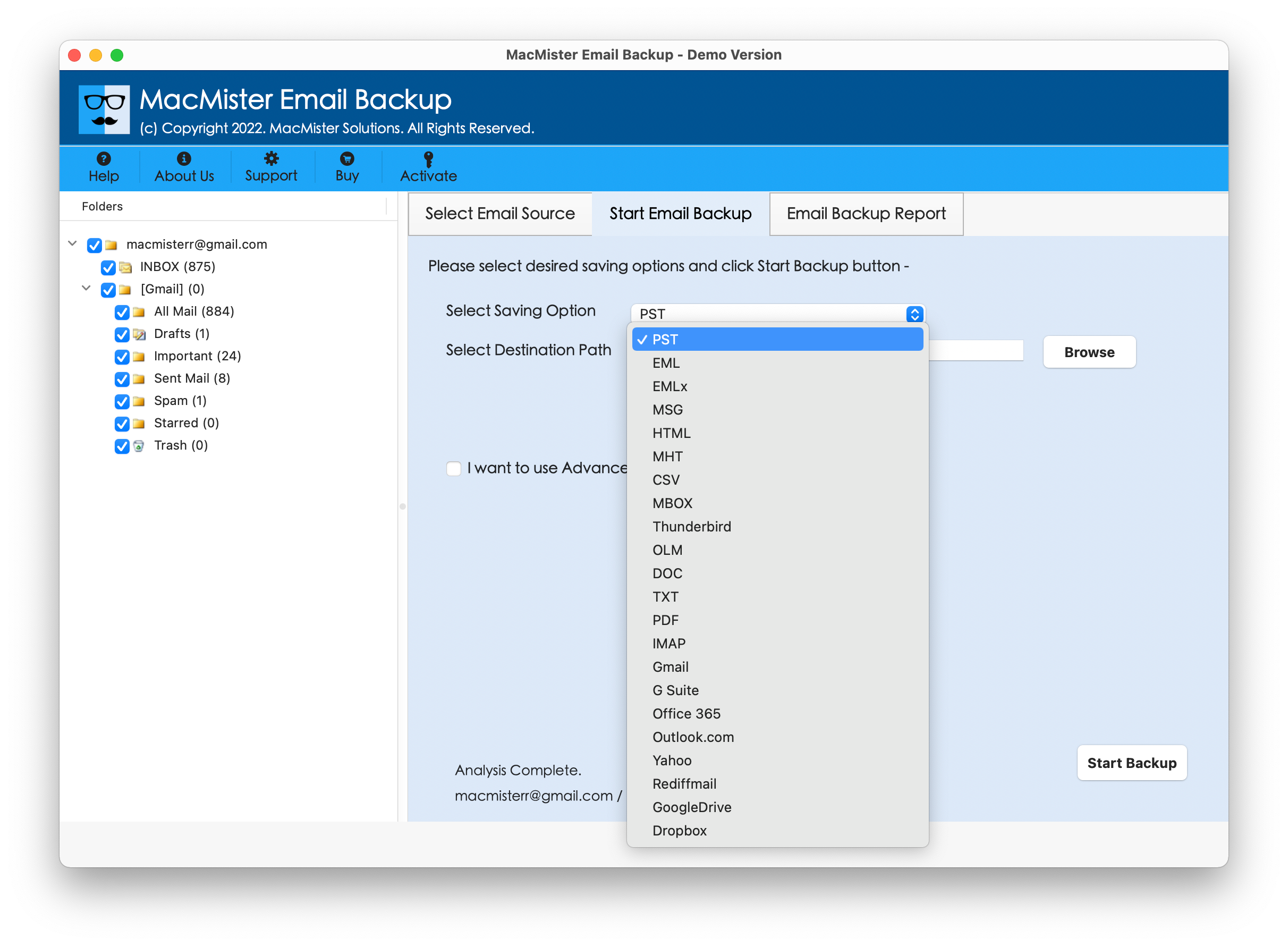
Step 4: Choose Office 365
From the Select Saving Options section, choose Office 365 as the destination.
Step 5: Fill Office Login details
Enter the required Microsoft 365 account details. Click on Export button.

Step 6: Start the Transfer
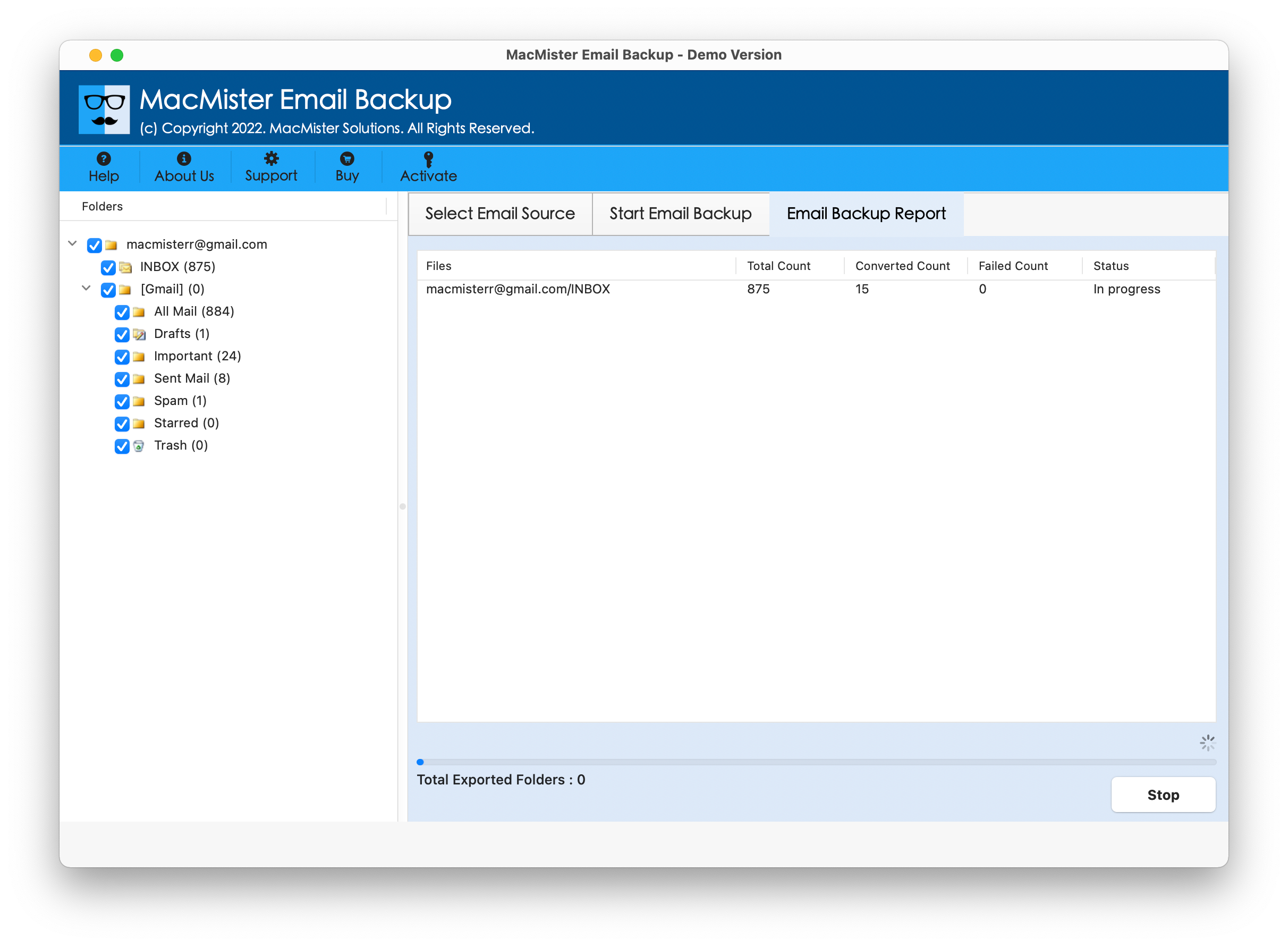
Click the Start Backup option to begin transferring Yahoo emails to Office 365. It provides mail backup Report that lets users monitor the ongoing process.
Benefits of Yahoo Mail to Office 365 Tool for Mac
- Direct Yahoo to Office 365 Transfer – The tool provides a direct workflow for transferring Yahoo Mail data to Office 365 instead of requiring users to first create a separate local backup and manually copy emails.
- Transfers Emails with Attachments – The software is designed to transfer Yahoo emails along with their attachments, making it suitable for users handling business correspondence containing important documents and files.
- Selective Folder Migration – Users can select the required Yahoo Mail folders instead of processing the entire mailbox. This is useful when only specific folders need to be saved.
- Maintains Folder Structure – The software is designed to preserve the Yahoo mailbox’s folder organization during the transfer, helping users maintain a familiar email structure in the destination.
- Live Migration Report – The Yahoo Mail to O365 Tool Report displays the progress of the operation, helping users monitor transferred items and the overall status of the process.
- Multiple Export Options – The Yahoo to O365 Software for Mac supports 30+ email services and multiple output options such as PST, PDF, MBOX, EML, MSG, HTML, Gmail, Office 365, Yahoo Mail, Exchange Server, Outlook.com, and CSV. This can be useful if users also need a local backup or another export format.
Frequently Asked Questions
Q. Can I save all Yahoo emails to Office 365?
Ans. Yes. Yahoo Mail can be connected through IMAP, while a dedicated solution such as MacMister can provide a direct Yahoo Mail to Office 365 transfer workflow.
Q. Do I need an app password for Yahoo Mail?
Ans. Depending on your Yahoo account security configuration and the application being used, an app password may be required for third-party access. Yahoo’s IMAP documentation recommends generating an app password for supported configurations.
Q. Can I transfer selected Yahoo folders?
Ans. Yes. MacMister allows users to select the required Yahoo Mail folders before starting the transfer.
Ans. Yes. The MacMister Yahoo-to-Outlook 365 workflow provides filtering options for selecting emails according to specific requirements.
Q. Is Outlook required when using Yahoo Mail to O365 Tool?
Ans. For the direct MacMister workflow, the software handles the Yahoo-to-Office 365 transfer rather than requiring users to manually synchronize Yahoo through Outlook first.
Q. Is there a way to backup Yahoo emails locally as well?
Ans. Yes. MacMister’s Email Backup Software supports multiple local export formats, including PST, PDF, MBOX, EML, MSG, HTML, and CSV.
Conclusion
Saving Yahoo Mail emails to Office 365 can be useful for users who are moving to Microsoft 365, consolidating business communication, or preserving historical correspondence in a centralized mailbox. Yahoo’s IMAP-based approach can help download messages through a compatible email application, but large mailboxes may take considerable time to synchronize and can require extensive manual handling.
For Mac users who want a more streamlined approach, MacMister Email Backup Tool for Mac provides a direct Yahoo Mail to Office 365 workflow. It supports selective folder selection, filtering, attachment transfer, folder preservation, and progress reporting. By reducing the dependency on lengthy manual synchronization and repeated copy-paste operations, it can be a practical option for users handling large Yahoo Mail collections.