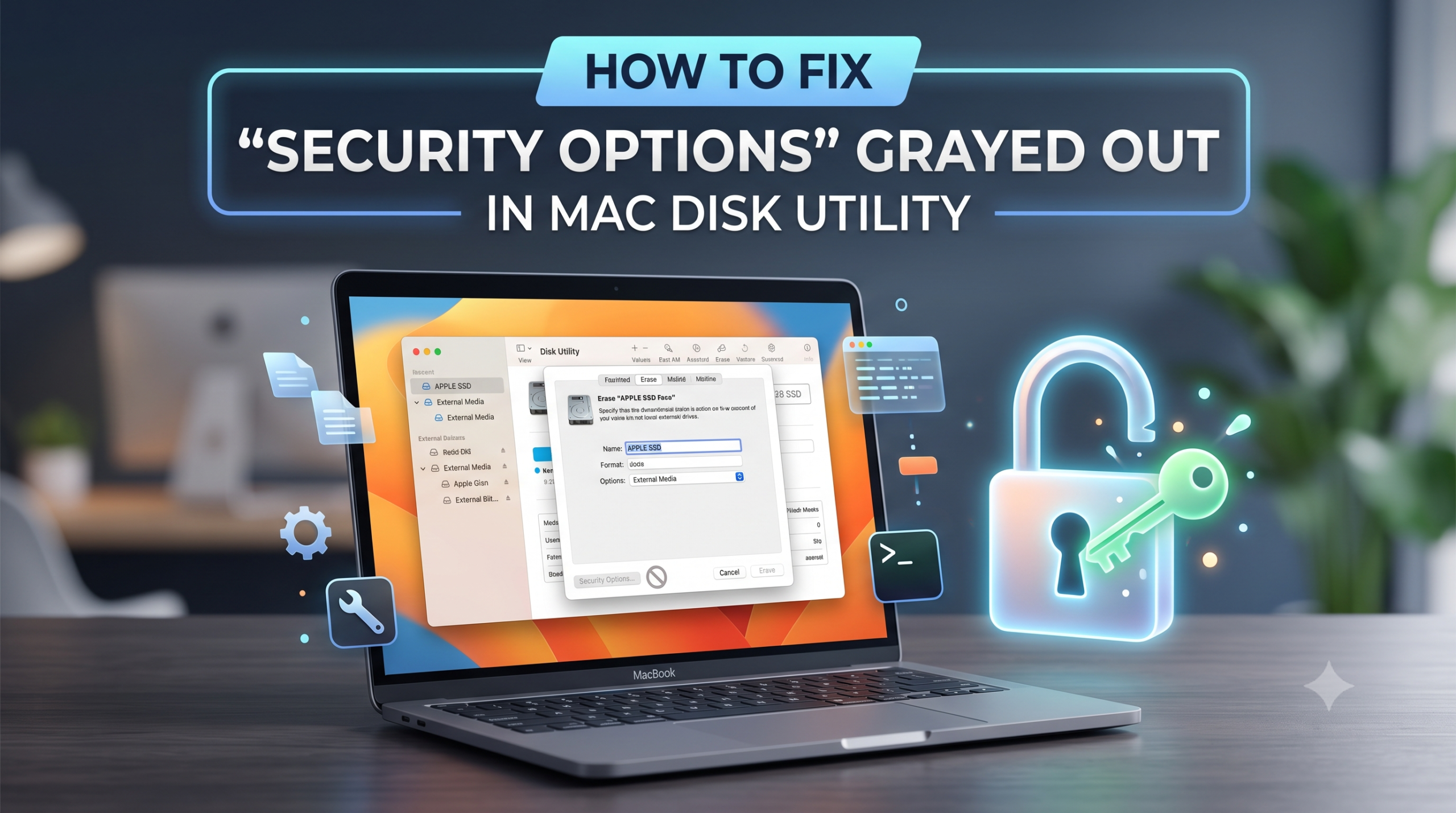
While formatting or cleaning a drive in macOS, one may think that it would be necessary to open Security Options via Disk Utility and set up multi-pass wiping. However, many people find themselves stuck because the button Security Options (or main Erase button) is grayed out and does not work.
Below is an explanation of the reasons for such behavior and solutions to the problem.
Why Is “Security Options” Grayed Out in Disk Utility?
- SSD Used: Today’s Macs use flash memory (SSDs). Multi-pass options for Securely erasing or wiping (DoD, Gutman, etc.) are not available for SSDs in macOS due to extra wear on the flash memory. Rather, macOS uses hardware-based encryption (FileVault/ TRIM) to achieve immediate and safe wiping.
- Drive in Use: It is not possible to secure wipe or configure security settings when the drive on which macOS is actively used is chosen.
- Partition & Scheme Limitations: Erase of volumes instead of disks will limit the ability to apply advanced security settings.
- SIP & FileVault Encryption: If FileVault protection or SIP is active, modification is locked.
Fix 1: Show All Devices & Format Root Drive
Sometimes, you may have tried formatting the child volume rather than the actual drive, hence the grayed-out icons.
- Open Disk Utility under Applications > Utilities.
- Select View on the top left corner and choose Show All Devices.
- Choose the actual physical parent device (APPLE SSD or SanDisk External Media) from the left column.
- Click on Erase and see if the necessary parameters, settings or schemes (GUID Partition Map) appear.
Fix 2: Erase via macOS Recovery Mode
However, if you are intending to delete your internal system drive, Disk Utility in macOS will not allow you to do that. You have to enter Recovery Mode:
- For Apple Silicon (M1/M2/M3/M4): Turn off your Mac. Hold the Power button till you get “Loading startup options”. Select Options and click on Continue.
- For Intel Macs: Restart your Mac and press Command (⌘) + R till you see the Apple Logo.
- Enter Disk Utility in Recovery mode and try to execute the delete process.
Fix 3: Use Third-Party Wipe Tools (e.g., MacMister Data Wipe)
Whenever Disk Utility makes security options grayed out because of the constraints imposed by SSD drives or OS systems, any deletion becomes partial and leaves some data remnants which can be recovered using advanced forensics tools.
In case you need to erase the data securely and permanently (before selling/trading/scrapping your Mac), a dedicated software such as MacMister Data Wipe for Mac will come in handy.
How MacMister Data Wipe Solves the Issue:
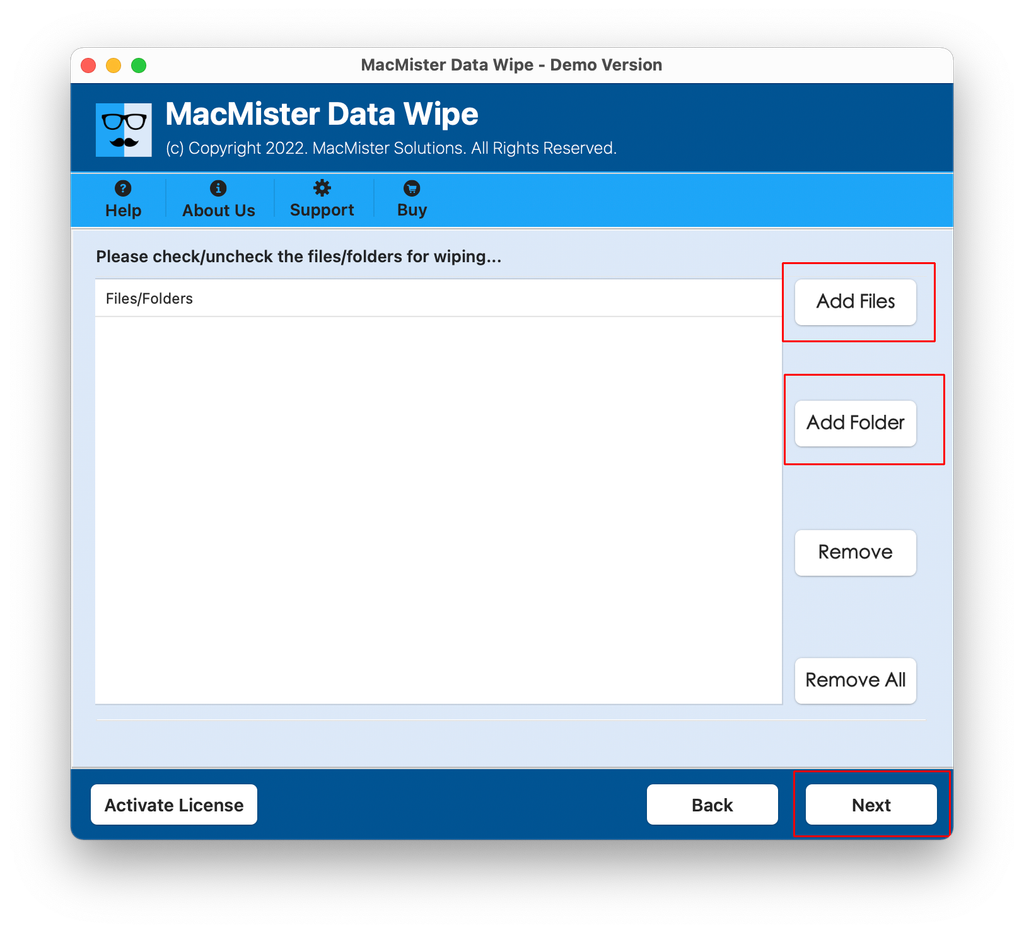
Step 1. Start up the program and decide to remove whole hard disks, individual files, or particular folders in the system via the “Add Files” or “Add Folders” button.
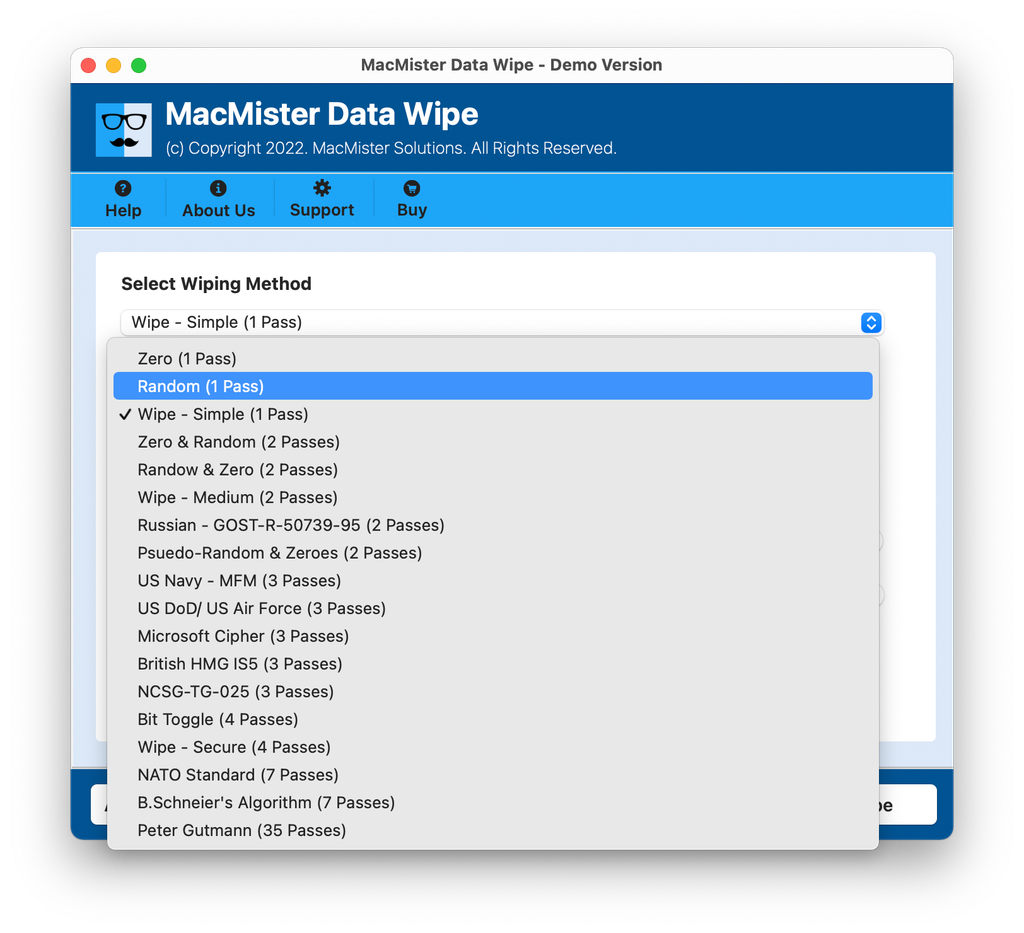
Step 2. Choose among international data wiping protocols highlighted by Disk Utility in gray, such as Zero Overwrite (1 pass), US DoD 5220.22-M (3 passes), NATO Standard (7 passes), or Peter Gutmann (35 passes). Simultaneously, apply advanced data filtering to wipe specific files from the system.
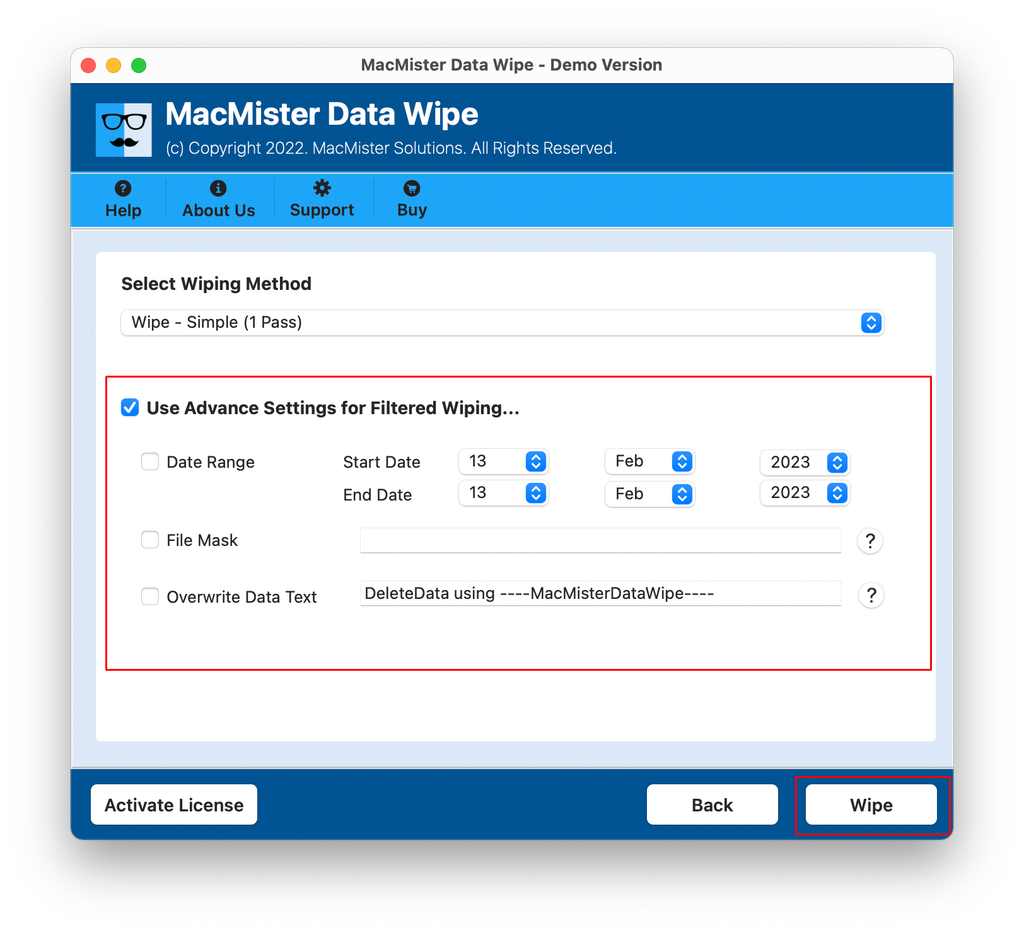
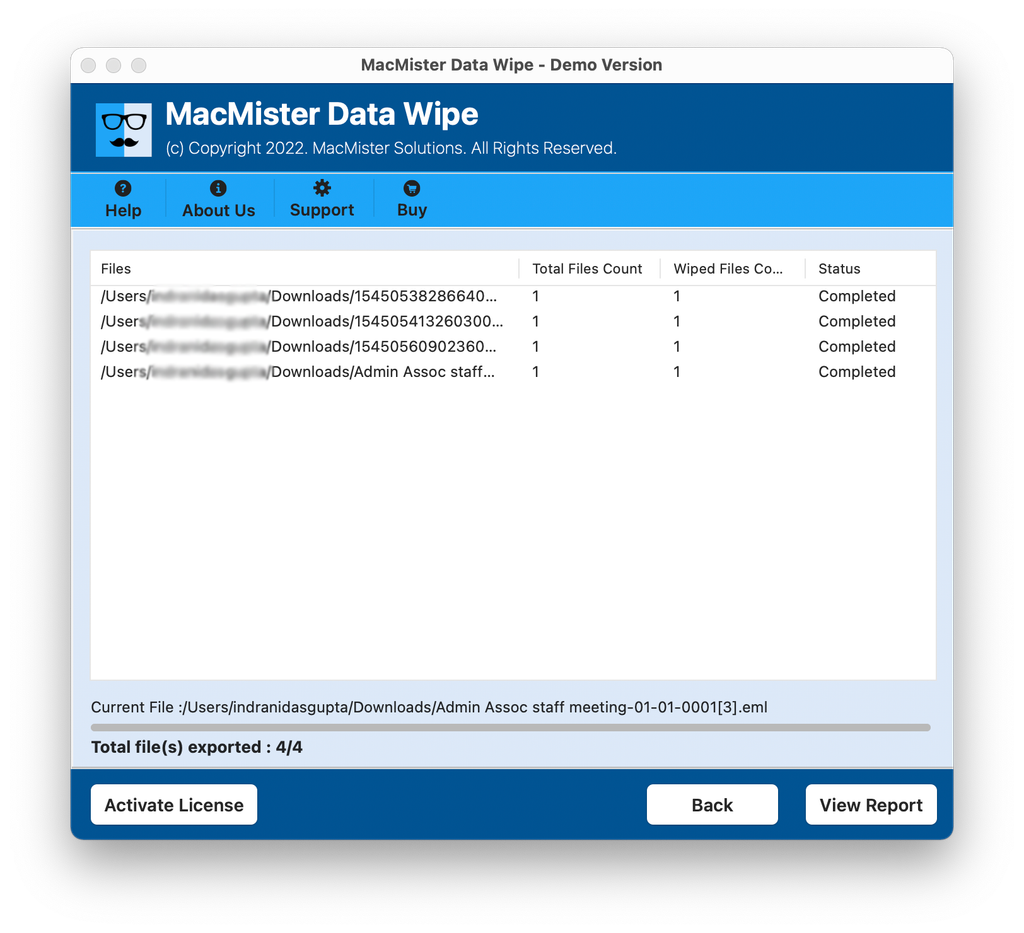
Step 3. Verify the operation for permanent overwriting of disk sectors. Check out the wiping report after the process is completed.
Fix 4: Force Erase via Terminal Command Line
Terminal provides a way out for those comfortable with command line interface:
Launch Terminal (Applications > Utilities).
Use diskutil list command to get the target drive identifier (such as disk2).
To securely zero-out a disk, enter: diskutil secureErase 0 /dev/diskX
(Replace X with your actual disk number. 0 performs a single-pass zero-fill).
Data Loss Risk
Double-check the disk number using diskutil list. Selecting the wrong drive identifier will permanently destroy data on your primary system or external backup drives.
Conclusion
If you find yourself dealing with the disabled “Security Options” button on your Mac Disk Utility application, you shouldn’t worry since there usually isn’t anything wrong with your computer. In almost all instances, it’s nothing more than your macOS blocking certain functions in order to protect your solid-state drive or current system partition. If you want to fix the problem through view options, Recovery Mode, or Terminal commands, then you can do that for normal formatting purposes. But if you want to make sure your sensitive data is irreversibly wiped in order to comply with privacy laws, then you need to use MacMister Data Wipe.

