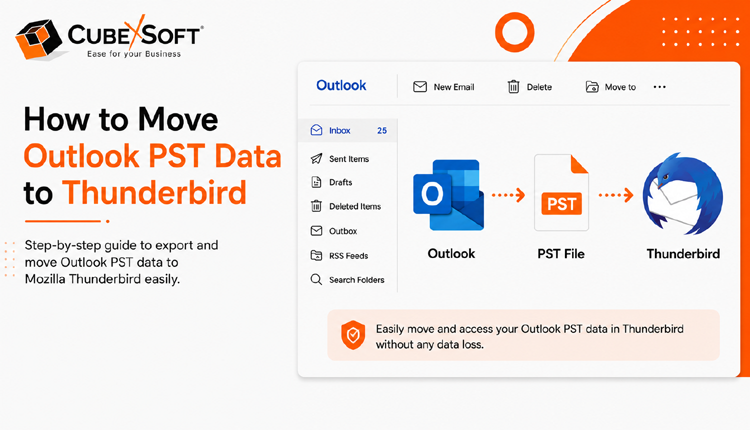
If you are planning to migrate from Microsoft Outlook to Mozilla Thunderbird, transferring your emails safely becomes an important task. Since Thunderbird does not directly support Outlook PST files, users often search for an easy and reliable solution to complete the migration without losing emails, attachments, or folder structure.
One of the easiest ways to accomplish this task is by using a professional PST to Thunderbird converter. Applications such as CubexSoft PST to MBOX Converter help users convert Outlook PST files into Thunderbird-compatible formats quickly and securely. With this approach, you can transfer emails, attachments, and mailbox folders without needing technical expertise.
Overview of Microsoft Outlook and Mozilla Thunderbird
Microsoft Outlook is a widely used email management application developed by Microsoft. Apart from email communication, it offers advanced features like calendar management, task scheduling, contacts, journals, and note-taking. Due to its enterprise-level capabilities, Outlook is commonly used in corporate environments. However, it is a paid application, which may not suit users looking for a free email solution.
In contrast, Mozilla Thunderbird is a free and open-source email client developed by the Mozilla Foundation. Thunderbird provides essential email management features without licensing costs, making it popular among personal and technical users. The limitation is that Thunderbird cannot directly open or import PST files created by Outlook.
To bridge this compatibility gap, users usually rely on PST conversion software that converts Outlook data into MBOX format, which Thunderbird supports.
How to Import PST Files into Thunderbird Without Outlook
If Outlook is not installed on your computer, you can still migrate PST data to Thunderbird using a dedicated CubexSoft PST Converter tool. These applications are specifically designed to convert PST files into Thunderbird-compatible MBOX files while maintaining email formatting, attachments, and folder hierarchy.
Most tools support both single and bulk PST file conversion and are designed with a simple interface suitable for both technical and non-technical users.
Steps to Convert PST to Thunderbird
- Download and install the PST to Thunderbird migration tool on your system. After installation, launch the application.
- Click the Add Files button and select the Outlook PST file(s) you want to transfer.
- The software will display a preview of emails and attachments. Review the selected data and continue by clicking the Export option.
- Choose Thunderbird from the list of export formats. Then use the Browse option to select a destination folder for the converted data.
- Click the Convert button to begin the PST to Thunderbird migration process. The progress bar will show the conversion status in real time.
Features of the PST to Thunderbird Converter
- Converts PST files into Thunderbird-supported MBOX format securely and efficiently.
- Supports both ANSI and Unicode PST file formats.
- Allows migration of large PST files without size restrictions.
- Maintains the original folder structure throughout the conversion.
- Generated MBOX files are also compatible with other email clients such as Apple Mail, SeaMonkey, Eudora, and Entourage.
- Provides additional export options including PDF, EML, HTML, ICS, vCard, and MBOX.
- Supports direct migration to cloud and server platforms like Gmail, Microsoft 365, IMAP servers, and Exchange Server.
- Preserves email properties such as attachments, metadata, hyperlinks, and formatting.
- Compatible with Windows and macOS operating systems.
Manual Method to Import Outlook Emails into Thunderbird
Users looking for a free alternative can try the manual import method mentioned below.
Manual Steps
- Open the Control Panel on your computer.
- Navigate to:
Programs > Default Programs > Set Your Default Programs - Select Outlook and click Set this program as default.
- Open Thunderbird and go to the Tools menu.
- Choose Import.
- Select Mail or Import Everything, then click Next.
- Choose Outlook as the import source and continue.
- Click Finish to complete the migration.
Drawbacks of the Manual Technique
Although the manual method is free, it comes with several limitations:
- The process can be difficult for beginners.
- Import errors may interrupt the migration.
- There is a possibility of incomplete data transfer.
- Users may need to restart the process if it fails midway.
- Folder hierarchy and attachments may not always migrate correctly.
Because of these challenges, many users prefer automated PST migration software for a smoother and more accurate transfer experience.
Final Thoughts
This guide explained different methods to transfer Outlook PST files to Thunderbird without requiring an Outlook installation. While both manual and automated approaches can help complete the migration, professional conversion software provides a more reliable, efficient, and time-saving solution.
If you want a secure and hassle-free way to move emails from Outlook to Thunderbird while preserving attachments, folder hierarchy, and mailbox structure, using a dedicated PST to Thunderbird converter is often the most convenient option. It simplifies the migration process, minimizes the risk of data loss, and allows you to complete the transfer with minimal technical effort.

