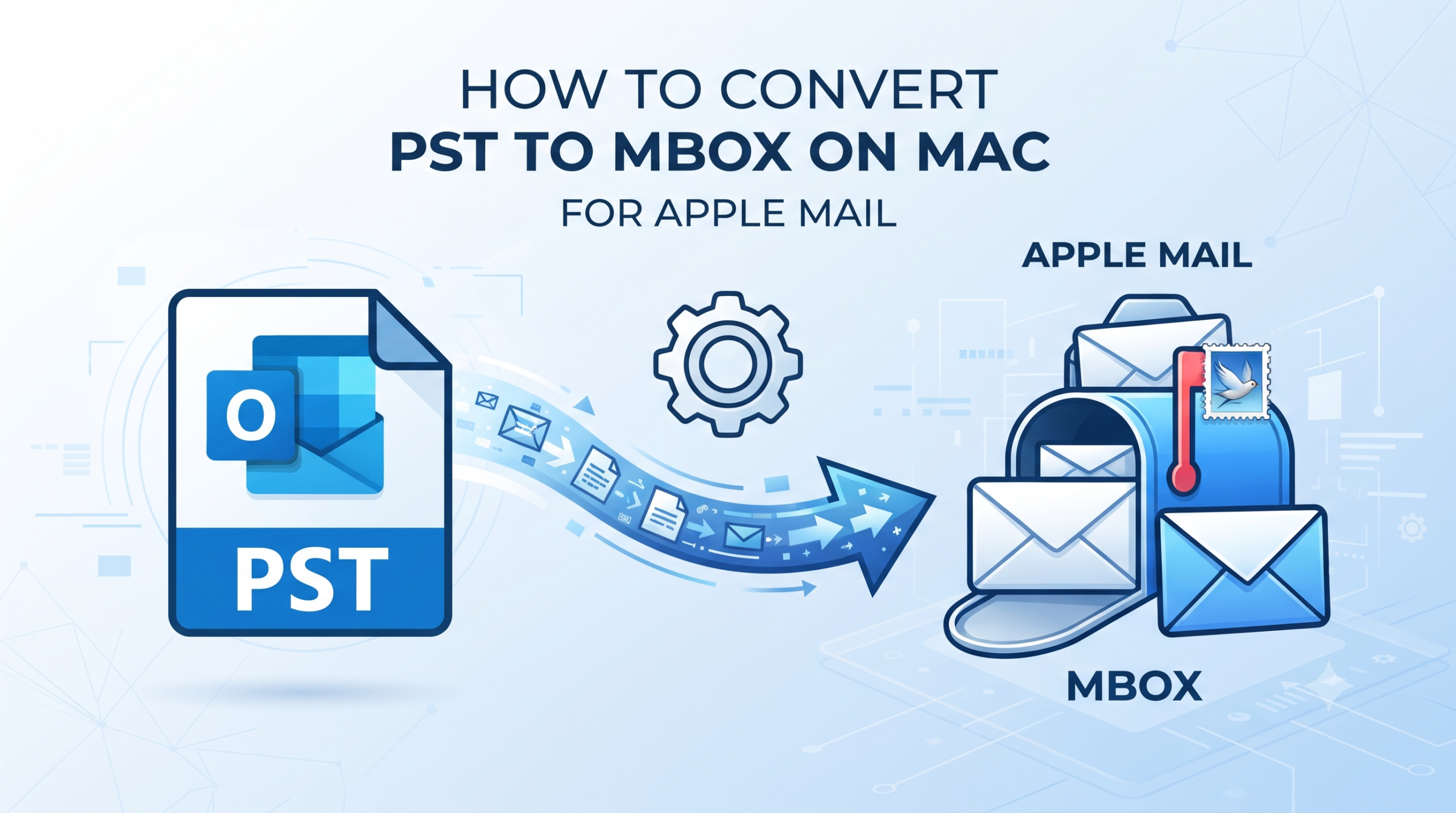
It is quite common to switch from one email client to another on the macOS platform, especially for those who come from a Windows system or have their email profiles archived in Outlook. If your archive of emails comes in the form of .pst files that are created in Microsoft Outlook and you want to view them in Apple Mail, you will soon realize that there is a problem with file compatibility.
Apple Mail works on the MBOX format, which means that it is unable to open the PST files directly. You will need a solution for this problem on a Mac.
This detailed tutorial highlights why PST files need to be converted and what Apple Mail does for emails, as well as the best way to convert PST to MBOX on a Mac with MacMister PST Converter Tool.
Overview: PST vs. MBOX
It will be useful first to find out why the direct transfer is not feasible:
- PST (Personal Storage Table): Designed by Microsoft, it is a proprietary format of file used by the Outlook program for Windows (and earlier versions of Mac) to save emails, calendars, contacts, tasks, and notes in a single database structure.
- MBOX (Mailbox): It is an open format of file used by various Unix- and macOS-based mail clients (including Apple Mail, Thunderbird, Entourage) where several email messages are joined together and saved sequentially in a single plain text file.
As a result of the fact that the Apple Mail software cannot process the proprietary database structure used by Outlook, the attempt to drag-and-drop or import the PST file will lead to failure. The format should be converted to MBOX.
Why to Opt a Professional Solution?
However, some people attempt to organize the use of the complex multi-level process with an intermediate mail server (for example, configuring IMAP accounts for transferring messages from one account to another), but this method is often time-consuming, expensive and error-prone for large mailboxes. Moreover, if the Microsoft Outlook application cannot be installed on Mac, it will be even harder to find a solution via the cloud service.
Desktop application will enable you to overcome all these problems. Since the software operates directly with the file stored on your PC, the professional program provides full assurance of your folders’ structure, formatting and images integrity.
Introducing Effective and Powerful Utility
MacMister Mac PST Converter is regarded as one of the best utilities for the flawless migration of data in the offline mode in the mac operating system. This is because MacMister PST Converter provides a very easy and convenient GUI (Graphical User Interface), specifically for mac users.
Key Features of MacMister PST Converter:
- Enables direct conversion of PST files into regular MBOX format that is readable by Apple Mail, Thunderbird, and other macOS email applications.
- Enables conversion of one or multiple PST files at once, saving much time on data management.
- Copies the same folder hierarchy of your emails (Inbox, Sent Items, custom folders, etc.) through the whole process of migration.
- Preserves all the details of the emails like “To”, “From”, “Subject”, date stamp, “read” or “unread” statuses, inline attachments, etc.
- No need to install Microsoft Outlook or any other third-party email application on your Mac for the conversion.
Working Steps of the Application
Take the following few easy steps for transferring the Outlook PST archive into a MBOX format that is supported by Apple Mail through the use of MacMister PST Converter Tool:
Step 1. First download the MacMister PST Converter Tool software on your macOS machine.
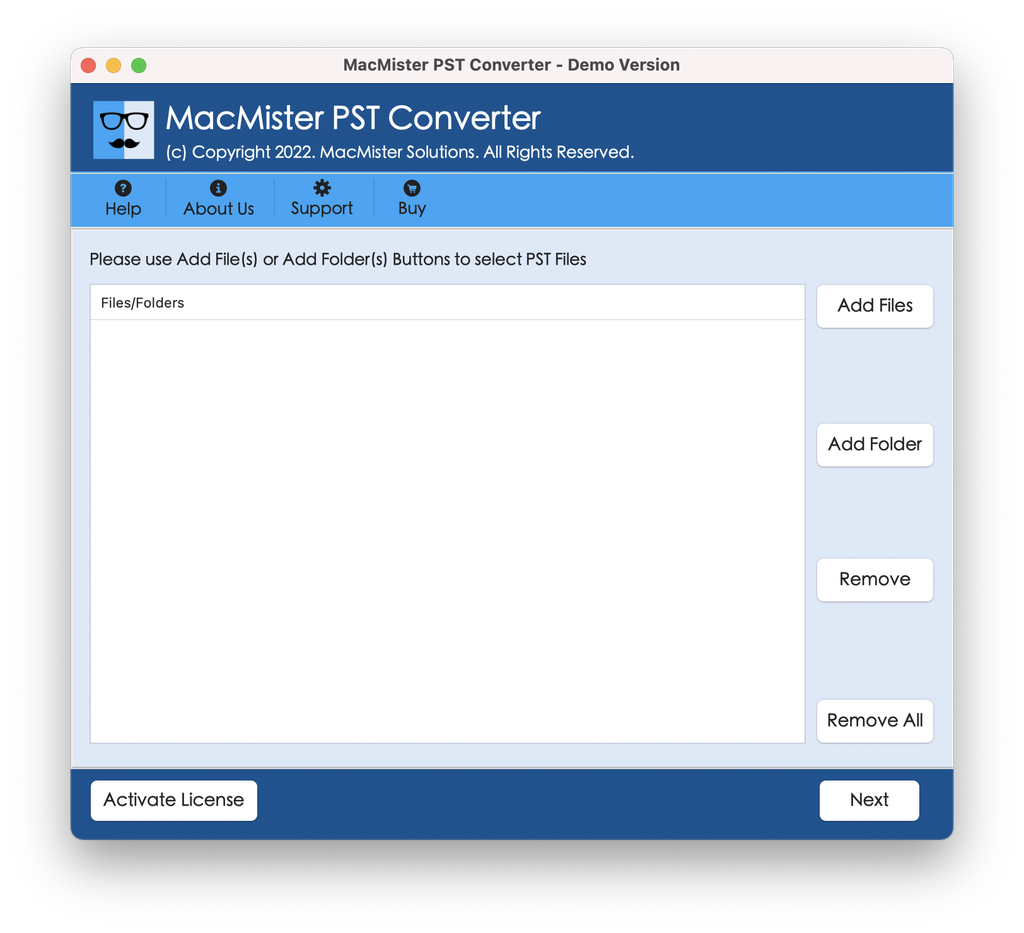
Step 2. Click the “Add File(s)” or “Add Folder” option from the main menu in order to browse the hard drive of your Mac machine.
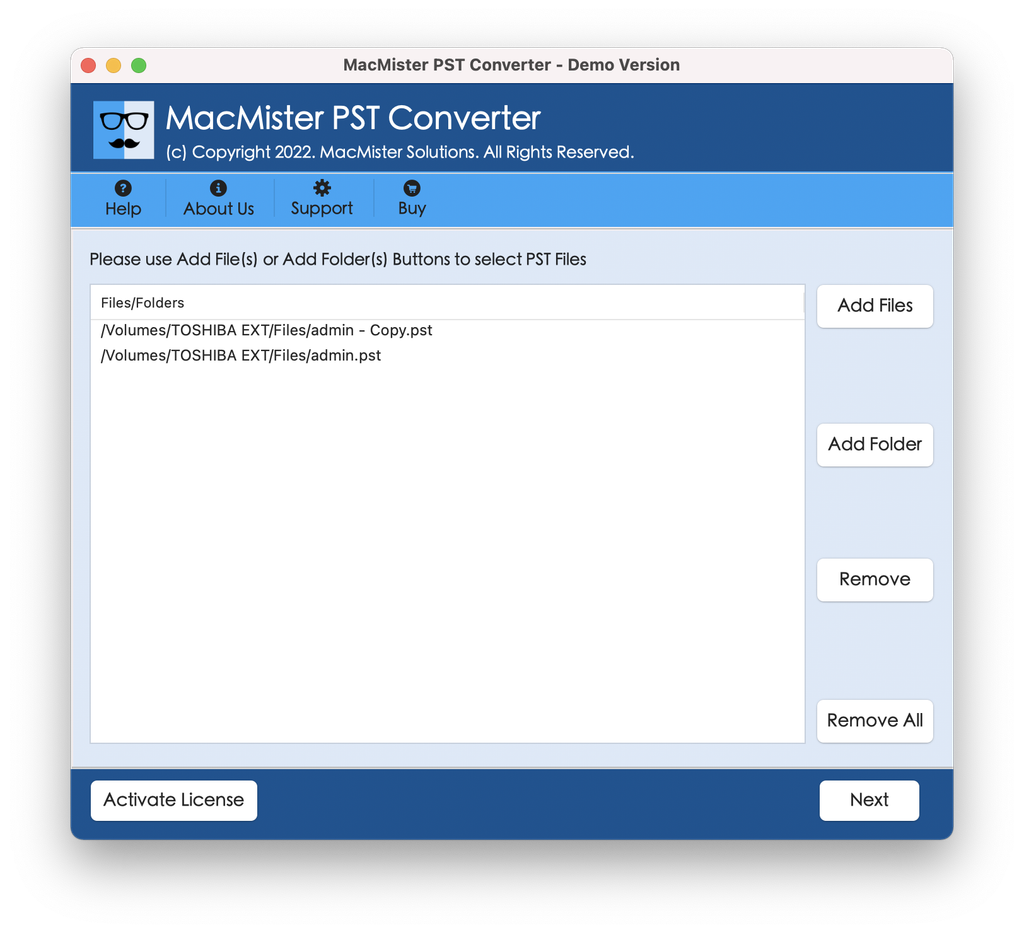
Step 3. Choose the desired .pst file and click “Open”.
Step 4. The application will scan the file and display the complete preview of all the mailboxes, folders, and emails contained within it in tree view.
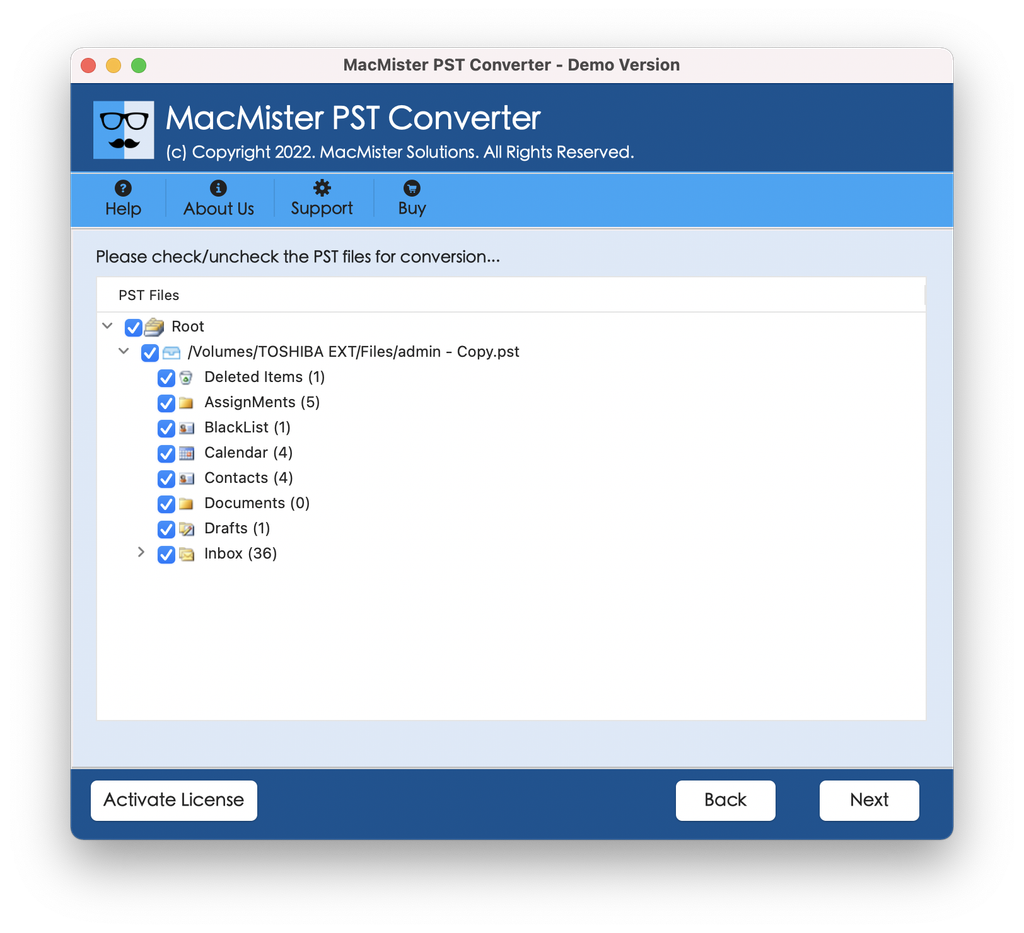
Step 5. Now go to the “Select Saving options” menu present at the bottom or top toolbar of the application.
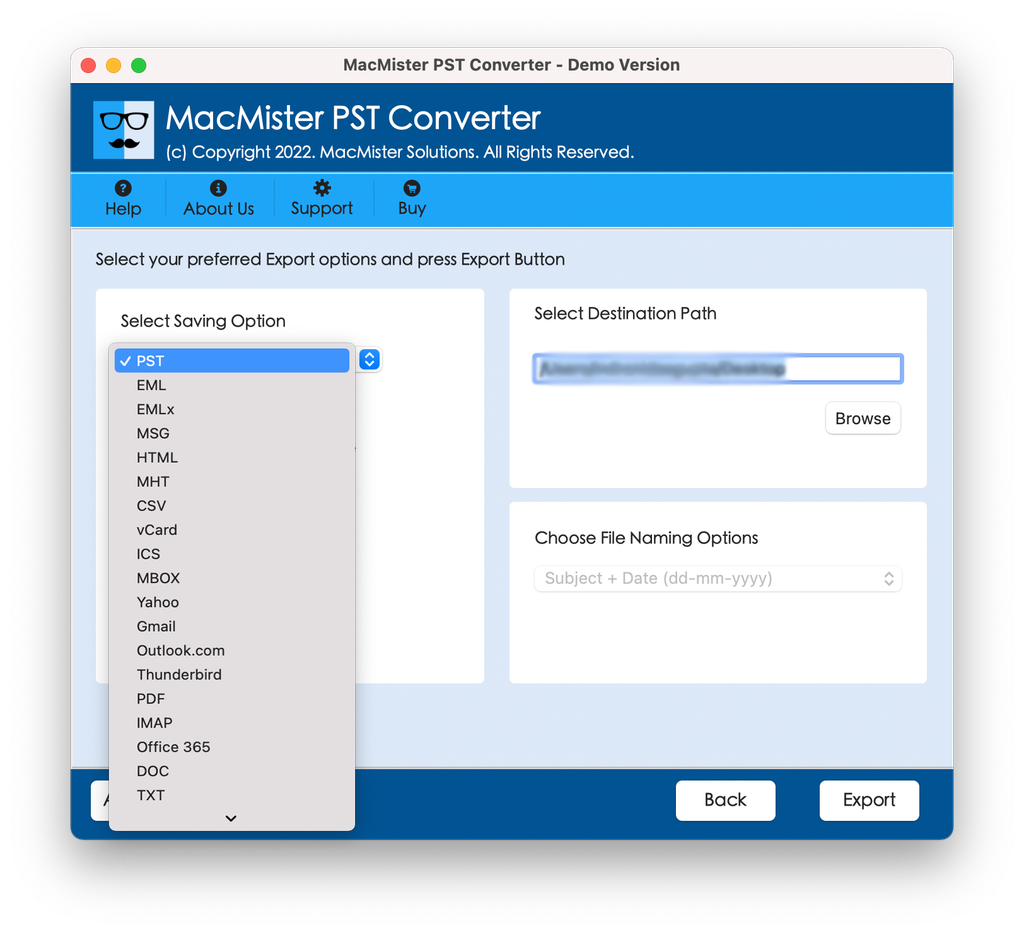
Step 6. Select MBOX from the available list of saving formats.
Step 7. Customize the sub-options of MBOX and then click the “Export” option.
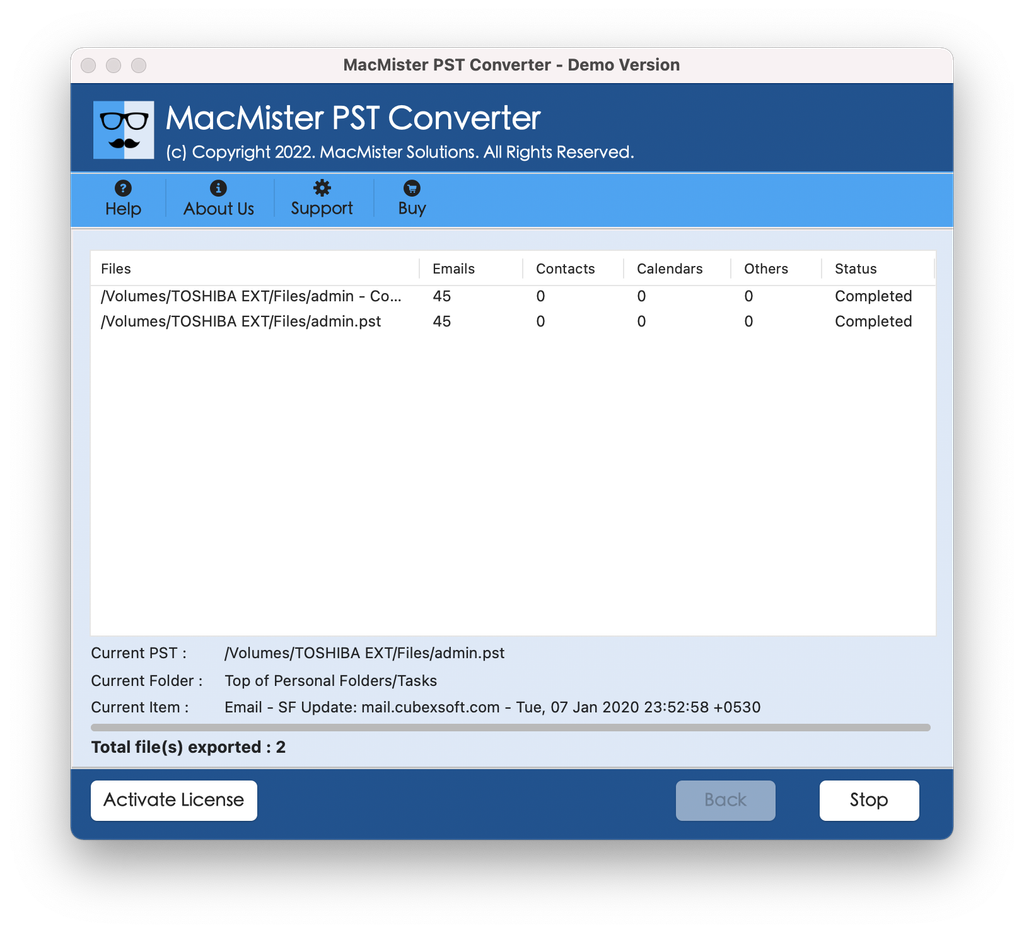
Step 8. The application will start processing the data and show the live process status. When done, a message box will be displayed and the MBOX file will be ready to be used.
Importing the Converted MBOX File into Apple Mail
Now that you have successfully transformed your Outlook data into an MBOX file using MacMister, importing it into Apple Mail takes just a few clicks:
- Open Apple Mail on your Mac.
- From the top menu bar, go to File > Import Mailboxes.
- In the import wizard window, select Files in MBOX format and click Continue.
- Browse to the location where your MacMister-converted MBOX file is saved, select it, and click Continue.
Apple Mail will process and import the messages. Once finished, you will find your imported emails neatly organized under a new “Imported” mailbox folder in your Apple Mail sidebar. From here, you can easily drag and drop messages into your primary inbox or custom folders.
Conclusion
Migrating data from Outlook PST archives to Apple Mail does not have to be a complicated ordeal. By utilizing a dedicated, professional solution like the MacMister PST Converter Tool, you can bypass the need for Microsoft Outlook entirely, convert your files safely offline, and seamlessly integrate your historical communications into Apple Mail within minutes.