Transfer of data between different operating systems or archiving of old email databases results in various compatibility issues. In case you need to deal with a macOS environment that contains a set of old .pst files created on Windows, you will be facing another unique challenge.
Microsoft Outlook for Windows combines emails, contacts, calendars, and tasks in the PST format. On the contrary, macOS uses another set of file formats (e.g., MBOX, EML, OLM, or native database of Apple Mail). Although processing one .pst file might seem cumbersome, managing and converting multiple .pst files manually in macOS would become a tough task indeed.
This complete guide will help you understand the challenges of .pst management on cross-platform basis, look into the disadvantages of doing things manually, and introduce the best professional solution—MacMister PST Converter Tool.
The Challenge of Handling Multiple PST Files on a Mac
In the process of switching from Windows to Mac or consolidating information from various ex-employees or personal accounts, you are most likely not dealing with one file. Rather, you have a folder with numerous PST files of various sizes.
Trying to work with these files in a Mac system will show several limitations of the files:
- No Native Support: Applications native to a Mac OS (such as Apple Mail and Mac Outlook) do not provide native support for Windows PST files.
- Sizes and Volume: PST files are quite large since they store years’ worth of e-mail messages and attachment in one file format. Several PST files can overwhelm regular system applications.
- Folder Structure: Manual import/export of the files does not preserve the folder structure.
Considering that manual methods of dealing with the files imply either launching Windows system for each individual file or slow cloud-based synchronization process, bulk processing software is a must-have solution.
Why Manual Procedures Fail for Bulk Conversions?
Other users attempt to employ free online conversion tools or create IMAP cloud sync for email migration manually:
- To make an IMAP account as a channel for migration, you need to configure your Windows PC properly, import PSTs one-by-one into your Outlook and transfer them using cloud service and then get emails back on your Mac computer. Such process may take several days when there are many PST files and will face severe network issues and data loss problem.
- Forwarding any private or corporate email database to an online conversion service, where there is already a history of years of financial and legal correspondences saved, will become a great security threat.
- As for most cases, email conversion made by means of free or basic scripts will not give you read/unread flags, precise time stamps, or inline attachments.
- The only way out – desktop application for batch processing.
How to Bulk Convert PST Files on Mac using MacMister’s Solution?
In case you need a quick, easy and safe converter to convert multiple PST files on the macOS system, then it is wise to use the MacMister Mac PST Converter tool, which is one of the best industry standards in this respect.
It is a very professional software that is specifically designed for the macOS system.
Features of MacMister PST Converter for macOS
- Enables you to use the feature “Add Folder(s)” for importing the whole folder containing multiple PST files at once.
- Gives you the option of converting files in various formats such as MBOX, OLM, EML, PDF, MSG, HTML, CSV, etc., ensuring compatibility of your files with Apple Mail, Mac Outlook, Thunderbird or even archive documents.
- Ensures that all your nested and sub-folders will be kept intact without any alteration during conversion.
- Guarantees security of all the information including email addresses of sender/recipient (To, Cc, Bcc), subject line, timestamp, links and attachments.
- Allows you to arrange your output files using personalized naming rules based on date, subject line or sender.
- Runs exclusively offline on your Mac without need of Windows Operating System and Outlook installation.
Working Guide of the Tool to Bulk Convert PST Files Using MacMister
Using MacMister for working with multiple PST files on your Mac computer is quite easy and fast. Here are the basic steps you need to follow:
Step 1. Download and install MacMister PST Converter Tool on your Mac computer. Start the software program and get access to the neat and easy-to-use user interface dashboard.
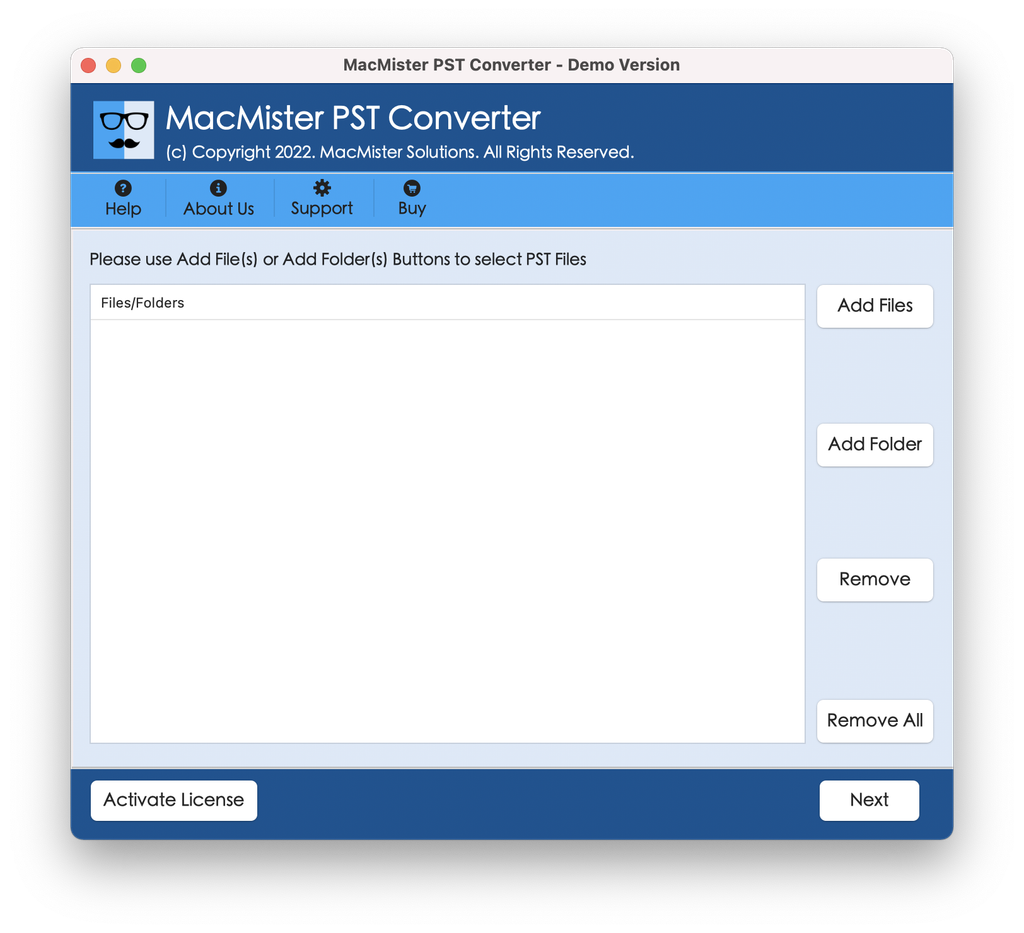
Step 2. Rather than individually choosing each file, click on Add Folder(s). Locate your main folder containing all PST files on your Mac computer and select it. All your files will automatically be scanned and loaded to the list.
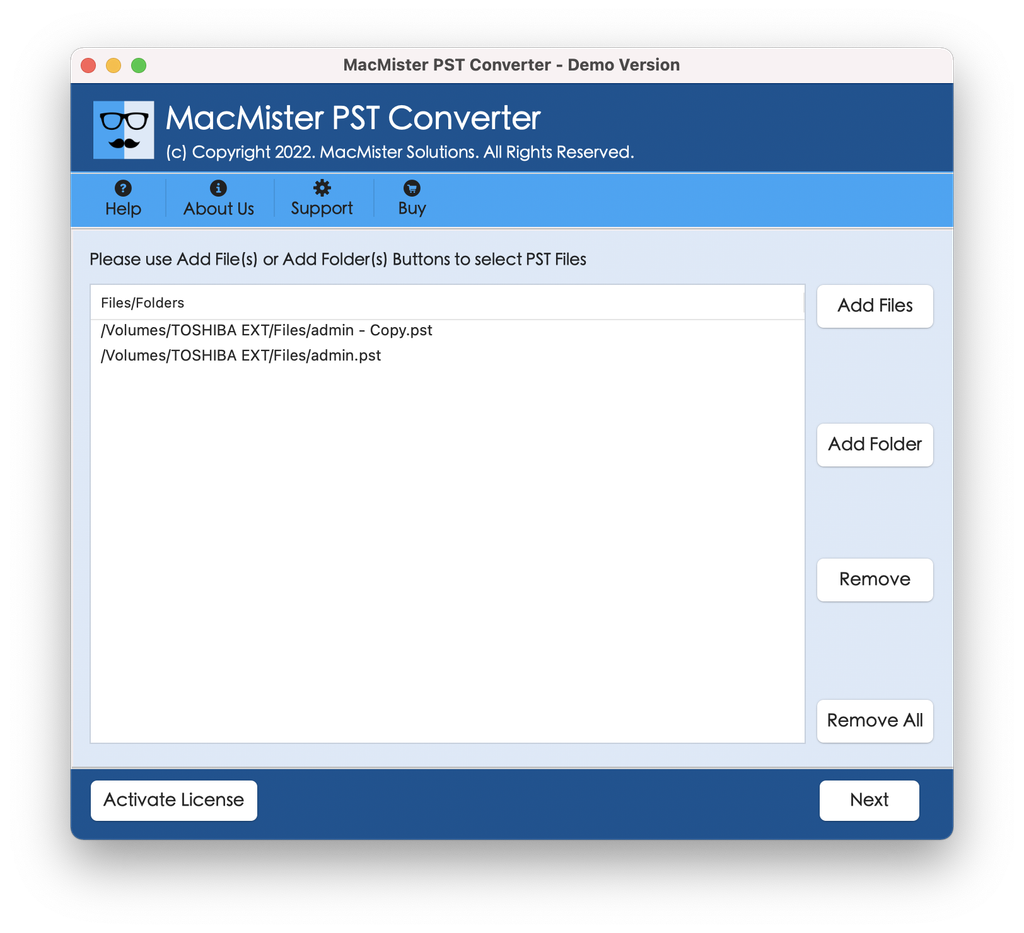
Step 3. See the loaded files in the preview area. You can either tick or untick some mailboxes or folders if you want to convert only selected files and not the whole PST archive.
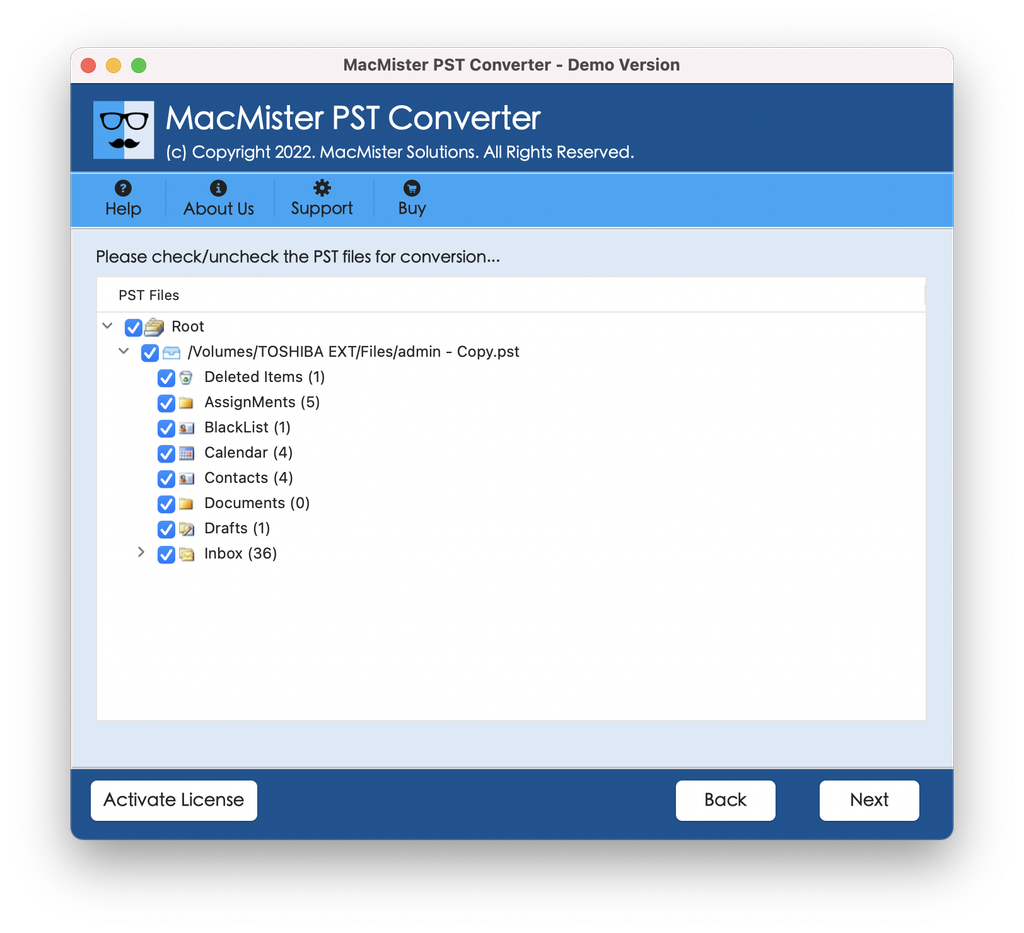
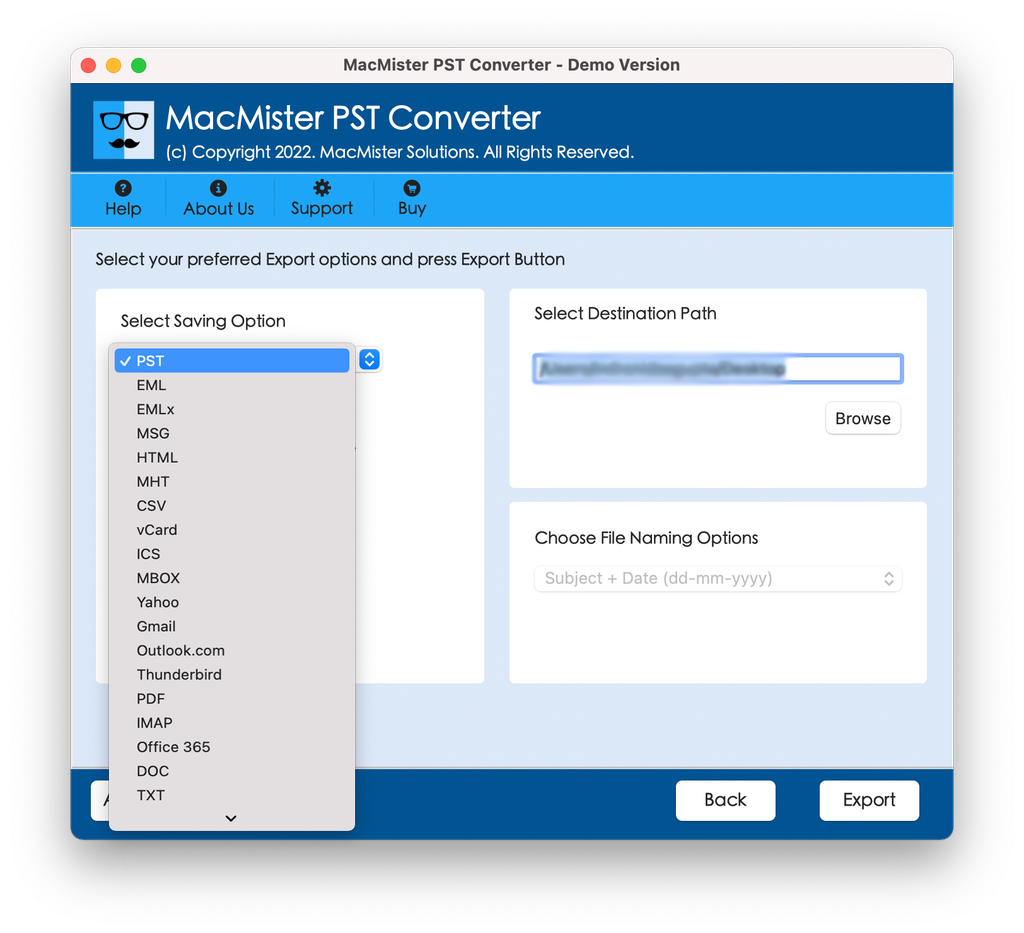
Step 4. Go to the export options window and choose the desired format.
- If you plan to transfer your emails to Apple Mail or Thunderbird, pick MBOX or EML formats.
- If you want to move your email data to Mac Outlook, choose OLM.
- Select the PDF format for creating an archived and read-only version of your document for tax/legal requirements.
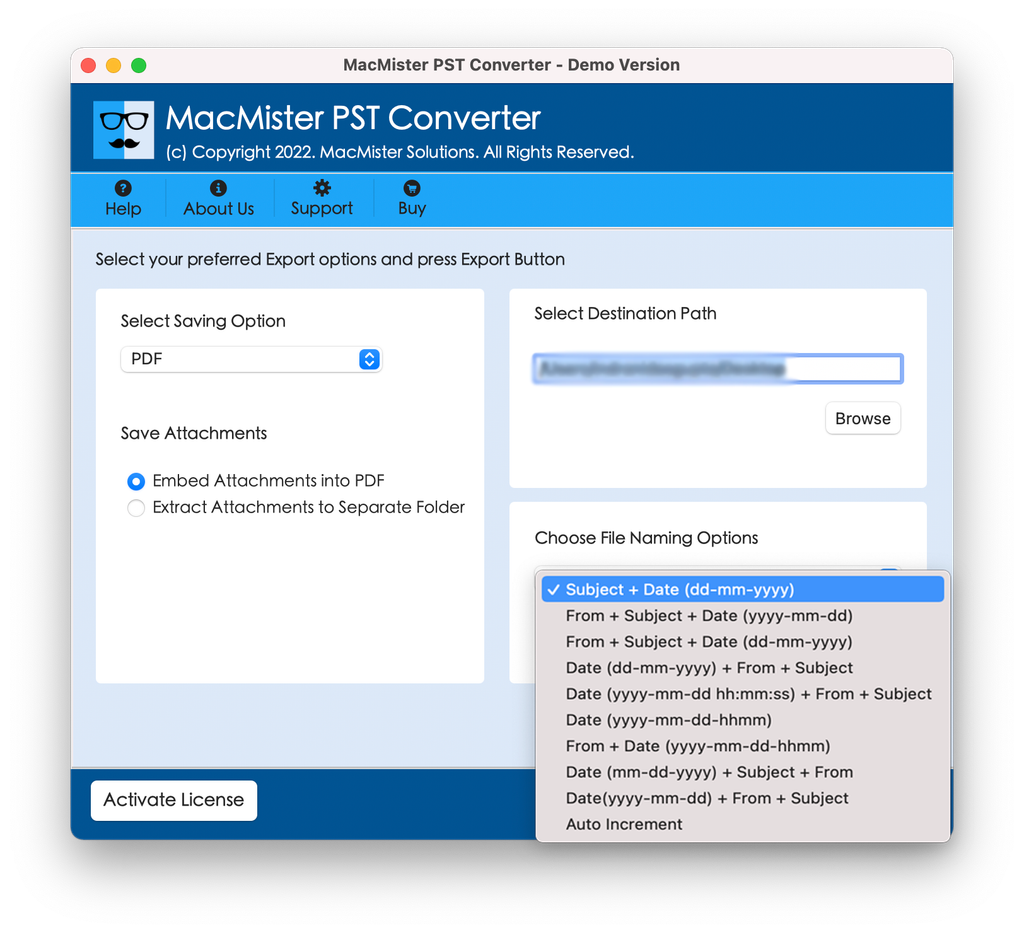
Step 5. Pick the location of your destination folder on your local Mac hard disk where you want the converted data to be saved. You can use file naming filters to name your emails differently.
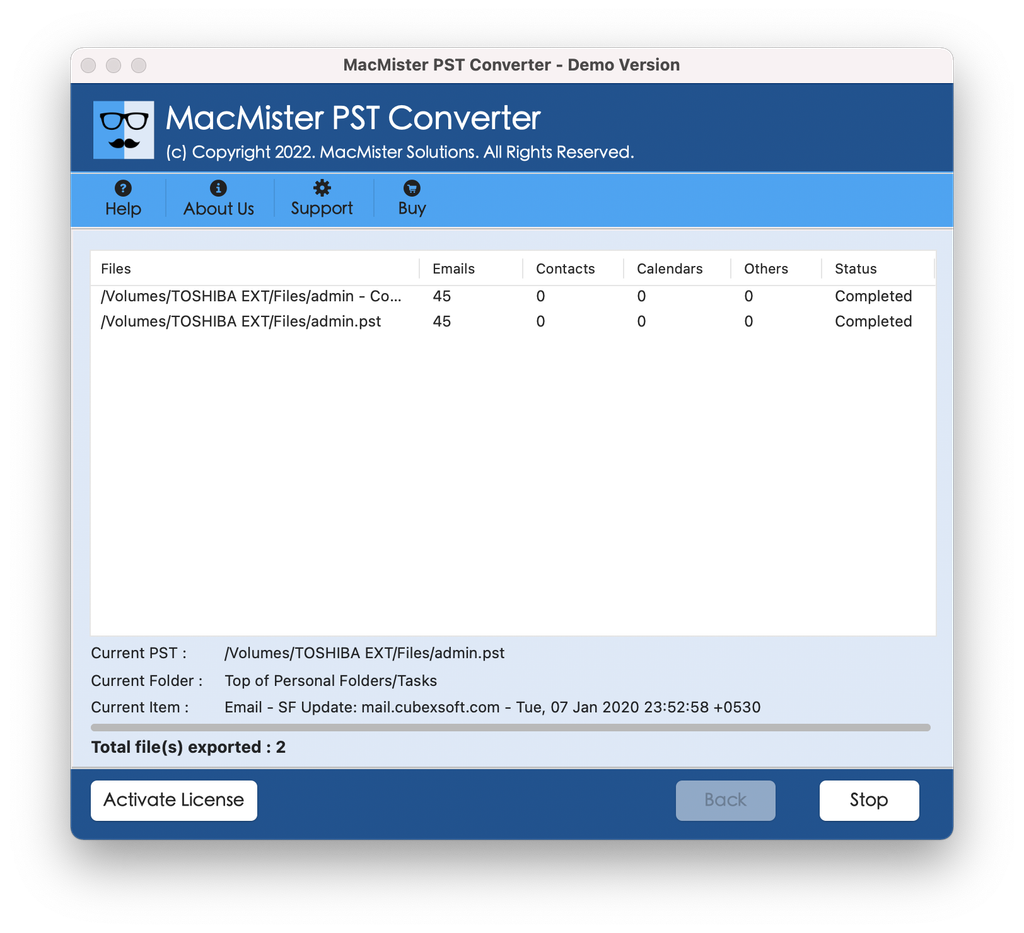
Step 6. Click the Export button and watch your process via the live progress bar.
Conclusion
Converting many different legacy PST files on macOS need not be a frustrating, multi-day process that is full of technical complexities. While manually doing it or using online applications are not only inefficient and insecure but also cause loss of data, employing an efficient and professional application like MacMister PST Converter Tool turns the complicated task into an easy one. With the help of the efficient batch processing feature of the application, all the conversions can be done easily at once.