EML files are widely used to store individual email messages along with their headers, body content, attachments, and other message details. However, working with EML files can become inconvenient when emails need to be shared, archived, printed, or reviewed on different systems. PDF is often preferred for these purposes because it provides a consistent document format and can be opened easily with applications such as Adobe Acrobat.
Converting EML files to PDF can therefore make email data easier to manage and distribute. This is especially useful when users need to provide email records to colleagues, customers, legal teams, or other recipients who may not have access to the original email application. This guide explains practical ways to prepare EML files for Adobe Acrobat and highlights how a dedicated EML to PDF tool can simplify the process.
Why Convert EML Files to PDF for Adobe Acrobat?
EML is primarily an email message format, whereas PDF is designed for document sharing and long-term accessibility. Converting emails into PDF can be useful in several situations –
- Easy email sharing – PDF files can be shared with users who do not have an email client that supports EML.
- Consistent formatting – PDF generally preserves the appearance of email content across different devices.
- Better archiving – Organizations can maintain important correspondence in a widely supported document format.
- Printing – PDF files are convenient when emails need to be printed for documentation or records.
- Adobe Acrobat compatibility – Converted PDF files can be opened and managed using Adobe Acrobat and other PDF applications.
- Simplified organization – Users can maintain important email conversations as individual PDF documents instead of managing numerous EML files.
PDF is also useful when email content needs to be included in reports, documentation, project records, or business archives. Since PDF is a commonly supported document format, recipients can usually access the converted emails without installing the original email client.
What Information Can Be Preserved During EML to PDF Conversion?
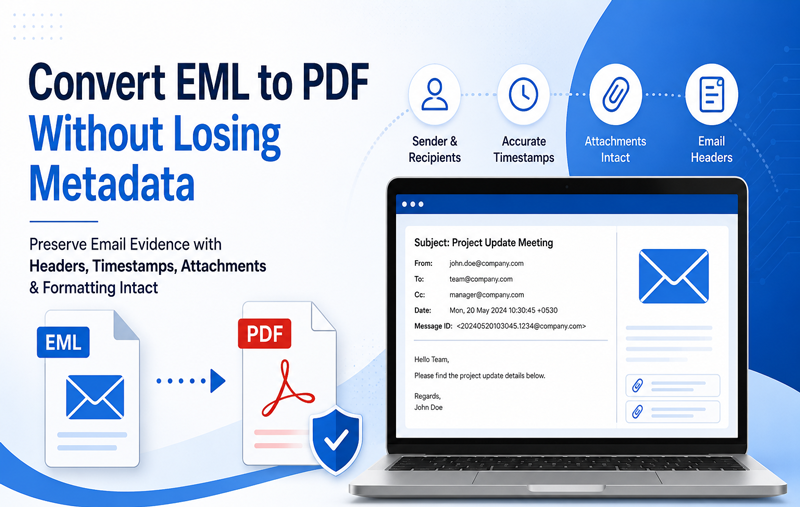
A reliable conversion process should retain important information contained in the original email. Depending on the software and selected options, the resulting PDF can include –
- Email subject
- Sender and recipient information
- Date and time
- Email body
- CC and BCC details
- Email headers
- Formatting and hyperlinks
- Attachments or attachment information
Maintaining this information is particularly important when emails are being converted for business records, documentation, or reference purposes. Users should always verify the output after conversion, especially when the source emails contain complex formatting, embedded images, hyperlinks, or attachments.
Manual Method to Prepare EML Emails as PDF
If only a few EML files need to be converted, users can sometimes open an EML message in a compatible email application and use its Print option. Instead of selecting a physical printer, the user can choose a PDF printer or PDF-saving option available on the system. The general process is –
- Open the EML file in a compatible email application.
- Review the message and its formatting.
- Select the Print option.
- Choose a PDF printer or PDF output option.
- Select the destination location.
- Save the resulting PDF file.
This approach can work for a small number of messages, but it becomes time-consuming when hundreds or thousands of EML files need to be processed. It may also require installing and configuring an email application capable of opening the source EML files.
Another limitation is that users have to repeat the process for each individual email. Maintaining a consistent output location and naming structure can also become difficult when dealing with a large collection of messages. Therefore, the manual approach is generally more suitable for occasional conversions rather than large-scale email archives.
Automated EML to PDF Conversion
For users working with multiple EML files, dedicated conversion software can provide a more convenient approach. Instead of opening each email individually, an EML to PDF converter can process selected files or folders in batches. A specialized utility can help users –
- Add multiple EML files at once
- Convert emails into PDF format in bulk
- Maintain important email properties
- Preserve folder organization where supported
- Select an output location
- Reduce repetitive manual steps
- Handle large collections more efficiently
This approach is especially useful for organizations handling large email archives or users who need to prepare numerous EML files for PDF-based storage. Batch processing can save considerable time because users do not need to open and print each email separately.
Convert EML Files to PDF Using Smart Solution
For Mac users who need to convert EML messages into PDF documents, MacMister EML to PDF Converter for Mac provides a dedicated approach for this task. Instead of depending on an email client for individual conversion, users can add EML files directly to the application and convert them into PDF format. The typical workflow is straightforward –
Step 1: Add EML Files
Launch the MacMister EML to PDF Converter and add the required EML files or folders containing email messages. Users can select the emails they want to process without opening each message individually.

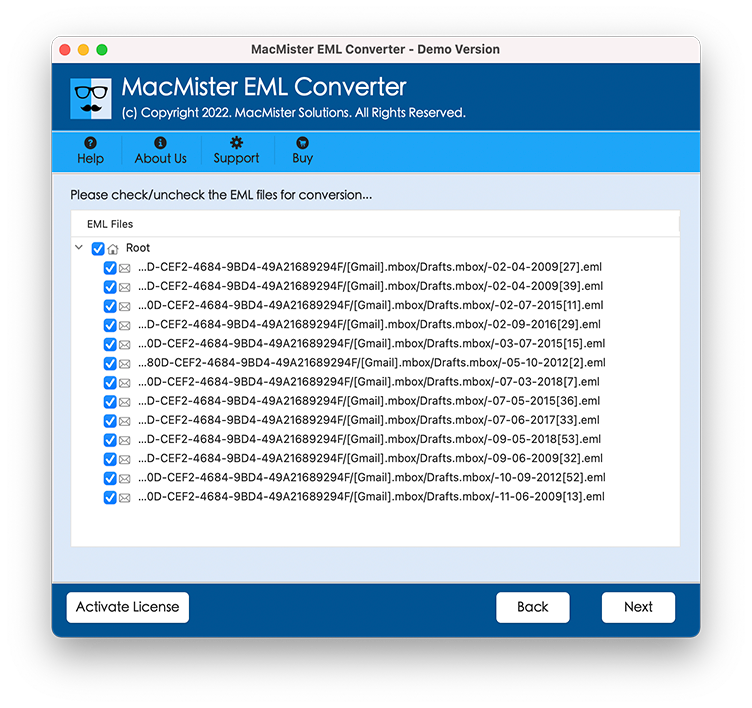
Step 2: Preview Email Data
Now Select files which need to convert into PDF
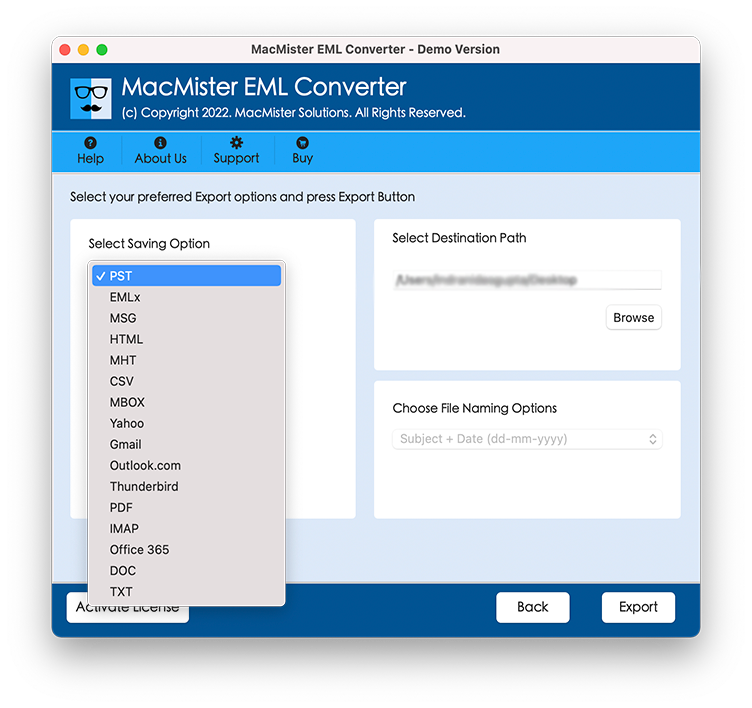
Step 3: Select PDF as the Output Format
Choose PDF as the destination format and configure the available output options according to your requirements. PDF is suitable for viewing, printing, sharing, and organizing email records.
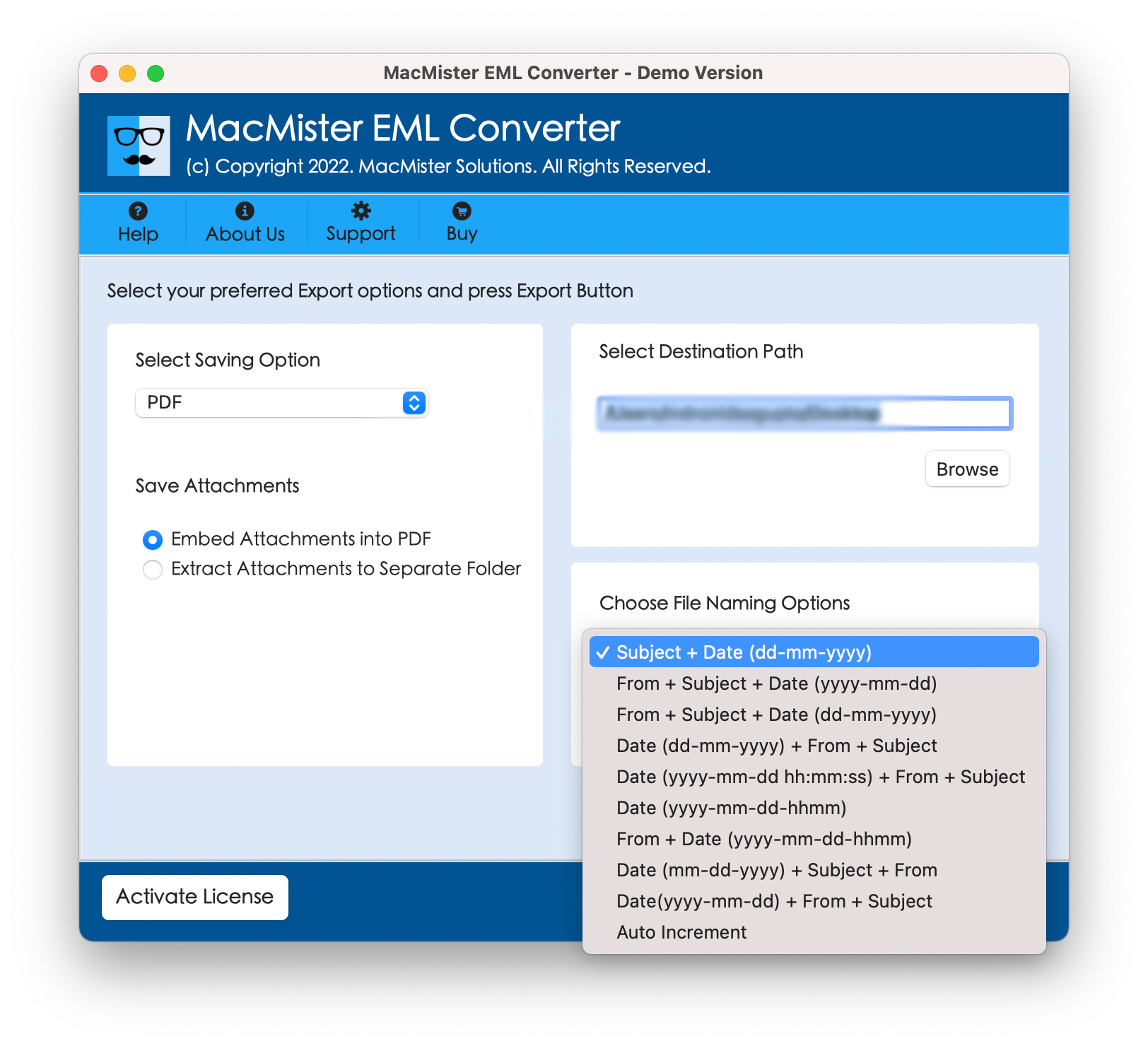
Step 4: Choose the Destination Path
Specify where the converted PDF files should be saved on the Mac. Selecting a dedicated destination folder can make it easier to organize the output and locate converted emails later.
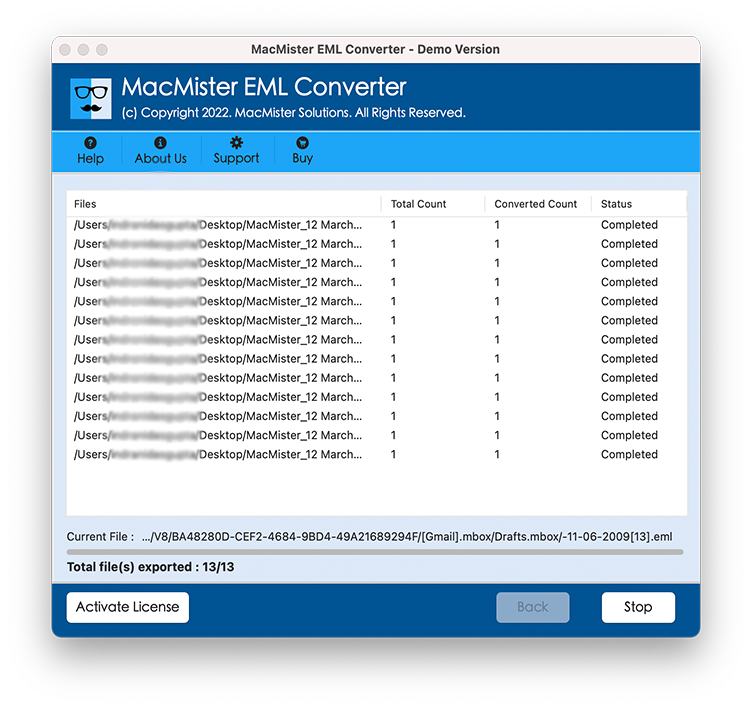
Step 5: Start the Conversion
Begin the conversion process. The selected EML messages are processed and saved as PDF files for further use with Adobe Acrobat or other PDF applications.
Benefits of Using a Dedicated Converter
A dedicated EML in PDF application can be more practical than manually printing individual emails when working with a large collection of messages. It can reduce repetitive operations and provide a structured workflow for converting multiple files. Other advantages may include –
- Batch conversion – Process multiple EML files instead of converting messages one by one.
- Simplified workflow – Add source files, select PDF, and start the conversion without relying on repeated printing operations.
- Email content preservation – Important message information can be retained during the conversion process.
- Faster processing – Large collections can be handled more efficiently than manual conversion.
- Convenient PDF output – Converted files can be opened, shared, printed, or organized using common PDF applications.
- Mac compatibility – Mac users can perform the conversion through a dedicated application designed for their platform.
These features can make the process more manageable for users who regularly work with email archives or need to convert EML files for documentation.
Frequently Asked Questions
1. Can I convert EML files to PDF for Adobe Acrobat?
Ans. Yes, EML files can be converted into PDF format, after which they can be opened and viewed using Adobe Acrobat.2. Why should I convert EML emails to PDF?
Ans. PDF makes emails easier to share, print, archive, and access across different platforms without depending on a specific email application.3. Can I convert multiple EML files to PDF at once?
Ans. Yes, the EML to PDF converter can support batch conversion, allowing users to process multiple EML files simultaneously.4. Will email formatting be preserved during EML to PDF conversion?
Ans. A reliable EML to PDF converter can preserve important email elements such as message content, formatting, sender details, subject, and other available email properties.5. Can EML attachments be included when converting emails to PDF?
The tool has attachments saving options so you can chose according to your requirement for EML files to PDF migration.6. Is MacMister EML to PDF Converter suitable for Mac users?
Ans. Yes, the EML to PDF Converter is designed to help Mac users convert EML email files into PDF format for easier viewing, sharing, and archiving.
Conclusion
Converting EML files to PDF makes email information easier to share, archive, print, and review through applications such as Adobe Acrobat. While manual printing can be suitable for a small number of messages, it becomes inefficient for larger EML collections.
A dedicated EML Converter for Mac can simplify bulk conversion by providing a focused workflow for converting EML emails into accessible PDF documents. By reviewing the converted files and maintaining a backup of the original EML data, users can create a more organized and reliable email archiving process.