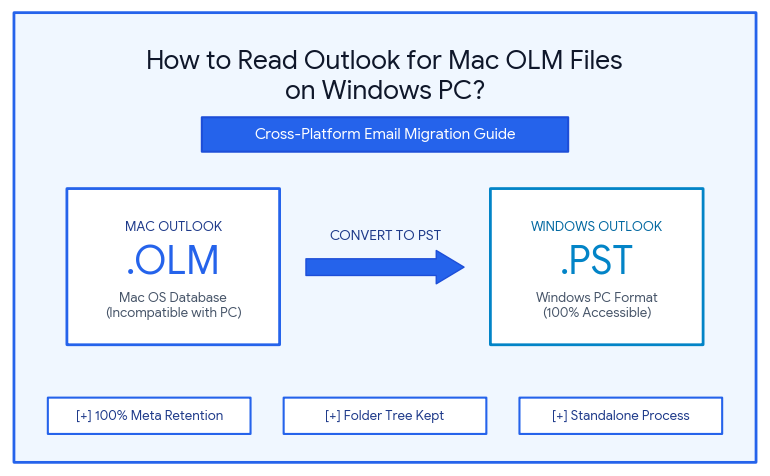
A situation when you have to move to using a Windows-based PC from a Mac computer, or you have to work with an archive email backup sent by a Mac computer user, is often accompanied by considerable challenges associated with cross-compatibility. Microsoft Outlook for Mac stores all users’ mailbox information, namely, emails, contacts, calendars, and attachments, in one specific proprietary format called the OLM (Outlook for Mac) database.
The moment you attempt to open the OLM file on your Windows PC, you come across a huge wall since Windows Outlook doesn’t provide any ability to open or use the OLM files. The thing is that Windows Outlook works only with PST (Personal Storage Table) databases, which means that attempting to open the OLM file on Windows or import it via Outlook menu will result in format incompatibility.
If you have to work with Outlook for Mac OLM files on Windows, you will need to convert the file first. The following article is devoted to explaining why this happens and how to cope with it.
Why OLM Files Cannot Be Opened on Windows?
Despite the presence of “Microsoft Outlook” in the application names, Outlook for Mac and Outlook for Windows were developed using different code and storage solutions:
- File Format Differences: OLM file format was developed specifically for the macOS platform. The Windows version of Outlook does not have the built-in database parsers necessary to decompress and interpret an OLM file.
- Missing Import Filters: Microsoft has never added an OLM import filter to their Windows Outlook version.
- Access to Orphaned Files: You will be unable to cross-synchronize if you do not have access to your original Mac and its version of Outlook.
Method 1: The Manual Sync Method (Requires Mac Hardware & Cloud Account)
If you still have access to the original Mac computer where Outlook was installed, then there is no need to perform direct conversion of emails to PST, the emails can be moved to PST by means of intermediate IMAP cloud email account (e.g., Gmail or Outlook.com).
Working of Manual Procedure
- Install a Gmail or IMAP email account to Outlook for Mac.
- In the Mac version of Outlook, create new folders under IMAP account hierarchy and move emails from local OLM folders to cloud folders.
- Let Outlook for Mac synchronize all emails with cloud server (it may take some time depending on mailbox size).
- Create the same IMAP account in Windows Outlook. After synchronization process ends, emails will be available on Windows PC.
- Export emails as a PST file via File > Open & Export > Import/Export menu in Windows Outlook.
Drawbacks of the Manual Approach:
- Necessitates a computer running Mac and Outlook.
- Consume huge amounts of cloud storage and internet bandwidth.
- Susceptible to timeout issues, loss of attachments and file directories for large multi-gigabyte archives.
Method 2: Opt for Direct Solution i.e. MacMister OLM Converter Tool
If you have a standalone OLM file on your Windows computer, or need to work with large archives without using slow cloud syncing, then the usage of a specific converter program will be the best option.
Even though many programs are designed to work in Windows, MacMister’s Mac OLM Converter allows converting OLM archives to a primary format of Windows such as PST, EML, MSG, PDF, and HTML before sending these files to the PC. Also, when you are working in Mac and preparing some files for the Windows machine, MacMister will help you to do that.
Noteworthy Features of MacMister OLM Converter:
- Transform OLM mailbox database files into pure Unicode PST files which work immediately with any Windows versions of Outlook (Outlook 2021, 2019, 2016, 2013, or Microsoft 365).
- Allows adding several OLM files at once using the Add Files and Add Folder commands.
- Saves all email metadata attributes (To, From, CC, BCC, Date, Subject), formatting, embedded images, and attached files completely.
- Builds up the same folder structure of Mac Outlook mailboxes within the resulting PST file, thus allowing maintaining the structure of your folders on Windows.
- Besides PST, this software allows exporting your OLM files to PDF, EML, MSG, MBOX, HTML, CSV or migrating data to cloud services such as Office 365 and Gmail.
- No need to install Microsoft Outlook and configure an Exchange profile to convert files.
How to Convert OLM to Windows PST Using MacMister:
Step 1. Install and use MacMister OLM Converter on your computer that runs Mac OS.
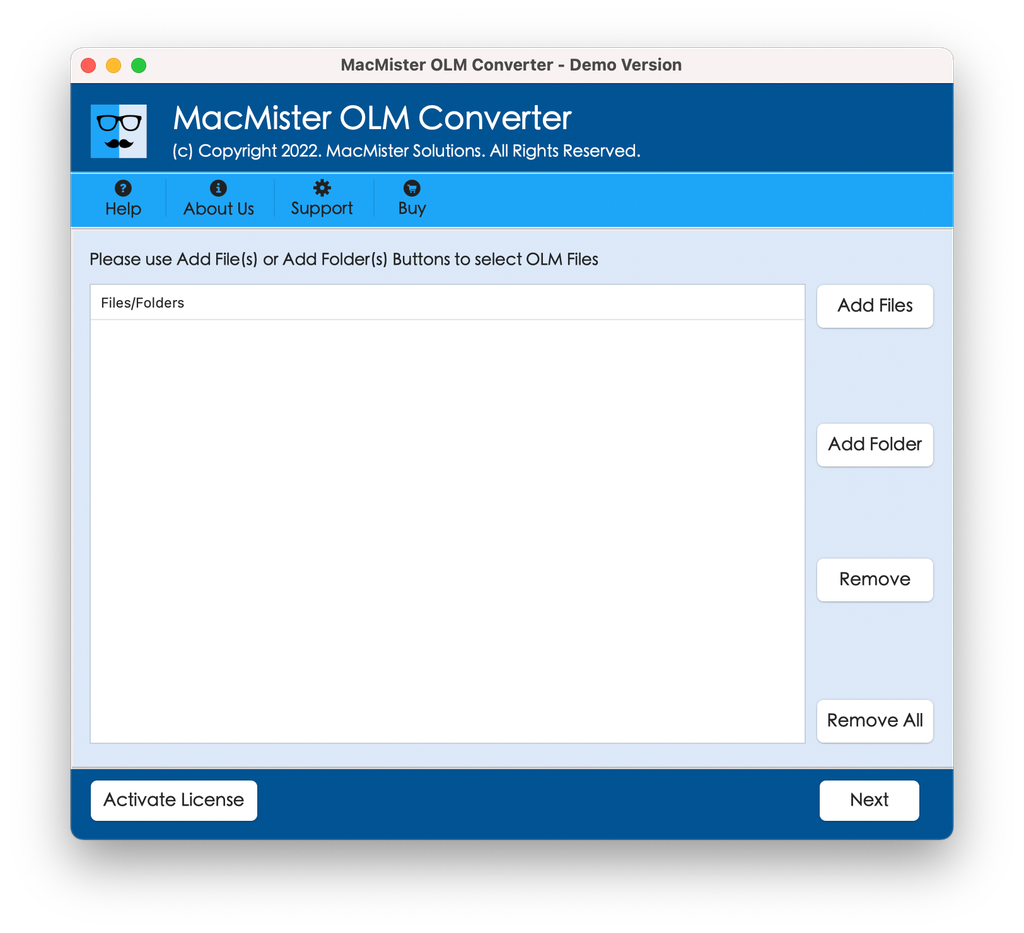
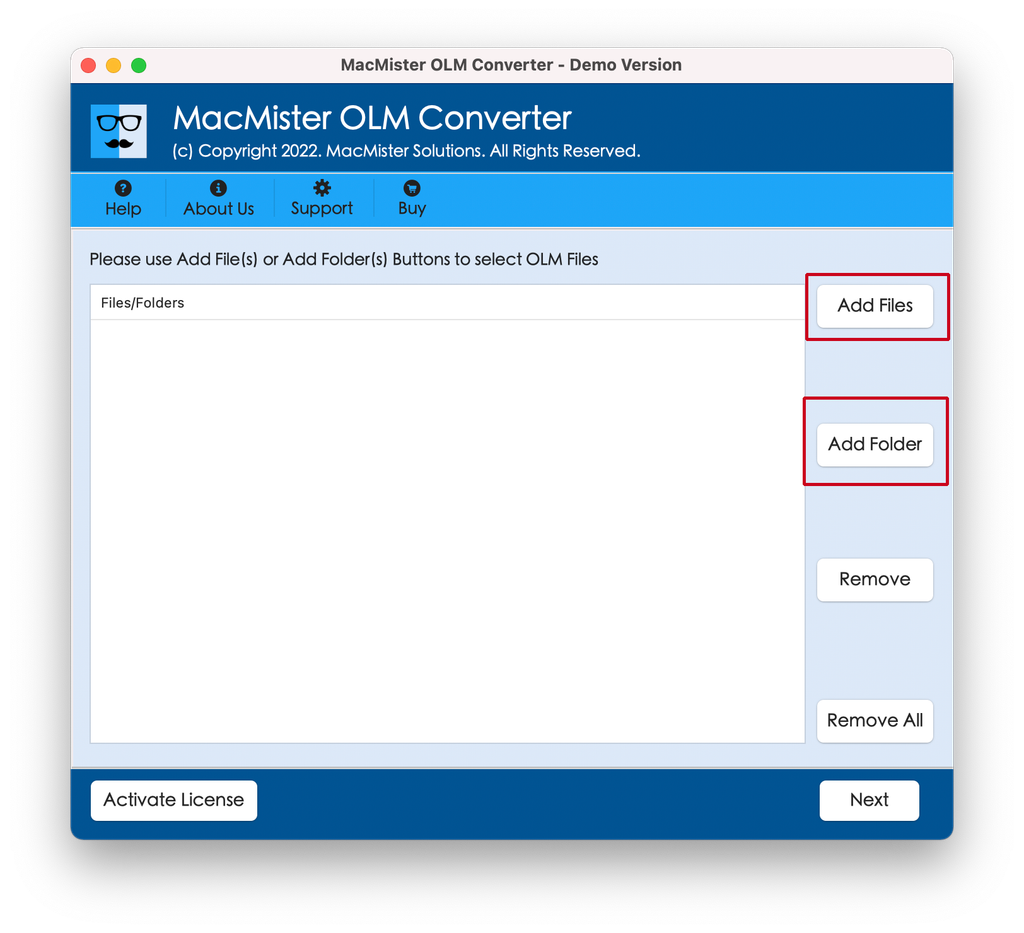
Step 2. Select Add Files or Add Folder to specify the desired OLM file or folder.
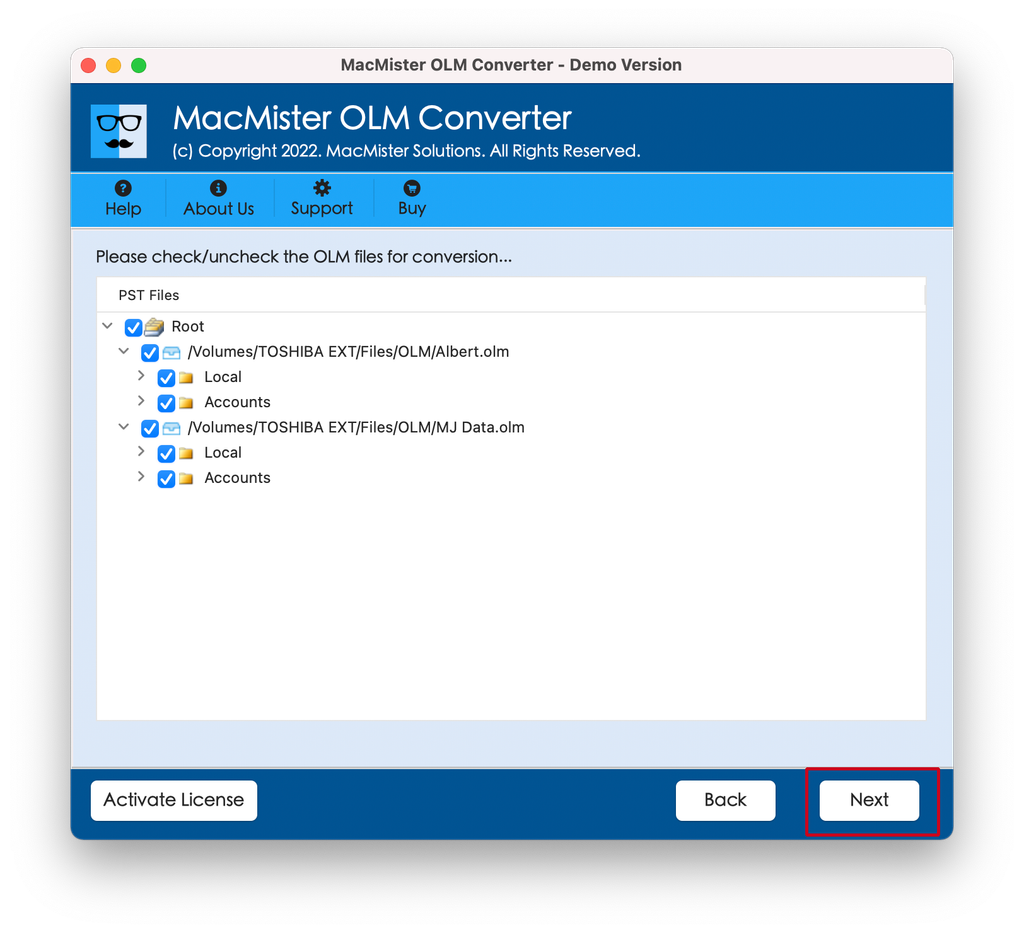
Step 3. Review the structure of the opened mail box and select those folders that need to be exported.
Step 4. From the Select Saving Option drop-down list, choose PST (or PDF/EML, if you wish to see separate files not via Outlook).
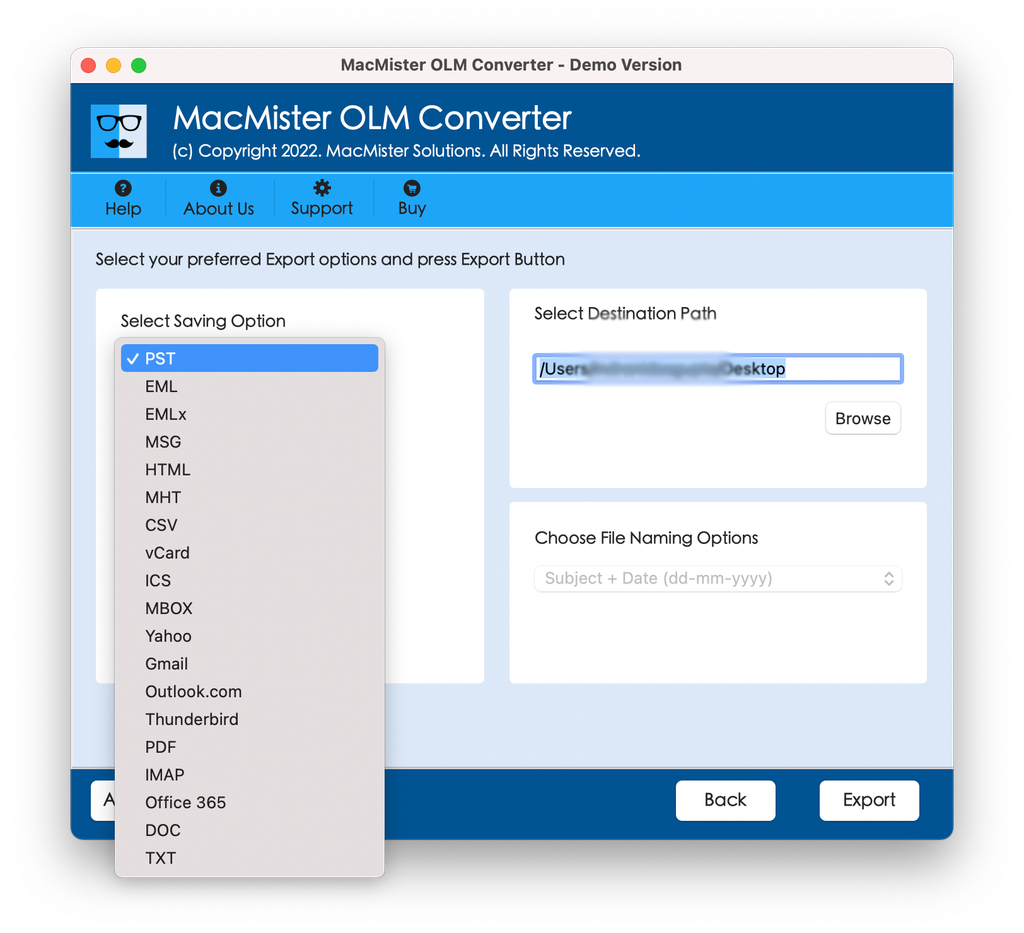
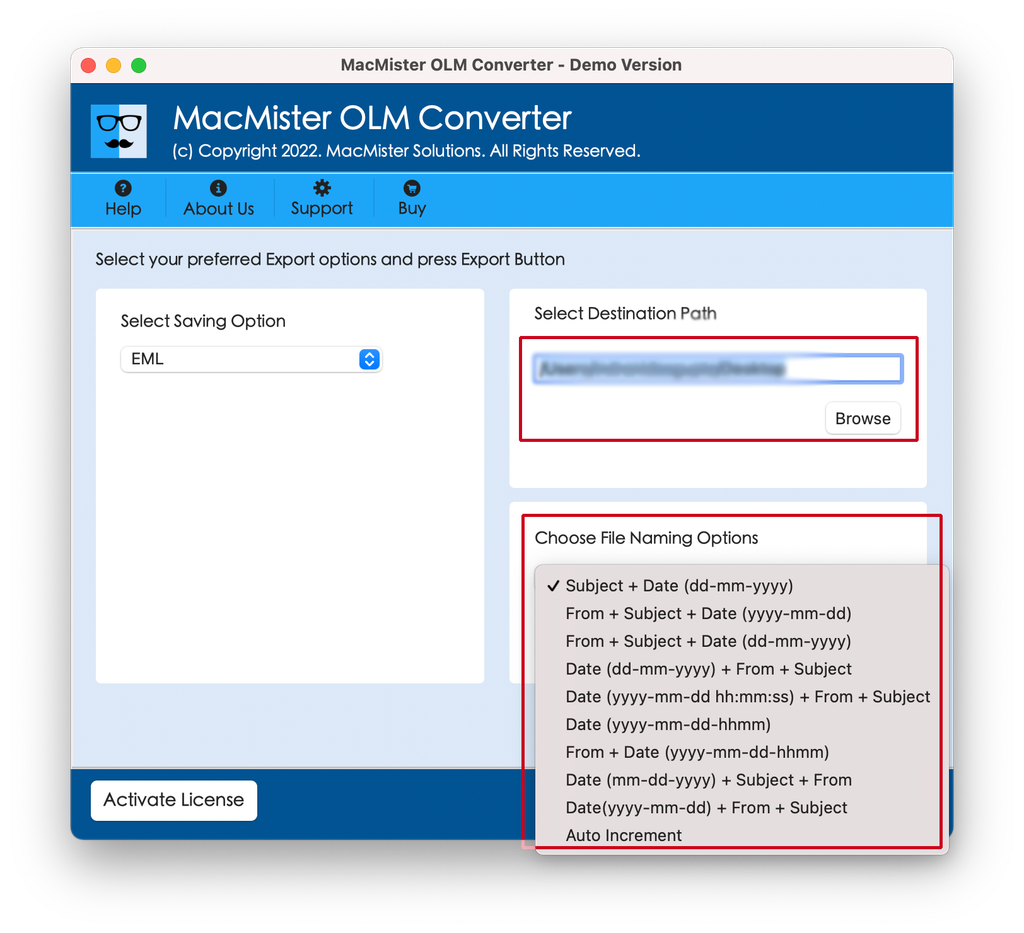
Step 5. Apply sub-options as per requirements and press the Export button.
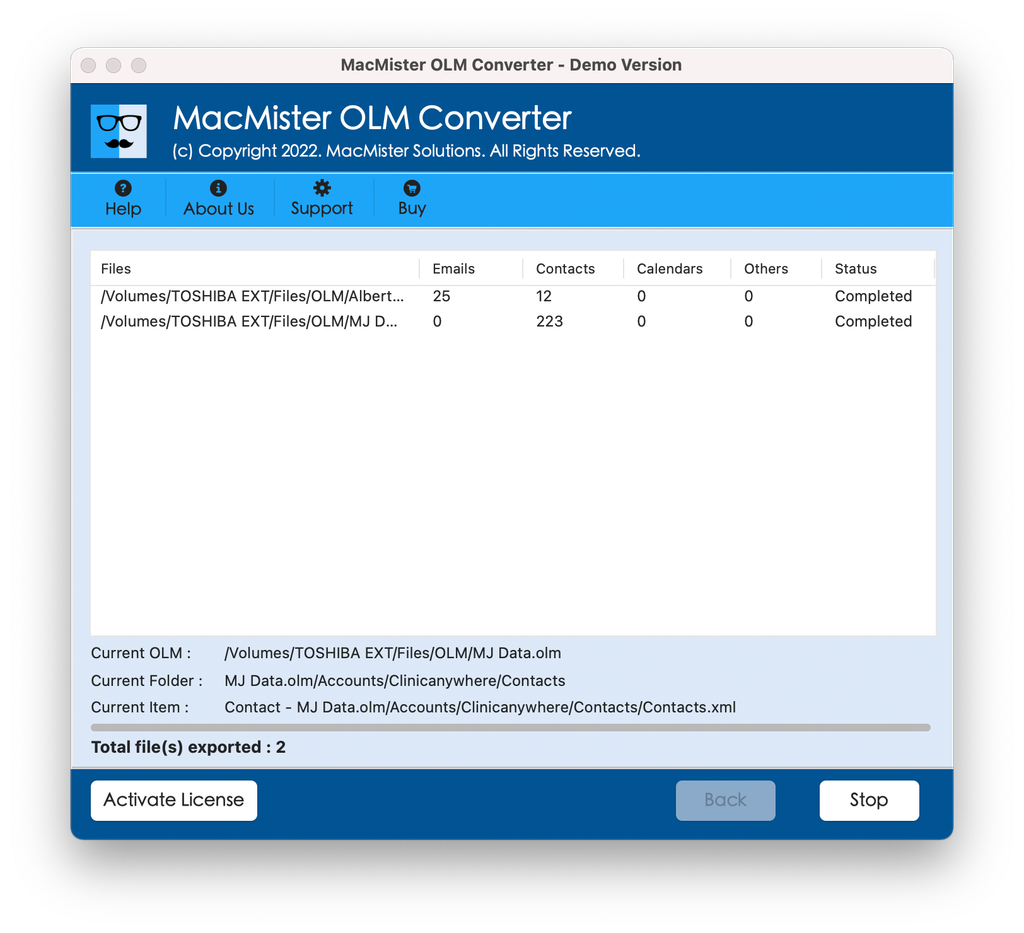
Step 6. Check the live process using the screen appearing below.
How to Open the Converted PST File in Windows Outlook?
After successfully converting your OLM file into a PST file and moving it to your Windows computer, you can access all your emails within seconds using these steps:
- Launch Microsoft Outlook on your Windows PC.
- Click on File from the top left corner.
- Click Open & Export and then choose Open Outlook Data File.
- Navigate to where you have saved your converted PST file and then open it.
- The Mac Outlook mail box will instantly appear in the left pane of Windows Outlook in a new Outlook Data File folder.
Conclusion
The process of reading Outlook for Mac OLM files in a Windows computer need not necessarily be a difficult or risky undertaking. The problem of inability to open OLM files on Windows due to non-availability of cross-platform support by Microsoft can be easily circumvented by converting the file to a more conventional PST format. Though it is possible to manually sync files using the IMAP approach, this method is extremely inefficient for larger mailboxes. The use of MacMister OLM Converter will ensure safe and accurate conversion.

