Looking for a reliable way to learn how to fully reset laptop before selling it? Before handing over your laptop to another person, it is important to remove your personal files, accounts, applications, and other sensitive information from the device. Simply deleting a few files may not be enough to protect your privacy. In this blog, CubexSoft explains an effective approach to completely reset a laptop and securely remove the stored data before selling or disposing of it.
Laptops often contain years of personal, professional, and sensitive information, including documents, photos, saved credentials, emails, and other private files. When planning to sell, donate, or replace an old laptop, properly cleaning the device should therefore be an essential step. A complete reset helps users prepare the system for its next owner while reducing the possibility of personal information being accessed.
This is equally important for businesses that regularly upgrade their computer systems. Old laptops may contain confidential company documents, customer information, employee records, and other business data. If such information is not properly removed before a device is transferred or discarded, it can create unnecessary privacy and security risks. Therefore, both individual users and organizations should ensure that their laptops are thoroughly reset before selling or disposing of them.
Why Should You Permanently Wipe Data Before Selling a Laptop?
If you are planning to reset Windows 10, dealing with a slow hard drive, or simply want to give your computer a fresh start, the “Just Remove Files” option may be sufficient in normal situations. However, if you are planning to sell, donate, or dispose of your laptop, simply removing files is not enough. In such cases, it is important to completely erase the data stored on the device to prevent unauthorized access.
The “Just Remove Files” option generally reformats the drive and removes the files along with the data tables and references associated with them. In simple terms, it removes the references that point to the files, but the actual data may still remain on the hard drive until it is overwritten by new information.
This means that permanently deleted data may still be recoverable with specialized data recovery software. If sensitive files are recovered, they could potentially expose personal or confidential information. Therefore, users should take additional measures when preparing a laptop for sale, donation, or disposal. In such situations, Data Eraser Tool can be used as a suitable solution to permanently erase data from a laptop and help protect sensitive information.
How to Fully Reset Laptop Before Selling Using a Recommended Solution?
CubexSoft Data Erasure Software is a tested solution that allows users to permanently erase and delete data from a laptop. It provides a secure, powerful, and instant way to wipe sensitive information from the system. The application comes with a user-friendly GUI and simplified steps, making it easy to operate for both technical and non-technical users.
The tool can overwrite existing data multiple times, making it much more difficult for hackers or unauthorized users to recover leftover files using data recovery tools. By wiping the hard drive multiple times, the software helps make the deleted data inaccessible and significantly reduces the possibility of recovery.
The solution is also programmed with numerous features that users can configure according to their requirements. With these options, users can permanently delete data from selected files, folders, or logical drives as needed.
Steps to Quickly Learn How to Fully Reset Laptop Before Selling
Step 1. Download and install the Laptop Data Erasure Tool on your Windows machine.
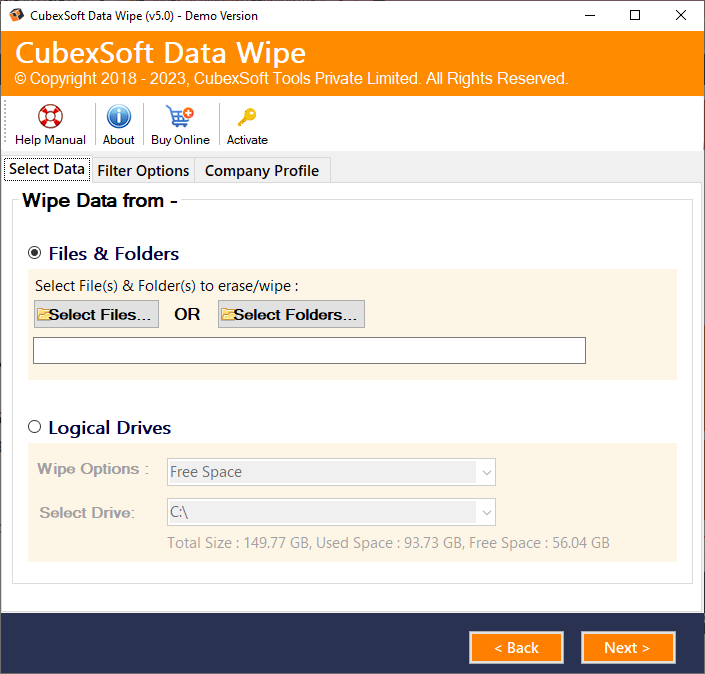
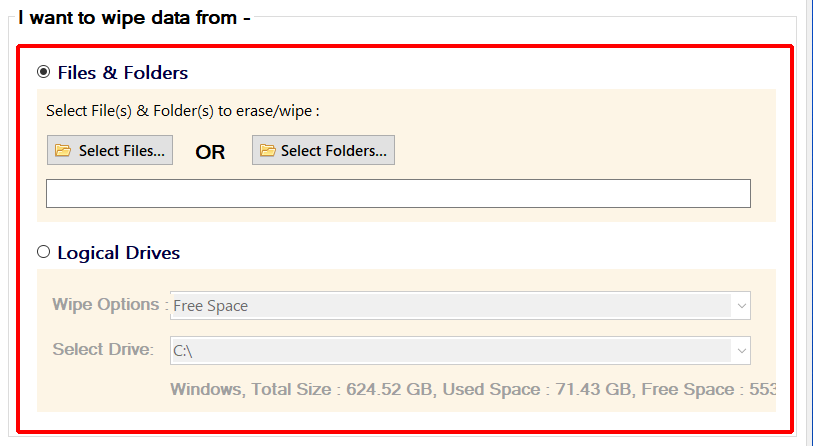
Step 2. Choose and upload the required files or folders by clicking Select Files or Select Folders. You can also select the Logical Drives option and specify the required drive from which you want to erase the data and free up space.
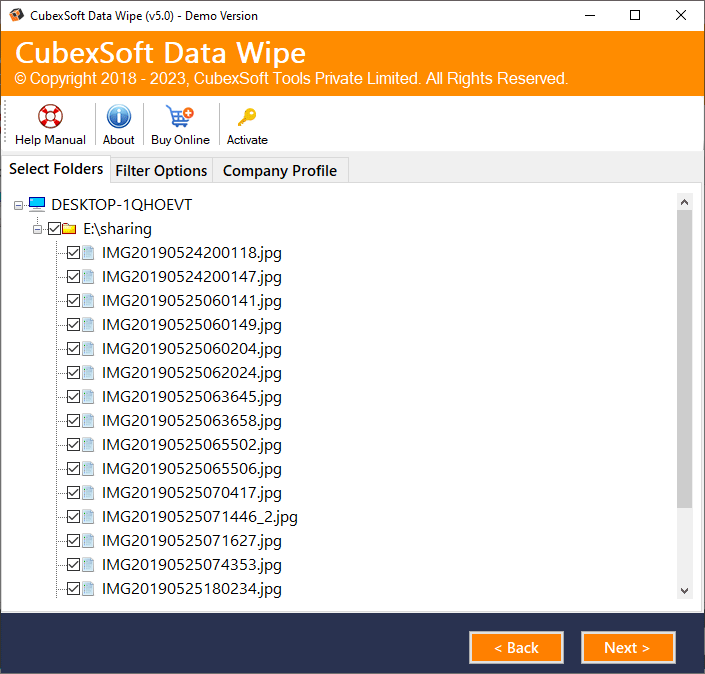
Step 3. All the selected files will be displayed in a hierarchical structure with checkboxes. Select the files you want to erase and click Next.
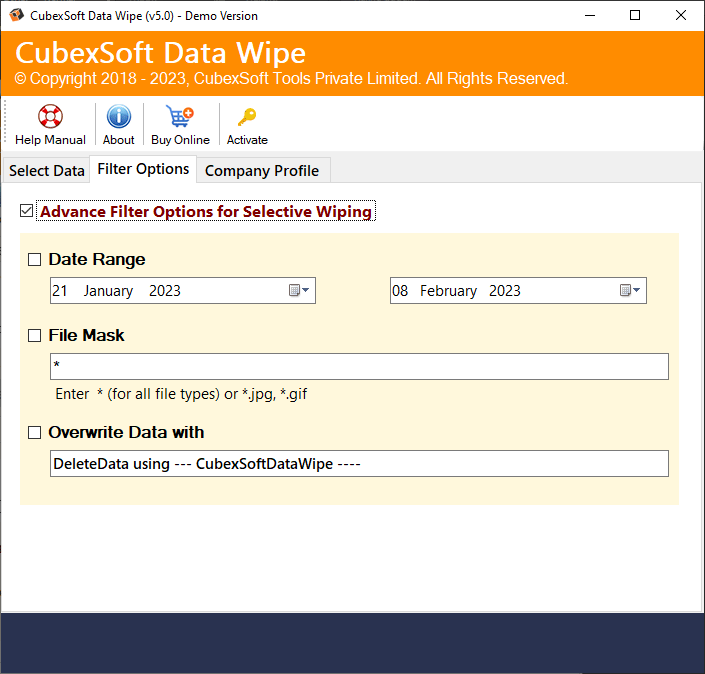
Step 4. Now, you will see the available Filters, including date range, file mask, and overwrite data with options. Use these settings according to your requirements and continue.
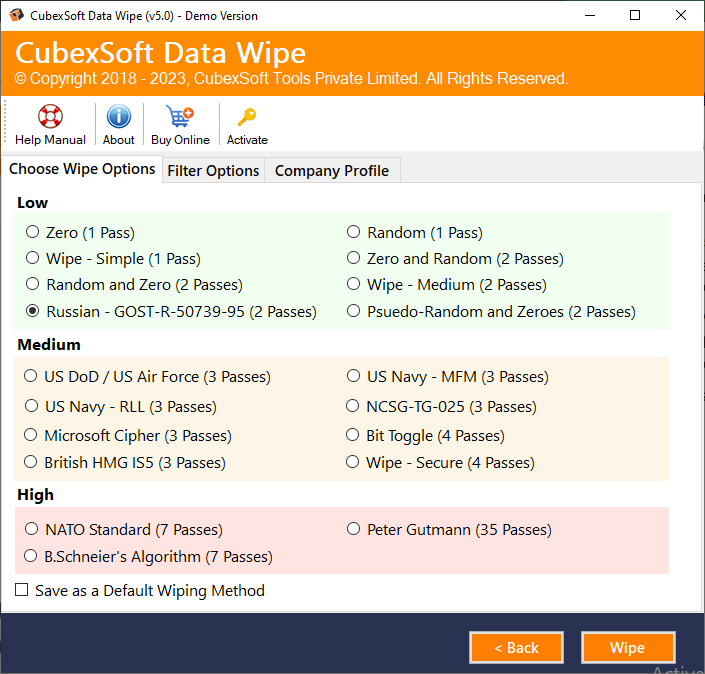
Step 5. Select the required Wiping Method using the drop-down arrow and click Wipe to begin the data-erasing process.
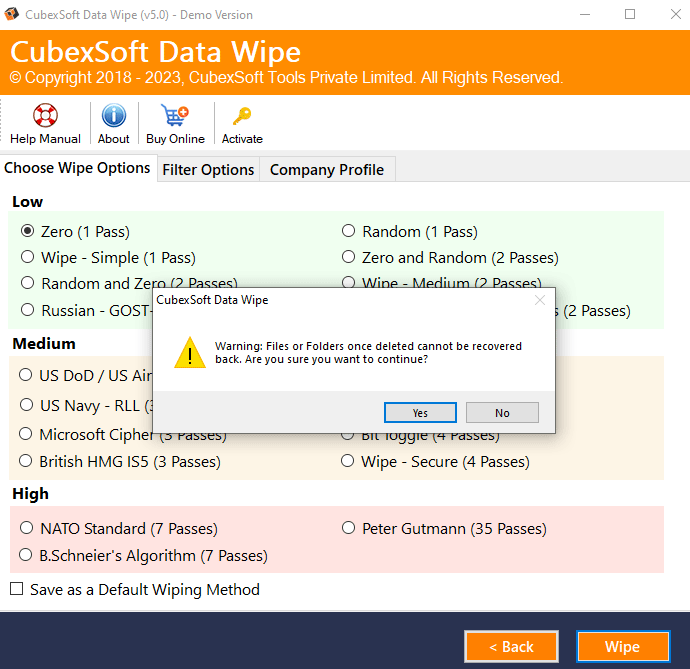
Step 6. Before permanently deleting the selected files, the tool will display a warning message. If you want to continue with the wiping process, click Yes.
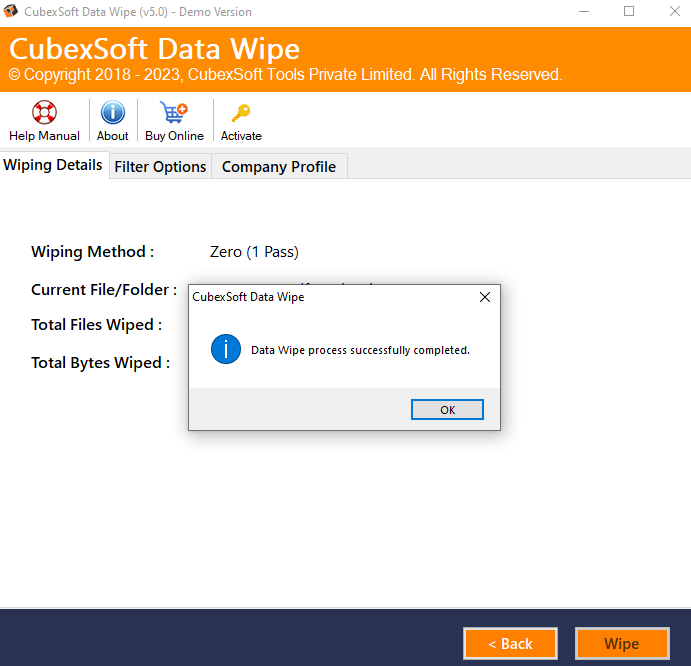
Step 7. Track the ongoing data-erasing status. Once the process is completed, the software will display the message “Data wipe process completed successfully.”
Key Features of the Laptop Data Eraser Software
The software comes with several useful features that make it easier to permanently erase laptop data according to specific requirements.
- Offers 10+ wiping methods to overwrite hard drive sectors with zeros, random data, or fixed values.
- Provides options like Date Range, File Mask, and Data Overwrite to erase specific data as required.
- Users can select individual files, folders, or complete logical drives for wiping.
- The tool can erase data from hard drives, SSDs, and external storage devices.
- It supports various Windows versions, including Windows 11, 10, 8.1, 8, and more.
Last Verdict
The entire blog post provides a secure technique to permanently erase data from a laptop. There can be several reasons to remove files and folders, such as creating additional storage space, selling an old laptop, upgrading to a new Windows version, and more. The tool offers a convenient way to permanently wipe the required data from the laptop. Users can also download the freeware version to analyze and evaluate the complete data erasing process for free.

