Email clients are the hub for exchanging all kinds of information and data over the internet. Its usage is not just limited to sending or receiving emails but also involves data management and storage. There are a wide variety of email clients available in the market with distinct features and specifications.
EML, short for Electronic Mail Message, is the file extension used by several email clients to store individual email messages. Some of the EML-supported email clients are Windows Live Mail, Windows Mail, Outlook Express, eM Client, IncrediMail, Apple Mail, DreamMail, etc. Most of these email clients are now discontinued or have become obsolete. Hence, many users are looking for a better management platform to store EML files.
When we think about easy management, the only platform that comes to mind is PDF. Portable Document Format, the name itself suggests that files stored in this format are portable in nature. The platform is best for keeping backup of files because of various reasons. We will elaborate on the reasons in the later section.
To back up email files in PDF format, there are several methods available. But the major task is to choose the right one to securely convert bulk EML mailbox data to PDF. In this blog, we explain two methods to understand how to convert a .eml to PDF format. Stick with the blog till the end to learn all the methods in detail.
Benefits of Using PDF
Security: If your data contains confidential information and you need to keep all the files private, then PDF provides security features such as password protection, permissions, watermarks, and digital signatures.
Consistent: PDF permits the equivalent layout and content to be displayed consistently across different devices and operating systems. These files can be accessed from anywhere and are user-friendly.
Compressed: Another benefit of PDF documents is that these files can be compressed at the time of sharing, making the exchange of data smooth and easy. If you are dealing with storage issues, this feature can help you store PDF files using less space.
Independent: PDF is a file format that is largely independent of specific software, hardware, and operating systems.
Acceptance: PDF is one of the most widely used file formats for business, professional, archival, and legal documentation.
Convert EML Files to PDF Via Thunderbird
STEP 1: Drag and Drop the EML Files in Thunderbird
- In the first step, run Mozilla Thunderbird email application on your system.
- Generate a new folder in the Mozilla Thunderbird account and leave the folder open.
- Next, locate the destination on your PC where EML files are stored.
- Highlight the required EML files that you want to convert to PDF. If you want to move all the emails, then use the shortcut key Ctrl+A. Then drag & drop the EML files into Thunderbird.
STEP 2: Move EML Files From Thunderbird to PDF
- Now select the folder you created earlier in which you dragged the EML files.
- Use a compatible Thunderbird add-on, such as an email import/export extension, to access the available message export options.
- Select the option for exporting messages from the selected folder and choose PDF if the installed add-on/version provides PDF export.
- Before starting the export, check the attachment-handling option. Depending on the export method, attachments may not be embedded in the resulting PDF.
- Start the export process. The selected emails will be exported according to the PDF options provided by the installed Thunderbird add-on.
Convert a .eml to PDF Format via Word
This approach is helpful in saving a single EML file in PDF format. If you have a few EML files to be converted into PDF format, then you can use this approach. Follow the directions given below to move EML to PDF format:
- Browse for the EML mailbox storage on your PC.
- Now highlight an EML file and right-click on it. After that, follow these steps: Open with >> Microsoft Word.
- If Microsoft Word can open the selected EML file in your setup, the email opens in a Microsoft Word document.
- In Word, hit the File tab in the menu bar, followed by the Save As button.
- The Save As Wizard opens. Browse for the location in which you need to save the converted file. Fill in any name in the “File Name” option and change “Save as Type” to PDF.
- Click on the Save button.
Professional Solution to Convert a .eml to PDF
Till now, we have discussed about manual approaches for saving EML files in PDF format. If you don’t like the manual approach and want a direct migration solution, then you should try CubexSoft EML to PDF Converter. The PDF creation program allows you to move bulk EML files to PDF file format in one go. There is no need to install an EML-supported email application to save EML files in PDF format. The program does not impose a file-size limitation for EML conversion.
Advanced Filter option is available for selective export of EML files into PDF. You can use the program on supported Windows editions. The software offers advanced options to create PDF files. Using these options, you can create either a single PDF file or separate PDF files for each email. The software provides an automated solution for converting EML files to PDF. The EML to PDF Converter tool also provides options for handling attachments along with EML files. You can opt for different options to save PDF files, such as: Embed Attachments to PDF, Save Attachments Separately, and Convert Attachments to PDF. PDF Page Setting tool is also available to customize the creation of PDF files.
How to Convert EML to PDF Format?
Download, install, and run EML File to PDF Converter on your system.
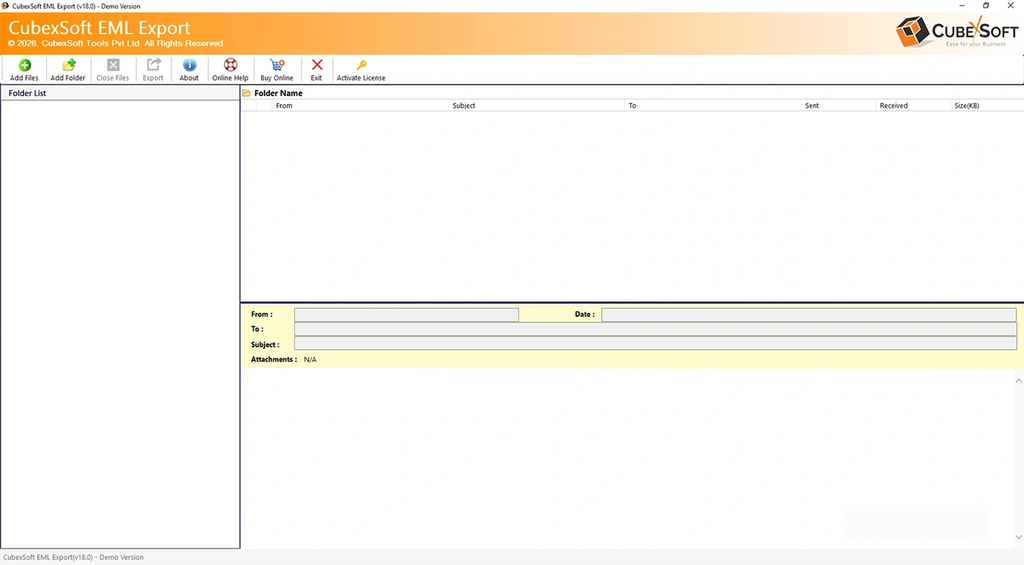
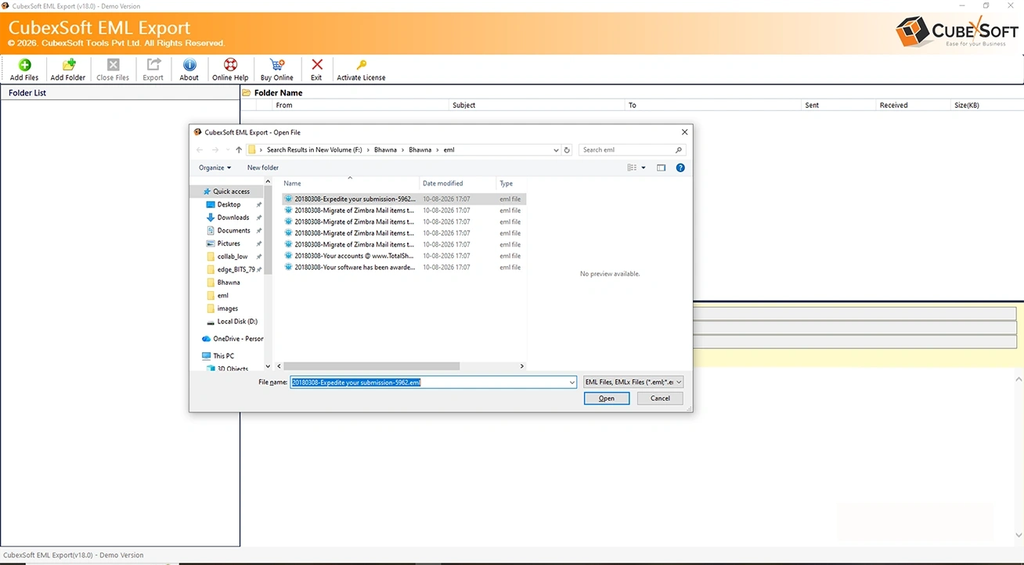
Upload EML files in the software using the Add Files option in the menu bar.
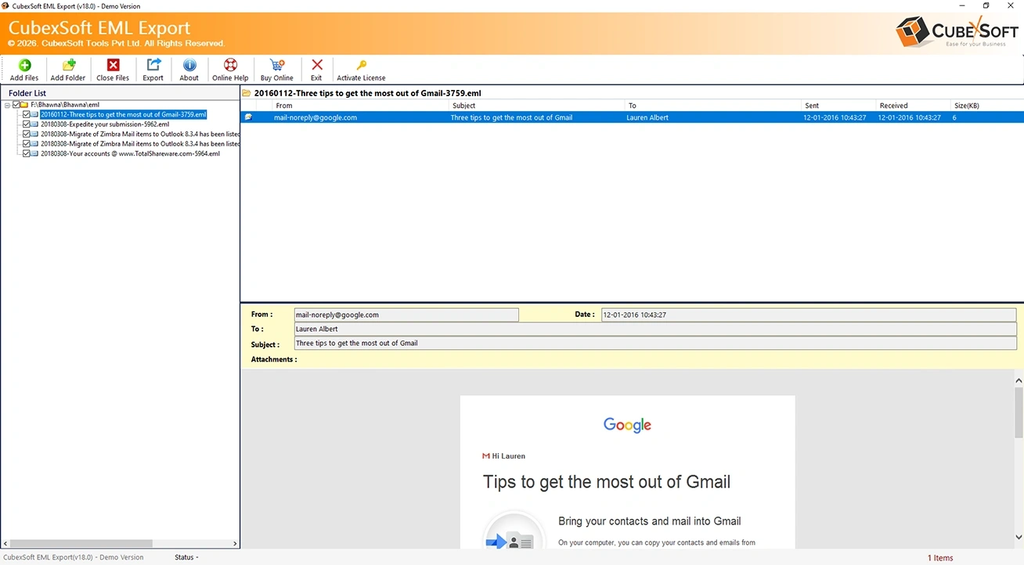
A list of selected EML files, folders, and subfolders appears on the left side with checkboxes. Check the preview and select the required data. Tap on the Export button in the menu bar.
Choose PDF from the Select Saving Option drop-down menu. Browse for the destination location to save the PDF file and apply other optional options.
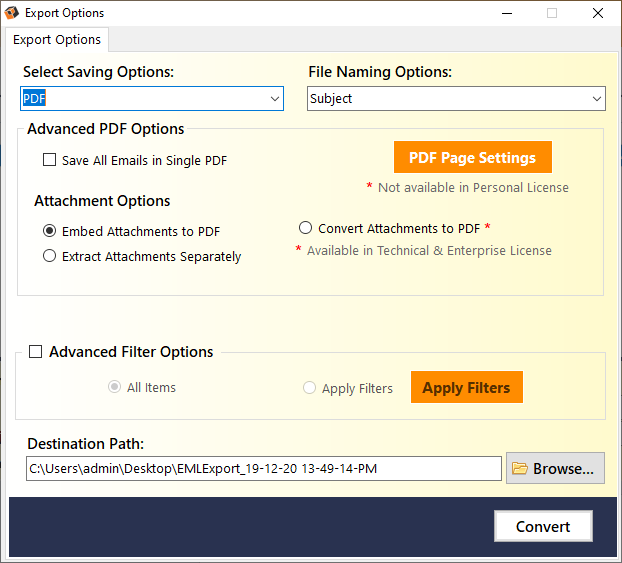
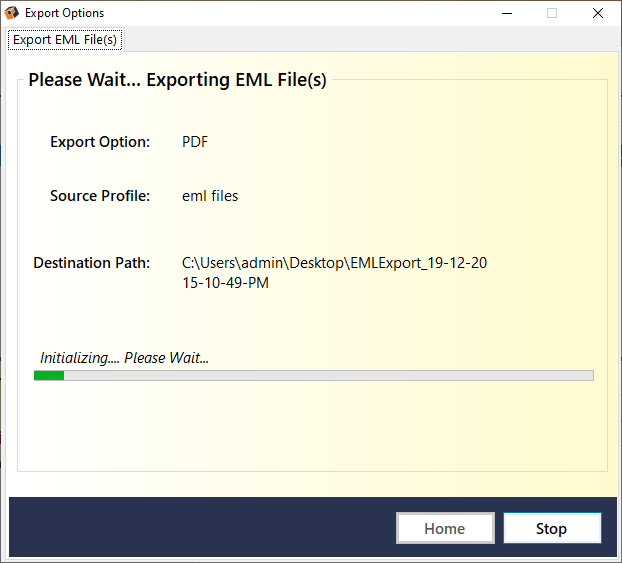
Click on the Convert button to start the EML to PDF file conversion procedure.
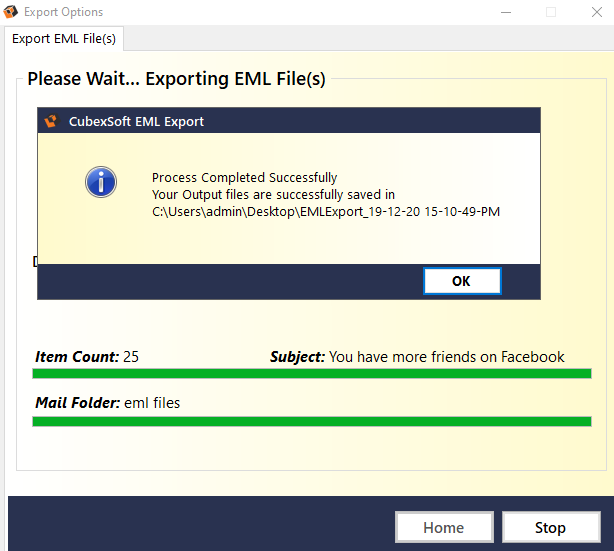
At last, a prompt window opens with a message stating “Conversion Completed Successfully.” Click on the OK button.
That’s it! CubexSoft EML Converter makes the EML to PDF file conversion procedure super easy for you. If you want to check the working and accuracy of the tool, then avail the free demo edition. The demo provides a complete overview of the software working with the export of up to 25 EML files to PDF for free. If you find the tool worthy, then get access to the licensed edition of EML to PDF Tool for unlimited EML file export to PDF with attachments.
Conclusion
This article explains how to convert a .eml to PDF format via different methods. In the first method, we provide a detailed explanation to move EML files to PDF format through a Mozilla Thunderbird account. Next, we explain a simple way to save a single EML file in PDF via Microsoft Word. At last, we introduce an automated program to save EML files in PDF format. We hope this article is helpful in solving EML file migration issues.

