EML files are widely used to store individual email messages along with information such as sender, recipient, subject, date, message body, and other email properties. While EML is useful for preserving emails, it is not designed for organizing large volumes of information in a spreadsheet. CSV, on the other hand, stores information in rows and columns, making it easier to sort, filter, analyze, and import into other applications.
When users have hundreds or thousands of EML files, manually extracting email details and saving them as CSV becomes impractical. A bulk EML to CSV conversion method can turn multiple email files into structured data while reducing repetitive work.
Overview of EML to CSV Conversion
EML and CSV serve completely different purposes. An EML file contains the structure of an individual email, while a CSV file represents tabular information. During conversion, relevant email properties are extracted and arranged into CSV columns. Depending on the conversion method, the output can contain fields such as –
Sender and recipient, Subject, Date and time, CC and BCC, Message ID, Email body or body preview, Attachment information
The resulting CSV file can then be opened in spreadsheet applications such as Microsoft Excel, Apple Numbers, or other applications that support CSV data.
Why Convert EML Data into CSV in Bulk?
There are several reasons users may need to convert EML files into CSV format.
- Better data organization – CSV places email information into structured rows and columns, making large collections easier to manage.
- Email analysis – Users can sort emails by sender, subject, date, or other available fields to identify communication patterns.
- Reporting – Businesses can use structured email information for reports, audits, customer communication tracking, and documentation.
- Database compatibility – CSV is commonly supported by database, CRM, reporting, and spreadsheet applications.
- Bulk processing – When dealing with a large EML collection, processing files together saves considerable time compared with opening and copying each message individually.
How to Convert EML Files to CSV Manually?
There is no simple option to rename an EML file and turn it into a properly structured CSV. The email information needs to be extracted and organized into appropriate columns. A basic manual approach is –
Step 1: Open the EML File – Open an EML message using a compatible email application such as Thunderbird or another application that supports EML files.
Step 2: Extract Email Information – Review the message and copy the information you need, such as – From, To, Subject, Date, CC/BCC, Message content
Step 3: Open a Spreadsheet – Create a new spreadsheet in Microsoft Excel, Apple Numbers, or another spreadsheet application.
Step 4: Create Columns – Create separate columns for the required email properties, for example –
| From | To | Subject | Date | CC | Body |
Step 5: Enter the Email Data – Copy the information from each EML file and place it into the appropriate columns.
Step 6: Save as CSV – After entering the required information, use the application’s Save As or Export option and select CSV as the output format.
This approach may work for a handful of messages, but it becomes difficult when hundreds or thousands of EML files need to be processed.
Limitations of the Manual Method
Manual EML to CSV conversion has several practical limitations –
- It requires opening files individually.
- Copying information repeatedly takes considerable time.
- Large collections can lead to missing or incorrectly entered data.
- Email metadata may not be captured completely.
- Attachments are difficult to represent accurately in manually created spreadsheets.
- Maintaining consistent column formatting can be challenging.
- Folder organization may not be retained.
- The process does not provide an efficient bulk conversion workflow.
Therefore, manual extraction is generally more suitable for a small number of EML files rather than a large email archive.
How to Save EML Files to CSV by Advanced EML to CSV Converter for Mac
For users working with a large collection of EML files on Mac, the MacMister EML Converter for Mac provides a dedicated way to convert email data into CSV format without manually processing every message.
The tool is designed for bulk conversion, allowing users to add multiple EML files or an entire folder and process the email collection together. It can extract commonly required email properties and organize them into a structured CSV output suitable for spreadsheet-based analysis.
How to Convert EML to CSV in Bulk on Mac
Step 1 – Launch, Install and open the EML conversion software on your Mac.
Step 2 – Use the options to add multiple EML files or select an EML folder containing a large collection of messages.

Step 3 – The tool will load and show entire selected EML files.
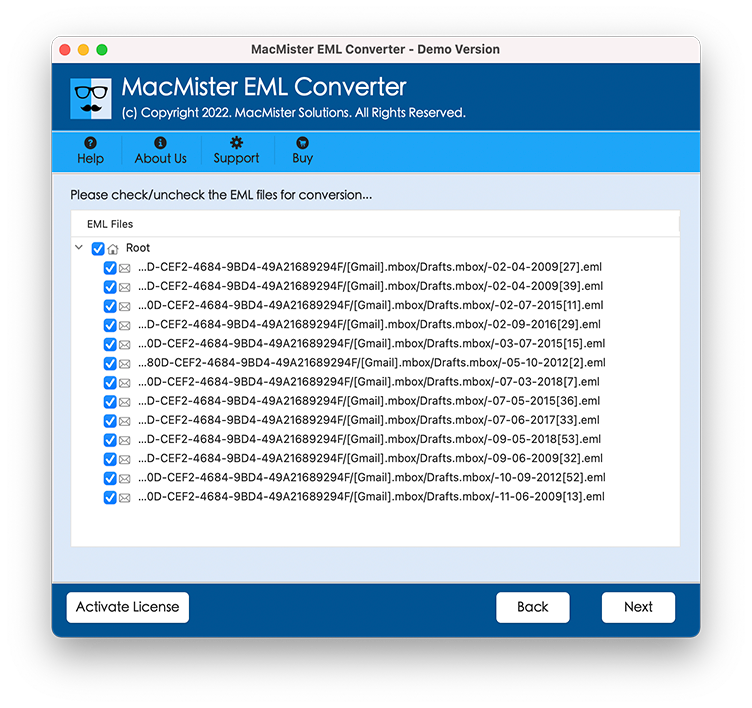
Step 4: Choose CSV as your saving option for the Export
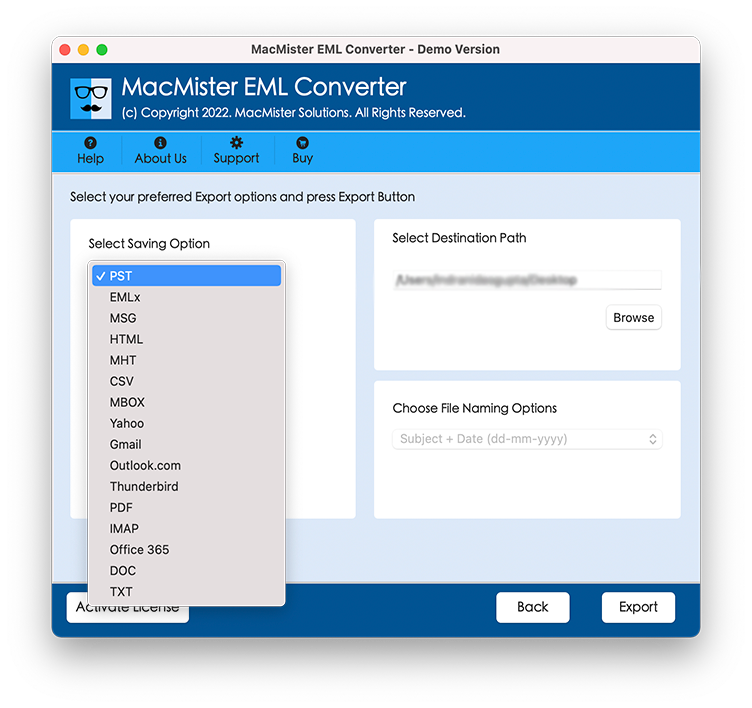
Step 5: Specify an appropriate destination folder for the converted data and Click on Convert button.

Step 6: Begin the conversion process and also show its working.
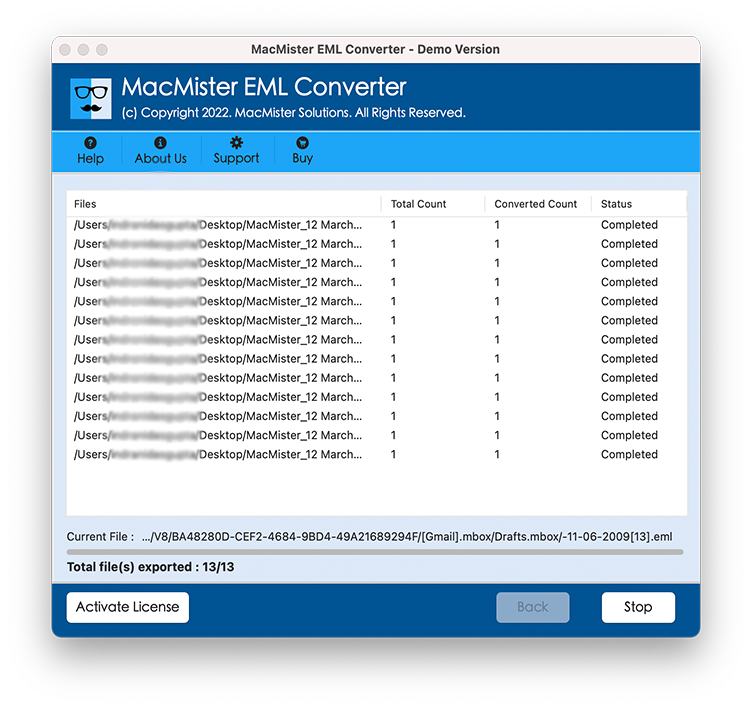
Bulk conversion is particularly useful when the source contains a large number of EML files because it avoids repetitive copy-and-paste operations.
Frequently Asked Questions
Q. Is It Possible to Export Multiple EML Files as CSV?
Ans. Yes. A dedicated EML to CSV converter can process multiple EML files together, making it more practical for large email collections than manual conversion.
Q. Can I open an EML file directly in Excel?
Ans. Excel is designed for tabular formats such as CSV and XLSX and does not natively interpret the MIME-based structure of an EML message. Directly opening an EML file may therefore display raw or incorrectly structured information.
Q. Which Email Details Are Transferred from EML to CSV?
Ans. The software converts complete email details including sender, recipient, subject, date, CC/BCC, message ID, body information, and attachment-related details.
Q. Is CSV suitable for email analysis?
Ans. Yes. CSV organizes information into rows and columns, making it convenient for filtering, sorting, reporting, and importing email data into spreadsheet or database applications.
Q. Can You Manually Convert Thousands of EML Files to CSV?
Ans. Generally, no. Manual copying becomes time-consuming and increases the possibility of missing or incorrectly entering information. Bulk conversion is more suitable for large EML collections.
Conclusion
Saving EML files to CSV in bulk is useful when email data needs to be organized, analyzed, reported, or imported into another application. Although manual extraction through an email client and spreadsheet can work for a few messages, it becomes inefficient as the number of EML files increases.
The EML to CSV tool for Mac provides a more convenient approach by allowing users to process multiple EML files and extract email information into a structured CSV format. This eliminates repetitive manual data entry and makes large EML collections easier to work with in spreadsheet-based environments.