If you are wondering how to open .MSG file in Office 365, how do I open a .MSG file in Office 365, or whether an MSG file can be accessed without installing the desktop version of Outlook, this guide explains the available approaches. It covers the manual method, its limitations, and an alternative approach for Mac users who need a more convenient way to work with MSG files.
MSG is a Microsoft Outlook-specific file format used to store individual email messages along with information such as the sender, recipient, subject, date, message body, attachments, and other email properties. Users often save Outlook emails as MSG files for backup, sharing, documentation, or archival purposes. However, opening these files can become challenging when working primarily with Office 365 or Outlook on the web.
Understanding MSG File Access in Office 365
An MSG file is normally associated with Microsoft Outlook for Windows. Office 365, however, is a cloud-based productivity platform that includes different applications and services. Outlook on the web does not provide the same native MSG-file handling as the Outlook desktop application. Therefore, simply uploading an MSG file to OneDrive, SharePoint, or Outlook on the web does not necessarily allow you to open it as a regular email message.
Depending on your setup, you can use Outlook for Windows to open the file, or use an MSG conversion or migration utility when working on a Mac. The right method depends on whether you need to view a single MSG file or handle multiple MSG files.
Why Do Users Need to Open MSG Files in Office 365?
There are several situations where users may need to access MSG files with Office 365 –
- Access old Outlook emails – Users may have archived individual Outlook messages as MSG files.
- Move email data – MSG files may need to be incorporated into an Office 365 mailbox.
- Review attachments – An MSG file can contain attachments that users need to access.
- Email documentation – Businesses may save emails as MSG files for reference or internal documentation.
- Switching platforms – Mac users may receive MSG files from Windows-based Outlook users.
- Access historical correspondence – Older email messages may be stored locally as individual MSG files.
The difficulty usually occurs when the MSG files are available on a Mac while the user wants to work with them through an Office 365 account.
How to Open MSG File in Office 365 Using the Manual Method?
The manual approach generally requires a compatible Outlook desktop application. Since MSG is an Outlook message format, Outlook for Windows can normally recognize and open these files.
Step 1: Locate the MSG File – First, find the required .msg file on your computer. Make sure the file has not been renamed with another extension.
Step 2: Open the MSG File with Outlook – Right-click the MSG file and select the option to open it with Microsoft Outlook. If Outlook is installed and associated with MSG files, the message should open in a separate Outlook window.
Step 3: Review the Email – Once opened, you can check the message body, sender, recipients, subject, date, and available attachments.
Step 4: Make the Email Available in Your Office 365 Account – If your objective is to make the email available in an Office 365 mailbox, simply opening the MSG file is not enough. You may need to move or copy the email into an Outlook folder associated with your Microsoft 365 account.
This process can be practical for a few MSG files, but it becomes inconvenient when dealing with hundreds or thousands of messages.
Limitations of the Manual Method
Although the manual approach can work for individual files, it has several limitations.
1. Requires Compatible Outlook – The traditional method generally depends on an Outlook desktop environment capable of reading MSG files. This can be inconvenient for users working exclusively on Mac or web-based Office 365.
2. Not Suitable for Bulk MSG Files – Opening files individually is manageable when you have a few messages. With hundreds or thousands of MSG files, manually processing each one can consume considerable time.
3. Additional Steps for Office 365 – Opening an MSG file does not automatically place it inside an Office 365 mailbox. Additional steps may be required to organize or transfer the email data.
4. Folder Organization Can Become Difficult – When MSG files are collected from multiple Outlook folders, maintaining their original organization manually can be challenging.
5. Risk of Inconsistent Processing – Manually handling a large number of email files increases the possibility of skipping files, misplacing attachments, or creating an inconsistent folder structure.
6. Mac Compatibility Challenges – MSG is closely associated with Outlook for Windows. Mac users may therefore need an alternative solution when they receive a large collection of MSG files.
Is It Possible to Open MSG Files Directly Through Outlook on the Web?
This is one of the most common questions related to MSG files. Outlook on the web and the Outlook desktop application handle MSG files differently. The web version is primarily designed for accessing mailbox data stored within the online account rather than opening locally stored Outlook MSG files as native messages.
As a result, users searching for how to open MSG file in Office 365 online may find that uploading the file to their cloud storage does not provide the same experience as opening it through desktop Outlook.
For occasional files, using a compatible desktop Outlook environment may be sufficient. For larger collections, a dedicated conversion or migration solution can simplify the process.
Alternative Solution – MSG to Office 365 Migration Tool for Mac
For Mac users who need to work with multiple MSG files and ultimately access their email data through Office 365, a dedicated MSG converter for Mac can provide a more streamlined workflow.
MSG to O365 tool for Mac is designed to help users work with Outlook MSG files in a Mac environment without depending entirely on the traditional Windows-based MSG workflow. Instead of manually opening every file, users can process multiple MSG files and prepare their email data for use with supported destination environments.
This approach can be useful when the objective is not merely to view an MSG file but to handle a complete collection of Outlook email files.
How the Alternative Approach Works
A typical workflow involves the following steps –
- Launch the MSG conversion software on Mac. Add the required MSG files or folders by Add Files/ Folder options

- Select the email data that needs to be processed.
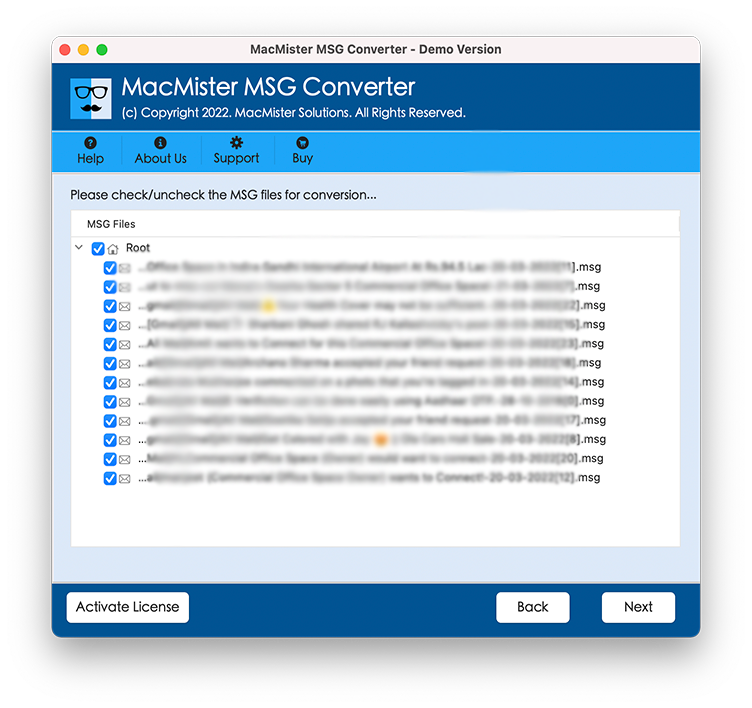
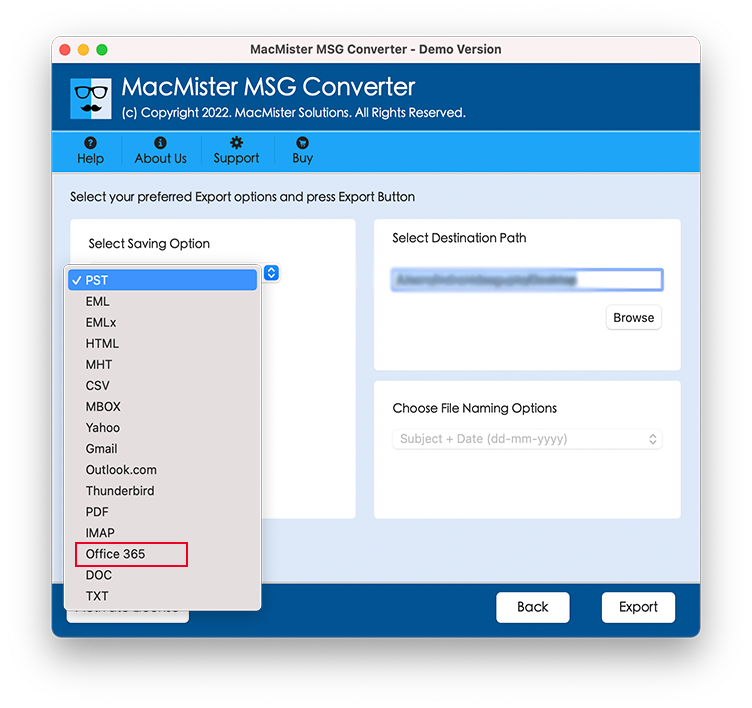
- Choose Office 365 as your migration option.
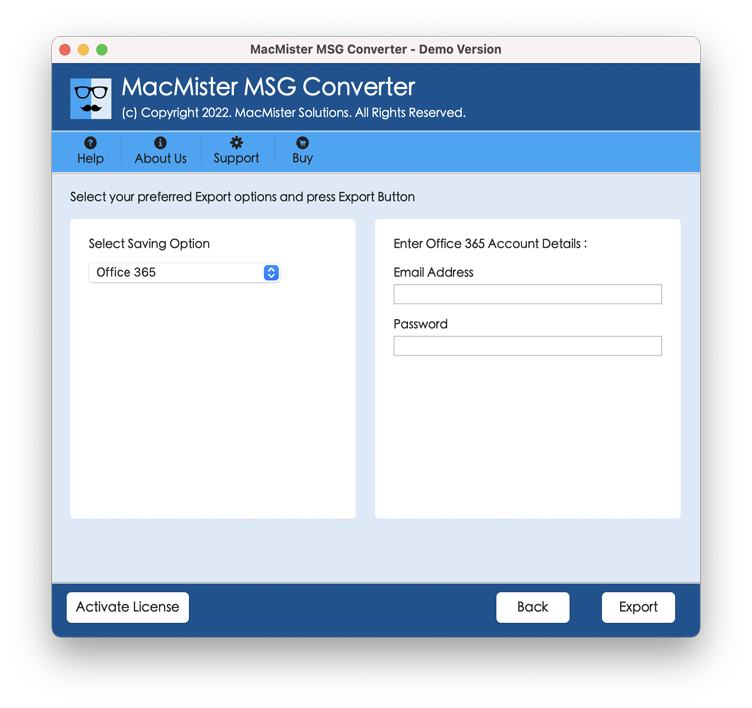
- Provide the required Office 365 account details when applicable.
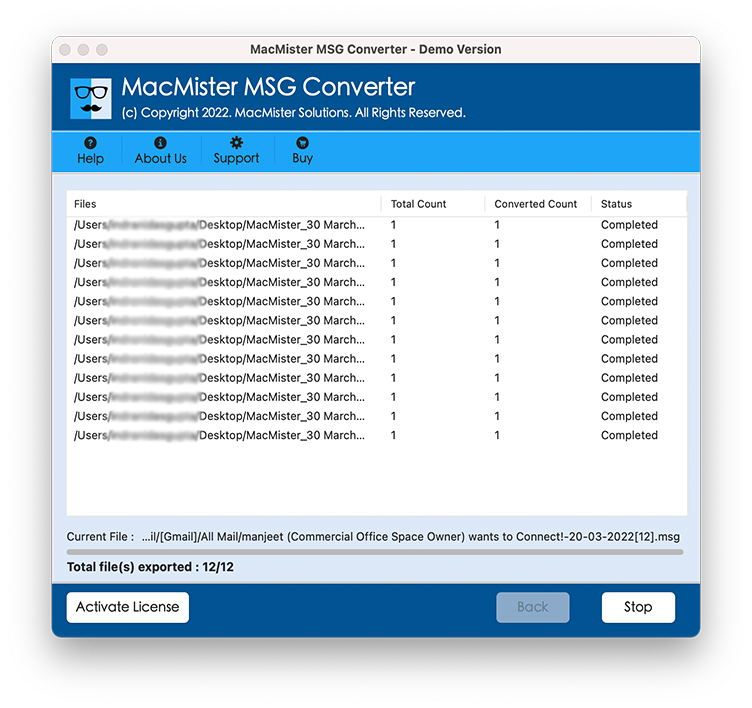
- Start the conversion or transfer process.
MSG File vs Office 365 Mailbox
It is important to understand that an MSG file and an Office 365 mailbox are two different forms of email storage.
An MSG file represents an individual Outlook email saved as a local file. It can contain the message body, headers, attachments, and other properties.
An Office 365 mailbox, on the other hand, stores emails within Microsoft’s cloud-based mail environment. Therefore, simply having MSG files does not mean that those emails are already available in Office 365.
This distinction is important when deciding whether you only need to open MSG files or actually need to transfer MSG files to Office 365.
Conclusion
Knowing how to open .MSG file in Office 365 depends largely on whether you want to view a single local email or move a complete collection of MSG files into an Office 365 environment. For occasional files, opening them through compatible Outlook desktop software can be sufficient. However, this manual approach becomes time-consuming when working with large numbers of MSG files.
Mac users who need to process multiple Outlook MSG files can consider a dedicated MSG to Office 365 tool for Mac such as MSG Converter for Mac. A specialized approach can simplify bulk processing and reduce the effort involved in handling individual MSG files. Before starting any large-scale operation, always keep a backup of the original MSG files and verify the resulting Office 365 mailbox data.