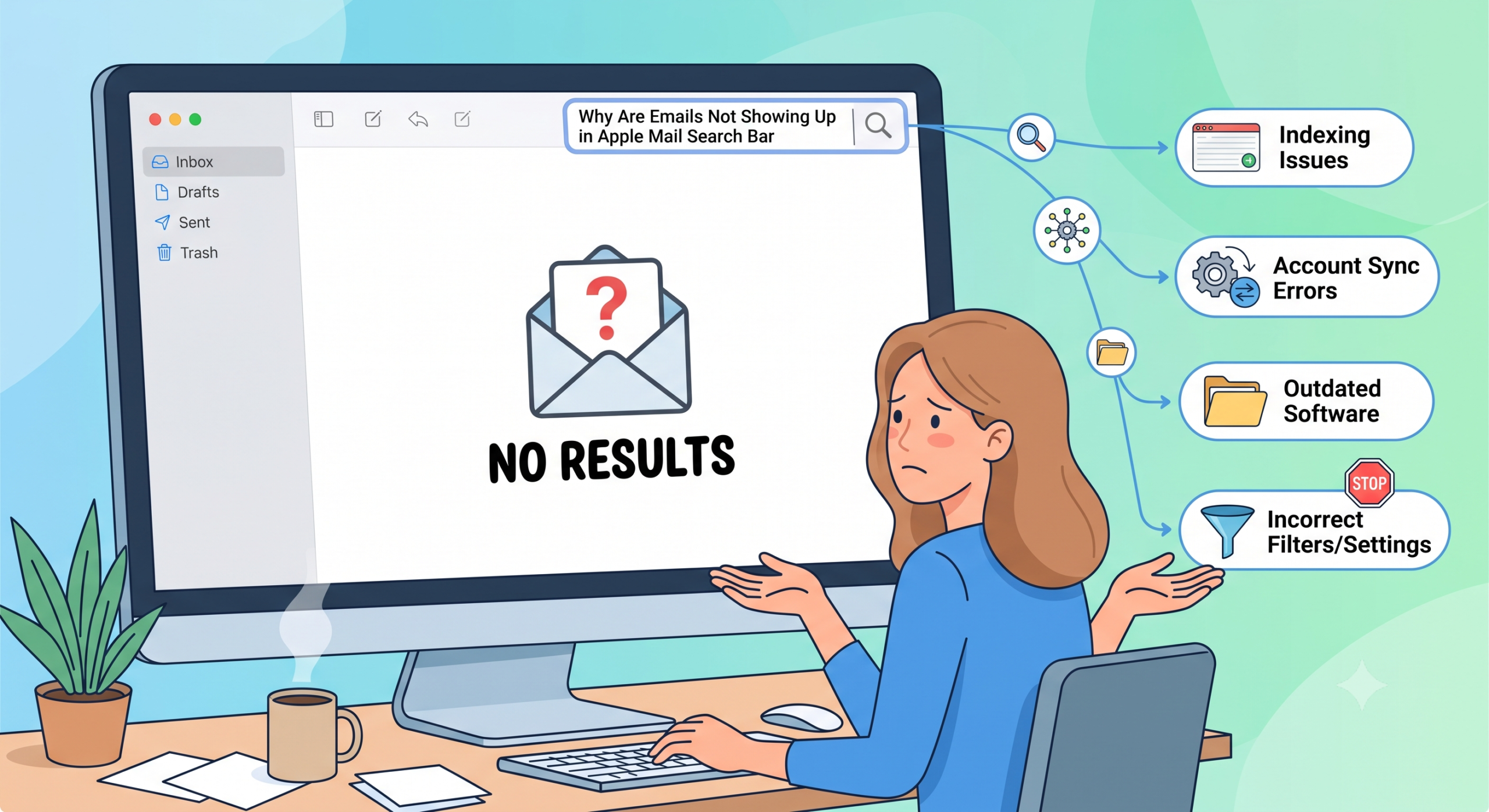
It is one thing to feel frustrated because an essential email is somewhere in your inbox but after entering a few keywords on the search bar, nothing appears. Apple Mail comes in handy as the default email application used by millions of Mac users. The application provides an elegant user interface with great integration with the operating system. But when the search functionality fails, everything grinds to a halt.
The lack of emails on the search bar in Apple Mail is a common problem experienced by many individuals. There are different underlying causes of this problem. Let’s examine them.
1. Spotlight Indexing Failures
In essence, Apple Mail does not search through all of your emails independently; instead, it depends highly on Spotlight, the Mac OS X search tool. In case the database of Spotlight is corrupted or the path where your Mail folders are located is not indexed by Spotlight anymore, then you will lose your search capabilities. This usually occurs right after any macOS update or crash of your Mac, or handling many emails.
2. Corrupted Mail “Envelope Index”
The message metadata is stored by Apple Mail within the local database files called Envelope Index. In case there is a slight corruption within these files caused by synchronization failure or forcing the program to quit, Apple Mail will be unable to cross-referencing your search criteria with actual messages, which will result in incomplete search outcomes or failure to search at all.
3. Restrictive Search Scope
In most cases, the search functions in the Apple Mail search bar depend on what you have currently clicked on. In the case of having a particular folder, sub-folder, or an account selected in your side-bar, the Apple Mail search function will restrict itself to searching only in the selected folder rather than searching through your entire mailbox history.
4. Incomplete Mail Server Synchronization
When there is synchronization delay with your email clients such as Gmail or Outlook, the computer has just the email headers but not the full cached content. When you search for a particular word or phrase, Mail can’t search emails which have not yet been downloaded or synchronized.
How to Fix Apple Mail Search Issues?
Luckily, addressing the Apple Mail search issues typically involves only a few steps:
- Rebuild Mailbox: In your side bar, select the mailbox that is not functioning correctly, go to the top menu bar and choose Mailbox > Rebuild. It will force the application to download and re-index the message files.
- Force Redoing Spotlight Indexing: In System Preferences > Siri & Spotlight, locate Spotlight Privacy and drag your hard drive to the list of exclusions. Wait for a couple of seconds, take it off the list and allow macOS to build an entirely new indexing database.
- Delete Envelope Index: Close Mail, open Finder, hit Option + Go > Library, then locate ~/Library/Mail/V[Number]/MailData and move files named “Envelope Index” to the Trash.
Quick Tip: – Try MacMister’s Apple Mail Converter Tool which is programmed specially to save Apple Mail mailboxes into 15+ saving types. With the help of the app, one can export Apple Mail emails to PST, PDF, MSG, EML, CSV, HTML, DOC, TXT, Yahoo Mail, Office 365, IMAP Server, and more.
Epilogue
If your emails fail to appear in the search bar when using Apple Mail, the problem usually lies with the failure in Spotlight integration, with the search range being too narrow, or with the corruption of the local database. With the knowledge of how macOS indexes your communication information, you will be able to fix the issue within no time at all.