Roundcube is a popular web-based email client used by hosting providers and organizations to access mailbox data through a browser. It provides standard email features such as folders, message management, attachments, and email search. However, users may eventually want to move or save their Roundcube emails in Gmail for easier access, cloud-based storage, and centralized email management.
Saving emails from Roundcube to Gmail can be straightforward when only a few messages are involved. The process becomes more complicated when the mailbox contains thousands of emails, multiple folders, and large attachments. In such cases, manually transferring every message can take considerable time and may require additional configuration.
This guide explains different ways to save Roundcube emails to Gmail, including a manual approach, its limitations, and an alternative solution using the Roundcube to Gmail Tool for Mac, which provides a direct option for transferring Roundcube emails to Gmail.
Overview of Roundcube to Gmail Transfer
Roundcube primarily works as a webmail interface for accessing emails stored on a mail server. It does not function as a conventional email storage format from which users can simply drag and drop an entire mailbox into Gmail.
When moving Roundcube emails to Gmail, the objective is generally to transfer the existing mailbox data, including –
- Email messages
- Sender and recipient information
- Subject and date details
- Attachments
- Mailbox folders
- Email content and formatting
The method selected depends on the amount of data, the available account credentials, folder structure, and whether the user wants to perform the transfer manually or through dedicated software.
For a few emails, manual saving may be sufficient. For larger mailboxes, a direct migration approach can reduce repetitive operations.
Why Save Roundcube Emails to Gmail?
Users may choose to move Roundcube emails to Gmail for several practical reasons.
1. Access Emails from Anywhere – Gmail provides web and mobile access, allowing users to view their transferred emails without repeatedly logging into the original Roundcube webmail interface.
2. Centralized Email Management – If users already work with Gmail, transferring Roundcube messages allows important correspondence to be managed from one familiar platform.
3. Easier Search – Gmail provides search capabilities that can make it easier to locate specific messages, senders, subjects, or other email information.
4. Cloud-Based Storage – Saving emails in Gmail places the mailbox data within Google’s cloud email environment rather than keeping it accessible only through the original webmail system.
5. Preserve Important Correspondence – Business emails, customer communication, invoices, project discussions, and other important messages can be retained in a Gmail account for future reference.
6. Reduce Dependence on the Original Mailbox – If a user is changing hosting providers or no longer intends to use the original Roundcube-based mailbox, transferring important emails to Gmail can help maintain access to historical correspondence.
Manual Method to Save Roundcube Emails to Gmail
The manual method generally involves using an email application that can connect to both the Roundcube-associated mailbox and Gmail. Since Roundcube is a webmail interface, the actual email data is stored on the underlying mail server.
Step 1 – Configure the Roundcube Account – Open a compatible email client on your computer and configure the email account associated with Roundcube using the required incoming and outgoing server settings. Allow the application to synchronize the mailbox.
Step 2 – Add the Gmail Account – Add the destination Gmail account to the same email client. Complete the required authentication and allow Gmail folders to synchronize.
Step 3 – Select the Required Emails – After both accounts are available, open the folders containing the Roundcube emails that you want to transfer.
Step 4 – Copy Emails to Gmail – Select the required messages and copy or move them into the appropriate Gmail folders. For larger collections, the process may need to be performed in batches.
Step 5 – Allow Synchronization – Keep the email client connected to the internet while the messages are synchronized with Gmail. Once synchronization is complete, log in to Gmail and verify the transferred emails.
Limitations of the Manual Method
Although the manual approach can work for a limited number of messages, it may not be the most convenient choice for a large Roundcube mailbox.
- Time-Consuming Process –Moving thousands of emails manually can require significant time, especially when messages are distributed across several folders.
- Additional Email Client Required – Users may need to configure an external email application to access both accounts, which adds another step to the migration process.
- Folder Management Challenges – Maintaining the original Roundcube folder structure during manual copying can require careful organization.
- Synchronization Dependency – The transfer depends on successful communication between the email client, the Roundcube-associated mail server, and Gmail. Connection interruptions can affect the process.
- Duplicate Emails – Repeated copying or synchronization attempts can potentially create duplicate messages in the destination mailbox.
- Large Attachments – Emails containing large attachments can take longer to synchronize and may require additional attention during the transfer. For these reasons, users with a large mailbox may prefer dedicated software that provides a more structured migration workflow.
Alternative Roundcube to Gmail Tool for Mac
The MacMister Roundcube Backup Tool for Mac provides an alternative method for users who want to transfer Roundcube emails directly to Gmail. Unlike a manual workflow that requires configuring an additional email client and copying messages between accounts, the tool provides a direct Roundcube to Gmail transfer option.
The direct option is useful when the objective is to move mailbox data from the Roundcube account directly into the Gmail destination. A typical workflow involves –
Launch the Roundcube to Gmail Tool on your Mac.
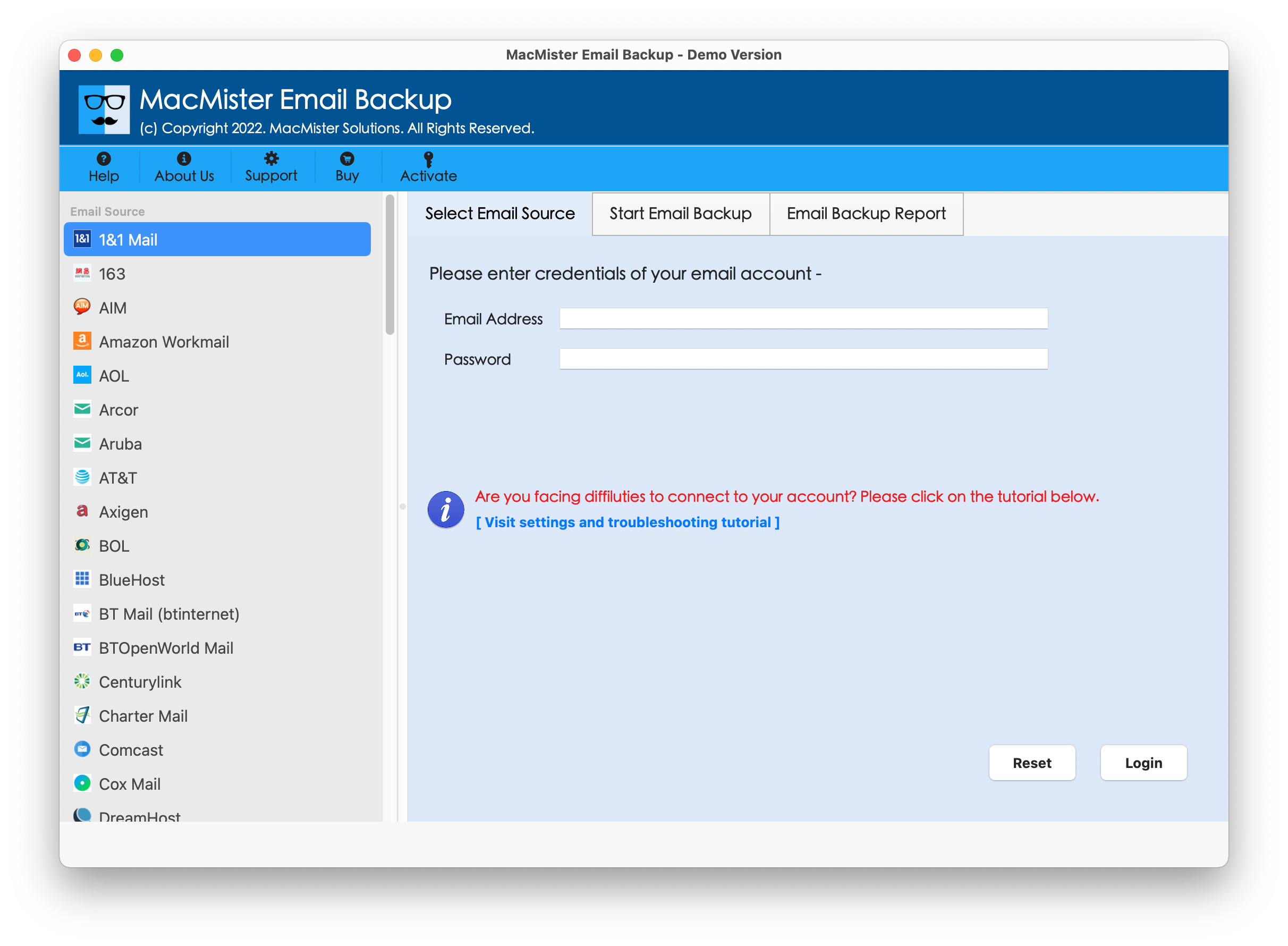
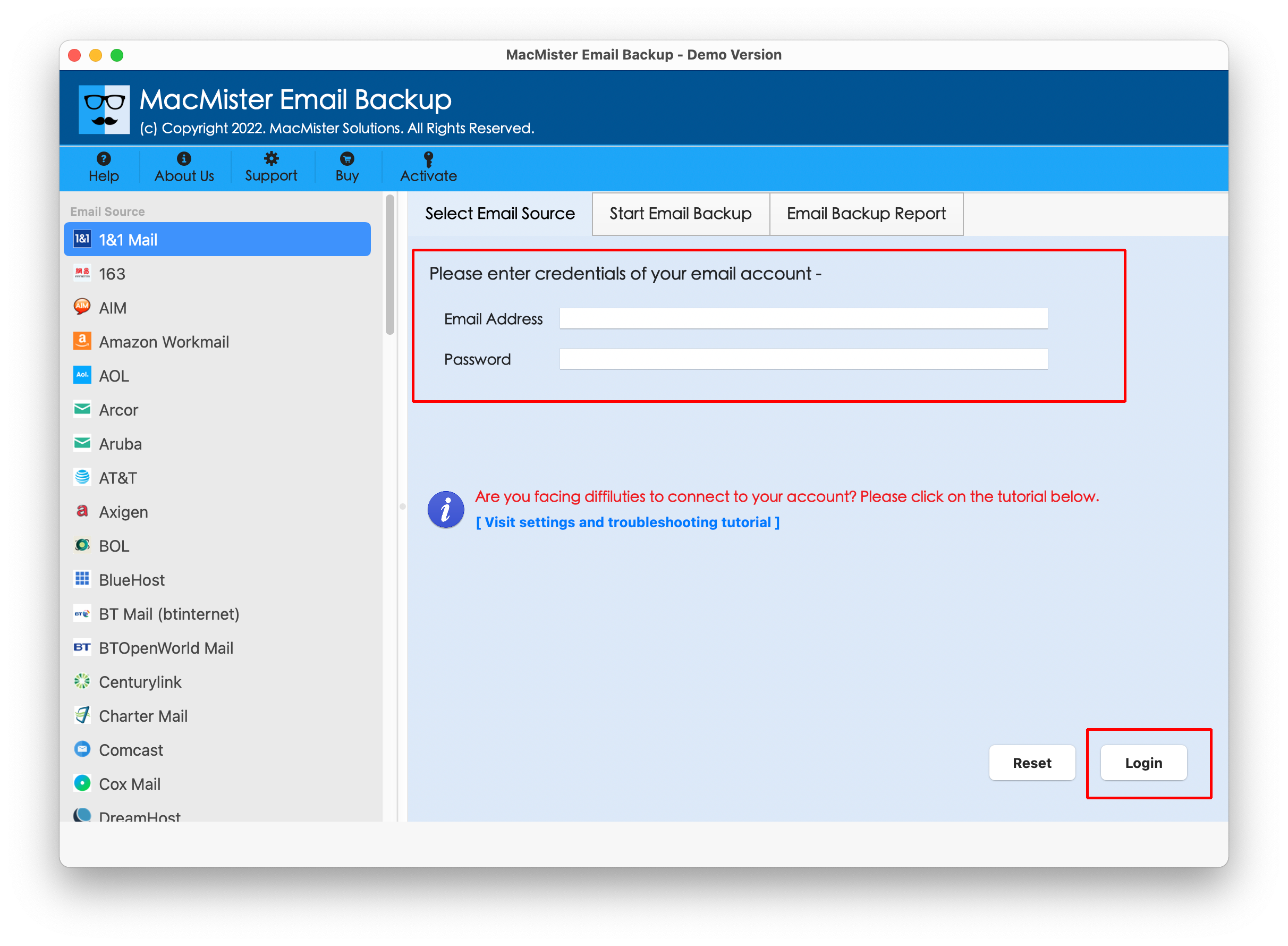
Select the Roundcube option as the source. Enter the required Roundcube mailbox credentials and account information.
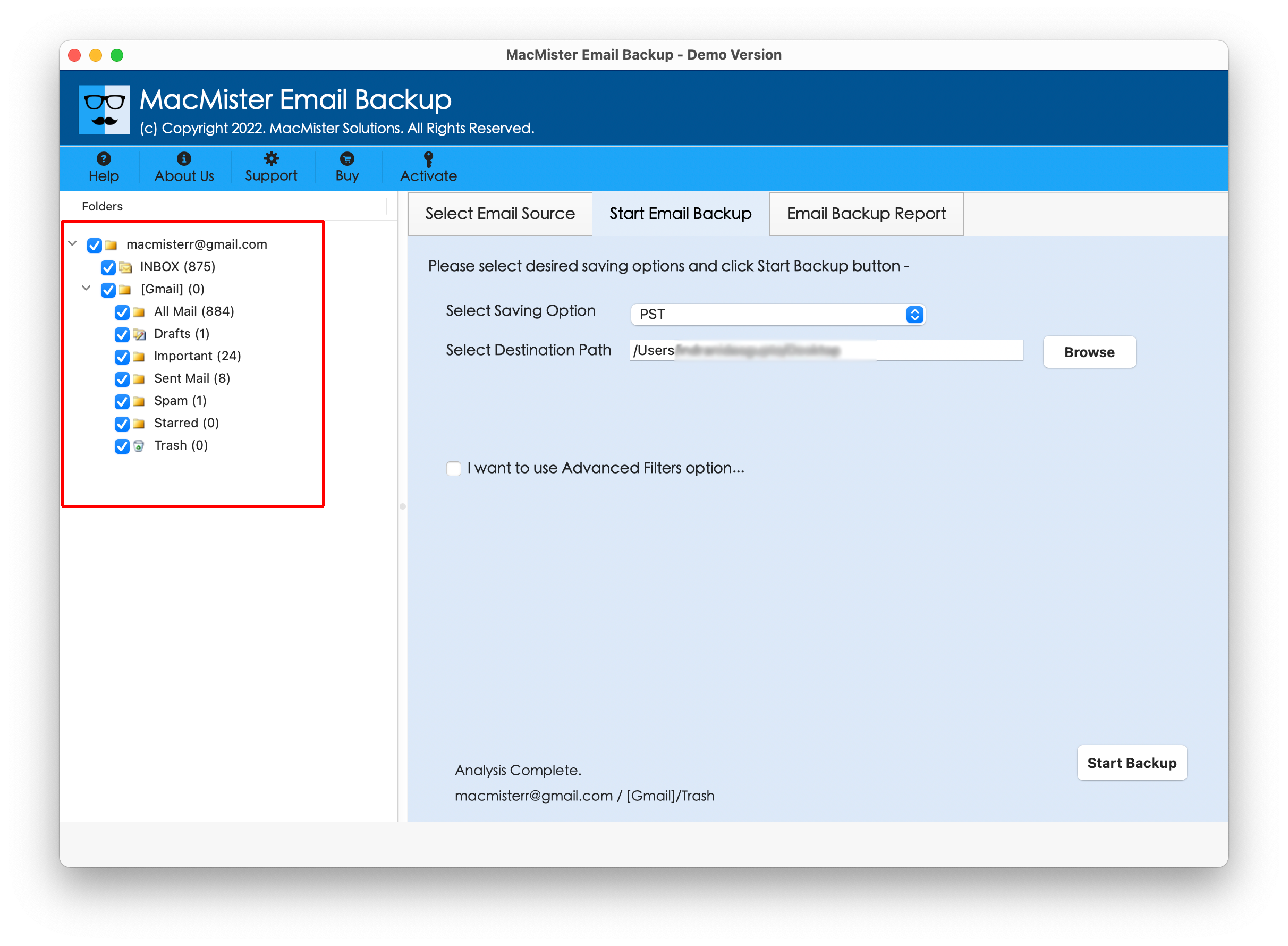
Select the required folders or email data.
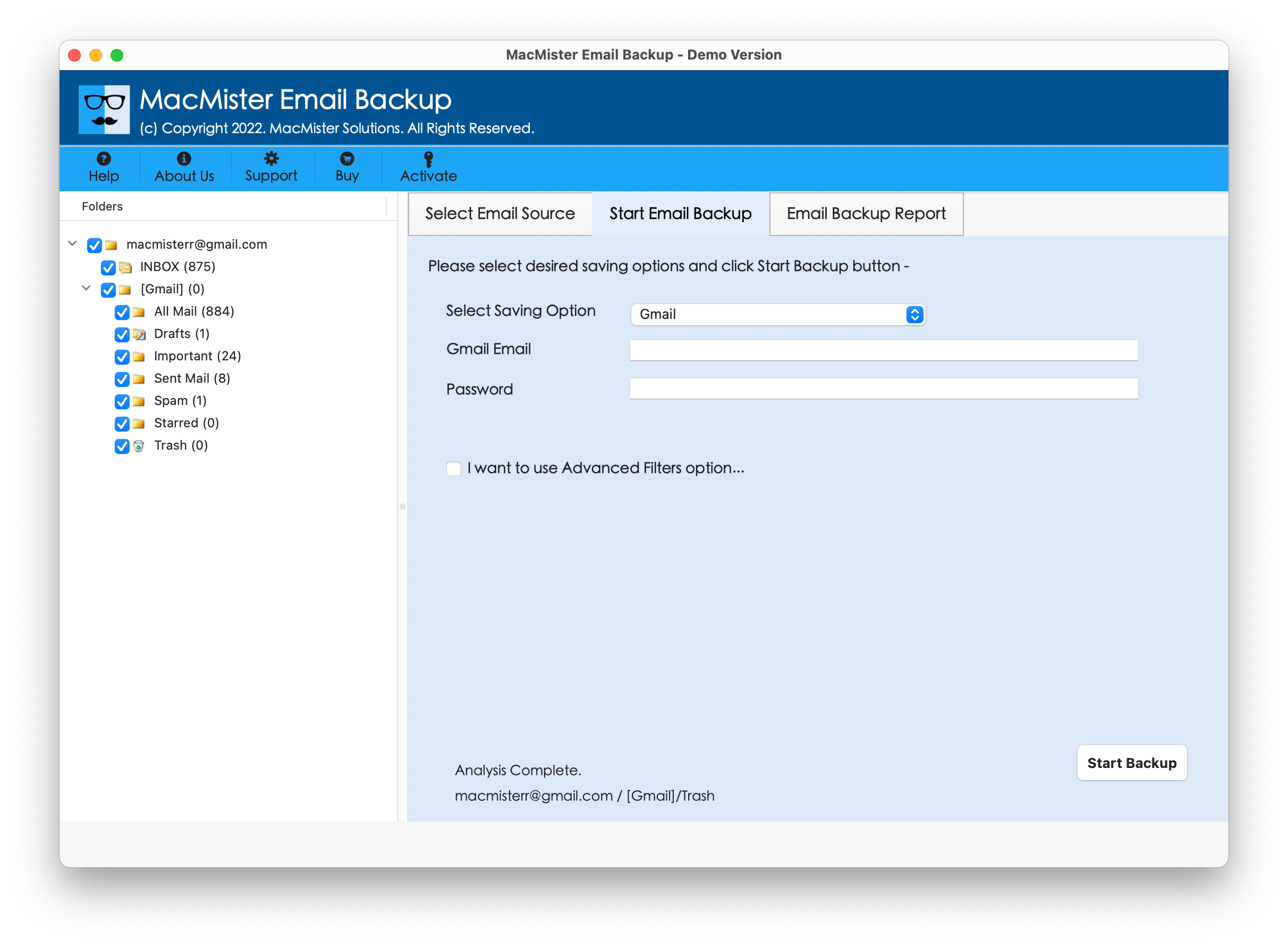
Select Gmail as the destination.
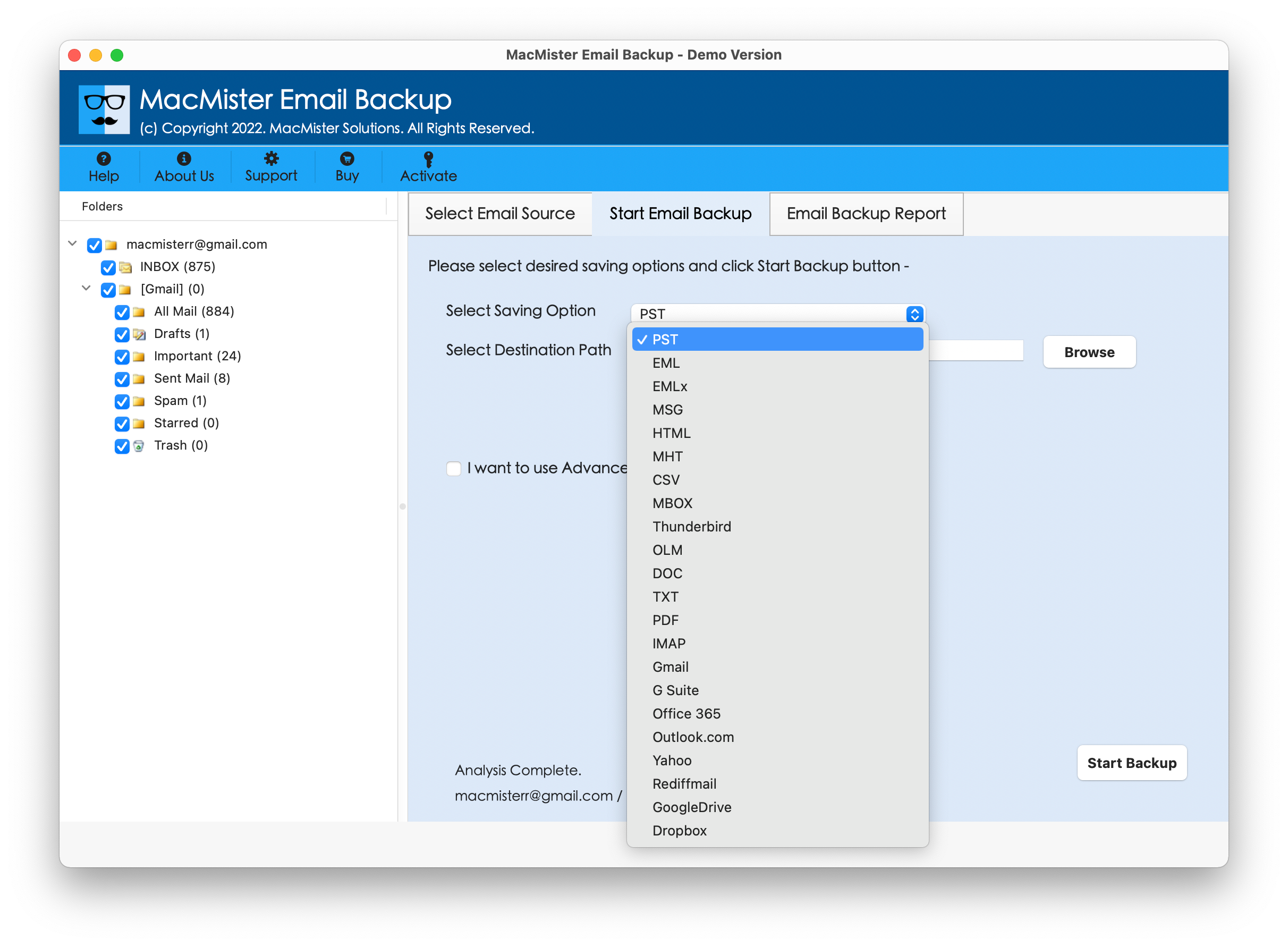
Enter and authenticate the Gmail account. Click on the Start Backup Button
Start the direct transfer process.
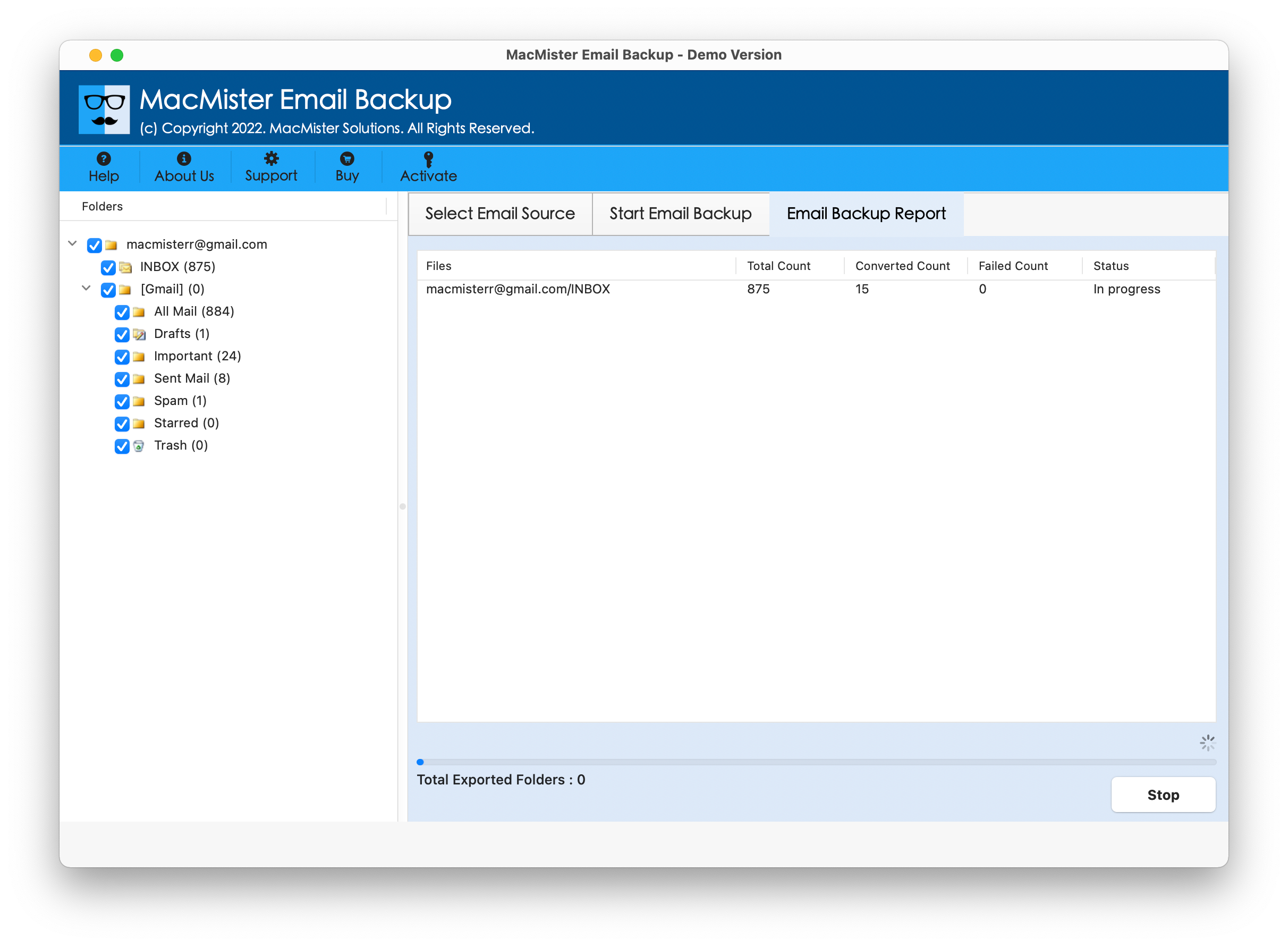
The available options may vary depending on the software version and account configuration. Users should also make sure that the required source and destination account credentials are available before starting the process.
Why Choose the Roundcube to Gmail Direct Transfer Option?
The main advantage of using a direct migration option is that it reduces the number of intermediate steps involved in the transfer. Instead of configuring Roundcube and Gmail in a separate email client and manually copying messages, users can work through a dedicated migration interface. The approach can be useful for –
- Direct mailbox transfer – Roundcube emails can be moved toward Gmail without relying on an intermediate email application.
- Large email collections – A dedicated migration workflow is more suitable for processing substantial amounts of mailbox data.
- Reduced manual effort – Users do not have to repeatedly drag, copy, or move individual messages.
- Folder-based selection – Users can select the required mailbox data according to the available software options.
- Mac compatibility – The tool is designed for users performing the migration on macOS.
- Simplified workflow – Source and destination details can be managed through one migration interface.
Before starting the transfer, it is recommended to verify the credentials for both accounts and ensure a stable internet connection.
Manual Method vs. Roundcube to Gmail Tool
| Feature | Manual Method | Roundcube to Gmail Tool |
| Roundcube account required | Yes | Yes |
| Gmail account required | Yes | Yes |
| Additional email client | Generally required | Not required for the direct workflow |
| Direct Roundcube to Gmail option | No | Yes |
| Bulk email transfer | Time-consuming | Designed for larger transfers |
| Manual copying | Required | Reduced |
| Folder handling | Requires manual effort | Managed through available migration options |
| Mac support | Depends on email client | Designed for Mac |
| Suitable for large mailboxes | Less convenient | More suitable |
| Migration workflow | Multi-step | Dedicated workflow |
The manual method may be adequate when only a small number of emails need to be transferred. For larger mailboxes or users who want to avoid intermediate email-client configuration, the direct migration approach can provide a more convenient workflow.
Important Things to Check Before Migration
Before transferring Roundcube emails to Gmail, a few preparations can help reduce potential problems.
- Check mailbox access – Make sure the Roundcube account can be accessed successfully and that the required mailbox folders are available.
- Verify Gmail access – Confirm that the destination Gmail account is active and accessible.
- Check storage – Ensure that the Gmail account has enough available storage for the incoming email data and attachments.
- Maintain a stable connection – A reliable internet connection is particularly important when transferring a large number of emails.
- Review the destination mailbox – If the Gmail account already contains similar messages, check for potential duplicates before starting the migration.
FAQs
Q. Is It Possible to Transfer Roundcube Emails Straight to Gmail?
Ans. Yes. Roundcube emails can be transferred to Gmail using an email-client-based manual method or a dedicated migration tool. MacMister provides a direct Roundcube to Gmail option.
Q. Do I Have to Download Roundcube Messages Individually Before Adding Them to Gmail?
Ans. Not necessarily. The manual method may involve downloading or synchronizing mailbox data through an email client. A direct migration tool can transfer the source mailbox data through its dedicated workflow without requiring every message to be manually saved first.
Q. Can I transfer multiple Roundcube folders to Gmail?
Ans. Yes, multiple folders can be transferred depending on the method and available account access. With a manual method, folder organization may require additional work.
Q. Can the Manual Approach Handle a Large Number of Roundcube Emails?
Ans. It can become difficult to manage when the mailbox contains thousands of messages. Manual copying, synchronization, and folder management can significantly increase the time required.
Q. Can I transfer Roundcube emails to Gmail on Mac?
Ans. Yes. Mac users can configure the accounts through a compatible email client or use dedicated Roundcube to Gmail backup Tool for Mac for a direct transfer workflow.
Q. What Steps Should I Take Once the Transfer Is Complete?
Ans. After the migration, sign in to Gmail and check important folders, messages, dates, attachments, and other required email information to confirm that the transfer completed as expected.
Conclusion
Saving Roundcube emails to Gmail can make historical correspondence easier to access and manage, particularly for users moving away from a hosting-based webmail environment. The manual method can be useful for a small number of emails, but configuring accounts, copying messages, maintaining folders, and waiting for synchronization can become increasingly difficult with larger mailboxes.
For users who need a more structured approach, the Roundcube to Gmail Migration Tool for Mac provides a direct transfer option that reduces the need for an intermediate email client. By selecting Roundcube as the source and Gmail as the destination, users can manage the migration through a dedicated workflow and reduce repetitive manual operations.

