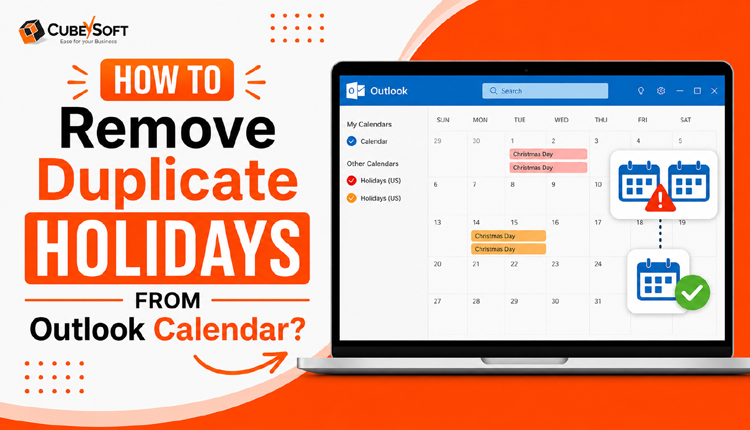
Duplicate holidays can quickly make an Outlook calendar confusing and difficult to manage. Instead of seeing each holiday once, users may find the same regional or public holiday listed multiple times. This usually happens because holidays were imported more than once, an Outlook profile was reconfigured, or calendar data was synchronized across multiple devices.
If you are looking for a way to clean up these repeated entries, Outlook provides a manual option to find and delete them. However, when there are many duplicate entries, using a dedicated tool can make the process much faster.
In this guide, we’ll explain different ways to remove duplicate holidays from Outlook Calendar on Windows, Mac, and Outlook on the web.
Why Are Holidays Duplicated in Outlook?
Before removing duplicate entries, it helps to understand what causes them. Some common reasons include:
- Holidays are added to the same Outlook calendar more than once.
- An Outlook profile is re-created or configured again, causing synchronization issues.
- The same account is connected to multiple devices and calendar data is synchronized incorrectly.
- Public or regional holidays are manually added even though they already exist in the calendar.
- Third-party Outlook add-ins or calendar applications interfere with existing calendar data.
As a result, the same holiday may appear two or more times. Identifying the cause can also help prevent the problem from happening again.
Ways to Remove Duplicate Holidays from Outlook Calendar
There are several ways to clean up duplicate holiday entries, depending on the Outlook version you use. The main options are:
- Remove duplicate holidays manually in Outlook for Windows.
- Use a dedicated duplicate-removal tool.
- Manage duplicate holidays on Outlook for Mac.
- Remove unwanted entries through Outlook on the web.
Let’s look at each option in detail.
Method 1: Delete Duplicate Holidays Manually in Outlook Desktop
If you are using Outlook Classic on Windows, you can identify repeated holidays by switching the calendar to a list-based view. This makes it easier to find multiple entries with the same name.
Follow these steps:
- Open Outlook and go to the Calendar section.
- Select the View tab.
- Change the calendar view to List.
- Use the search option to find a specific holiday, such as Christmas, New Year’s Day, or another regional holiday.
- Review the results and identify repeated entries.
- Select the unwanted copies and delete them.
This method works well when only a few duplicate holidays need to be removed. However, manually checking a large calendar can take considerable time, especially if duplicate entries are spread across multiple dates.
For users dealing with a large number of repeated calendar items, an automated approach can be more convenient.
Method 2: Remove Duplicate Holidays Using an Automated Tool
Manually finding duplicates can become tedious when an Outlook calendar contains hundreds or thousands of entries. In such cases, a dedicated duplicate-removal utility can help identify redundant calendar items and remove them in bulk.
The CubexSoft Outlook Duplicate Remover Tool is designed to scan Outlook data for duplicate items and help users remove unwanted copies. It can be useful for cleaning up duplicate calendar entries, including repeated holiday events, without having to search for each item individually.
The software provides a more convenient way to handle large amounts of duplicate data and can also be used to remove other repeated Outlook items, such as emails, contacts, and tasks.
Users can review the detected duplicates before removing them, which helps maintain the original calendar information while getting rid of unnecessary copies.
Method 3: Manage Duplicate Holidays in Outlook for Mac
Outlook for Mac has a different interface from the Windows desktop version, but the basic idea remains the same: identify the repeated holiday entries and remove the unwanted copies.
Open Outlook on your Mac and navigate to the Calendar section. Search for the holiday that appears more than once and compare the entries by date and details. Once you confirm that an entry is redundant, delete the unwanted copy.
If you have a large number of duplicate holidays, manually reviewing every entry may not be practical. In that situation, an automated duplicate-removal solution can reduce the amount of manual work involved.
Method 4: Remove Duplicate Holidays from Outlook on the Web
If you use Outlook through a web browser, you can also clean up duplicate holiday events directly from your calendar.
Sign in to Outlook on the web and open Calendar. Locate the repeated holiday entries and open the ones you want to remove. After confirming which entries are duplicates, delete the unnecessary events.
The exact options available may vary depending on your Outlook account and Microsoft 365 configuration. For a small number of duplicates, this approach is straightforward. However, removing a large number of repeated events individually can be time-consuming.
Which Method Should You Choose?
The best approach depends on how many duplicate holidays you have and which Outlook platform you use.
If only a handful of holidays are duplicated, the built-in Outlook options are usually enough. You can locate the repeated events and delete them manually.
On the other hand, if your calendar contains a large number of duplicate entries or other Outlook items are also duplicated, an automated duplicate-removal tool can make the cleanup process considerably easier.
Final Thoughts
Duplicate holidays may seem like a minor issue, but repeated calendar entries can make Outlook difficult to navigate and may cause confusion when planning meetings, appointments, or personal events.
For a few duplicate holidays, Outlook’s built-in calendar options provide a simple way to remove them. If you need to clean up a large number of duplicate entries, an automated solution such as the CubexSoft Outlook Duplicate Remover Tool can help reduce manual effort.
Once the duplicate entries have been removed, it is also worth checking how holidays are being added or synchronized across your devices. Avoiding repeated imports and unnecessary manual additions can help keep your Outlook calendar organized in the future.
FAQs About Removing Duplicate Holidays from Outlook
Q1. How do I delete duplicate holidays in Outlook Calendar?
You can find duplicate holiday events in your Outlook Calendar and delete the unwanted copies manually. Switching to a list-based calendar view can make it easier to identify repeated entries. For a large number of duplicates, a dedicated duplicate-removal tool can reduce manual work.
Q2. Can Outlook automatically remove duplicate holidays?
Outlook does not generally provide a dedicated one-click feature specifically for automatically removing duplicate holiday events. Users can remove them manually or use a third-party duplicate-removal solution for larger cleanup tasks.
Q3. How can I remove duplicate public holidays from Outlook Calendar?
First, check whether the same holiday set has been added more than once. Identify and delete the redundant holiday entries, then make sure the required public holiday calendar is added only once.
Q4. What is the easiest way to remove duplicate holidays from Outlook?
For a few duplicate entries, the quickest option is to locate and delete them manually. If you have a large number of repeated holidays or other duplicate Outlook items, using a specialized Duplicate Remover Tool can make the cleanup process faster.

