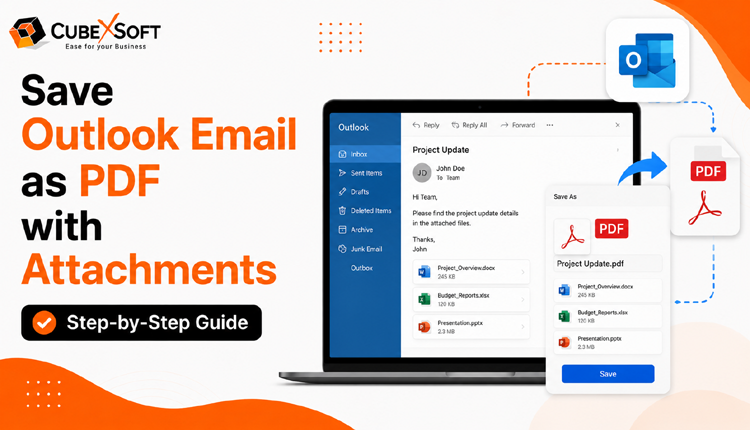
Need to keep an Outlook email as a PDF? Whether you’re handing over a project, preserving important conversations, meeting compliance requirements, or documenting email records during employee offboarding, saving emails in PDF format is a practical solution. PDF files are easy to share, archive, and access across different devices without altering the original content.
Fortunately, converting Outlook emails to PDF doesn’t require complicated steps. Outlook offers built-in options for individual email conversion, and there are professional tools available for exporting multiple emails or entire mailboxes with greater speed and accuracy. Whether you’re an IT administrator managing large-scale exports, a compliance professional maintaining audit records, or an individual user looking to save important emails, there is a method that fits your needs.
In this guide, we’ll explore reliable ways to save Outlook emails as PDF, including Outlook’s native features and an advanced desktop solution designed for bulk email conversion with minimal effort.
Why Save Outlook Emails as PDF?
Before exploring the different methods, it’s helpful to understand why so many individuals and organizations prefer converting Outlook emails to PDF. From everyday users to IT administrators, legal professionals, and compliance teams, PDF files offer several practical advantages.
1. Universal Accessibility: PDF is one of the most widely supported file formats. Once an Outlook email is saved as a PDF, it can be viewed on Windows, macOS, Linux, Android, or iOS without requiring Microsoft Outlook or an email account. This makes sharing and accessing email records much more convenient.
2. Preserves the Original Email: Converting an Outlook email to PDF ensures that its content, layout, images, and formatting remain intact. This is especially important when emails need to be presented as official records, business documentation, or legal evidence.
3. Frees Up Mailbox Storage: Keeping years of emails in Outlook can increase mailbox size and affect application performance. Saving older messages as PDF files allows users to archive important conversations externally, helping reduce mailbox clutter while retaining easy access to critical information.
4. Simplifies Compliance and Document Review: Organizations often need to review email communications for audits, investigations, or regulatory compliance. PDF files are easier to organize, store, search, and distribute, making the review process more efficient for legal and compliance teams.
5. Ideal for Long-Term Record Keeping: Unlike emails stored only within Outlook, PDF documents are independent files that can be archived for years without relying on a specific email client. This makes them a reliable option for preserving important business and personal communications.
These advantages make PDF one of the most practical formats for storing Outlook emails. Whether your goal is archiving important messages, reducing mailbox size, or meeting compliance requirements, converting Outlook emails to PDF offers a secure and convenient solution. In the following section, we’ll look at the different methods you can use to export Outlook emails as PDF.
How to Save Outlook Emails as PDF in Outlook (Windows & Mac)
Microsoft Outlook includes a built-in feature that makes it easy to convert emails into PDF format without installing additional software. If you only need to save a few messages, this manual approach is quick, convenient, and completely free.
The steps differ slightly depending on whether you’re using Outlook on Windows or macOS. Below are two easy-to-follow methods that have been tested by professionals and work effectively for both platforms. Simply choose the instructions that match your operating system to export Outlook emails as PDF.
Method 1: Save Outlook Emails as PDF on Windows 11/10
If you’re using Microsoft Outlook on a Windows PC, you can use the built-in Microsoft Print to PDF feature to convert individual emails into PDF format. Follow these steps:
- Launch Microsoft Outlook on your Windows 11 or Windows 10 computer.
- Open the email you want to convert from your Inbox, Sent Items, or any other folder.
- Click File from the menu and select Print.
- Under the printer options, choose Microsoft Print to PDF.
- Select Print, specify the folder where you want to save the file, and provide a name for the PDF.
- Click Save to complete the conversion.
Method 2: Export Outlook Emails as PDF on macOS
Mac users can also save Outlook emails as PDF using the built-in Print feature. Here’s how:
- Open Microsoft Outlook on your Mac and select the email you want to export.
- From the menu bar, click File and choose Print, or simply press Command (⌘) + P.
- In the Print window, click the PDF drop-down menu located in the lower-left corner.
- Select Save as PDF.
- Choose a destination folder, enter a file name, and click Save.
These built-in methods are useful for converting individual Outlook emails into PDF files on both Windows and Mac. However, they are best suited for occasional use and may not be practical when you need to process large numbers of emails.
Drawbacks of the Manual Outlook Methods
Although Outlook’s native options are simple and free, they come with several limitations that can make the process inefficient, especially for business users.
- Converting emails one at a time becomes slow and repetitive when working with large mailboxes.
- Microsoft Outlook must be installed and properly configured on your computer before you can use these methods.
- Email attachments are not automatically included in the PDF and often need to be saved separately.
- There are limited options for customizing exported content, such as preserving headers, metadata, or attachment details.
- In some cases, the exported PDF may not accurately reflect the original email, resulting in formatting inconsistencies, missing information, or alignment issues.
Because of these restrictions, manual methods are suitable only for small-scale conversions. If you need to export hundreds or thousands of Outlook emails while maintaining data accuracy, an automated solution is a much more efficient choice.
Professional Solution to Export Outlook Emails as PDF
When you need to convert multiple Outlook emails quickly and securely, a dedicated conversion tool is the better option. CubexSoft PST to PDF Converter is designed to simplify the entire process by allowing users to batch convert Outlook emails into PDF format without performing repetitive manual steps.
The software is suitable for individuals, businesses, IT administrators, and compliance teams who need to archive or share Outlook emails in a universally accessible format. Its user-friendly interface makes the conversion process straightforward, so even users with little or no technical experience can export Outlook emails to PDF efficiently while preserving the integrity of their data.
Quick Steps to Convert Outlook Emails to PDF Automatically
Follow these simple steps to batch export Outlook emails to PDF using the automated Outlook Converter. The process is straightforward and requires only a few clicks, making it suitable for both technical and non-technical users.
- Download, install, and launch the PST to PDF Converter on your Windows computer.
- Click Select Files or Select Folders to add the required Outlook PST file(s) to the software.
- Preview the mailbox and choose the email folders or messages you want to convert.
- Select PDF as the desired output format from the list of saving options.
- Use the available filters, such as Date Range, To, From, CC, BCC, or Subject, to export only the required emails (optional).
- Choose a destination folder where the converted PDF files will be saved.
- Click the Convert button to start the conversion process.
- Once the process is complete, navigate to the selected location and access your Outlook emails in PDF format.
Why Choose an Automated Outlook to PDF Converter?
If you frequently need to convert Outlook emails or manage large mailboxes, an automated solution offers greater efficiency and flexibility than manual methods. Here are some of the key advantages:
- Batch email conversion: Convert multiple Outlook emails to PDF in a single operation, saving valuable time while preserving the original formatting of each message.
- Support for attachments and embedded images: Export emails along with their attachments and inline images, ensuring no important information is left behind.
- Option to exclude email headers: Generate cleaner, presentation-ready PDF files by removing email headers whenever required.
- Secure and reliable conversion: Process Outlook data in a local environment without compromising the integrity, structure, or content of your emails.
- No Outlook installation required: The software works directly with PST files, eliminating the need to have Microsoft Outlook installed on your computer.
- Advanced email filtering: Export only the emails you need by applying filters such as To, From, CC, BCC, Subject, or other supported criteria, making large-scale conversions faster and more organized.
Frequently Asked Questions
Q1. Does the software support Outlook 2024?
Answer: Yes. The application is fully compatible with Outlook 2024 and allows you to convert Outlook emails into PDF format without difficulty.
Q2. Can I save Outlook emails as PDF along with attachments?
Answer: Yes. The software supports exporting Outlook emails together with their associated attachments, helping you preserve the complete email record.
Q3. Is there any file size or mailbox size limitation?
Answer: No. The tool is designed to handle both small and large PST files, allowing you to convert multiple Outlook emails without file size restrictions.
Q4. Is Microsoft Outlook required to perform the conversion?
Answer: No. This is a standalone desktop application that works directly with Outlook PST files, so Outlook installation is not necessary.
Q5. Can I use an online Outlook to PDF converter instead?
Answer: Online converters are available, but they may require you to upload confidential email data to external servers. If you’re working with sensitive business or personal information, a desktop-based solution provides greater privacy, security, and control over your data.
Watch the Video Tutorial
For a step-by-step demonstration of the complete process, you can also watch the video guide to learn how to batch convert Outlook emails to PDF quickly and efficiently.
Final Thoughts
In this guide on how to save Outlook emails as PDF, we covered different approaches to convert Outlook messages into PDF files quickly and efficiently. We explored the benefits of storing emails in PDF format and explained the manual methods available in Outlook for both Windows and macOS users.
For users who require a faster and more reliable solution, a professional desktop-based PST to PDF Converter for Mac & Windows can simplify the entire process. It enables batch conversion of Outlook emails while maintaining email formatting, attachments, and important details. If you need assistance while using the recommended automated tool, our support team is available 24/7 through live chat to help resolve your queries.

