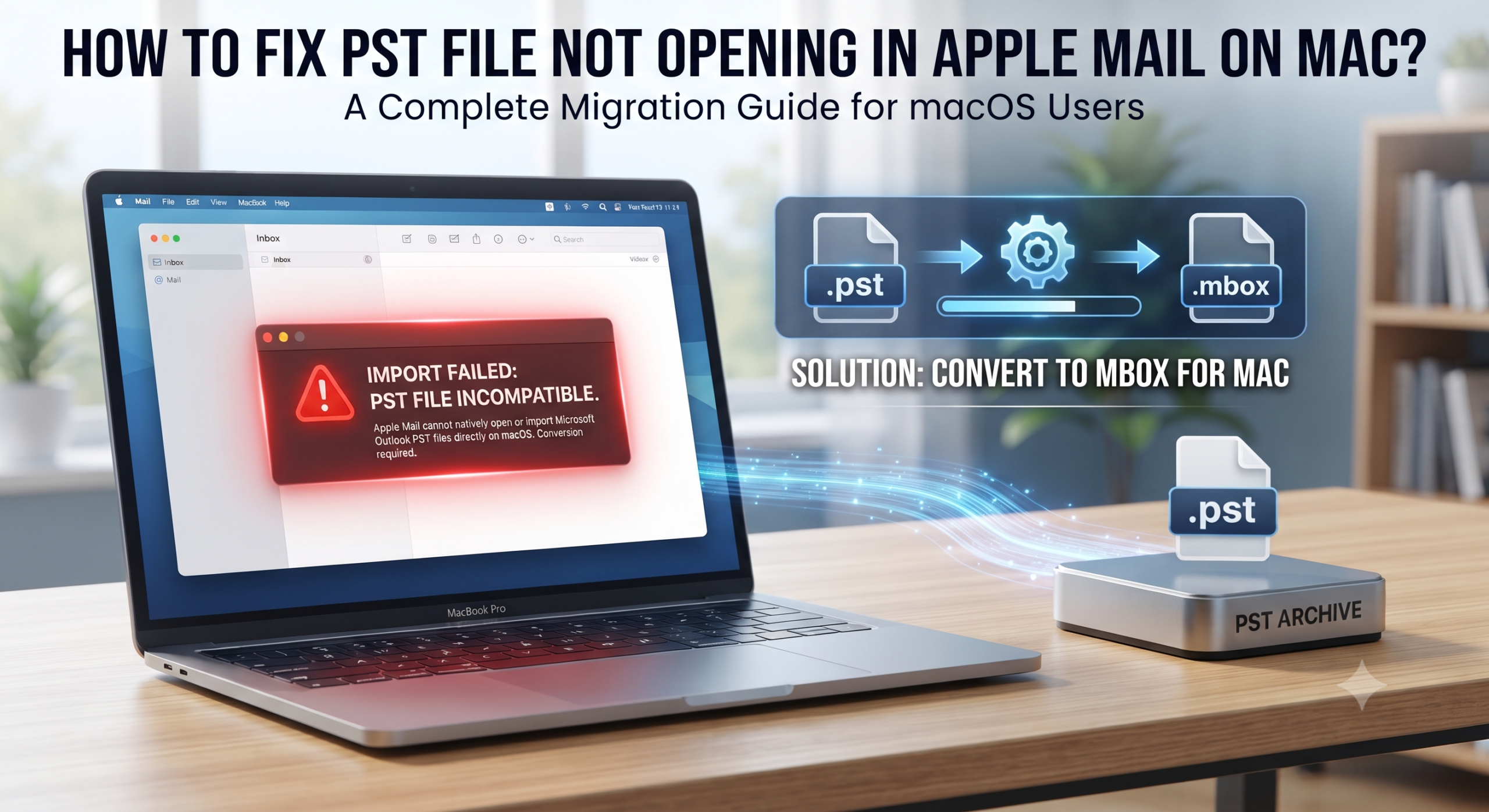
Switching from Microsoft Outlook to Apple Mail is probably one of the most difficult changes for people who use Windows and migrate to macOS. Yet, one of the issues that may occur during the process is related to opening or importing personal storage table (.pst) files in Apple Mail.
Do you remember trying to drag and drop your .pst file in Apple Mail but getting an error, not having any response, or failing in general? Why does it happen and what should you do about it? Find out why Apple Mail is unable to work with PST files and how to solve the issue in this ultimate guide, using the best MacMister PST Converter for Mac tool.
Understanding the Problem: Why Apple Mail Won’t Open PST Files
In order to comprehend what needs to be done, it is important to first recognize the mismatch of technology.
- Proprietary Microsoft Format: PST is a proprietary file format designed only by Microsoft for their Windows Outlook client. The format contains email, contact, calendar, task, and note information into one big database.
- Apple Mail Native Structure: Apple Mail uses macOS operating system, which works on the standard Unix-like mailbox format, such as .mbox, EML, and IMAP/POP protocols. In essence, there is nothing in Apple Mail software that could decrypt or process a Windows Outlook PST file container.
- The Conversion Problem: As Apple Mail cannot process binary PST file, attempting to force-import will end in failure. To use your archive of Outlook emails in Apple Mail, you need to convert the PST file contents into a readable format.
Step 1: Check Your File Integrity and Location
Sometimes, the problem might not be the incompatibility of architecture, but file corruption or permission issues. Prior to any conversion, make sure that:
- Transfer to Local Drive: The PST file should be stored on your Mac computer’s local drive (such as Desktop or Documents folder) instead of an unreliable network location or a failing external drive.
- File Size Check: Files which are very large (greater than 20GB or 50GB) tend to get corrupted and may cause performance failures while working with them.
But even the most pristine PST file cannot be opened natively in Apple Mail unless you convert it. This leads us to the best method possible.
Step 2: Fix PST File Not Opening in Apple Mail on Mac using Advanced Solution
Manual approaches to resolving the issue, like establishing a midway system such as a Windows PC, setting up an IMAP middle man, and using old freeware, can be time-consuming, complicated, and have a possibility of losing folder structures and metadata, including read/unread status, attachments, and sending dates.
MacMister PST Converter for Mac is a solution to this problem in that it offers a hassle-free way to connect Outlook archives and Mac email clients.
Why to Choose the Application?
- It securely maintains all the properties of your emails, including the HTML formatting, images, meta data (To, From, CC, BCC, timestamps) and attachments.
- Your highly organized folders and sub-folders are completely maintained when converting your emails.
- Even though it is specially designed for Apple Mail (as MBOX or EML files), it can also convert PST to PDF, MSG, EMLX, HTML, CSV and Office 365.
- It works completely on its own without requiring Microsoft Outlook to be installed on your Mac computer.
Step-by-Step Guide: How to Convert PST for Apple Mail Using MacMister
Step 1. Download the software from the official site and install it on your macOS system.
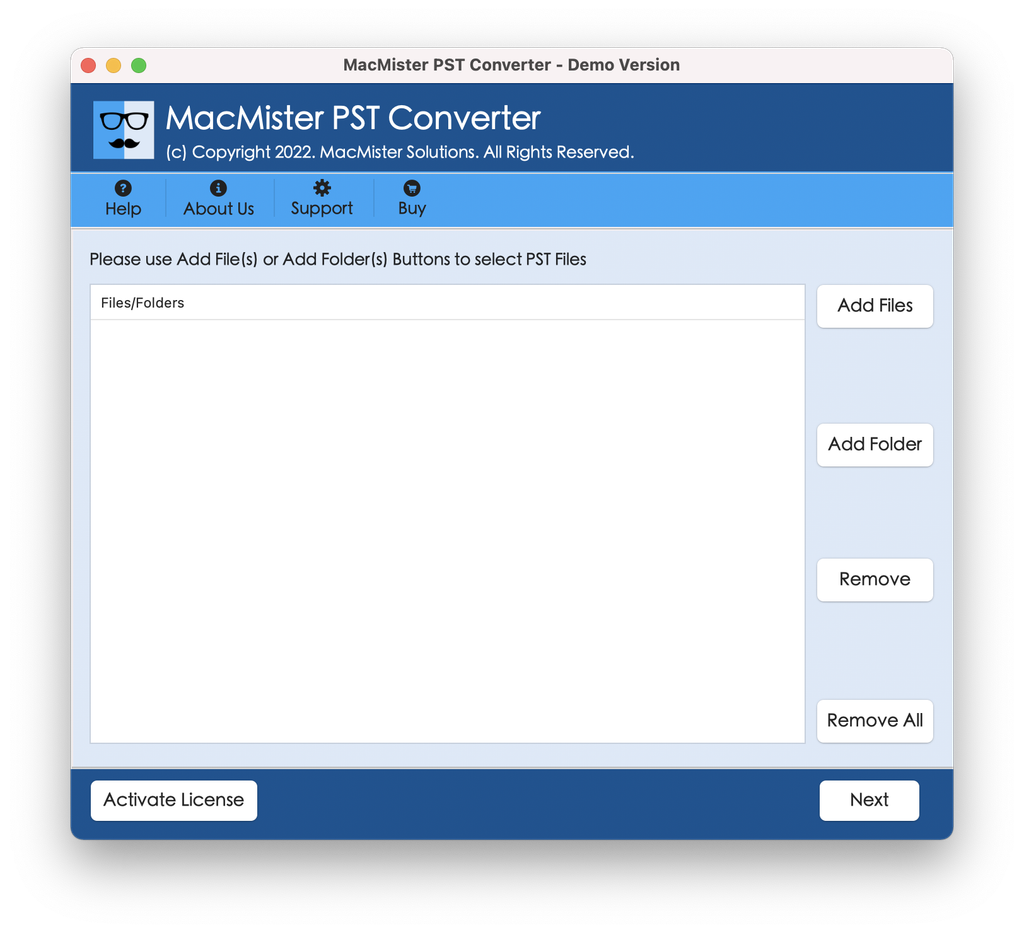
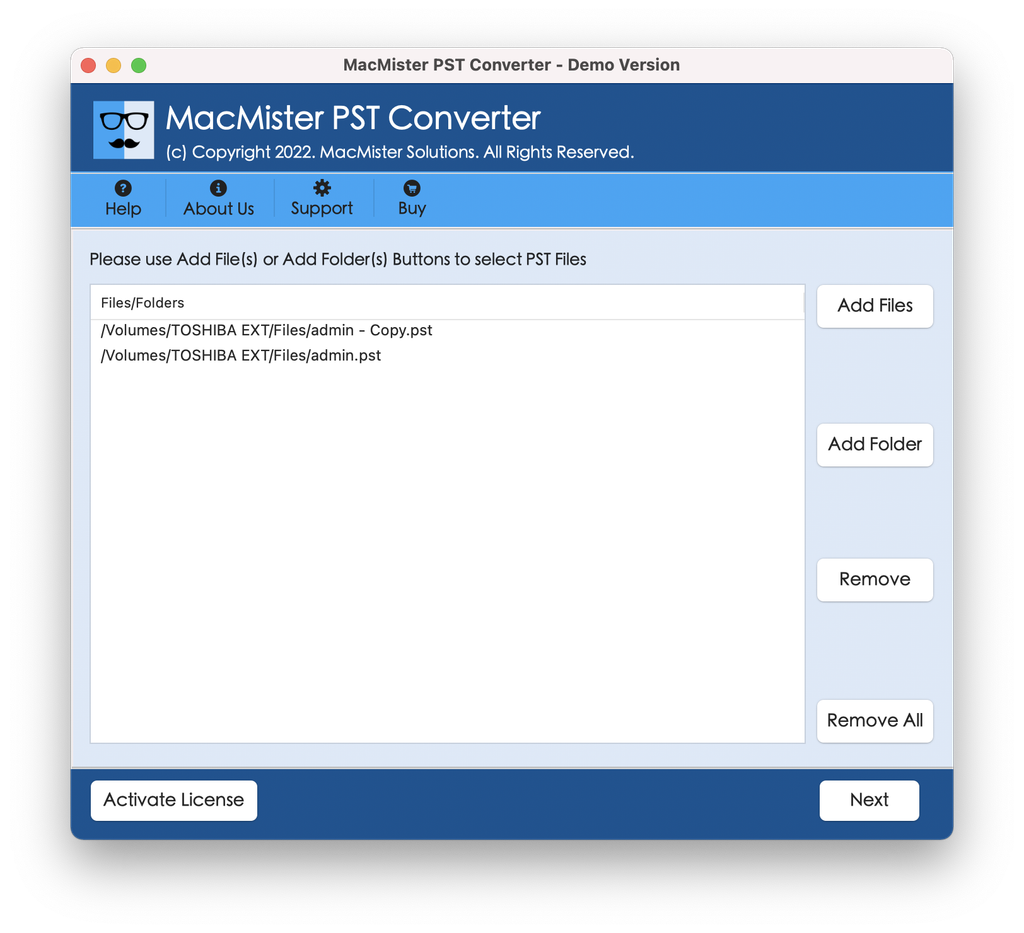
Step 2. Launch the application. Click on the Add File(s) or Add Folder button to load your target Outlook PST files into the software panel.
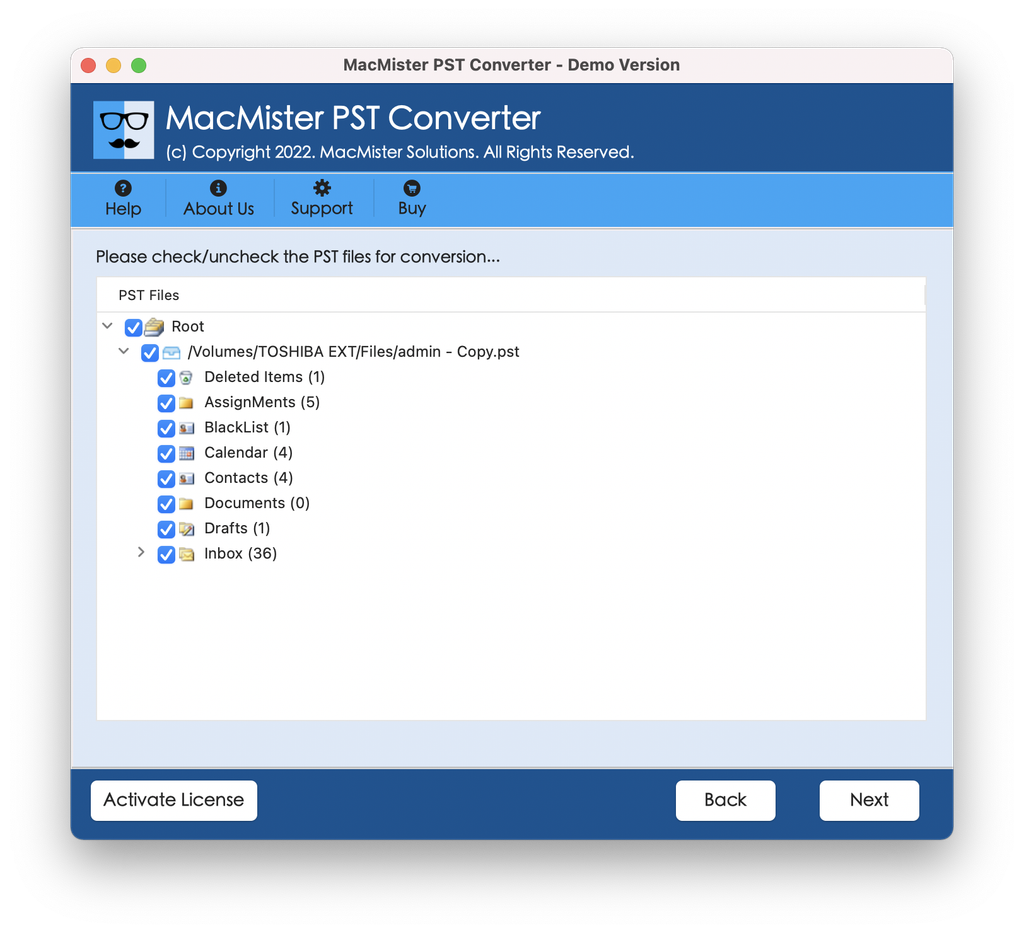
Step 3. The application will scan and display a complete preview of your mailbox items, allowing you to verify folders and messages before exporting.
Step 4. Choose MBOX (the native mailbox format compatible with Apple Mail) from the saving option dropdown list.
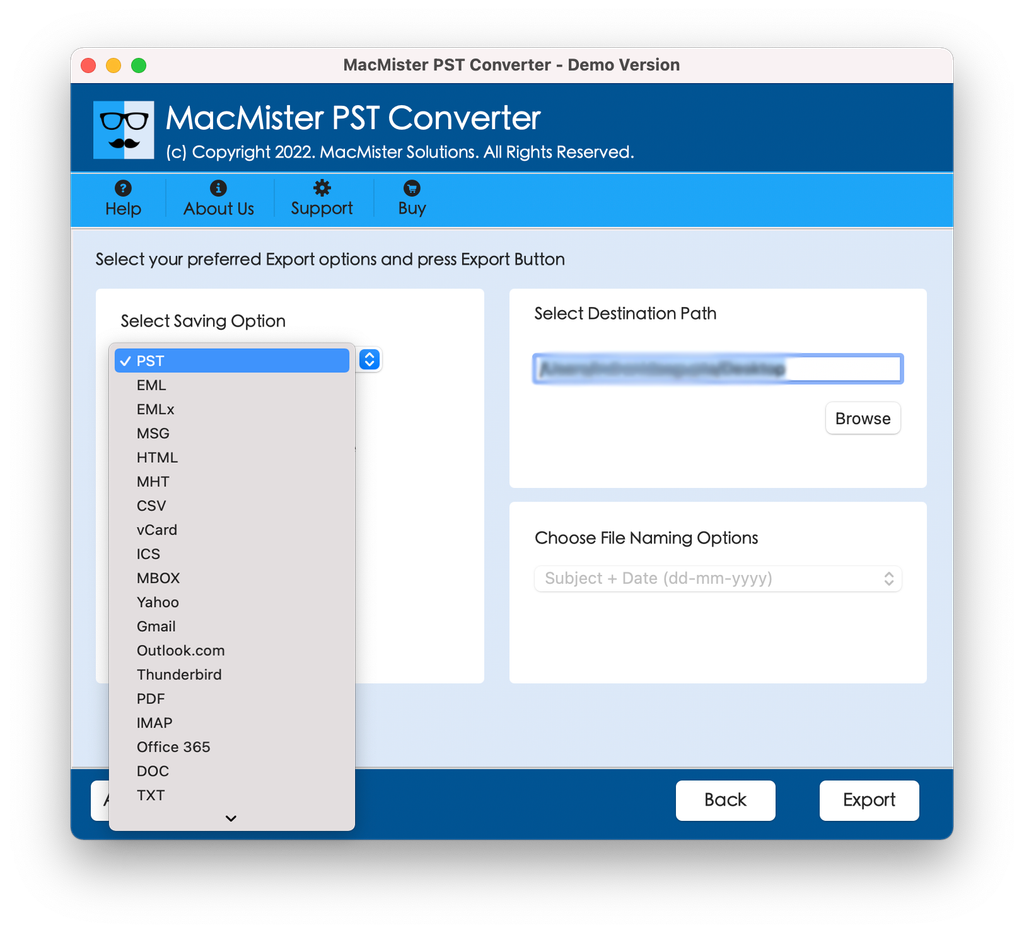
Step 5. Select your preferred destination path on your Mac to save the converted files. You can also utilize date-range filters if you only want to migrate specific archives.
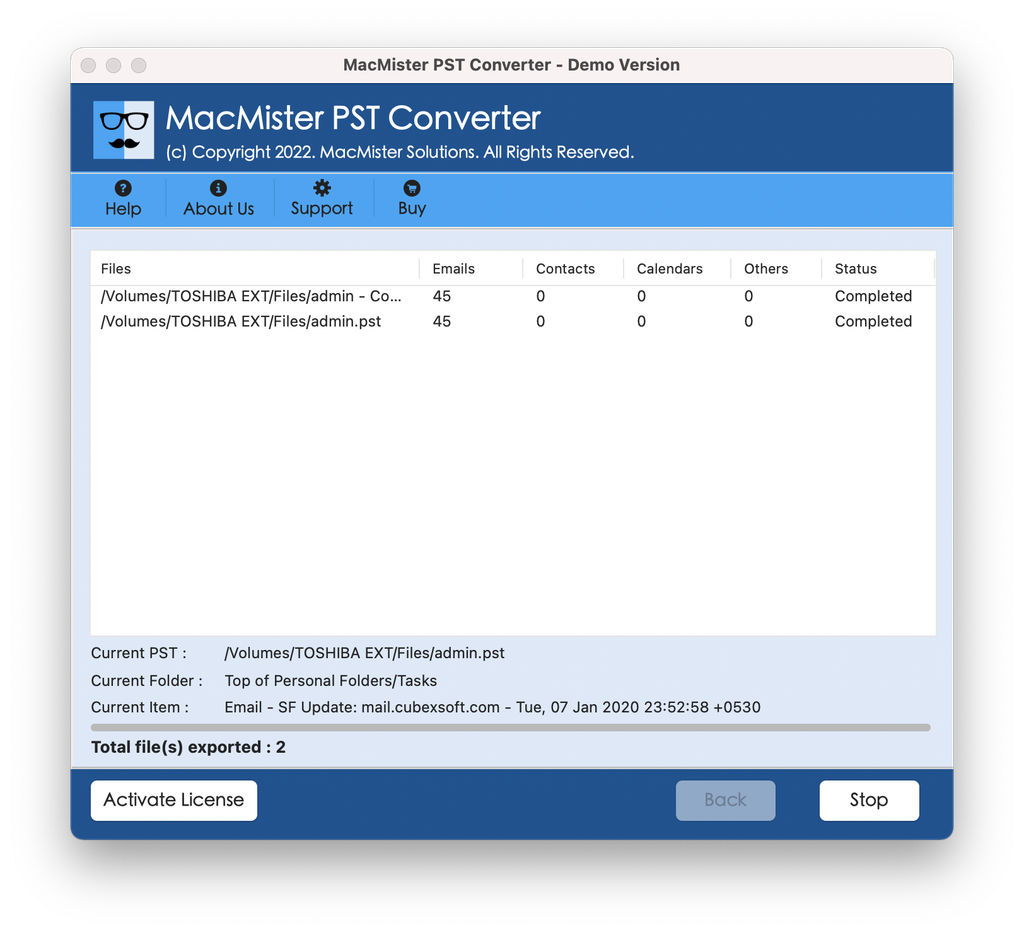
Step 6. Click the Export button. The conversion process will begin, and a live progress tracker will display the status. Once finished, you will have clean MBOX files ready for Apple Mail.
Step 4: Import the Converted Files into Apple Mail
After you have used MacMister PST Converter to successfully convert your Outlook files into Apple Mail formats, all that is needed to transfer the files into your application is a simple procedure:
- Launch Apple Mail on your Mac computer.
- From the top menu bar, choose File > Import Mailboxes.
- On the import page that appears, choose “Files in MBOX format” and click “Continue”.
- Select the file or folder that contains your imported files through MacMister in MBOX format and click “Continue.”
- Apple Mail will import the mailboxes into an “Import” mailbox in your sidebar, from where you can move the files into your Inbox or other mailboxes.
Conclusion
It is quite annoying if you get the “PST file not opening” message in Apple Mail, particularly during the process of migrating email content from your Windows computer to your Mac computer. Since Apple Mail doesn’t have an inbuilt facility to work on Microsoft Outlook’s proprietary format, you cannot import directly.
The use of an optimized software solution such as MacMister PST to Apple Mail Converter will solve all your compatibility problems. This utility will keep your folders secure, retain all the necessary attachments, and convert your Windows-based PST files to a usable macOS format in no time.

