It has always been a challenge to migrate the data stored in email between various operating systems and applications, especially moving data from a Windows system to a native one, like macOS. People who decided to change to Apple’s most recent hardware solutions, like Mac with Apple Silicon M1, M2, M3 and M4 chips, often face problems with their previous Outlook archives.
Out of all types of email archives, the one which is built by Microsoft Outlook in accordance with the Personal Storage Table (.pst) format is famous for being exceptionally voluminous, proprietary, and complicated. If you are forced to work with your previous archive on your new Mac without any virtual machines or Microsoft Office suite, converting your PST files to a common email format, such as EML file, will be the right solution. These types of files can be easily identified by Apple Mail, Thunderbird, and a lot of other email clients.
This guide is dedicated to the issue of processing large PST files on Apple Silicon Macs and gives you the methodology for converting and importing emails using professional MacMister PST Converter software.
The Challenge: Why PST Files and Apple Silicon Macs Don’t Always Mix?
Files like these can be easily detected using the programs like Apple Mail, Thunderbird, and many other email clients.
This tutorial is meant to solve the problem of working with large PST files on Apple Silicon Mac and will give you the method for conversion/import of emails using MacMister PST Converter software for Mac.
- Lack of Native Support: macOS is unable to open, read, and mount PST files by default. The Apple mail program works with such standard formats as MBOX and EML instead of proprietary PST format used by Microsoft.
- Architecture Transition Overhead: Even though Apple Silicon processors deliver incredible speed and power efficiency using Rosetta 2 translation layer or native execution mode, the legacy conversion scripts designed for Windows system may cause problems while parsing large multi-gigabyte PST files leading to such issues as slow performance, memory leak, or even application crash.
- Risk of Data Loss: Huge PST files are inherently vulnerable to corruption. The forced reading of such file without proper multithreading and error handling may cause corruption of database headers making emails and attached files unrecoverable.
To overcome these limitations one can convert PST archives to more manageable EML format files. Each email will become an individual file, easy to parse and import in any mail reader including Apple Mail program.
Import PST Email Backup into EML Files on Apple Silicon M-series Mac using Professional Technique
In the quest to find a powerful tool that is guaranteed to be safe for use in macOS systems, MacMister Mac PST Converter can never miss in our list of recommended solutions. The program has been created using modern software design and is compatible with M-series Macs from Apple, ensuring efficient performance on such machines.
Main Features of the Application:
- This app helps you to export Outlook PST files to EML, EMLX, MBOX, PDF, MSG, HTML and a wide range of different file formats without the requirement for Microsoft Outlook installation on Mac.
- No matter how big your PST backup file is, be it 2GB or over 50GB, this tool will work flawlessly, with no loss of any data when exporting the contents.
- It has flexible possibilities to add individual files or even whole folders with plenty of PST files using Add Files or Add Folders buttons.
- During the whole procedure of exporting emails, the utility retains all the properties of email (to, from, cc, bcc, subject lines, timestamps for sent and received), images inlined in emails, formatting, links, attachments.
- Your original nested folder structure of your Outlook mailbox is preserved, thus preventing your organized backups from getting disorganized.
- One can select necessary folders or even add date filters for the exportation of only desired data.
Step-by-Step Guide: Converting PST to EML on an M-series Mac
Conversion using MacMister PST Converter is easy, especially for those users who lack much technical expertise. Use these steps to convert your huge PST file into pure EML that can be imported into Apple Mail easily:
Step 1: Download installation package of MacMister PST Converter for Mac OS X. Install the program and open it to view the clean user interface on your desktop.
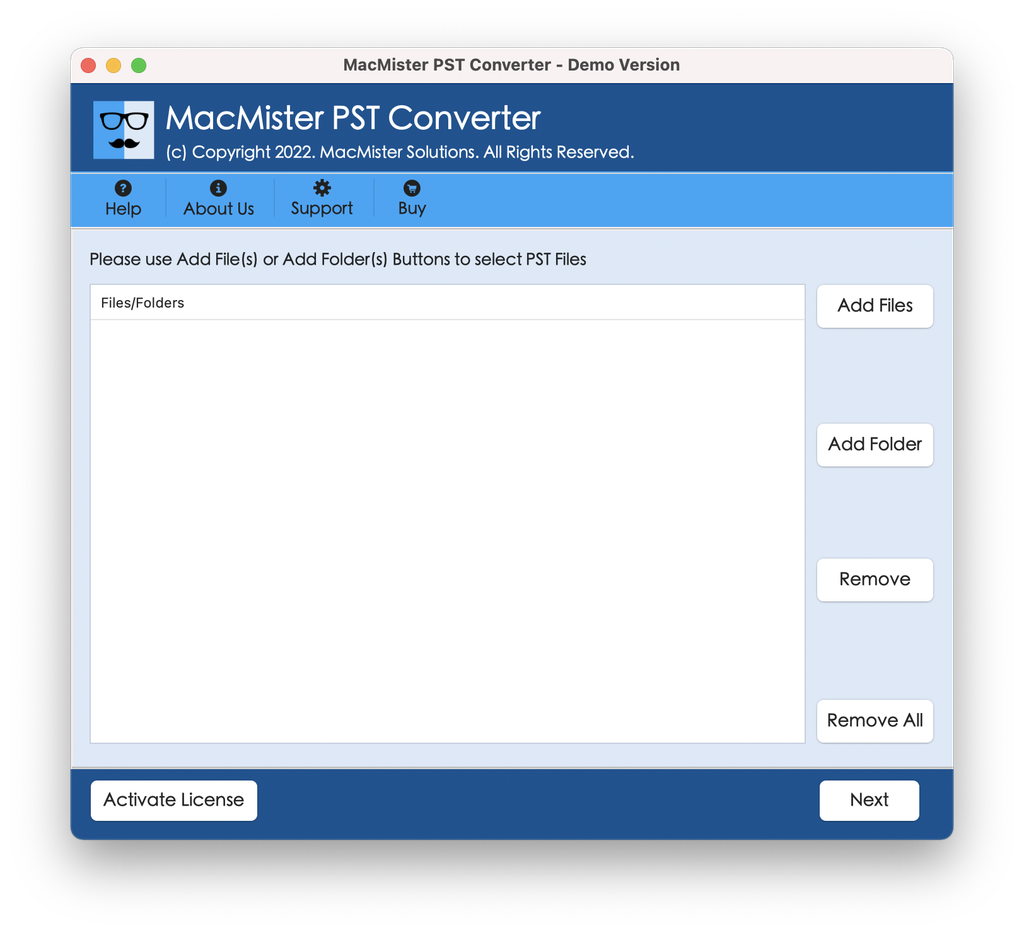
Step 2: Within the application, make use of the double-selection process where you can add your files either by clicking Add Files button to select the PST archives individually or Add Folders to select all PST files within a folder.
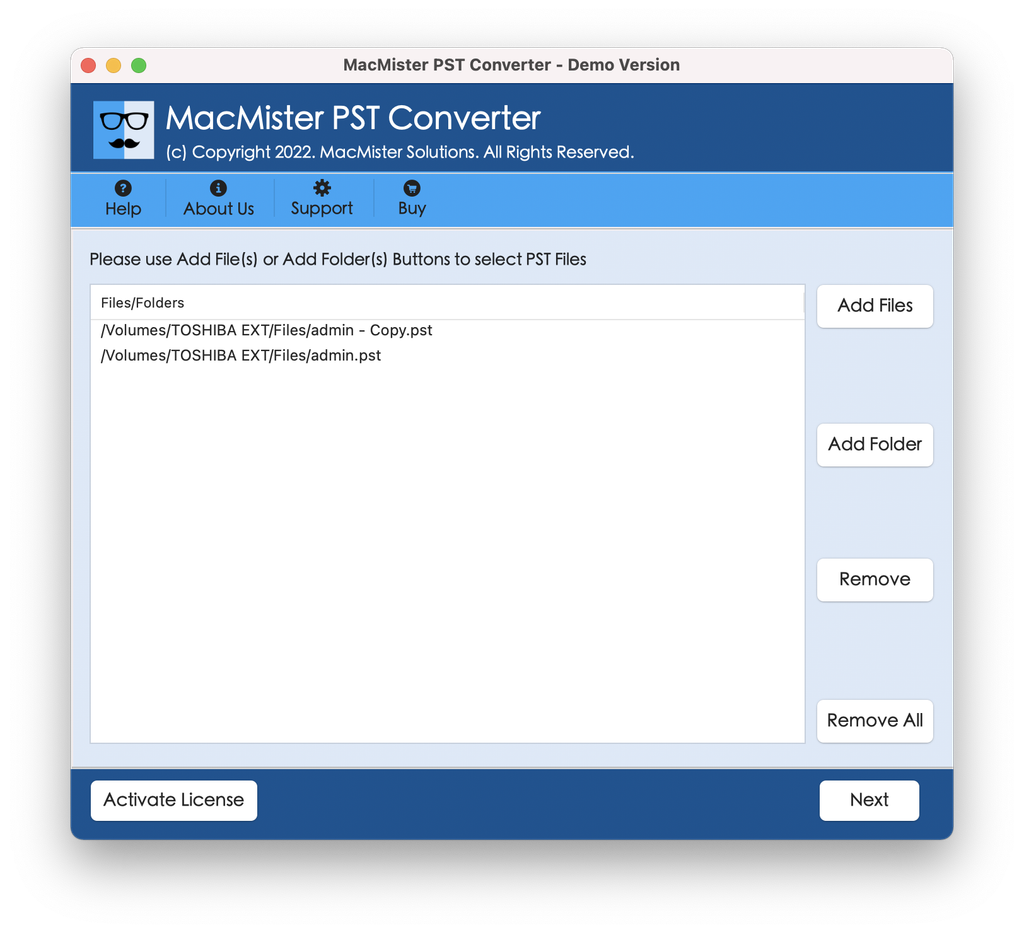
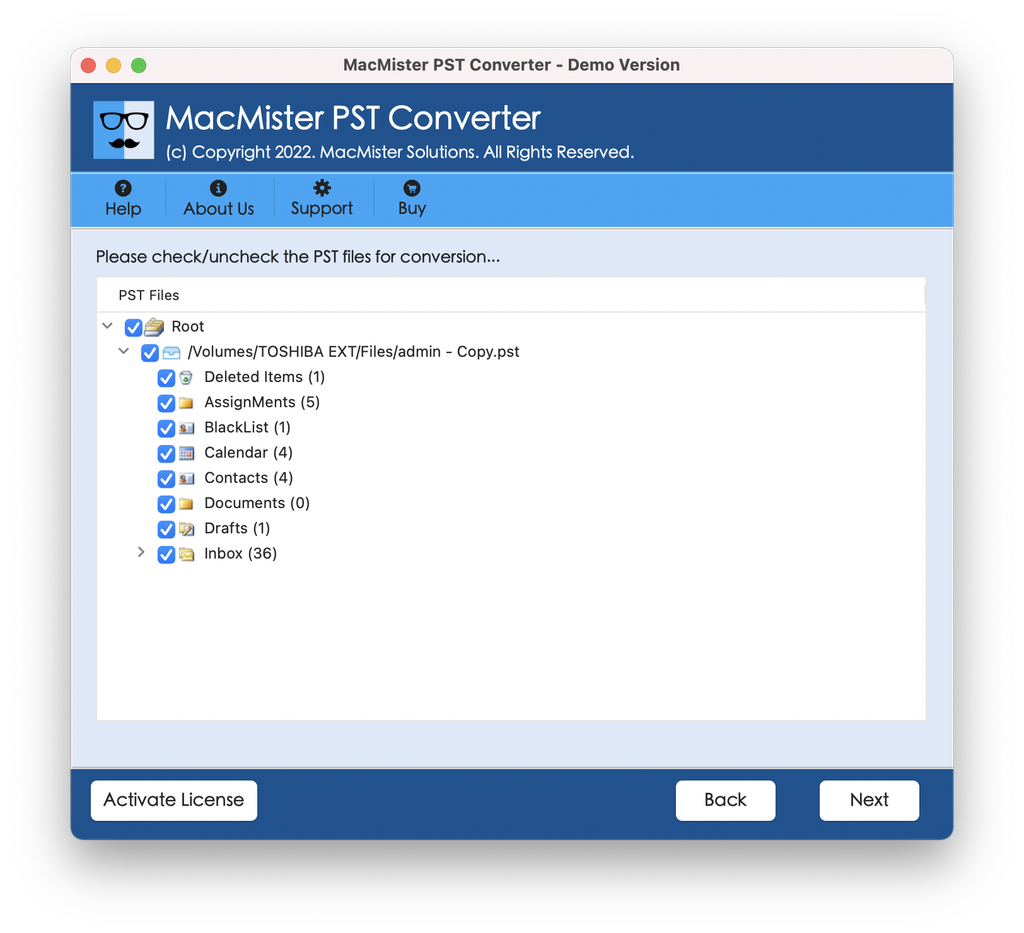
Step 3: The tool will scan and import the chosen files into it and show the complete directory tree of your mailbox data. You can uncheck some unnecessary directories from the selective folders option to avoid converting unwanted mailboxes.
Step 4: Go to the Select Saving Option drop-down menu and select the EML option from the extensive list of available file formats.
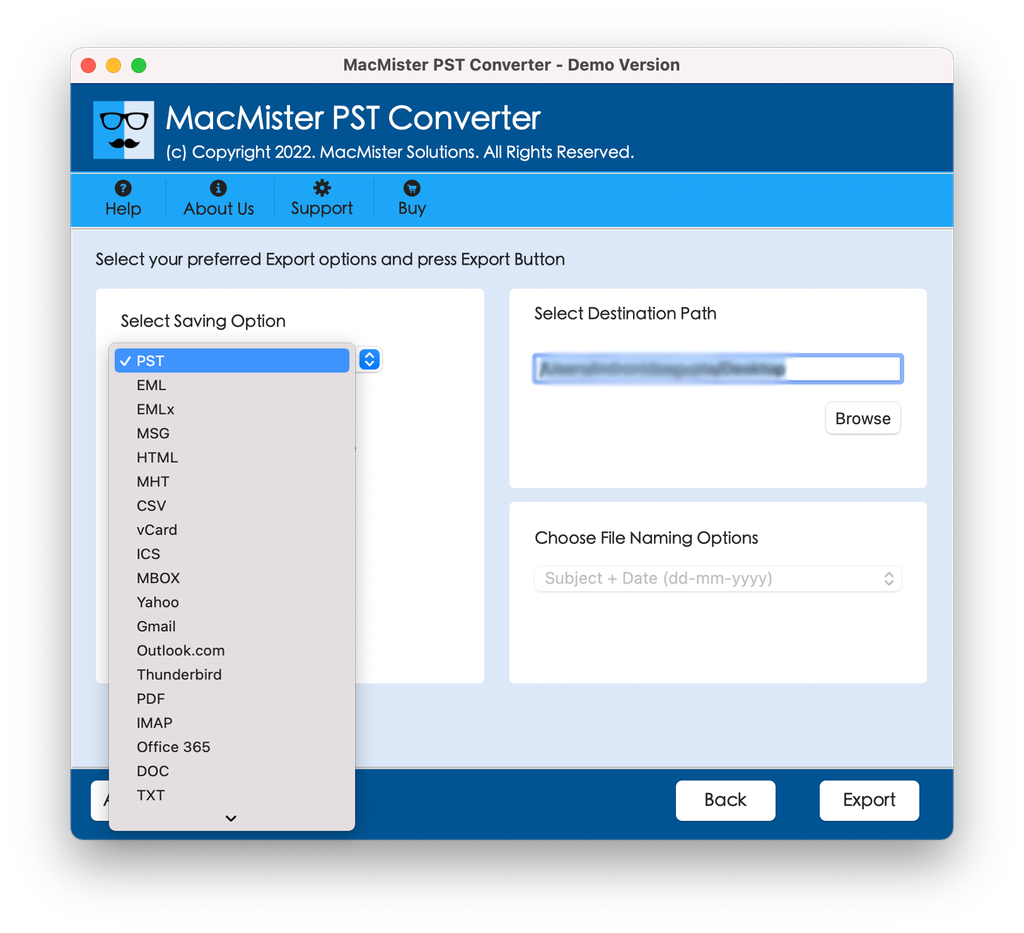
Step 5: Click the Browse button to pick up the destination folder on your Mac’s SSD to save the resultant EML files. Customize other settings as per your needs and click the Export button.
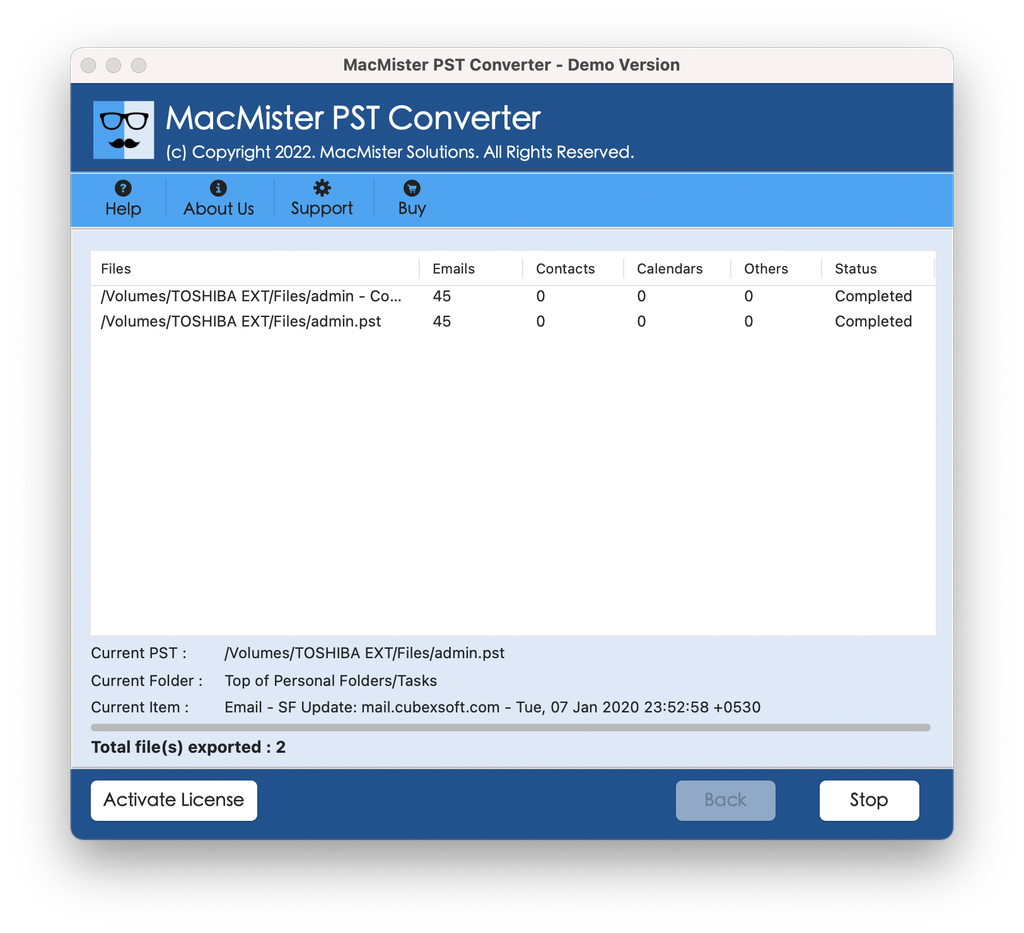
Step 6. Observe the live progress bar to track how the utility is converting your PST file to EML with high accuracy. Once the conversion process completes, you will receive an alert message along with the complete log report of the conversion process. Tap OK to dismiss the alert window and view your converted EML files.
How to Import the Converted EML Files into Apple Mail?
Once your PST file has been successfully converted to EML format by MacMister PST Converter, the next step of importing it into Apple Mail on your Apple silicon Mac will be very quick indeed:
- Launch Apple Mail on your Mac computer.
- Make a separate folder in Apple Mail for your imported file archive (for example, right-click On My Mac and select “New Mailbox”).
- The Finder window that houses your newly converted EML files should now be opened.
- Choose the EML files (or an entire folder containing EML files) from within Finder.
- Just drag and drop the chosen EML files into the newly created mailbox folder in Apple Mail.
- Your messages will all be read by Apple Mail automatically, appearing with their original formats intact in your speedy M-series Mac.
Conclusion
Switching old email archives from Windows Outlook to a contemporary Apple Silicon Mac can be an easy task rather than being difficult and dangerous. While dealing with massive PST files usually causes corruption and fragmenting of emails, using the right professional software turns things around completely.
Using the high-speed performance of the Apple M-series processor together with MacMister PST Converter will help you easily transfer and convert all of your email archives to EML files while keeping all attachments and your folder structure intact. Start using this simple solution right away and take advantage of your historical data by importing it into Apple Mail!

