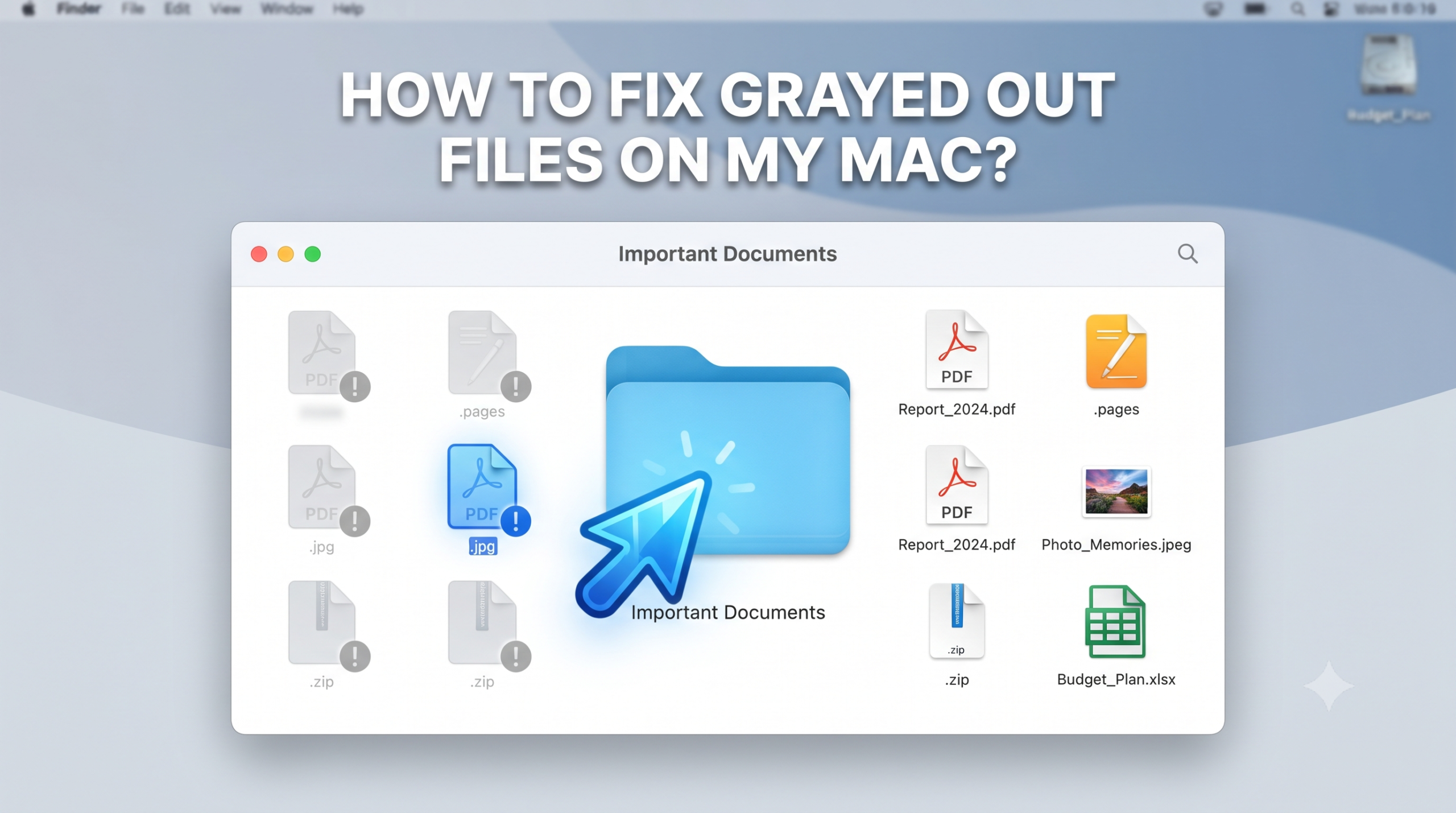
Encountering greyed out files and folders on your Mac can be quite annoying. Whether you are looking to open a particular document or file, attach it, or view a backup that was taken off an external hard drive, greyed out items always indicate some kind of access issues, file format conflicts, or even metadata syncing errors.
It is important to get to know the underlying reasons as it would help you sort out the issue. In this detailed guide, you will find out all about greyed out files on mac and how to fix them.
Why are the Files/Folders Grayed out?
First, let’s take a look at the factors causing such an issue. The main triggers are the following:
- Application Incompatibility: You are trying to choose a file within a certain application that is currently open/importing but does not support this file type.
- Inconsistent Transfer: The file or directory remains partially transferred since some operation was not completed (a file is not fully copied or downloaded).
- Damaged Creation Timestamp: The internal creation timestamp of the file gets corrupted when transferring between operating systems (from Windows NTFS to Apple APFS, for example). This makes Finder think there is something wrong.
- Insufficient Permissions: The user does not have permission to open this file/folder because he/she lacks Read & Write permissions.
Quick Tip: – Use MacMister Apple Mail Converter app to export Apple Mail database into 15+ saving types. With the help of the software, users can effortlessly transfer Apple Mail mailboxes into PST, PDF, MSG, EML, HTML, DOC, IMAP, Yahoo, Gmail, and more. Download its free demo now and export 25 Apple Mail files for free.
How to Fix Grayed Out Files on Mac?
Based on the scenario for which your files are appearing to be dimmed, follow the below troubleshooting techniques in order of increasing likelihood.
Step 1. If you find some files being greyed out when opening those in a particular application (opening a PDF document in the music editor software), it only signifies that the application cannot support that format.
Step 2. Permissions may prevent you from accessing a folder or document in case of wrong user privileges. Right-click (or control-click) on the greyed-out file/folder, click on “Get Info”. Now look at Sharing & Permissions; click on lock icon and set your user privilege to “Read & Write”.
Step 3. For files or folders which were dragged from external backups and greysed out owing to corrupted metadata, you can forcefully update the creation dates of those via Terminal application. To do this, open Terminal app (Applications > Utilities > Terminal) and enter the following command:
SetFile -d “01/01/2026 00:00:00” (adjust to your preferred format), then press space bar and drag and drop the greysed out file in Terminal window and press Return.
Step 4. In case where file transfer got interrupted or corrupted while transferring across a network volume, the local placeholder remains greysed out and is left empty (usually with 0 bytes). Remove the faulty placeholder and perform fresh copying of the file from its original source.
Step 5. Occasionally, Finder app itself may encounter caching issues. Press Command + Option + Escape, select Finder and click on Relaunch button. In case drives are having permission loops, open up Disk Utility, select the drive and perform First Aid.
Conclusion
However, the greyed out files in Mac OS are not always lost forever, since most often they are merely symptoms of permission problems, incompatible applications, and small metadata issues. One just needs to ensure that the user has sufficient privileges and compatible applications, and also reset file date via Terminal.