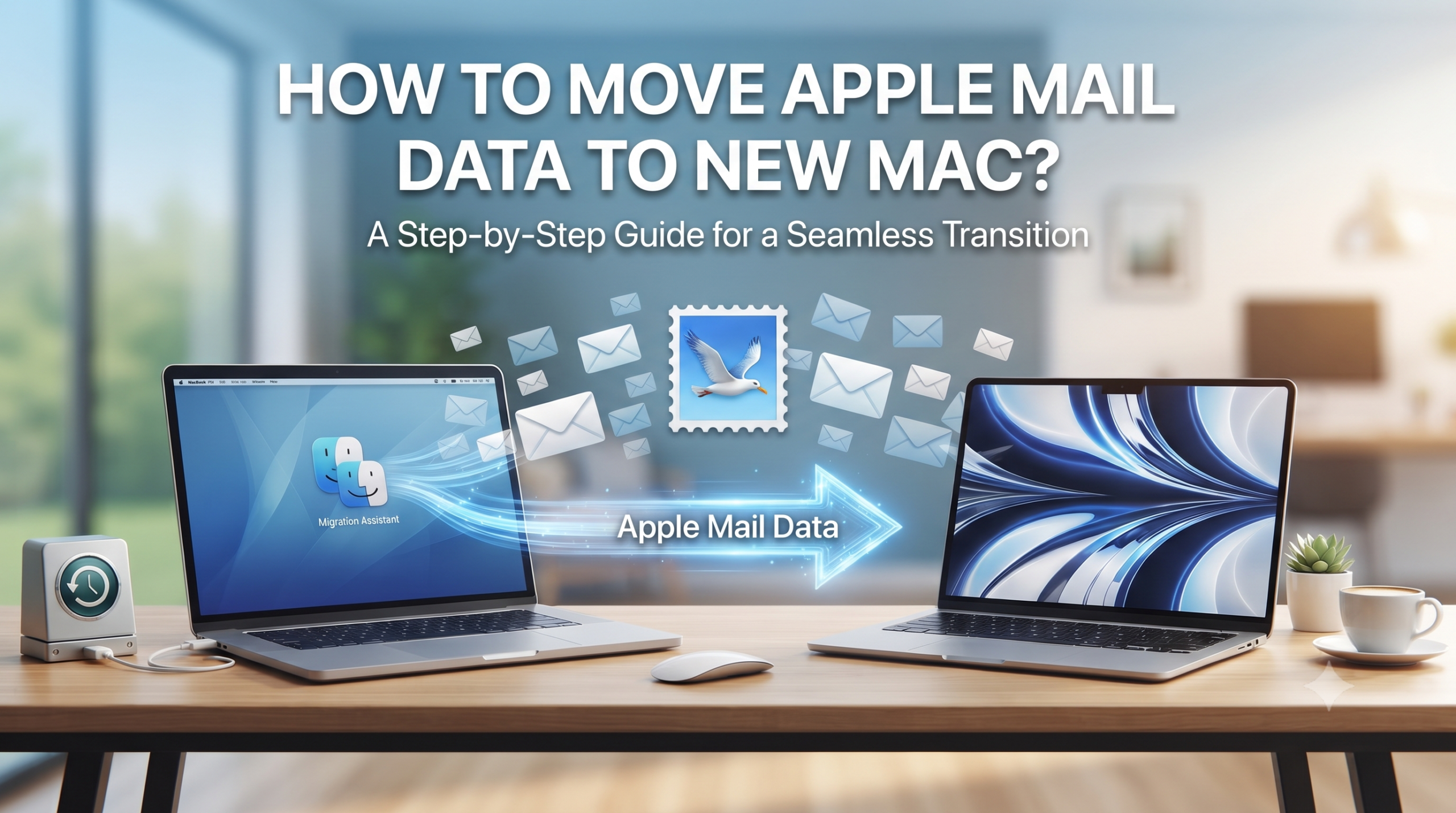
Moving to a brand new MacBook can be very exhilarating, but when it comes to moving your data, especially your emails, which are stored in the Apple Mail database, there are some considerations that need to be taken into account. There is no doubt that you do not want to lose your email history for any reason.
Despite the fact that there are several ways to transfer your data using the macOS itself, the problem is that sometimes those native options can be tricky and difficult or may have limitations if you want to access your emails using other means.
In this article, we will discuss all possible methods of transferring and explain why using a special professional tool like the MacMister Apple Mail Converter would be your best choice.
What are Conventional Methods to Move Apple Mail?
It will be helpful to know how Apple itself migrates emails before delving into other software-based options:
Method 1. Using Apple Migration Assistant
Apple Migration Assistant is a built-in utility created to transfer all applications, user accounts, settings, and documents from one Mac to another.
- How it works: Link the two Macs through Wi-Fi or cable and use Migration Assistant to replicate your user account.
- The downside: Although it does copy all user files (including the hidden ~/Library/Mail folder), Migration Assistant is all-or-nothing in its nature. If you need to move only certain mailboxes or configure a clean MacBook installation without any legacy files, it might not work well for you.
Method 2. Manual Transfer of the Mail Folder
Apple Mail keeps its data files local on your machine in the User Library.
- How to perform: In your old Mac, press the Option key in Finder, select Go > Library, and find the Mail folder (where you will find V7, V8, or V9 folders according to your version of macOS). You can transfer the Mail folder to an external flash disk and place it in the identical location in the new MacBook.
- Important thing to remember: It may not work because of incorrect placement and strict security policy in macOS.
Method 3. Exporting/Importing MBOX Files
In Apple Mail, you can select mailboxes and then perform File > Export Mailbox for creating .mbox files. You then copy them to your new Mac and perform File > Import Mailboxes from there.
- The Drawback: It can be extremely time consuming in case of many subfolders.
Move Apple Mail Data to New Mac using Professional Approach
To avoid the pain of dealing with structures, permissions, and restrictions related to manual copy and paste of files, most users resort to the use of MacMister Apple Mail Converter.
As the name suggests, it is specially designed for mac environments and helps users in efficiently extracting and converting the Apple Mail data store. Instead of trying to navigate through the system folders, the user can easily pack up the mail boxes and convert them into various accessible file formats, such as PST, PDF, MBOX, EML, MSG, and HTML.
Important Features of the Application
In preparing your email archives for migration to the new MacBook, MacMister provides a few clear benefits over using the built-in functions:
- The software ensures that all carefully arranged directories, folders, labels, and other structures remain absolutely intact when converted.
- All of the essential parts—To, Cc, Bcc, sender information, hyperlinks, inline images, as well as sent and received times—are transferred unchanged.
- It is possible to convert whole email archives at once, eliminating the need for time-consuming export.
- Attachments (document files, PDFs, images) transfer along with the message text without any chance of losing data.
- Moreover, it is possible not only to migrate mail from one Mac to another but also to backup Apple Mail archives in universal document formats such as PDF.
Step-by-Step Working of the Software
Using the tool to protect your email data base and then switch over to it will be easy. Just follow these easy steps:
Step 1. Install the app on your Mac computer and open it.
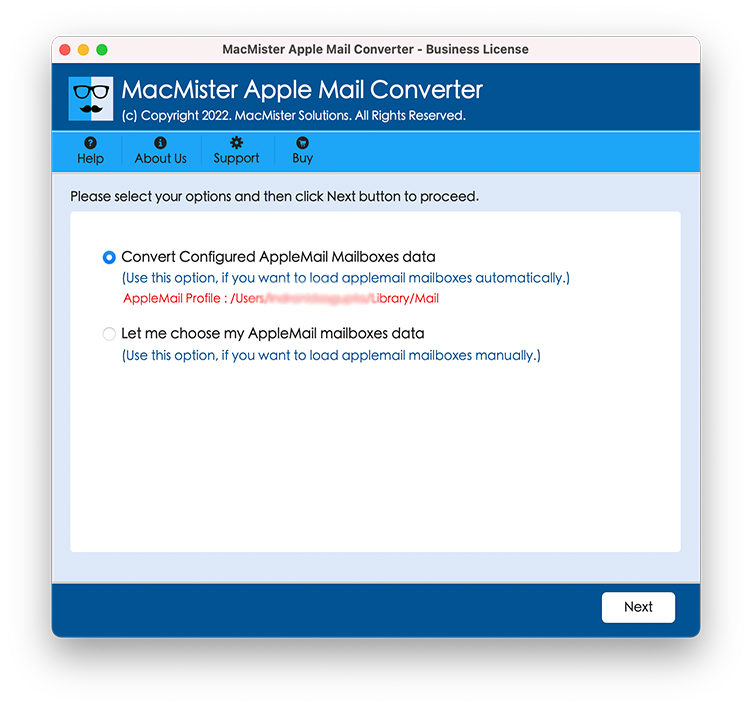
Step 2. There are two choices available for uploading data by using the program. Either you may choose automatic configuration option to retrieve data straight from your current Apple Mail profile or else choose Add File/Add Folder to select database files yourself.
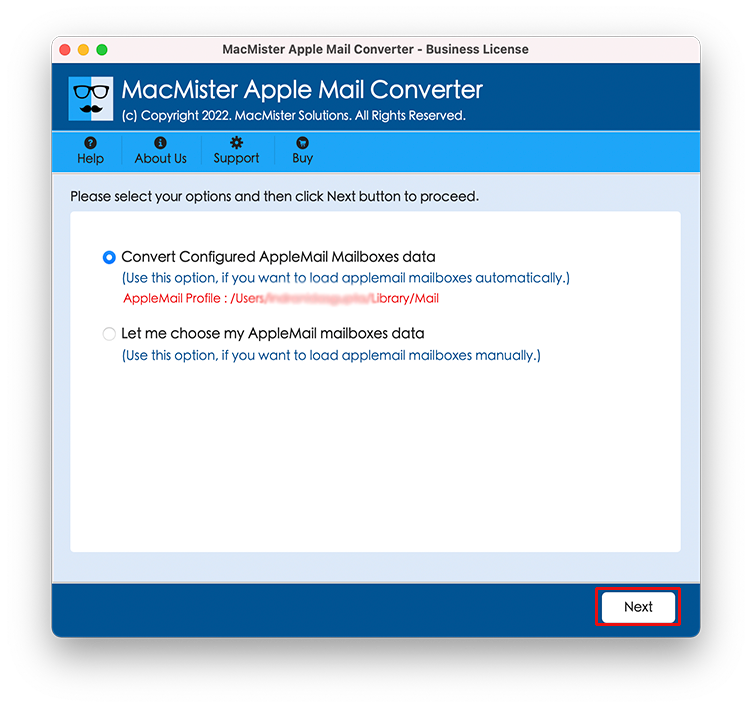
Step 3. Analyze the scanned folders hierarchy and tick only those mailboxes or folders that you want to migrate to your new MacBook.
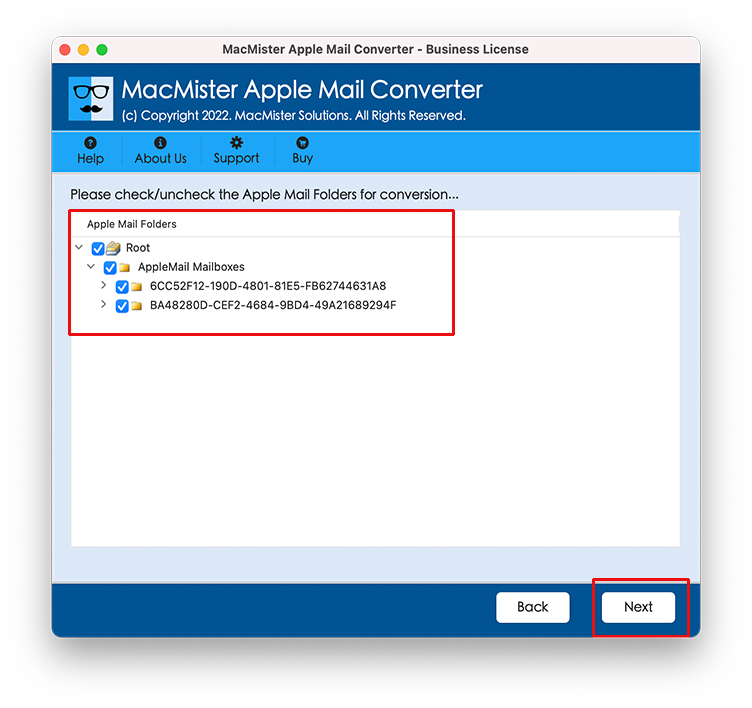
Step 4. Choose your desired file format via Select Saving Options drop-down menu.
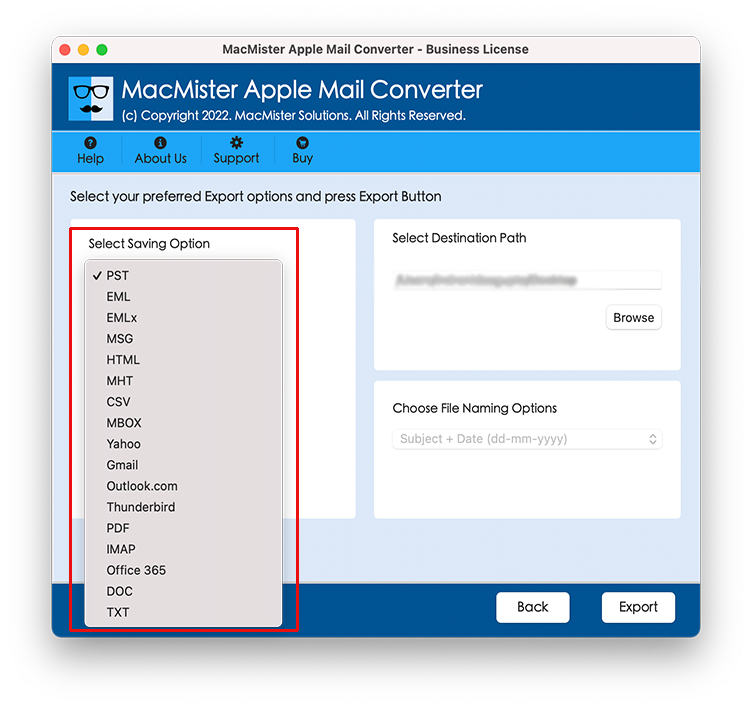
Step 5. Set sub options as per your need to save output files as per your requirement and click on Export.
Step 6. Watch live progress bar while your database is processed cleanly and efficiently.
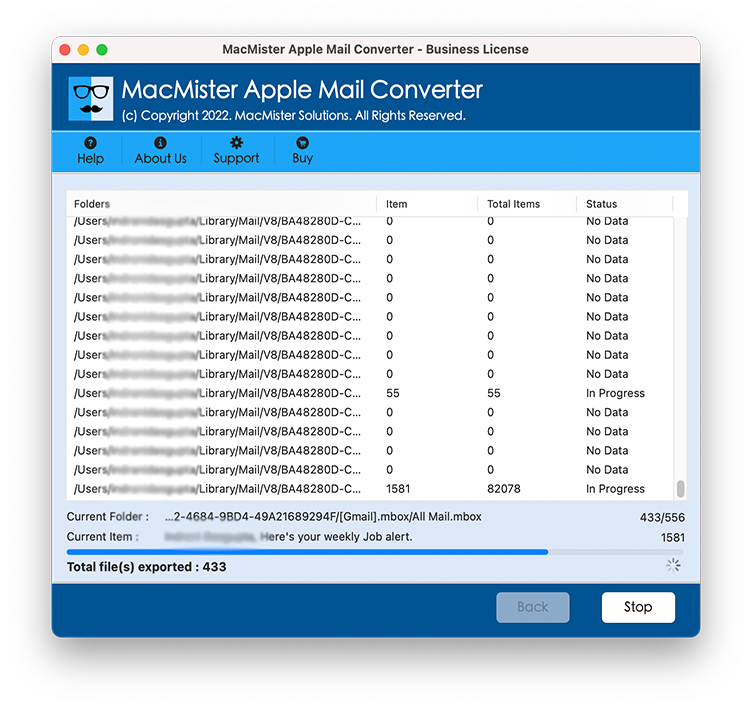
Once done, all you have to do is simply connect your external storage device with your new MacBook and import these files to your new Apple Mail application.
Conclusion
There is no reason for one to lose their valuable digital history when moving to a new MacBook. The built-in functions in macOS such as Migration Assistant and the manual process of shifting the folders may seem convenient in the perfect case but not always work effectively. Using MacMister Apple Mail Converter will ensure that everything works smoothly and accurately.