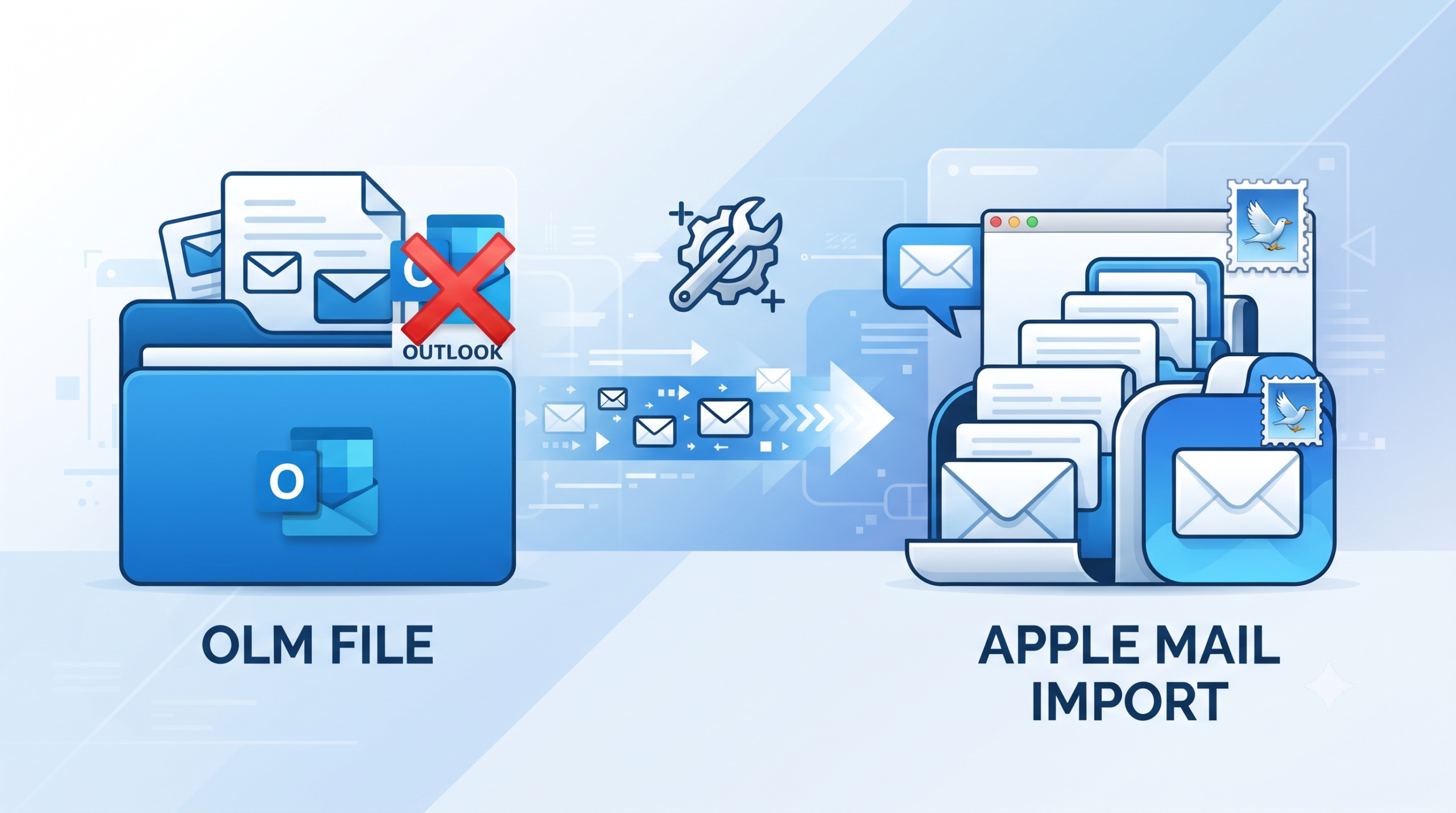
Shifting from one email client to another may be akin to inserting a square peg in a round hole when proprietary formats are concerned. When you have recently shifted from Microsoft Outlook for Mac to Apple Mail, or you have received an archive file from a friend at work, you may have encountered the .olm file format.
Apple Mail uses only standard formats like MBOX and EML for storing email data by default. It does not have native support for importing, recognizing, or opening OLM files. Moreover, how will you open such files when Microsoft Outlook has been completely removed from your Mac? There is no application that supports opening OLM files.
In this complete guide, we will cover all that you should know about OLM files, the issues of compatibility, and how you can effectively and reliably open your OLM files within Apple Mail using step-by-step instructions.
Understanding the OLM File Format
It might be wise to start with a clarification of what an OLM file actually is. All mailbox information that is stored locally by Microsoft Outlook for Mac is stored in one archive file with the .olm extension. In comparison with Outlook for Windows, which uses separate .pst files, Outlook for Mac combines all your mailbox content into a proprietary database format.
Since Apple Mail is based on a completely different architecture, it is unable to read the database format by default. Therefore, if Microsoft Outlook is installed on your Mac, you have a chance to export or synchronize some information, but without Outlook at all, you will need to use other ways.
Method 1: Using Third-Party OLM Converter Software (The Most Reliable Approach)
When you don’t have Outlook from Microsoft installed on your computer, the easiest, fastest, and safest way of moving your OLM e-mails into Apple Mail is to use one of the software tools meant for migration or conversion.
Such utilities are tailored to be able to extract the contents of the OLM file format and move it to formats compatible with Apple Mail.
Steps Involved in the Conversion Process:
Step 1. Install a MacMister Mac OLM Converter utility that can help you convert OLM into MBOX format specifically for macOS.
Step 2. Start the conversion application on your Mac machine. This step will usually present you with a neat interface, which enables you to browse files.
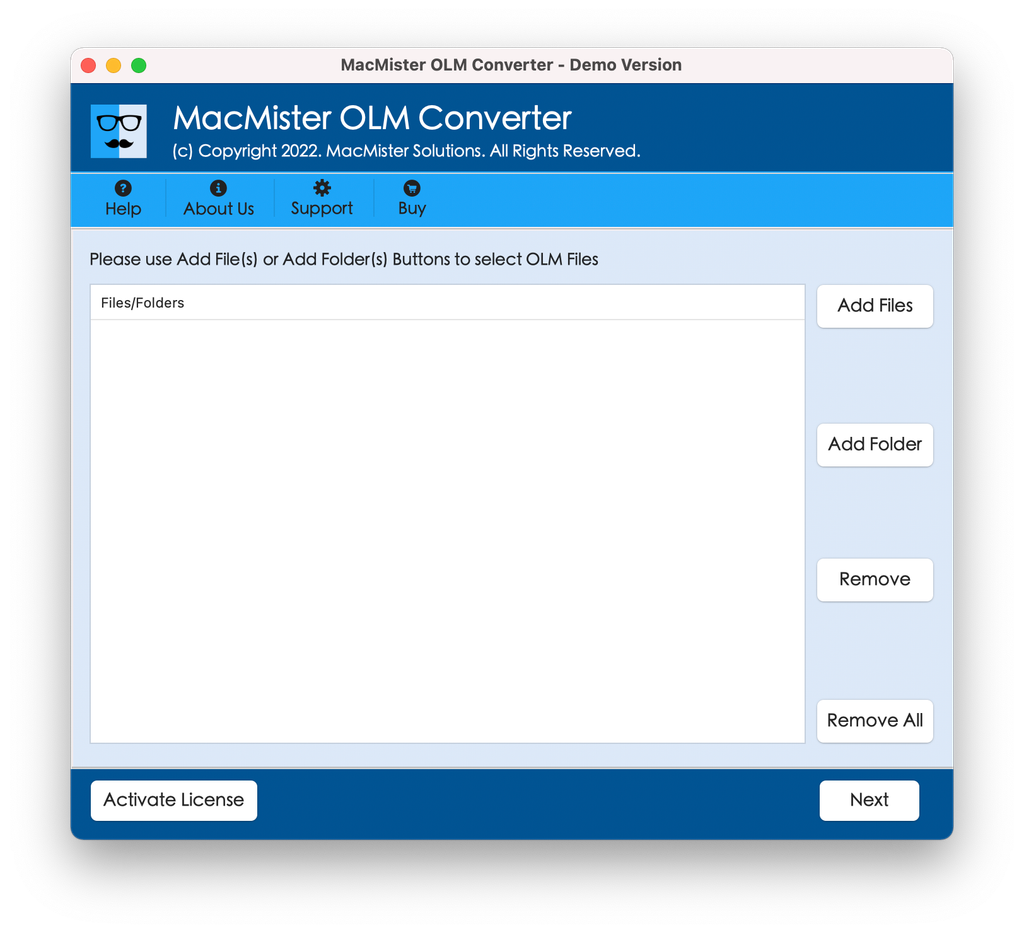
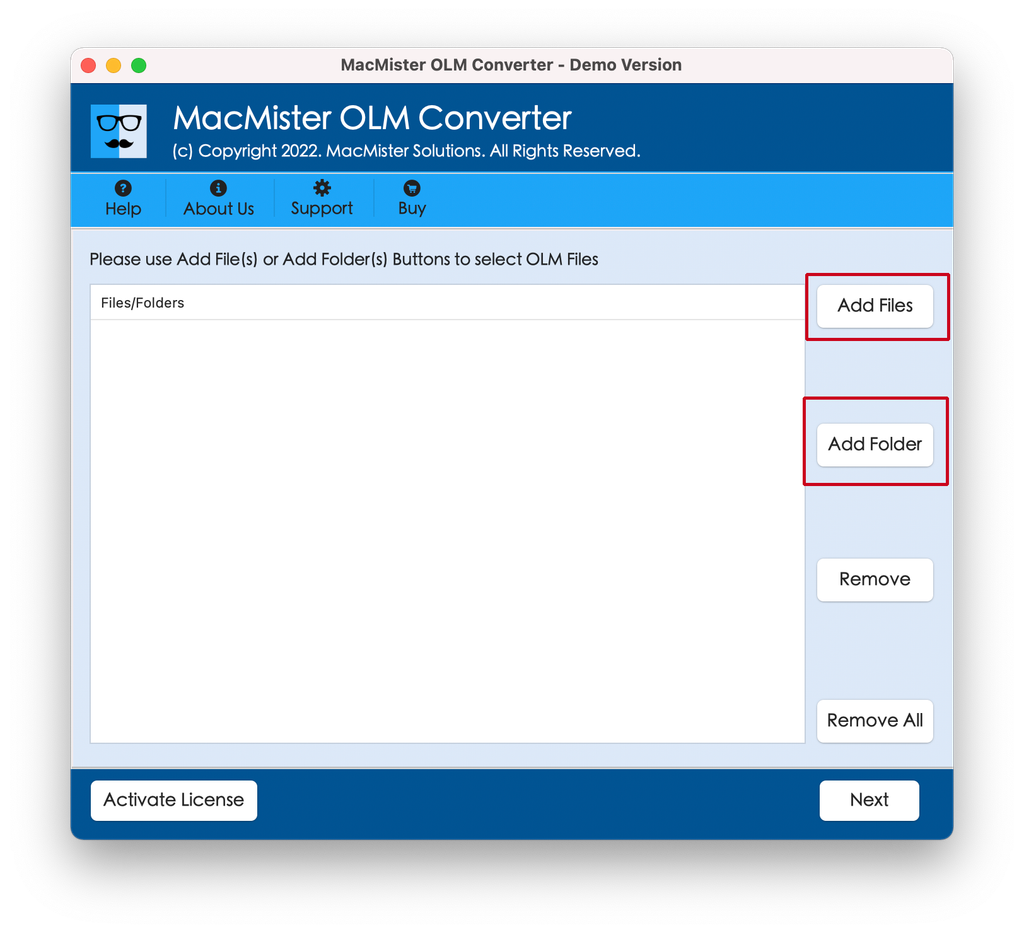
Step 3. Browse through your computer to open the OLM file, which is to be converted to MBOX format using Add File(s)/Add Folder buttons. The tool scans the file and shows its contents in the form of mailboxes, folders, attachments, and other items.
Step 4. In the drop-down menu provided by the converter tool, select the saving format as MBOX (or even direct export to Apple Mail). The MBOX format is supported by all versions of Apple Mail, and it keeps the folder structure intact.
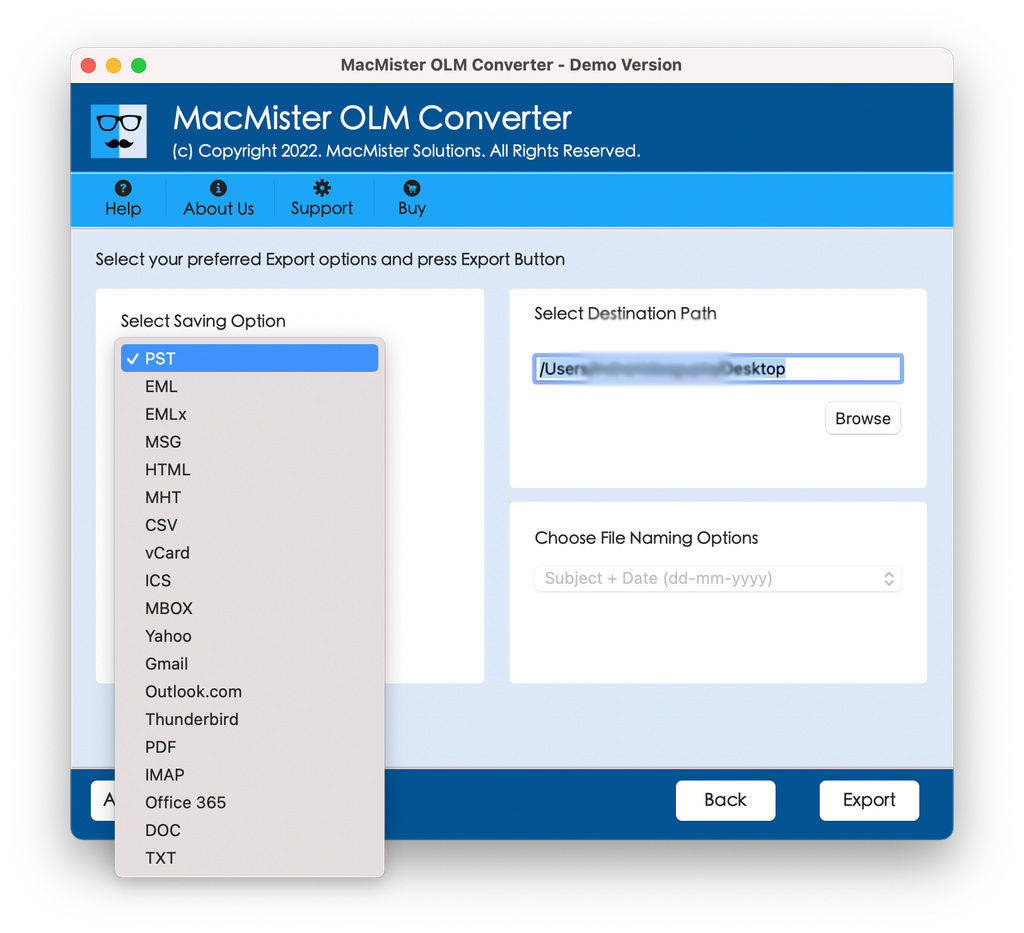
Step 5. Specify the folder on your Mac system where you want to save the converted files. Some applications also provide the option to specify filter criteria like date filters or folder filters.
Step 6. Press the “Convert” or “Export” button. The program will analyze the OLM file and create an MBOX file.
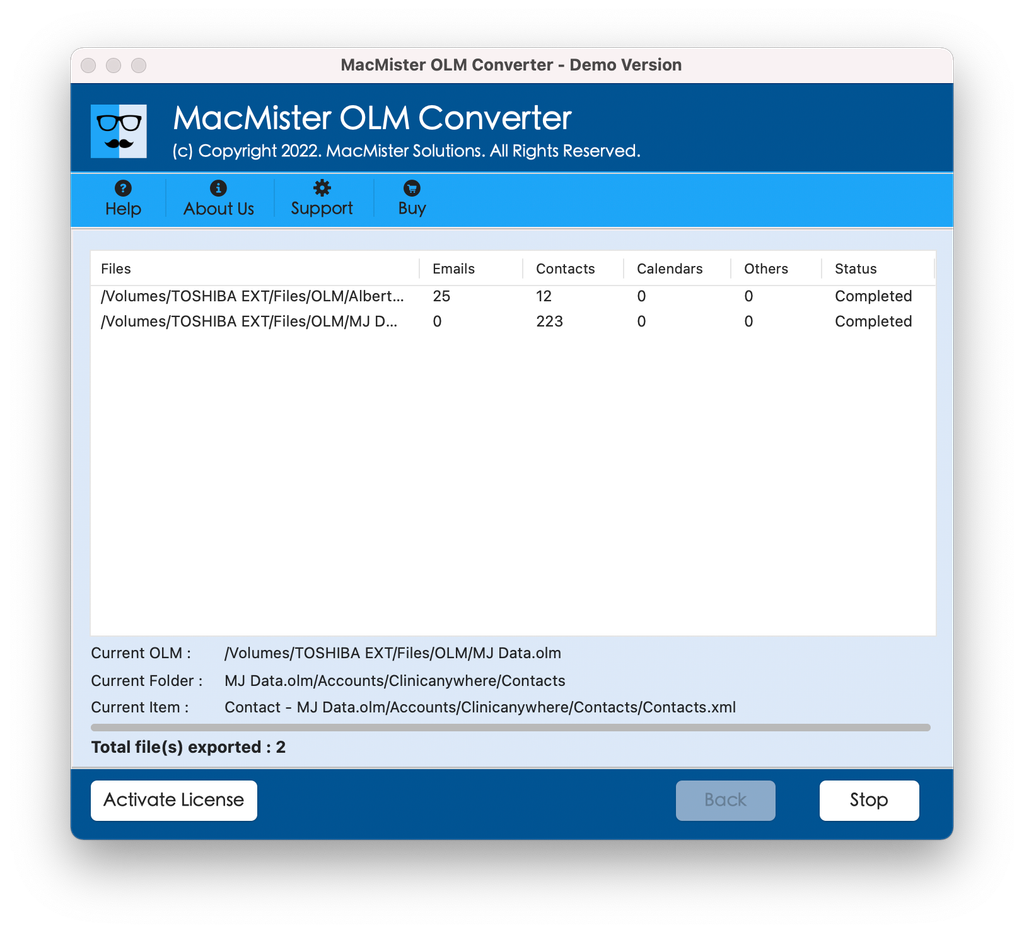
Step 7. Transfer to Apple Mail:
- Launch Apple Mail.
- Navigate to File > Import Mailboxes.
- Choose Files in MBOX Format and press Continue.
- Browse for the created MBOX file and follow the importing process. The emails will now be transferred to Apple Mail under the “Imported” folder.
Method 2: The Cloud-Based Staging Account Workaround
If you are someone who doesn’t wish to install a separate conversion utility but instead wants to make use of cloud-based services for conversion, you could consider using the cloud-based email staging process. But since this usually involves the need for an email client to sync your data, let’s discuss the web-based IMAP mapping method if you have temporary access to another email client.
(Also, note that uploading OLM files directly onto the cloud becomes very complicated because webmail clients such as Gmail or Outlook.com don’t actually support upload of .olm files directly. However, if you have temporary access to a computer with an Outlook email client, then you could map it using IMAP.)
Temporary IMAP Sync (In case you have temporary access to Outlook)
- Configure an email account that supports IMAP functionality (another Gmail or Outlook.com account can be used for this purpose).
- Import the OLM file into Outlook application (assuming you can use a borrowed computer or try using trial version).
- Drag-and-drop the OLM file folders into corresponding IMAP server folders.
- Sign into your Apple Mail using the very same IMAP account.
Method 3: Manual Inspection and Extraction (For Advanced Users)
It would be worthwhile to mention the way in which data is archived within the archives in case you are one of those who are technically sound in nature. Although .olm files are very structured databases, there are still some developers and technically inclined individuals who take the trouble to unarchive and parse the raw data of the archive.
But then unlike the normal .zip archives wherein you can extract the content by just clicking on the file twice, renaming an OLM file as a .zip archive does not help in extracting the archive into a clean hierarchy of .eml files because of Microsoft’s proprietary database indexing.
Conclusion
However, opening the OLM file in Apple Mail without Microsoft Outlook can appear to be impossible at first glance, although it has an easy solution. All you need to do is use a trusted third-party tool to convert your OLM file to MBOX format, which will allow you to work with your old emails in Apple Mail without using Outlook. Follow all the instructions above and take care of your critical files.