Using two email clients in succession on a Mac computer is a fairly common situation, especially when testing out various working environments. Have you ever switched from using Microsoft Outlook for Mac to the built-in Apple Mail client? Or have you received an archive created from Outlook by your colleague or client? Then you definitely know about the .olm file extension. The proprietary extension used by Microsoft Outlook for Mac allows to save emails, calendar events, contacts, tasks, and journal entries in one compressed archive.
Nevertheless, trying to open .olm files in Apple Mail leads to inevitable disappointment because the program doesn’t contain any decoders for Outlook’s proprietary format. You can try opening the files manually or importing them, but you’ll only be faced with errors and unsupported file types.
As Apple Mail supports such standard open directory formats as .mbox archives and even raw .emlx messages, overcoming this issue needs to be approached strategically. In this detailed guide, we will analyze the structural barriers and manual solutions possible as well as familiarize you with the best professional solution – MacMister OLM Converter Tool.
Why Apple Mail Cannot Read OLM Files?
Understanding the limitations of an ‘open with’ command becomes easier if we analyze how both email applications organize the stored data on your hard disk drive:
- Outlook for Mac (.olm): A proprietary, closed structure. In this case, the entire structure of your mailbox is packed into one very efficient database file which is optimized only for Outlook.
- Apple Mail: An open client that saves messages in the local mailbox on user’s Mac. The individual emails are saved as separate files with .emlx extension or stored in regular .mbox folders.
Since the two formats above use absolutely incompatible languages, it means that macOS by default is unable to decode the .olm archive into a language readable by Apple Mail. The only solution is to convert the .olm file to a compatible MBOX or EML format.
Method 1: The Manual IMAP Procedure (For Smaller Archives)
If you still have an active copy of Microsoft Outlook for Mac installed and your archive is relatively compact, you can use an intermediate cloud-based IMAP account (such as Gmail, Yahoo, or a private email server) as a bridge to move your data.
Step 1: Configure an IMAP Account in Outlook
- Open Outlook on your Mac.
- Go to Tools > Accounts and set up an active IMAP email account.
- Let it be authenticated and show up in your left sidebar directory window.
Step 2: Transfer Data to Cloud Server
- Create some temporary folders inside your IMAP account folder as per the local archive layout.
- Select the email items that you would like to move to Apple Mail from your local Outlook folders.
- Move those items into the IMAP cloud folders.
- Give Outlook some time to completely upload all items to the server. (This process may take many hours based on your upload speed).
Step 3: Access Data in Apple Mail
- Open up Apple Mail on your computer.
- Create the exact same IMAP mail account in this application.
- Once synced, your emails will be downloaded to your Apple Mail program by the server.
Limitations of the Manual Approach
Though it does not employ any third-party application, this approach has its very serious drawbacks:
- The process of uploading/download gigabytes of email data on/off via a household Internet connection takes much time.
- Due to any network issues, such as interruptions or timeouts, there is a chance that attachments or even the whole e-mails are missing.
- It often lacks in keeping track of read/unread status, dates of creation, or even structure of sub-folders.
Method 2: Open OLM Files on Apple Mail using Professional Approach
In case of dealing with business data and legal correspondence or even extensive archives, manual syncing of your data on the cloud can take forever and pose various risks. The quickest, most secure, and most accurate method to open an .olm file in Apple Mail would be through the use of a specialized utility i.e. MacMister Mac OLM Converter Tool.
Why to choose the Application?
Designed exclusively for breaking down cross-platform data obstacles, this application ensures the most secure route for the direct translation from .olm file format to the Apple Mail supported file format without the need for live cloud syncing.
- Directly translates .olm files into .mbox or .emlx files that can be easily imported into Apple Mail without losing any data.
- Ensures that your precisely arranged folder/sub-folder structure stays intact even after converting your emails.
- Securely keeps the integrity of the entire email such as sender/recipient information (To, Cc, Bcc), time stamps, hyperlinks, and attachments.
- Lets you load multiple files in one go and process them without worrying about their size.
- Comes with a graphical dashboard for the easy operation of the software without requiring any prior technical knowledge.
Step-by-Step Guide: Opening OLM Files in Apple Mail Using MacMister
Using MacMister to bridge your Outlook archive to Apple Mail involves a clean, straightforward workflow:
Step 1. Install the MacMister OLM Converter tool on your Mac computer. Run the application to get into the main user dashboard.
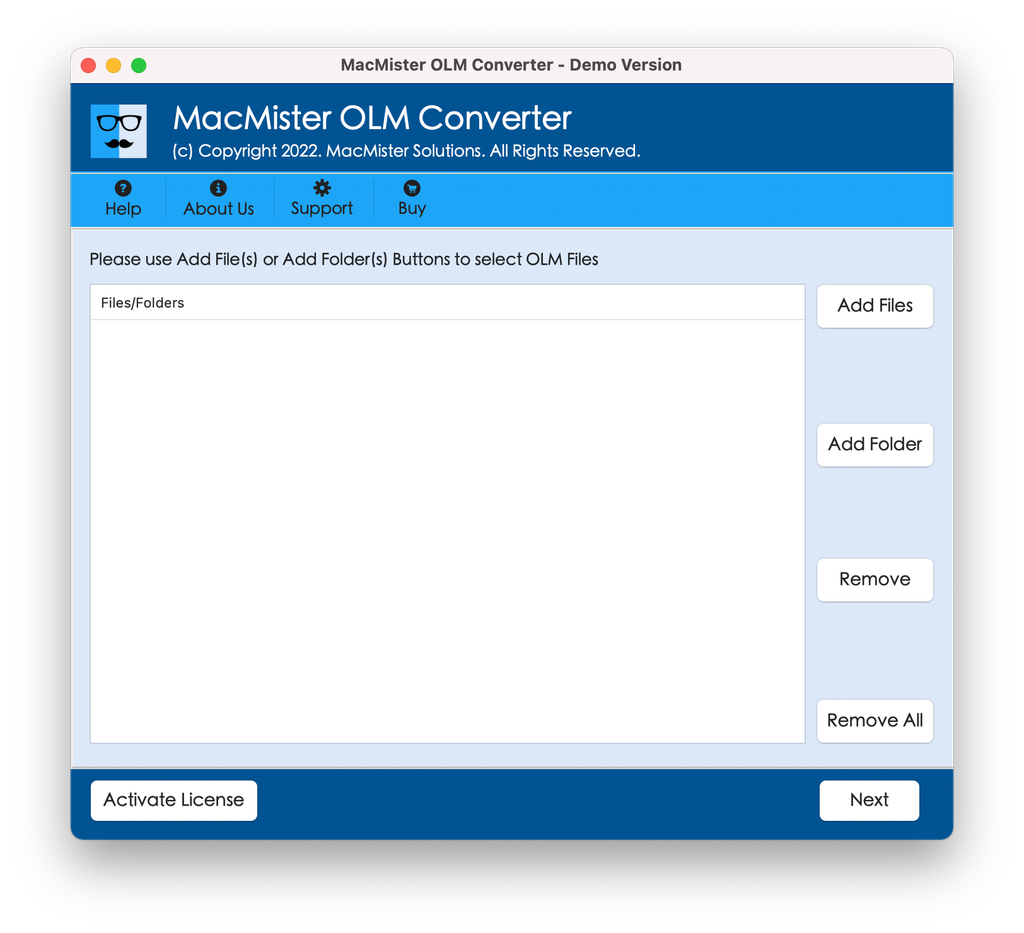
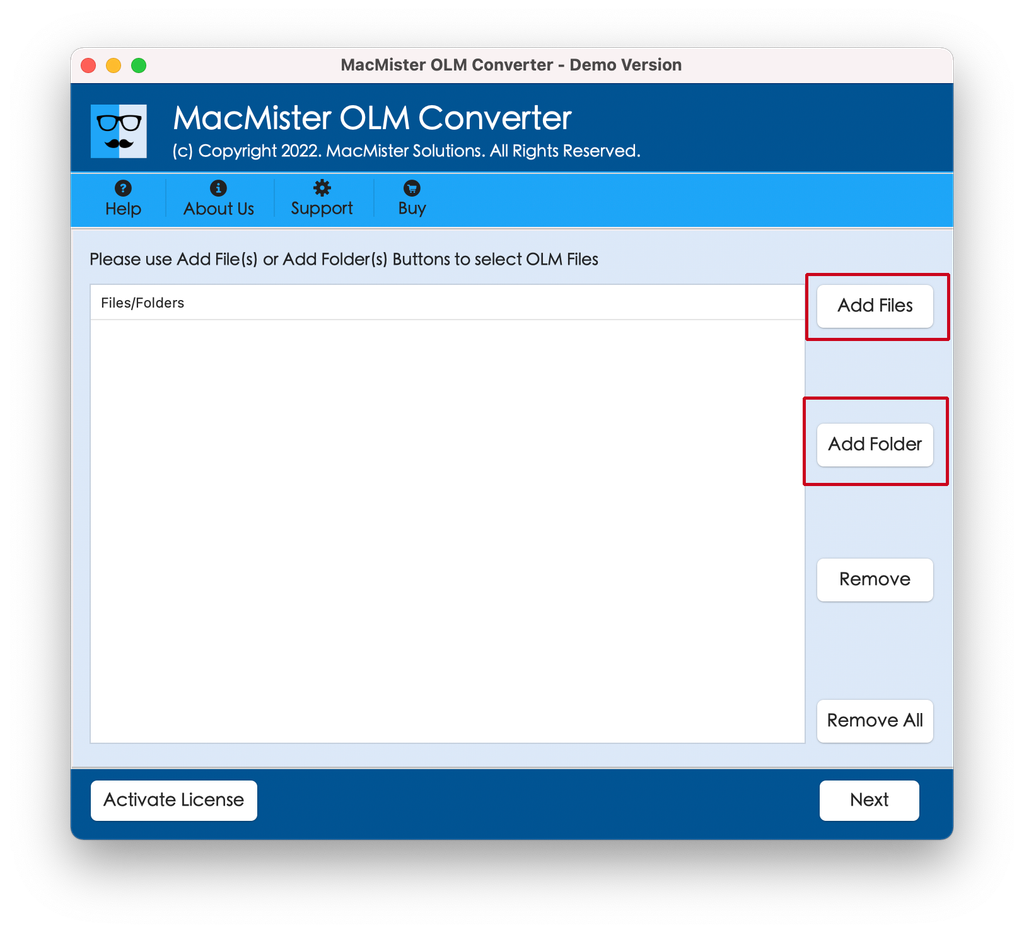
Step 2. Press Add File(s) or Add Folder(s) button to select your .olm file. The program will immediately scan your selected file and create a complete preview of your mail box items.
Step 3. In the list of export formats, pick up MBOX (standard archive format that is natively recognized by Apple Mail program). You may also opt for EML if you prefer.
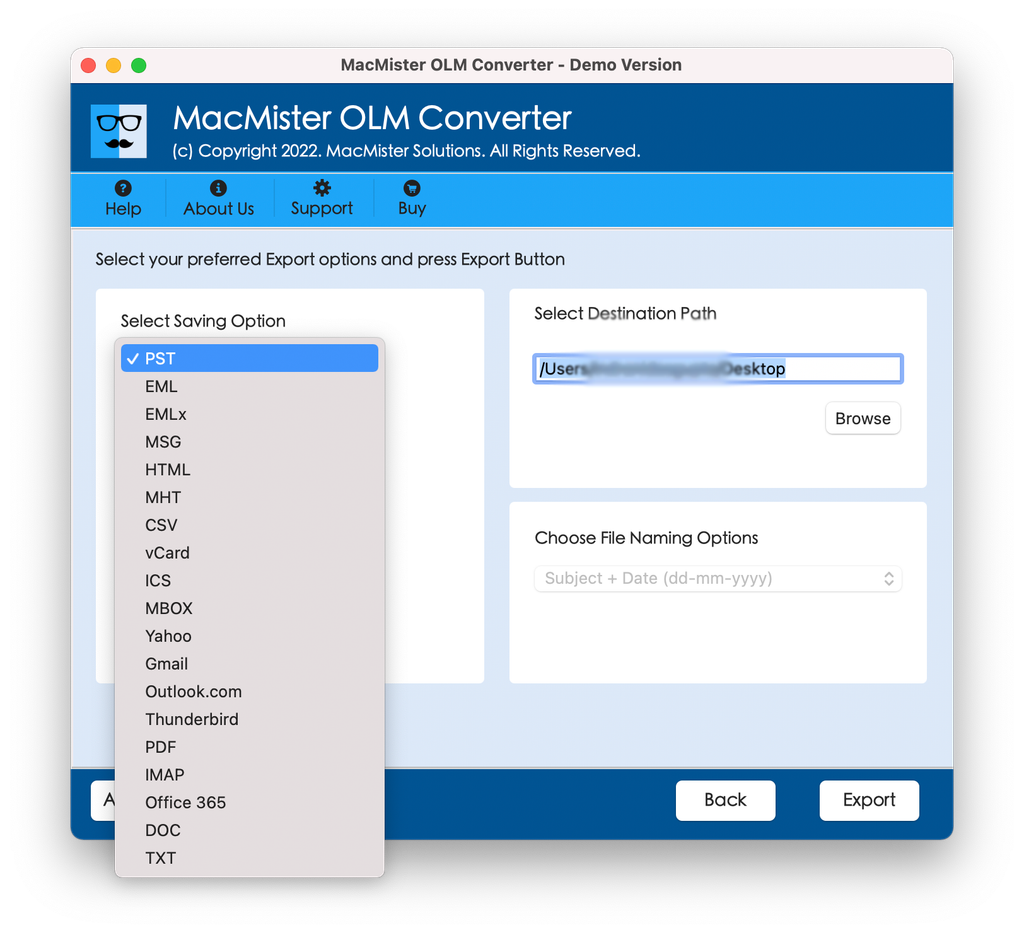
Step 4. Pick up your destination folder path on your Mac where you would like your translated files to be stored. You also have an option to name your files using sorting by date, subject, and sender.
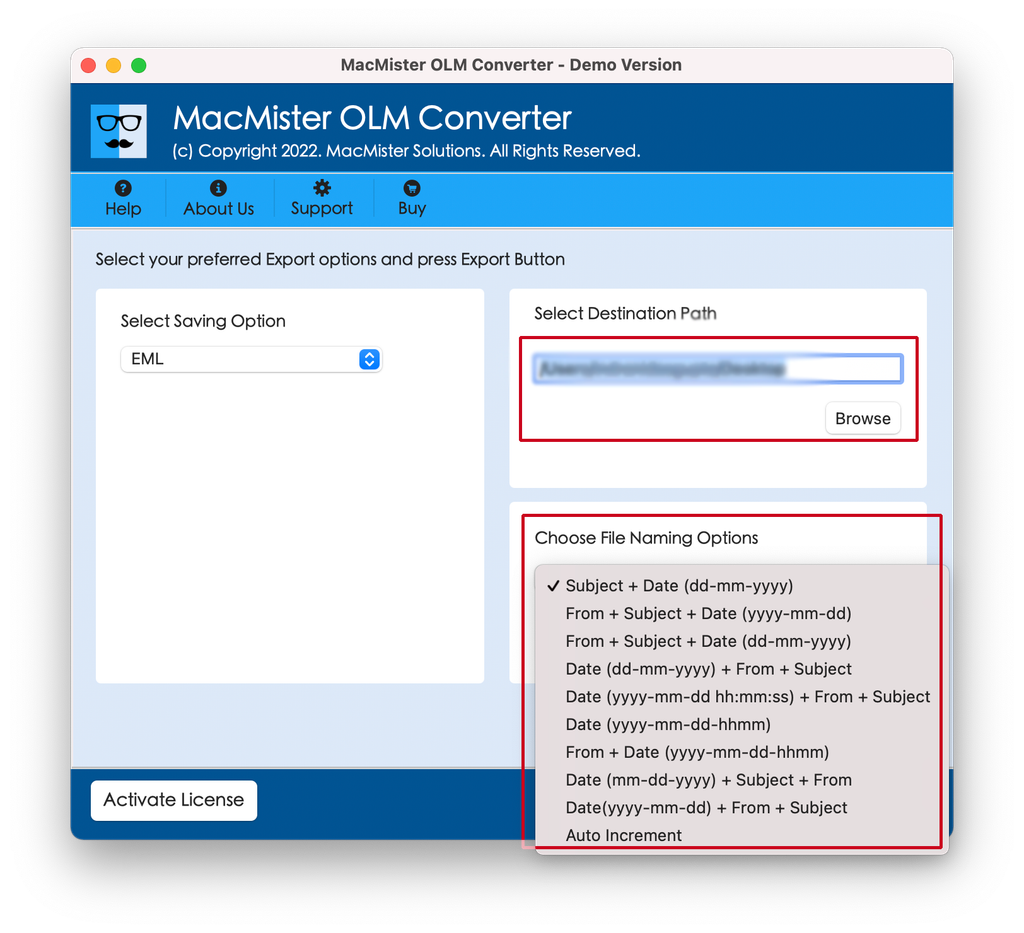
Step 5. Push the Export button. You will see live process bar of translation. Upon completion of the process, your files will be ready to open in Apple Mail program.
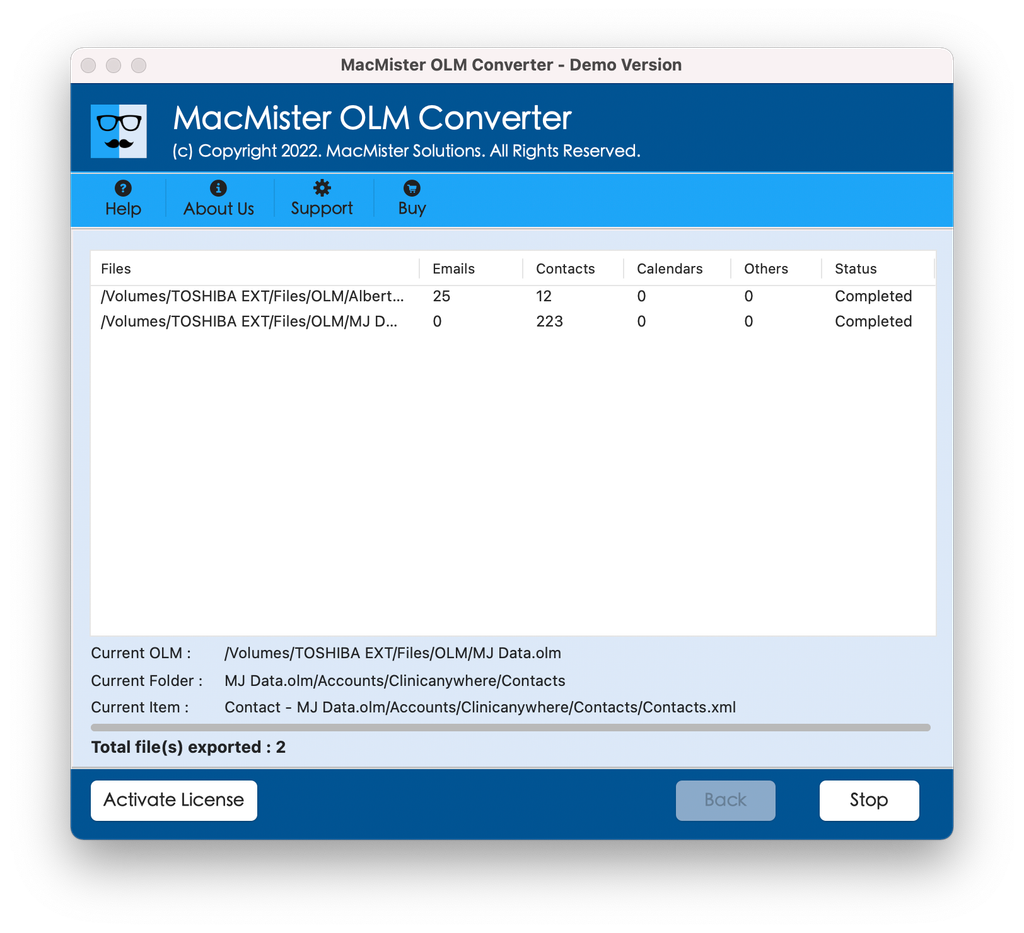
Importing Converted Files into Apple Mail
Once MacMister has successfully transformed your .olm file into a clean MBOX format, bringing it into Apple Mail takes just a few clicks:
- Launch Apple Mail from your Mac.
- Head towards the top menu bar and go for File > Import Mailboxes.
- Select the option for “Files in MBOX format” and hit Continue.
- Find the location of your converted MBOX file in your Mac’s hard drive and then click Continue.
- Apple Mail will import your emails into a separate folder labeled as “Import”.
Conclusion
Opening an .olm file in Apple Mail directly is not possible right out of the box owing to the underlying architecture disparities existing between the Microsoft Outlook mail client and macOS. Although there are manual ways of doing it using IMAP, they are highly inconvenient, time-consuming, and can result in data loss when dealing with big files. With the use of professional software such as MacMister OLM Converter Tool, you will have an easy, smooth, and reliable way of transferring your Outlook data into Apple Mail.

