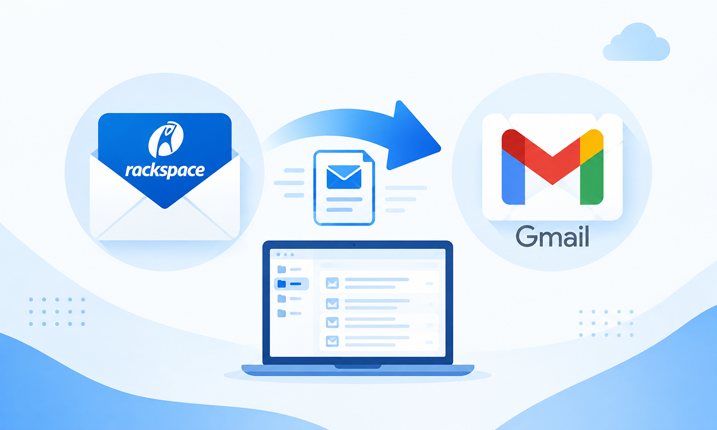
This guide explains the general process for How to add Rackspace email to Gmail, important considerations, limitations of the manual approach, and an alternative Rackspace to Gmail method for Mac users.
Many users manage more than one email account for personal and professional communication. When different accounts are used separately, checking messages across multiple platforms can become inconvenient. Rackspace Webmail Email and Gmail are two widely used email services, and users may want to bring their Rackspace messages into Gmail for easier access and centralized email management.
The process of how to add Rackspace email to Gmail can be approached in different ways. Gmail provides account and import-related options that may help users access messages from another email service. However, the available options depend on the account configuration, mailbox size, and whether the goal is simply to access new messages or move existing mailbox data.
Why Add Rackspace Email to Gmail?
Gmail offers a familiar interface for managing email conversations, searches, labels, attachments, and other mailbox functions. Users who already work with Gmail may prefer to access their Rackspace messages from the same environment rather than switching between separate accounts. There can be several reasons for connecting or moving Rackspace email data to Gmail –
- Centralized email access – Multiple accounts can be managed from one familiar interface.
- Simpler mailbox management – Users can reduce the need to check different platforms separately.
- Easy searching – Gmail provides search functionality for locating older conversations.
- Access from different devices – Gmail can be accessed through web browsers and supported mobile applications.
- Business mailbox consolidation – Organizations may prefer to keep messages from different services in one location.
- Availability of older emails – Existing Rackspace messages can be useful for maintaining historical communication records.
However, adding an account and migrating existing emails are not necessarily the same thing. Users should first determine whether they want Gmail to access the Rackspace mailbox or actually transfer historical Rackspace messages to Gmail account.
How to Add Rackspace Email to Gmail Manually?
The manual process generally involves configuring the Rackspace account within Gmail or another compatible email application. The exact settings may vary depending on the Rackspace account and Gmail configuration.
Step 1: Sign in to Gmail – Open Gmail in a web browser and sign in to the Gmail account where you want to manage the Rackspace email.
Step 2: Open Account Settings – Go to Gmail’s account settings and look for the section related to accounts, importing, or checking mail from other accounts. Gmail’s available options can vary over time, so follow the settings displayed for your account.
Step 3: Enter the Rackspace Email Address – Provide the Rackspace email address that you want to connect. Gmail may ask for additional account information before continuing.
Step 4: Provide Server Details – Depending on the selected setup method, Gmail may request incoming mail server details, username, password, port, and security settings. Enter the information associated with the Rackspace mailbox.
Step 5: Complete Verification – Follow the verification or authorization instructions displayed by Gmail. Once the account is accepted, Gmail can begin checking or accessing the Rackspace mailbox according to the selected configuration.
Step 6: Review the Result – After completing the setup, check Gmail to confirm that the Rackspace account is working as expected. Send and receive a test message if necessary and verify that the required mailbox folders or messages are accessible.
Note – Adding Rackspace to Gmail for ongoing access is different from migrating all existing Rackspace mailbox data into Gmail. Users with a large archive may need a separate migration approach.
Can Existing Rackspace Emails Be Moved to Gmail?
Yes, existing Rackspace emails can be moved to Gmail, but the process depends on how the messages are stored and how much data needs to be transferred.
For a small mailbox, users may be able to transfer messages through an email client by configuring both accounts and copying the required folders or messages. This can be practical when only a limited number of emails need to be moved.
For a larger mailbox, manually transferring individual messages and folders can take considerable time. Users should also consider attachments, folder organization, message headers, and other email properties before choosing a migration method.
Limitations of the Manual Method
- Time-consuming – Large mailboxes can require significant time for synchronization and transfer.
- Folder handling – Multiple folders may need to be copied and organized separately.
- Large attachments – Messages containing large attachments can slow down the process.
- Risk of incomplete transfer – Some messages may be missed during manual selection.
- Synchronization dependency – The process relies on stable account and server synchronization.
- Multiple accounts – Managing several Rackspace mailboxes manually can become difficult.
- Data verification – Transferred messages need to be checked after synchronization.
- Limited automation – Basic email clients may not provide advanced migration controls.
Alternative Rackspace to Gmail for Mac Migration Solution
When a large amount of Rackspace mailbox data needs to be handled on macOS, a dedicated migration utility can provide an alternative to the manual approach. MacMister Rackspace Backup for Mac tool is designed for users who want to process Rackspace email data and move it toward a Gmail-based environment from a Mac.
Instead of depending entirely on repeated folder-by-folder copying, the application provides a dedicated interface for handling the mailbox data. Users can select the required Rackspace email data and proceed with the available Gmail migration directly. A dedicated approach can be particularly useful when the mailbox contains numerous emails, folders, or attachments. It reduces the need to repeatedly switch between accounts and manually copy individual messages.
The tool can also export Rackspace mailbox data to Gmail account with attachments, images, metadata, formatting, etc. The program is simple to access for Rackspace webmail to Gmail directly. Before starting any large-scale migration, users should review the source mailbox, identify the folders that need to be transferred, and make sure sufficient space is available in the destination Gmail account. It is also a good practice to verify a sample of migrated messages after the process has finished.
Conclusion
The question of how to add Rackspace email to Gmail can have different answers depending on the intended purpose. If the objective is simply to access Rackspace messages through Gmail, account configuration may be sufficient. If the requirement is to move existing Rackspace emails into Gmail, a mailbox transfer or migration process is more appropriate.
The manual method can work for a small number of messages, but it becomes less practical as mailbox size, folders, attachments, and the number of accounts increase. Mac users handling larger Rackspace mailboxes can consider that the Rackspace to Gmail for Mac tool as an alternative for managing the migration process through a dedicated application.

