The Microsoft Outlook application for Windows stores emails, contacts, calendars, tasks, and other attachments in PST (Personal Storage Table) files. From the version of Outlook 2003, Microsoft switched from old 32-bit ANSI PST format to 64-bit Unicode PST format. This change improved the storage capacity as the PST files can be expanded to be much larger than the classic 2 GB size up to 50 GB and even more.
But in case you work with Mac OS X (macOS), then opening a 64-bit Unicode PST file is not an easy task. The native applications such as Apple Mail do not support reading and parsing of PST files. Besides, although Microsoft Outlook for Mac enables importing PST archives, it often cannot open large and standalone 64-bit Unicode PST files.
Here I will cover the reasons why opening 64-bit Unicode PST files is difficult on Mac OS X, dangers of any manual solutions, and how to open and convert these files effortlessly.
What Is a 64-Bit Unicode PST File?
Learning the technical structure of your PST file makes the need for specialized techniques to make cross-platform possible evident:
- 32-bit ANSI PST (legacy): Used by Outlook 2002 and earlier. This type of PST file has limitations on the size up to 2 GB and cannot have international non-ASCII characters.
- 64-bit Unicode PST (modern): Used by Outlook 2003, 2007, 2010, 2013, 2016, 2019, 2021, and Office 365. This PST file has huge file size up to 50GB+ and can support multi-language characters encoding (Unicode).
Although Unicode PST files are scalable, the internal database structure of the PST files is made for Windows-based messaging APIs (MAPI). When you use these PST files under the Mac OS X environment, the system does not have the necessary MAPI subsystem to open and read them.
Common Challenges When Opening Unicode PST Files on macOS
- Lack of Native OS Support: Mac OS X does not include built-in utilities to double-click or view .pst file contents.
- Import Failures in Outlook for Mac: Importing large 64-bit PST files (e.g., 20 GB+) into Outlook for Mac frequently causes application freezes, timeout errors, or missing folder hierarchies.
- Orphaned or Password-Protected PSTs: If the PST file is disconnected from its original Windows profile, password-protected, or slightly corrupted, native Mac email clients will refuse to import it.
- Platform Lock-In: Non-Outlook email clients on Mac—such as Apple Mail, Mozilla Thunderbird, or Airmail—rely on standard formats like MBOX or EML, making raw PST files completely unreadable without conversion.
Open 64-bit Unicode PST Files on Mac using MacMister’s Advanced Application
In order to access and extract data from 64-bit Unicode PST files on Mac OS X in order to prevent any data loss and size restrictions, using the special tool MacMister PST Converter for Mac can be considered the most effective and safe method.
MacMister’s Mac PST Converter is designed for Mac OS X and does not depend on Windows MAPI. The program analyses sector level organization of 64-bit Unicode PST file and converts its content to Mac format including MBOX, EML, MSG, PDF, OLX and OLM.
Important Features of MacMister PST Converter
The software handles large Unicode PST files exceeding 20 GB or 50 GB without system lag or memory errors. It is also backward-compatible with legacy 32-bit ANSI PST files.
- During extraction, the software maintains complete MIME integrity. Crucial header details—such as To, From, CC, BCC, Sent/Received Date, Subject, and IP routing details—are preserved with inline images, HTML formatting, and attached documents (PDFs, Word docs, spreadsheets, ZIPs).
- Converting large PST archives can result in organizational issues if messages are merged into a single folder. MacMister PST Converter maps the original folder directory, ensuring that Inbox, Sent Items, Drafts, and user-created subfolders are mirrored identically in the target output.
- Instead of restricting to a single platform, the software allows you to convert your 64-bit Unicode PST file into various options:
- MBOX / EML: Ideal for importing into Apple Mail, Mozilla Thunderbird, or eM Client.
- OLM: Designed specifically for seamless import into Microsoft Outlook for Mac.
- PDF: Excellent for legal compliance, forensic archiving, or reading emails without any email client.
- Built natively for Mac OS X and modern macOS versions, the utility runs smoothly on both Apple Silicon (M1/M2/M3/M4 chips) and Intel-based Macs.
Working Steps of the app to Open and Convert 64-Bit Unicode PST Files on Mac –
Step 1. Install MacMister PST Converter for Mac and start the program on your Mac.
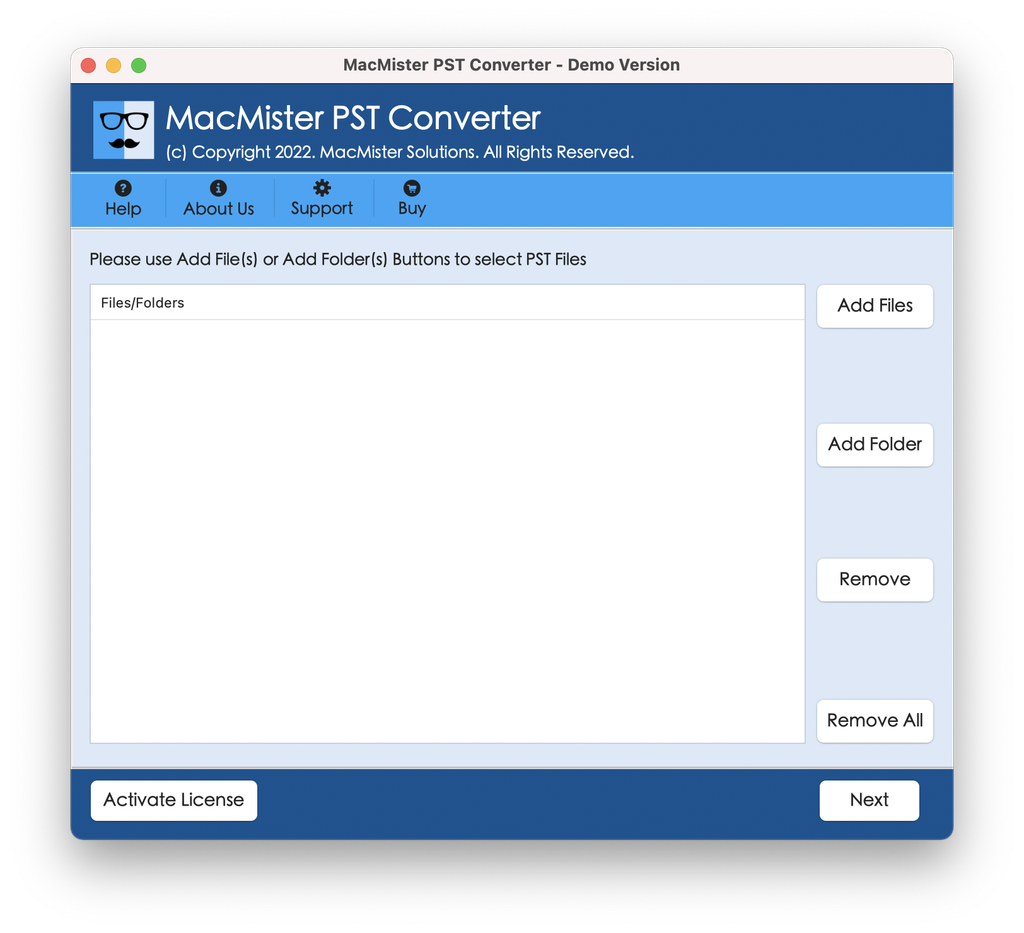
Step 2. Press Add File(s) to import separate 64-bit .pst files, or press Add Folder to browse for the folder that contains multiple PST files.
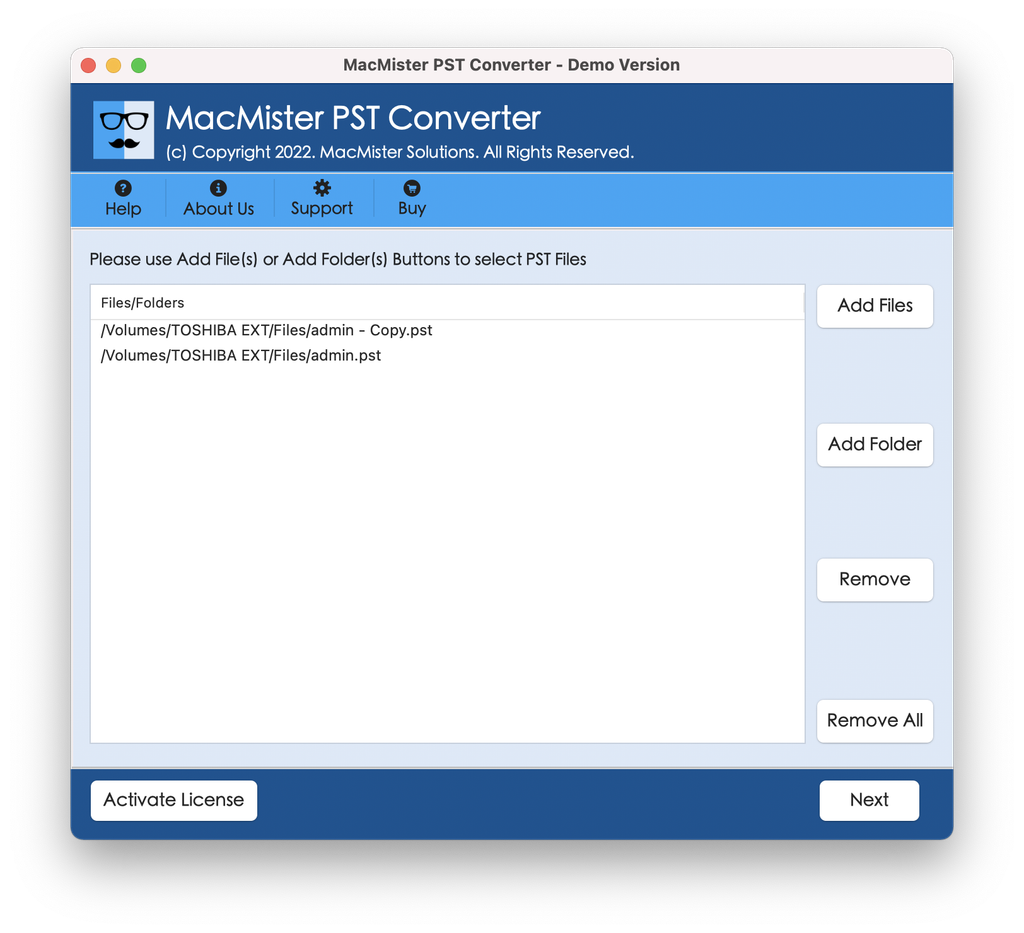
Step 3. The converter shows all the folders inside the Unicode PST file. You can select/deselect some mail folders according to your needs.
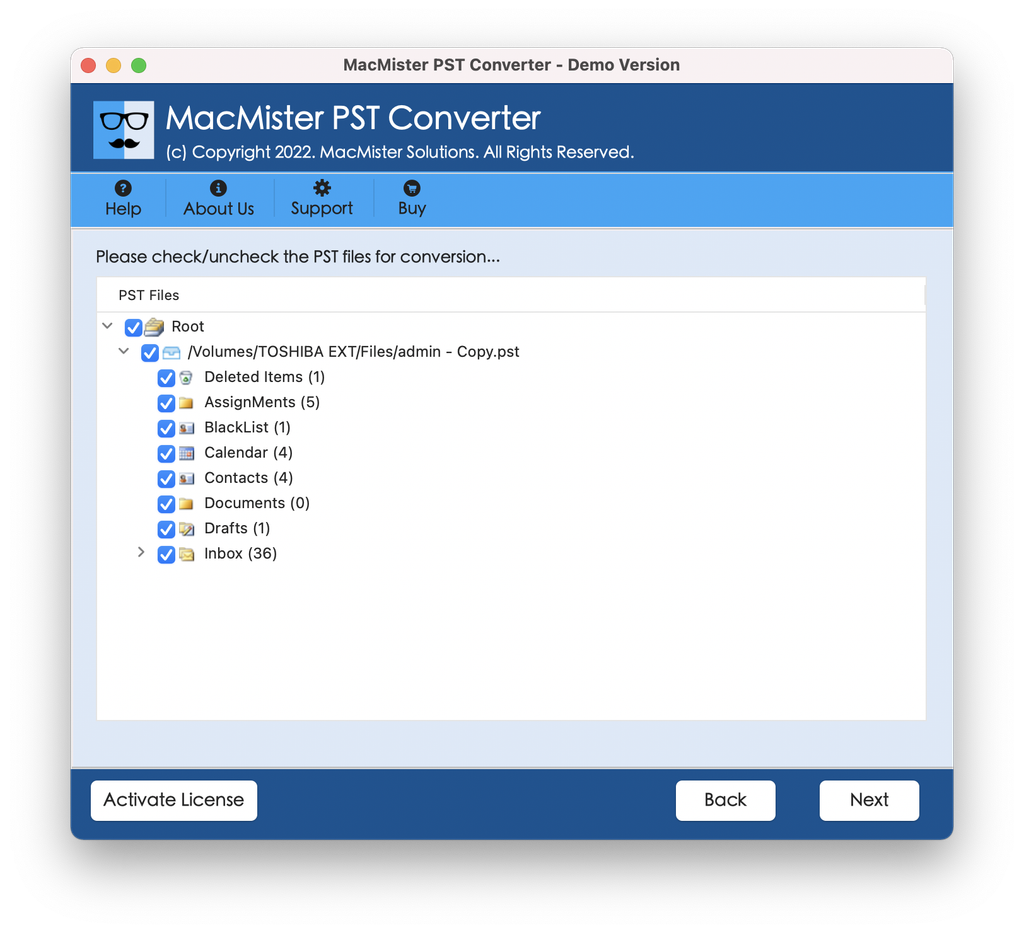
Step 4. Choose your output format (for example, MBOX for Apple Mail/Thunderbird, OLM for Outlook for Mac, or PDF for convenient viewing).
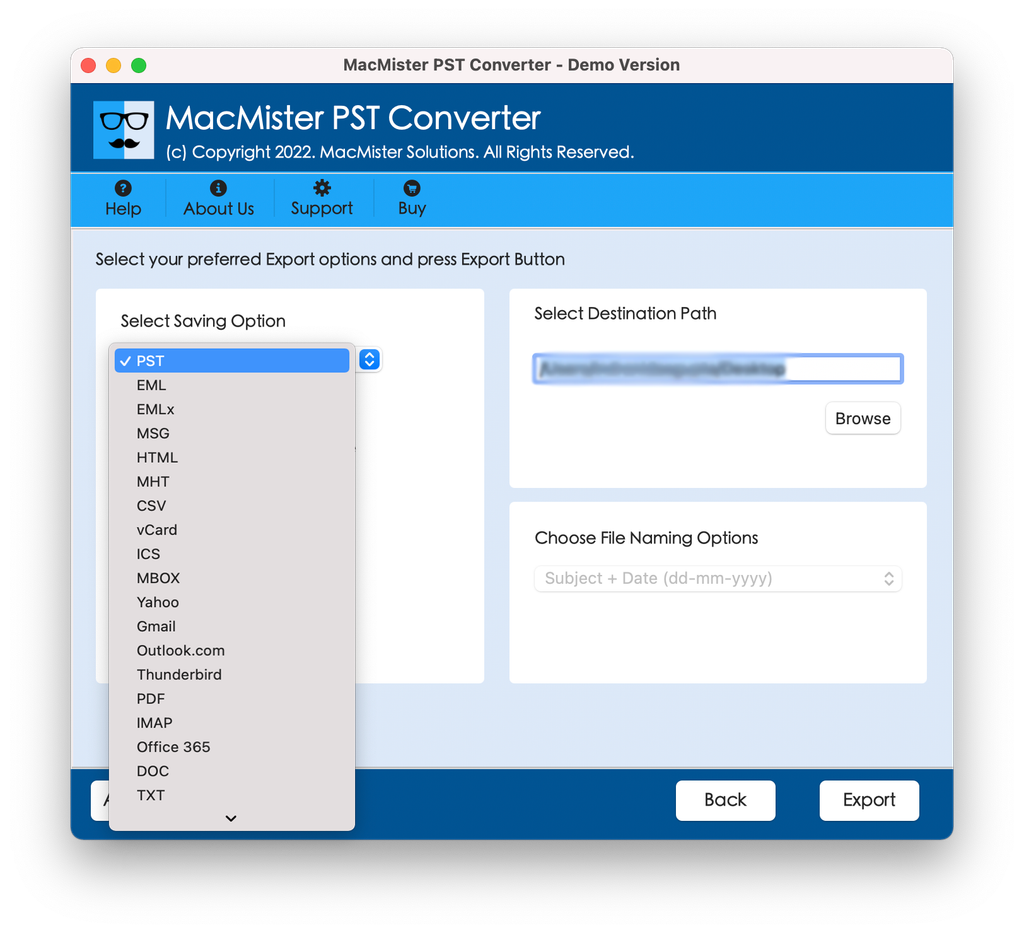
Step 5. Apply sub-options as per needs and tap Export to start the process.
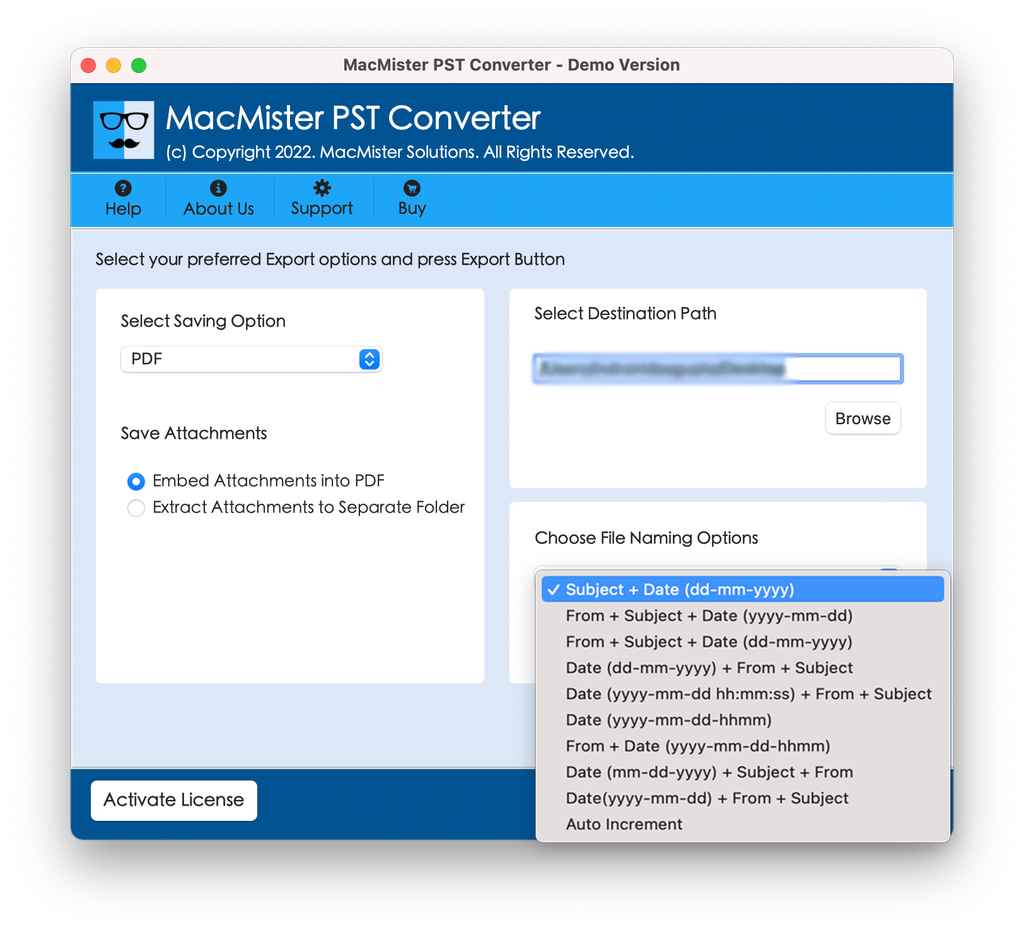
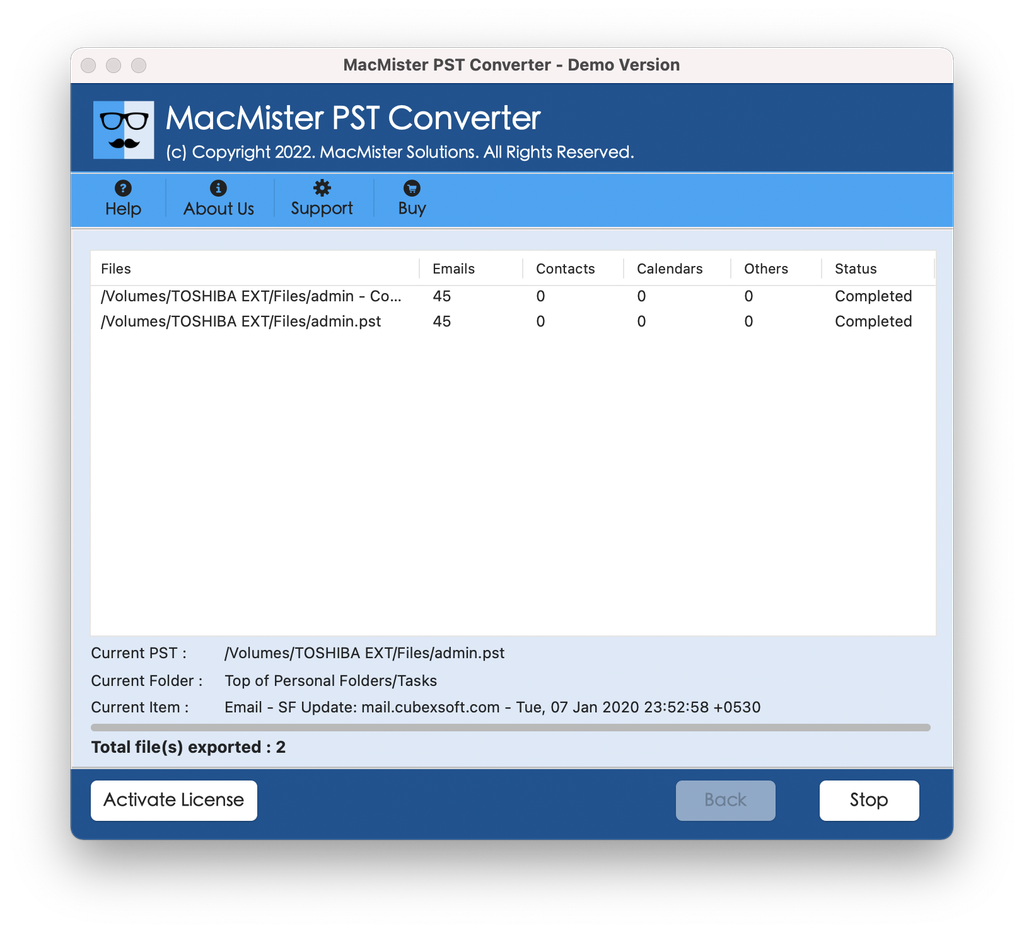
Step 6. You’ll see a progress bar. When the conversion is finished, you will see the result window.
Conclusion
Loading a 64-bit Unicode PST file in Mac OS X does not necessarily have to turn out to be an ordeal that may lead to file corruption or attachment loss. As there is no subsystem built into macOS to support parsing of PST files from Windows, such operations often result in data loss, especially when dealing with large archives.
By using MacMister PST Converter for Mac, one may easily convert 64-bit Unicode PST files into Mac-compatible format (MBOX, EML, OLM, PDF), retaining attachments, directory structure, and metadata in the process.

