When one shifts from one OS to another or uses different email clients, they may face compatibility issues especially when working with Outlook OST files. On Windows, Microsoft Outlook uses OST (Offline Storage Table) to make a local copy of your mailbox information.
However, when you switch to a Mac computer or receive an OST backup file that cannot be found within your email account, it is not possible to open them via any email client running on macOS. Apple Mail, Mozilla Thunderbird, or any other program for macOS does not provide a capability to open or read the contents of OST containers. There is no way to import such a file on macOS.
In this regard, the best approach is to convert and save your OST emails as EML files. EML format is fully compatible with macOS and can be used for accessing your emails on Mac computers.
Why Convert OST Files to EML Format on Mac?
Moving from the monolithic OST database to separate EML files provides specific benefits for the Mac user:
- EML format is an open standard that complies with RFC 822. It’s natively supported by Apple Mail and other previewers, as well as Thunderbird. No need to use Outlook to open such files.
- If the OST file size is large enough, a simple damage to one sector will corrupt the whole database. EML conversion guarantees that no message will be impacted.
- Spotlight cannot search inside a closed OST container. If the file is converted to EML, Spotlight will search through all emails’ bodies, subjects, senders and dates.
- You can filter, sort or distribute certain conversations without moving the whole heavy file.
Challenges of Manual OST File Handling on macOS
Attempting to access OST data manually on a Mac presents several roadblocks:
- There are no native filter facilities available in macOS applications that can allow users to open, read, or import OST files.
- In case of deactivation or unavailability of the exchange account linked to the OST file, even Windows Outlook will fail to open the orphaned OST file.
- Copy-pasting methods and web scripts tend to delete inline images, change date stamps, and also corrupt email headers.
The Solution: Save OST Emails as EML Using MacMister OST Converter
In order to convert OST files safely using a Mac computer without the risk of losing any data, losing formatting, or any kind of crashes of the software, the best way would be to use a specific program such as MacMister OST Converter for Mac.
MacMister’s Mac OST Converter Tool is designed for conversion processes in macOS. This tool enables users to choose large or orphan OST files and convert them to well-organized EML files.
Key Capabilities of MacMister OST Converter:
- Single OST file loading or batch load OST archives from whole folders is possible via Add Files and Add Folder options.
- Functioning entirely independently from macOS without the need for Microsoft Outlook application or live Exchange account connection.
- 100% preservation of all email headers (To, From, CC, BCC, Date, Subject) inline images, HTML format, and attachments included.
- Creates accurate replica of your original Outlook mailbox folder hierarchy at your destination output folder.
- Offers various naming conventions (such as Subject + Date, From + Subject, Auto Increment) for organizing exported EML files.
- Native working across Apple Silicon (M1, M2, M3, M4) and Intel processors on all versions of macOS, including Sequoia, Sonoma, Ventura.
Step-by-Step Guide: How to Convert OST to EML on Mac
Follow these simple steps to save your OST emails into EML format without risk of data loss:
Step 1. Install MacMister OST Converter for Mac on your Mac workstation and launch the program.
Step 2. Click Add Files to select individual .ost files, or choose Add Folder to import an entire directory of OST archives.
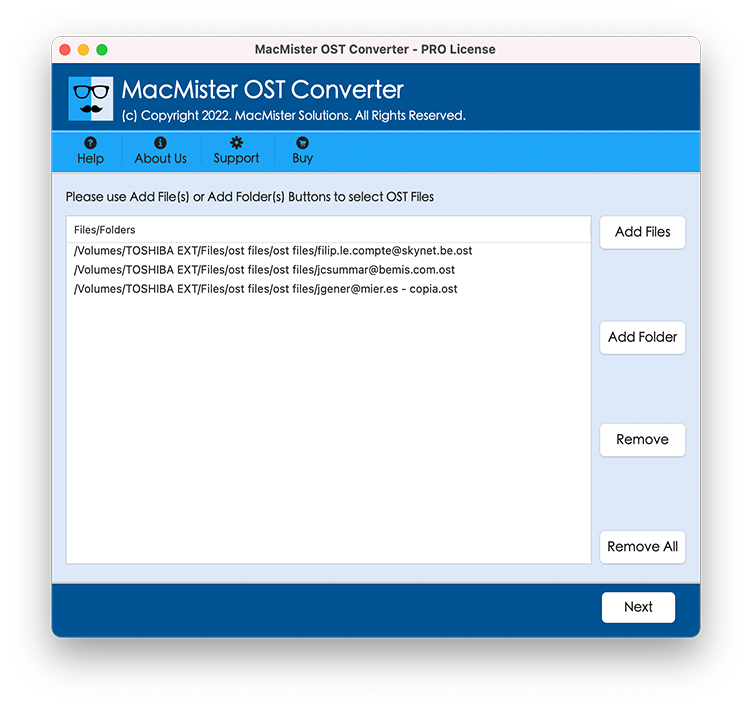
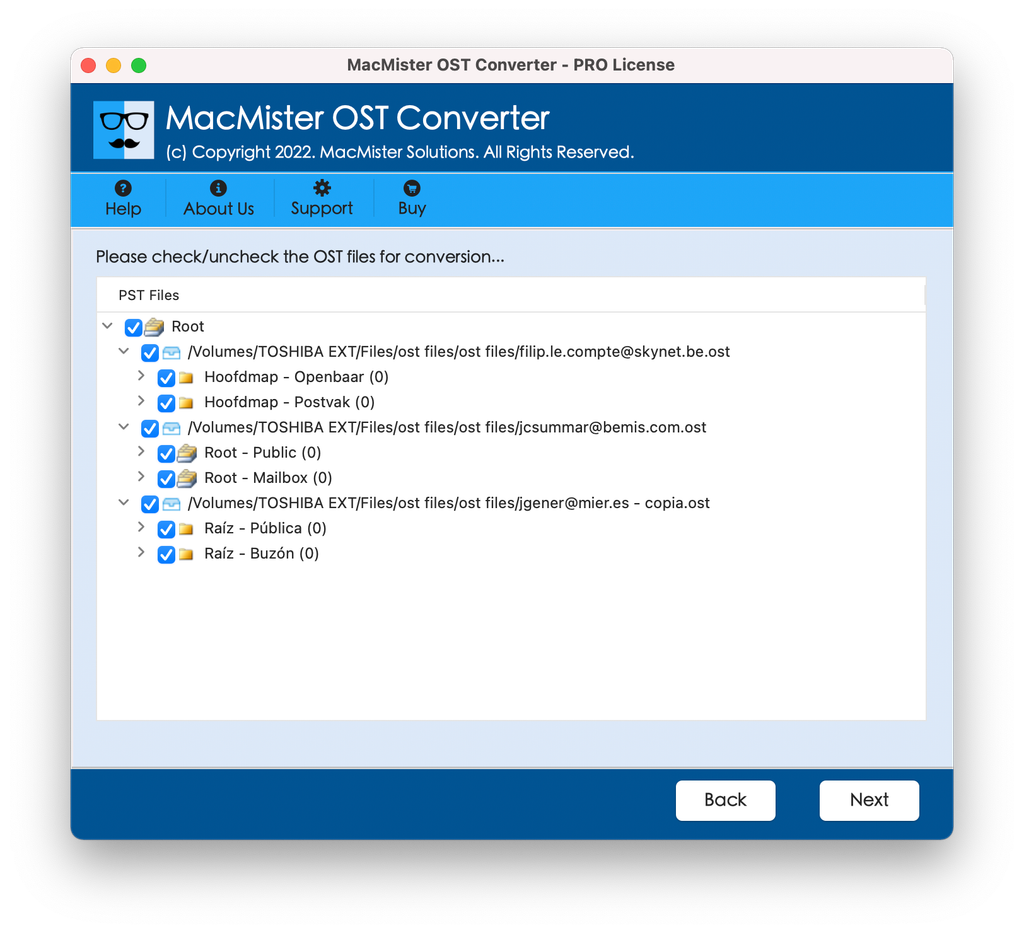
Step 3. The utility scans the database and displays an interactive folder tree. Select or unselect specific folders (Inbox, Sent Items, Custom Folders) according to your needs.
Step 4. Open the Select Saving Option dropdown menu and select EML as your target export format.
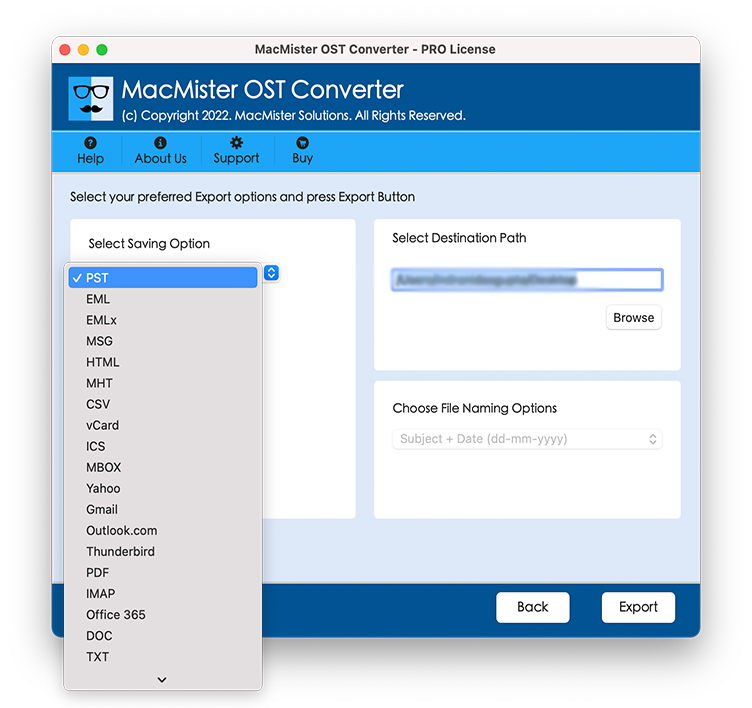
Step 5. Click Browse to select your preferred output directory on your Mac or external disk. Choose a file naming pattern if desired.
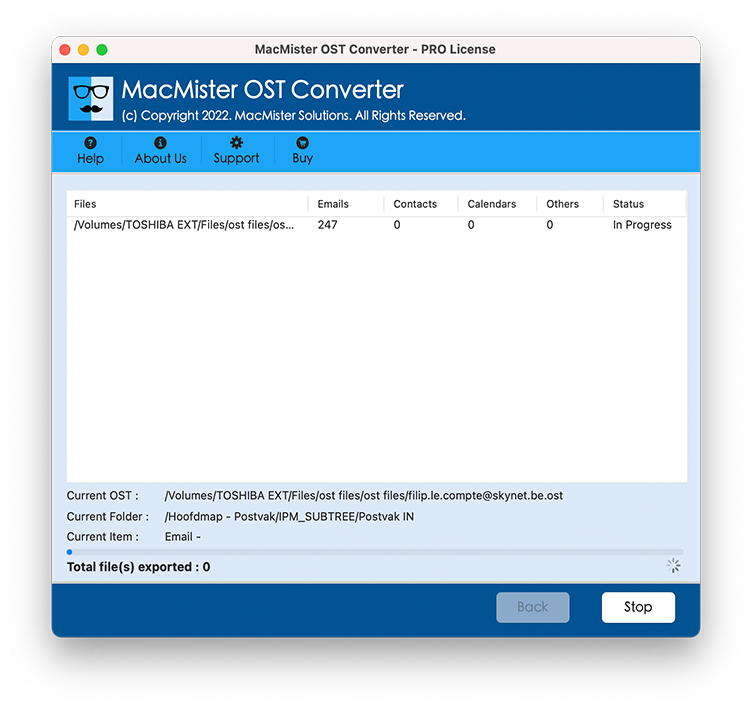
Step 6. Click the Convert button to start the process. The software displays a real-time progress bar along with a detailed log report upon completion.
How to Import Converted EML Files into Apple Mail?
After conversion of your OST files to EML format, importing them to Apple Mail is quick and easy:
- Launch Apple Mail on your Mac computer.
- Go to File > Import Mailboxes… from the top menu bar.
- Choose Files in MBOX or EML format (or standard folder import) and then click Continue.
- Click Choose to navigate to the target folder where your EML files have been saved using MacMister.
- The entire list of messages would be seen in the newly created Imported folder in the left pane.
Alternatively, you could directly drag and drop your EML files into any active folder in Apple Mail.
Conclusion
Exporting OST emails into EML format on Mac is by far the best way to recover your offline Outlook email archive without risking data loss or corruption. While there are no built-in features of Mac OS that can work directly with these proprietary files, MacMister OST Converter for Mac offers you the most efficient way to convert such files. This way, you will keep your email archive safe and fully functional.

