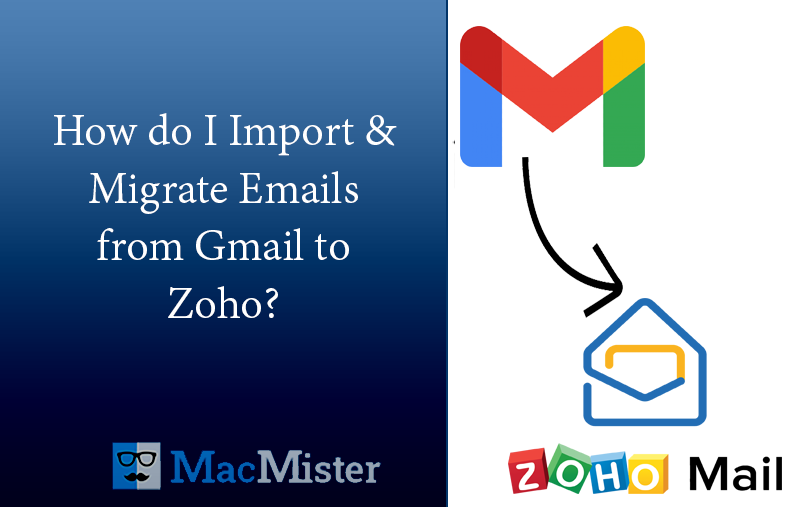
Switching from Gmail to Zoho Mail can be useful for users who want a different email management environment, better control over business mailboxes, or a centralized platform for their email communication. However, moving years of Gmail correspondence is not simply about creating a new Zoho Mail account. Important emails, attachments, labels, and other mailbox data also need to be preserved during the transition.
For Mac users, there are multiple ways to move Gmail emails to Zoho Mail. Users can use Zoho’s available migration options, export Gmail data for backup, or use a dedicated Gmail to Zoho Mail for Mac tool to download and organize mailbox data before importing it into the destination account.
Gmail to Zoho Mail – Migration Process Explained
Zoho Mail provides different migration options depending on the source email platform and the type of data being moved. Its migration documentation includes IMAP/POP migration as well as migration options for services such as Google Workspace.
For Gmail accounts, an IMAP-based approach can be used when the required account access and authentication settings are available. Zoho’s migration workflow allows administrators to configure a migration, add source and destination users, and monitor the migration status.
Another approach is to first create a local backup of Gmail emails and then prepare that data for use with Zoho Mail. This method can be helpful when users want to keep an independent copy of their old mailbox instead of relying completely on a direct server-to-server transfer.
Scenario
Consider a business user who has been using Gmail for several years and now wants to shift daily communication to Zoho Mail. The Gmail account contains thousands of emails, important attachments, and categorized messages. Moving everything manually would take a considerable amount of time, while losing even a few important messages could create problems later.
The user therefore decides to create a complete backup of the Gmail mailbox on a Mac before moving the required data to Zoho Mail. Having a local copy provides an additional layer of protection and makes it easier to verify the mailbox data during the transition.
Why Create a Gmail Migration Before Switching to Zoho Mail?
There can be several reasons for moving Gmail data to Zoho Mail –
1. Centralized Email Management – Businesses may prefer to manage their professional email accounts through a dedicated business email platform.
2. Preserve Historical Emails – Old emails often contain customer communication, invoices, project discussions, and other information that users may need later.
3. Create a Local Backup – Before changing email services, maintaining a local backup provides an additional copy of important correspondence.
4. Better Organization – Moving historical emails to a new mailbox can help users bring older communication into a centralized environment.
5. Reduce Dependency on a Single Account – Keeping an independent backup of email data ensures that important correspondence is not available only inside the original online mailbox.
Zoho also provides IMAP/POP migration and other migration methods for moving email data from supported platforms.
Manual Method to Move Gmail Emails to Zoho Mail
One option is to use Gmail and Zoho’s built-in migration capabilities. The exact process can vary depending on whether the account is an individual Gmail mailbox or part of Google Workspace.
For an IMAP-based migration, users generally need to prepare the destination Zoho Mail accounts and configure the source server details. Zoho’s current migration workflow allows administrators to create an IMAP migration, add users, start the migration, and review migration statistics and failure reports. A simplified workflow is –
- Create and configure the required Zoho Mail account.
- Ensure the source Gmail account is accessible for migration.
- Open the migration section in Zoho Mail.
- Configure the appropriate source connection.
- Add the source and destination mailbox details.
- Start the migration.
- Monitor the migration status and verify the transferred emails.
For organizations with multiple mailboxes, Zoho also supports adding users in bulk through a CSV file in its migration workflow.
Risks and Limitations of the Manual Method
Although a direct migration can be useful, relying entirely on a manual or online process can present some challenges.
- Large mailbox size – A mailbox containing years of emails may take considerable time to process.
- Authentication issues – Modern account security and authentication requirements can affect access to the source mailbox.
- Migration failures – Some messages or folders may fail to transfer and require investigation or retry.
- Limited local control – A direct migration does not automatically give users a separate offline backup of the original Gmail data.
- Folder and label differences – Gmail labels and Zoho Mail folders do not always work in exactly the same way, so users may need to verify the organization of imported messages.
- Internet dependency – Server-based migration requires a stable connection and access to both email services.
Zoho provides migration reports and retry/sync options to help administrators review failed or completed migrations.
Alternative – Gmail to Zoho Mail migration Tool for Mac
To transfer Gmail email messages to Zoho Mail account directly, the MacMister Gmail Backup Tool for Mac simplifies the transfer Gmail emails to Zoho Mail in bulk. It helps to preserve important email content, attachments, and other mailbox information. The software can easily resolve all your problems regarding how to transfer emails from Gmail to Zoho Mail account.
This approach can be useful when the mailbox contains a large amount of historical correspondence. A local backup also gives users an additional copy that can be retained even after the Gmail-to-Zoho transition has been completed.
The tool is designed to simplify Gmail mailbox backup by allowing users to select the required mailbox data and save it in supported formats. Depending on the selected export format and workflow, users can prepare the backed-up email data for further processing or importing.
Key Benefits of Gmail to Zoho Mail Tool
- Local Gmail Backup – Create an independent copy of important Gmail correspondence on your Mac.
- Bulk Processing – Handle multiple emails and mailbox data without manually saving individual messages.
- Attachment Preservation – Important email attachments can be retained along with the corresponding messages when supported by the selected export format.
- Simple Interface – The straightforward workflow makes it easier for users to manage Gmail backup tasks without complicated technical procedures.
- Useful for Migration Planning – A local backup can act as a safety copy before users begin changing their email service.
- Mac Compatibility – The software is designed for users working on macOS.
Final Thoughts
Moving Gmail emails to Zoho Mail requires careful planning, especially when the source mailbox contains years of important correspondence. Zoho Mail provides migration options such as IMAP-based migration, which can be suitable for users who want to transfer mailbox data directly.
However, creating a separate backup before the transition can provide additional protection against unexpected migration issues. For Mac users, the Gmail to Zoho Mail for Mac tool offers a practical way to preserve Gmail mailbox data locally before proceeding with a Gmail-to-Zoho Mail transition. A backup-first approach can make the overall process more organized and give users greater confidence that their important email data remains available throughout the migration.