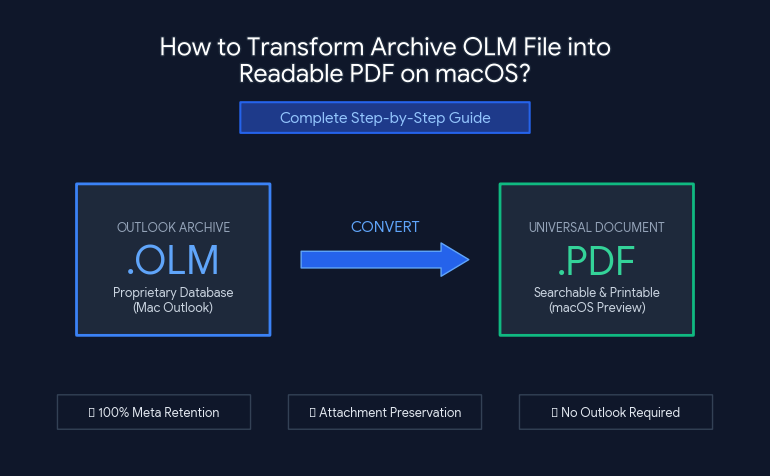
Outlook for Mac by Microsoft supports OLM (Outlook for Mac Database) format to save emails, attachments, contacts, appointments, and tasks. Even though the OLM format is a perfect storage solution for an active Outlook user, it turns into an obstacle while changing email clients, retiring an old Mac computer or archiving previous business correspondence. As a proprietary and closed database format unique for Outlook for Mac, it becomes almost impossible to view OLM data without Microsoft 365 and Outlook account.
Conversion of archived OLM files to the Portable Document Format (PDF) is recognized as a universal approach to preserving emails for the future use and easy access to them. It is possible to open PDF file from any operating system such as macOS, iOS, Windows, Android, or Linux, without using any specific software, database engine, or email account.
Why Convert OLM Archives to PDF Format?
Converting OLM archives into individual PDFs or batch PDFs results in several advantages:
- One need not to rely on Microsoft Outlook to open and view emails; PDF documents can easily open on macOS using Preview, Safari or other PDF applications.
- PDF or PDF/A format is acceptable in legal terms for discovery, audits and archiving purposes. The documents are locked and secured from any unauthorized changes.
- Converting files into PDF will retain all of the important metadata such as Sender, Recipient, CC/BCC, Date, Time, Subject together with attachments and images embedded.
- New macOS indexes all of the text in the PDF documents allowing searching through thousand emails in a fraction of second without loading heavy databases.
- In case you switch from macOS to another operating system in the future, your PDF email documents will be 100% accessible and print-ready.
The Challenges of Manual OLM Extraction
Manually converting OLM emails to PDF through the built-in print option in Outlook that comes with several constraints for great amount of emails:
- Outlook for Mac offers a possibility to open each email individually and choose to go to File > Print > Save as PDF. However, performing these steps manually on thousands of emails in numerous subfolders is quite impossible.
- The manual process of exporting files individually to one single destination folder results in loss of well-structured directories (Inbox, Sent items, project folders etc.)
- Ordinary printing converts text body into PDF format while ignoring attachments (PDFs, Word documents, spreadsheets etc.) related to that particular email.
- The manual conversion procedure requires to have a working version of Outlook for Mac on your Mac. In case you have only an .olm file that came out of your old backup, manual process will not open it for you.
Opt for a Professional and Automated Approach
To minimize the requirement of manual labor, maintain metadata accuracy, and make it easier to manage a large number of archives, then the optimal way to proceed will be to use a dedicated program like MacMister OLM Converter for Mac. This software is specially designed for Mac OS and lets you convert OLM databases to PDF format. Key Features of MacMister OLM Converter for Exporting to PDF:
- Upload single or multiple OLM archive files simultaneously using the convenient Add Files or Add Folder options.
- Possibility to use custom page format, margins, and paper size (A4 or Letter) when converting to PDF.
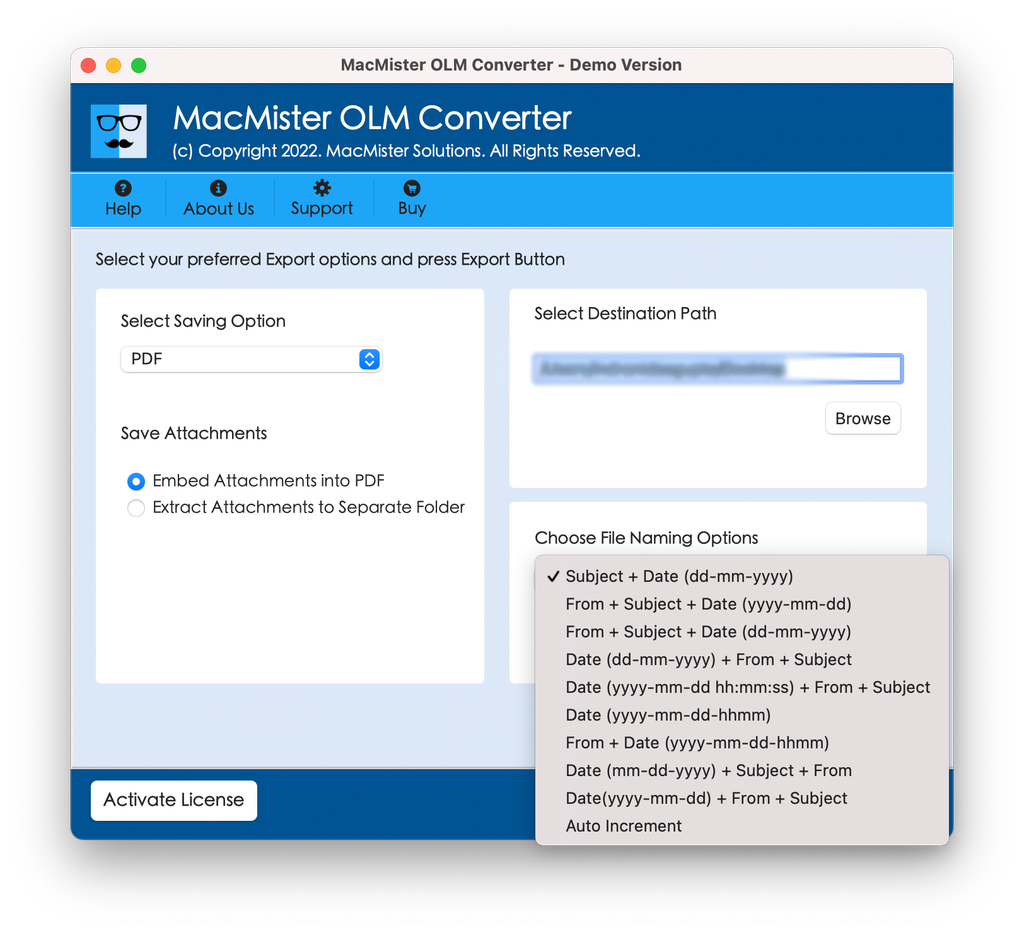
- Ability to organize your output PDFs using flexible naming conventions (Subject + Date, From + Subject, etc.)
- Choice to embed attachments directly in the resulting PDF or place them in a separate folder alongside the PDF.
- Ability to replicate your original Outlook mailbox folder tree in the destination folder.
- Complete compatibility with all versions of Apple Silicon (M1/M2/M3/M4) and Intel processors running macOS Sequoia, Sonoma, Ventura, and older versions.
Working Guide of the Tool to Convert Archived Outlook Mac Files into Readable PDF Format
The process of converting your OLM emails to PDF format using MacMister’s advanced data conversion utility is easy, and here are the simple steps:
Step 1. Download the software directly from MacMister’s site and run the program on your computer.
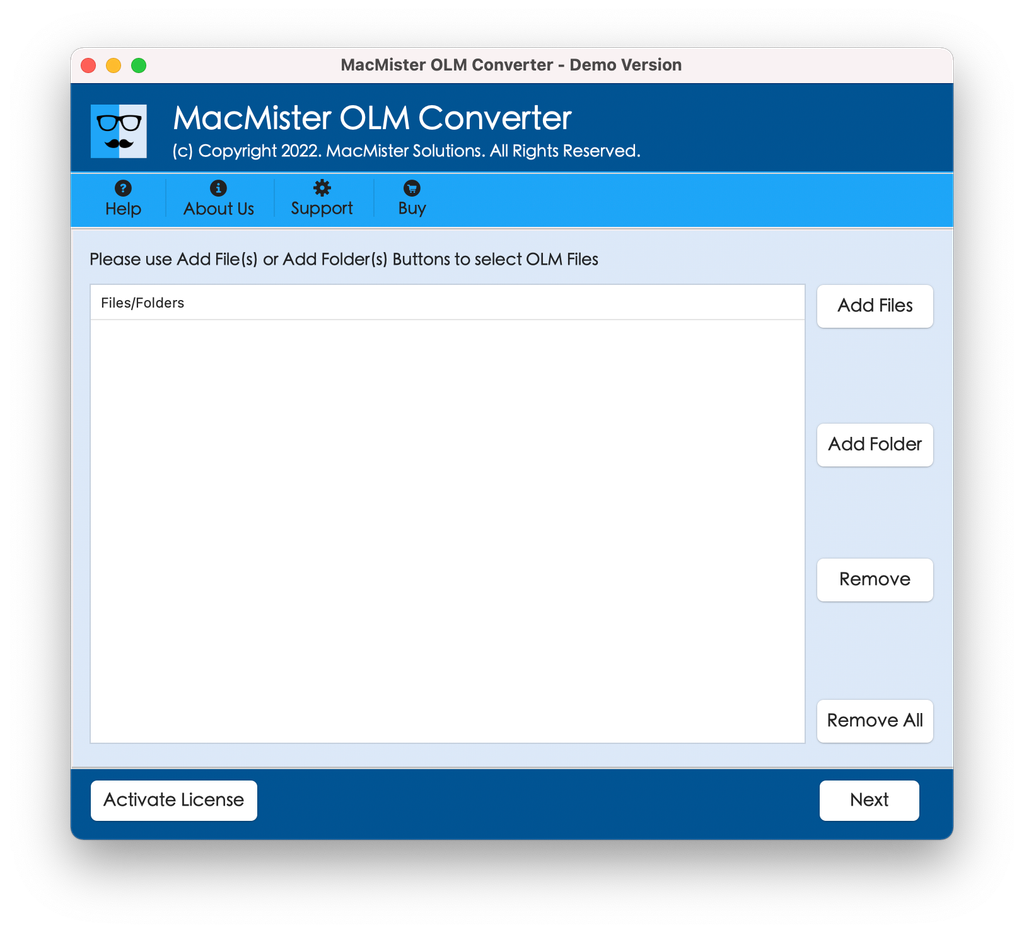
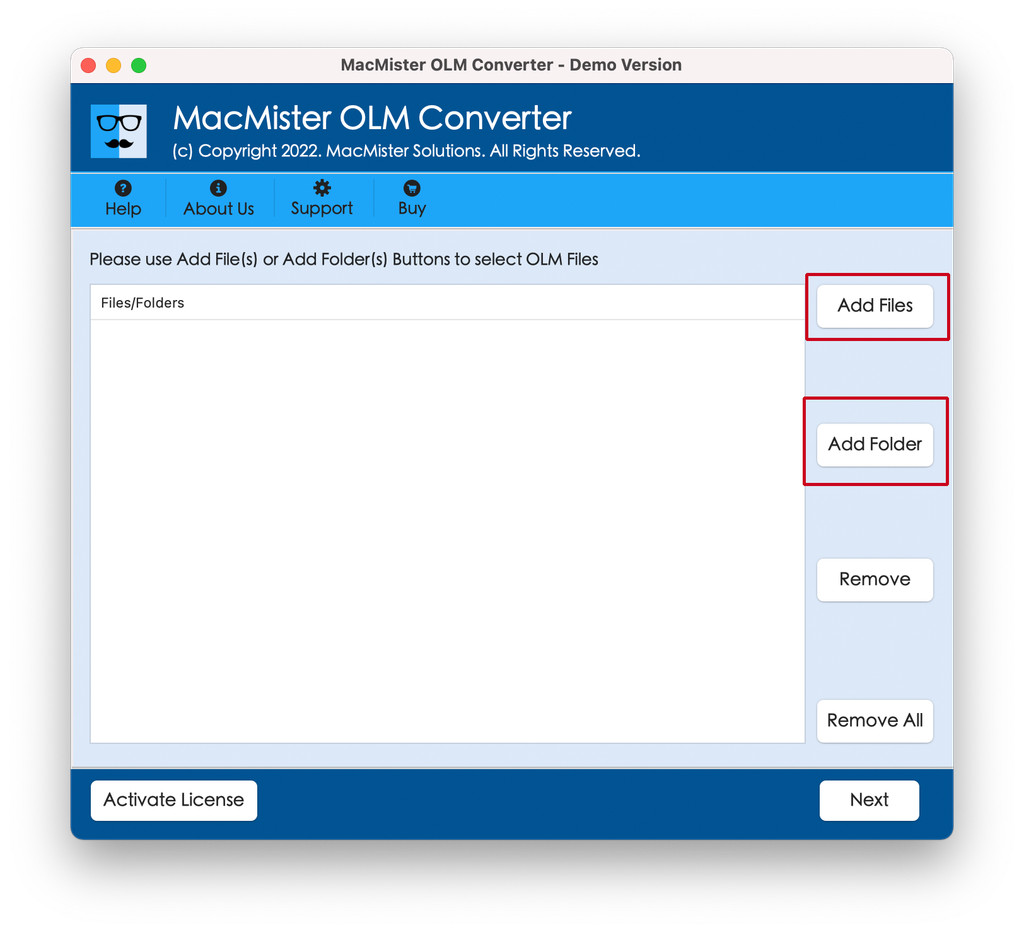
Step 2. Choose Add Files option to pick individual OLM files or choose Add Folder to load all the OLM databases stored in a single folder.
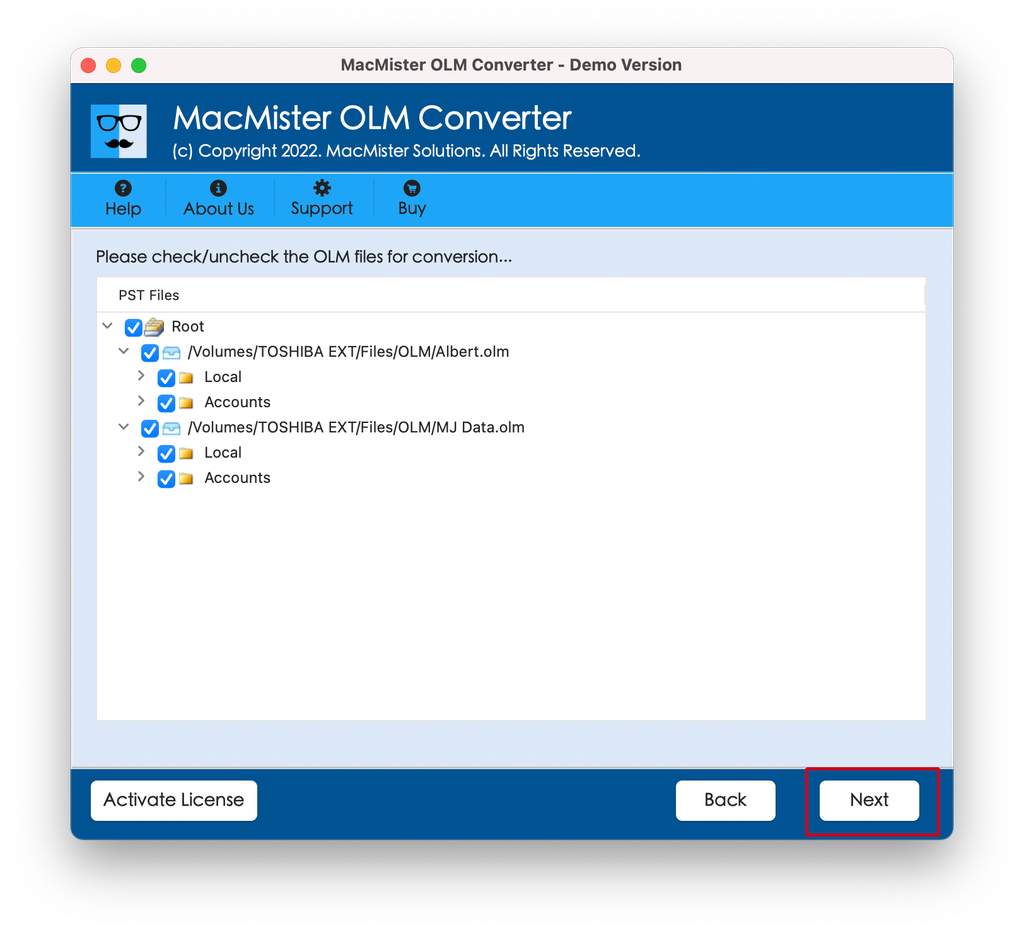
Step 3. The tool will analyze your OLM file and provide an interactive directory structure. Tick the required OLM folders that you want to convert to PDF.
Step 4. Select PDF from the Select Saving Option drop down menu.
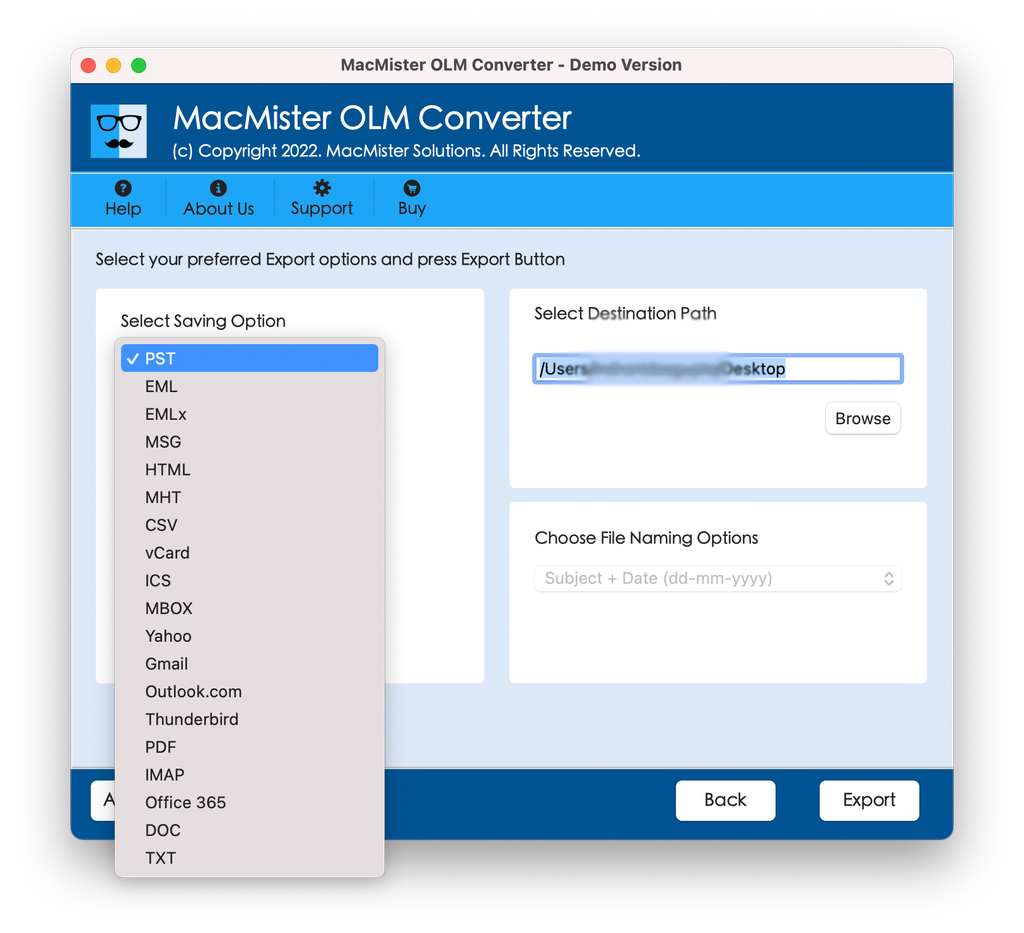
Step 5. Set other options as per your requirements and save your converted files and click Export.
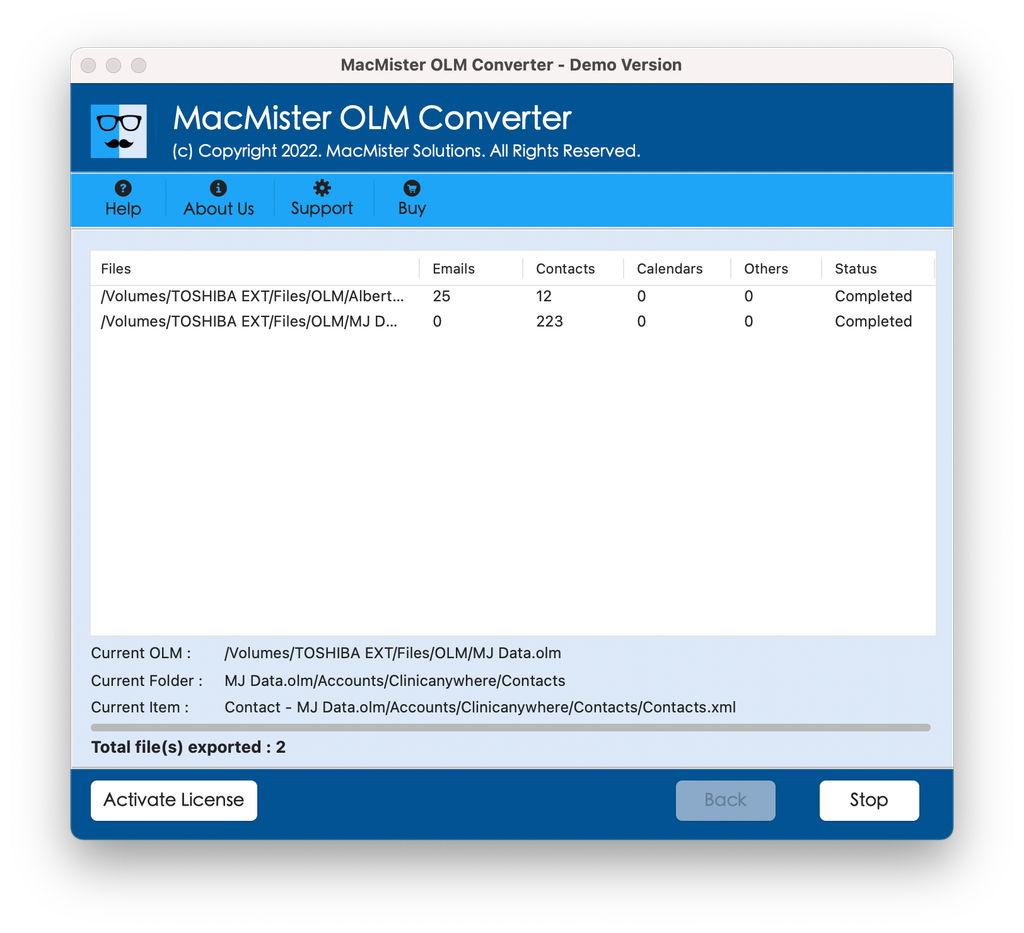
Step 6. Track the live procedure using Live Conversion Report window appearing on the screen.
Conclusion
Conversion of OLM archives into PDF files on Mac is the sole method that guarantees optimal results in accessing, adhering to regulations and searching through historical email archives. Although printing tricks could be employed, they would take too much time and there would be a risk of losing all attachments. Instead, MacMister OLM Converter for Mac will allow making the migration process swift and efficient.

