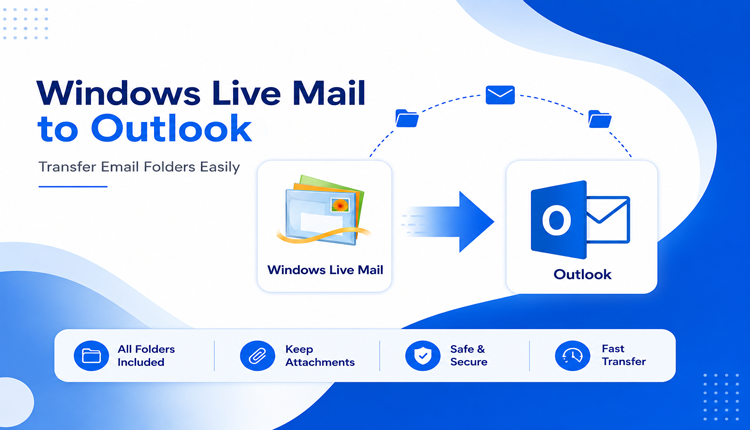
Windows Live Mail was once a popular desktop email client for storing and managing messages locally. However, as users move toward Microsoft Outlook, they often need to transfer their old email folders, including Inbox, Sent Items, Drafts, and custom folders, into Outlook. The process can become challenging because Windows Live Mail stores messages in EML format rather than Outlook’s native PST format. Microsoft also notes that EML files can be imported into supported versions of Outlook, but the exact process depends on the Outlook version being used.
If you have a large collection of Windows Live Mail folders, manually moving every email can take considerable time. This guide explains different approaches and highlights a dedicated EML conversion solution for Mac users.
Scenario – Why Do Users Need to Move Windows Live Mail Folders to Outlook?
Consider a user who has been using Windows Live Mail for several years. Their mailbox contains hundreds or thousands of emails organized into folders such as Work, Clients, Projects, Personal, Sent Items, and Archives.
Now, they have decided to switch to Outlook for better email management and compatibility with Microsoft services. Instead of leaving the old emails behind, they want to transfer the complete email collection to Outlook while retaining important information such as –
- Email content and formatting
- Sender and recipient information
- Subject and dates
- Attachments
- Custom email folders
- Original folder organization
This is where Windows Live Mail to Outlook migration becomes important.
Overview of Windows Live Mail to Outlook Transfer
Windows Live Mail generally stores individual messages as EML files, whereas Outlook commonly works with its own mailbox data structures. Because of this difference, Windows Live Mail data cannot simply be treated like an Outlook PST file.
Microsoft documentation confirms that EML files can be used when moving locally stored messages to newer Outlook environments. For example, Microsoft’s current Windows Mail export workflow saves locally available messages as EML files, which can then be imported into new Outlook. Therefore, the basic migration workflow is –
Windows Live Mail → EML Files → Outlook
For a small number of emails, this may be manageable manually. For large folders and multiple mailboxes, however, a dedicated EML conversion utility can make the process more organized.
Why Transfer Windows Live Mail Emails to Outlook?
There are several reasons users choose to move their old Windows Live Mail folders to Outlook.
1. Windows Live Mail Is No Longer a Modern Email Platform – Windows Live Mail is an older email application and is no longer supported as a current Microsoft mail client. Users therefore often move their historical messages to a supported platform such as Outlook.
2. Centralized Email Management – Outlook allows users to manage emails, calendars, contacts, and other productivity data from one application.
3. Preserve Old Business Emails – Old client conversations, invoices, project discussions, and attachments may still be important. Transferring them to Outlook keeps them accessible.
4. Easier Access to Archived Messages – Instead of searching through an outdated Windows Live Mail installation, users can keep historical messages available in Outlook.
5. Better Long-Term Accessibility – Keeping email data in a format compatible with a currently used email client can make future access easier.
Manual Method to Transfer Windows Live Mail Email Folders to Outlook
The manual approach generally involves first saving Windows Live Mail messages as EML files and then importing those files into Outlook.
Step 1 – Export or Save Windows Live Mail Messages
Open Windows Live Mail and select the messages or folders you want to preserve. Save or export the messages as EML files to a local folder.
Windows Live Mail can create individual EML files when messages are dragged from the message list into a file-system folder. Microsoft community guidance describes this approach for transferring Windows Live Mail messages between computers.
Step 2 – Organize the EML Files
Create separate folders on your computer corresponding to the original Windows Live Mail structure. For example –
Inbox, Sent Items, Drafts, Work, Clients, Personal, Archives
This makes it easier to identify where each group of emails belongs.
Step 3: Open Outlook
Launch Outlook and sign in to the account where you want to keep the old messages.
The exact import process varies according to the Outlook version. Microsoft’s current documentation provides an EML import workflow for new Outlook, where users can navigate to Settings > General > Import, select the EML files, choose the destination account and folder, and start the import. Each folder needs to be imported individually.
Step 4: Verify the Imported Emails
After importing, open several messages and check –
- Sender and recipient details, Subject, Date and time, Attachments, Message formatting, Folder placement
- If everything appears correctly, repeat the process for the remaining folders.
Risks and Limitations of the Manual Method
Although manual EML handling can work for a small mailbox, it becomes inconvenient when dealing with a large Windows Live Mail database.
- Time-Consuming Process – Thousands of EML files may require considerable time to organize and import.
- Folder-by-Folder Work – Microsoft’s current new Outlook workflow requires each folder to be imported individually, which can become tedious for users with many folders.
- Risk of Missing Emails – When working with a large number of files manually, it is easy to overlook particular messages or folders.
- Folder Organization Issues – Manually recreating dozens of folders increases the possibility of placing messages in the wrong destination.
- Duplicate Emails – Repeated imports or copying the same EML files more than once can result in duplicate messages.
- Technical Compatibility – The process differs between Outlook versions. A method that works with one Outlook edition may not work identically with another.
- Difficult for Large Mailboxes – Manual handling is practical for a small collection, but managing thousands of EML files individually is inefficient.
Alternative Windows Live Mail to Outlook for Mac Solution
For Mac users who have Windows Live Mail emails saved as EML files, MacMister EML Converter for Mac provides a dedicated way to process EML data in bulk.
The software supports batch processing of EML/EMLX files and folders and can export them into multiple formats, including PST, MSG, MBOX, PDF, HTML, CSV, DOC, and other destinations. It can also export EML data directly to services such as Gmail, Office 365, Outlook.com, Thunderbird, and IMAP.
How to Transfer Windows Live Mail Folders to Outlook Tool Works on Mac
Firstly collect all EML files of Windows Live Mail in a single folders then follow the given steps –
Step 1 – Add EML Files or Folders
Install and launch the software on your Mac. Use the Add File(s) or Add Folder(s) option to load individual EML files or complete folders of Windows Live Mail.
Step 2 – Select the Required Output
Choose the required PST as your saving option for Outlook migration requirements.
Step 3: Choose the Destination
Select a location on your Mac where you want to save the converted data.
Step 4: Start the Conversion
Click Export to begin processing. The software provides a live conversion status so users can monitor the task.
It also supports bulk EML processing, attachments, selective conversion, and folder hierarchy preservation, making it more suitable for users handling a large collection of Windows Live Mail EML files.
Key Benefits of Live Mail to Outlook for Mac Tool
- Converts multiple EML files in bulk
- Supports complete EML folders
- Preserves email attachments
- Maintains email metadata and formatting
- Supports folder hierarchy
- Offers multiple export formats
- Provides selective email conversion
- Works directly on Mac
- Suitable for processing large EML collections
Final Thoughts
Transferring email folders from Windows Live Mail to Outlook is possible, but the best approach depends on the size of the mailbox and the Outlook version being used. For a few emails, manually saving EML files and importing them may be sufficient. However, users dealing with hundreds or thousands of messages may find the process repetitive and difficult to manage.
For Mac users who already have Windows Live Mail emails in EML format, Windows Live Mail EML to PST Converter for Mac provides a more structured approach. Its batch conversion, folder processing, attachment handling, and multiple export options can simplify the process of preparing old Windows Live Mail emails for Outlook and other modern email platforms.